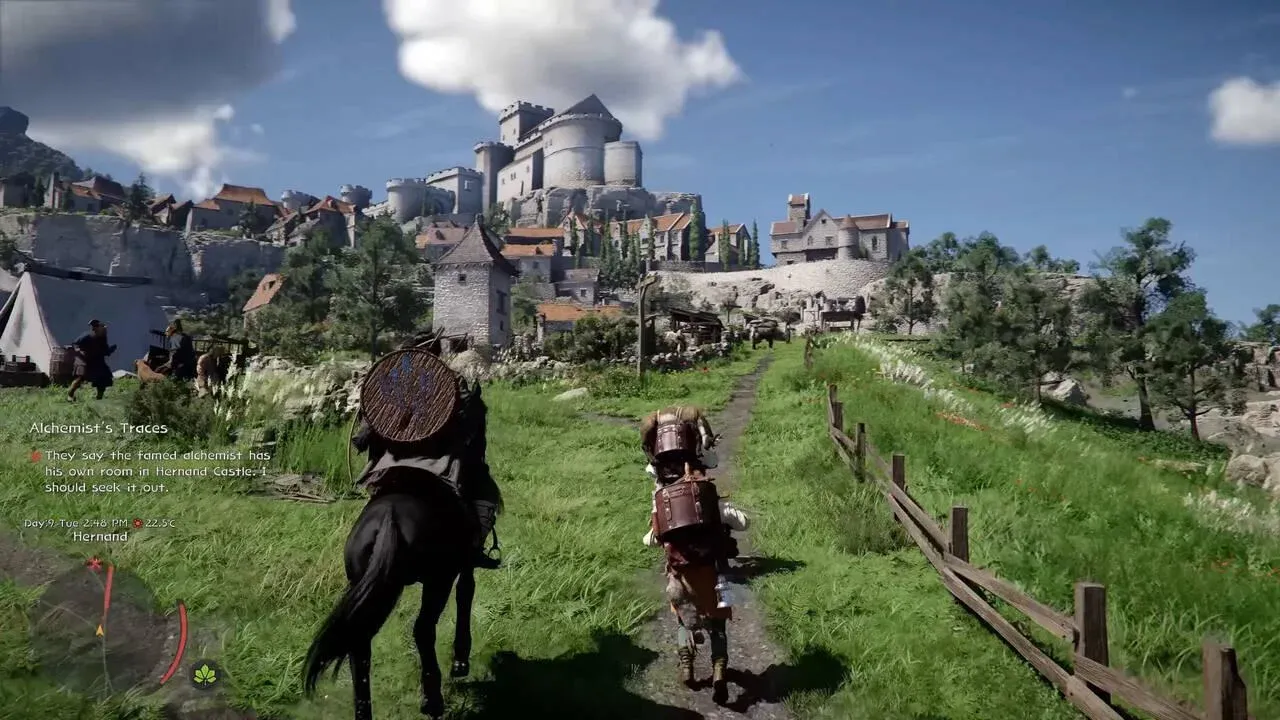


Crimson Desert is one of the most visually striking open-world RPGs to release in recent memory, and getting it running well on console is more involved than simply hitting play. Between three distinct graphics modes, a known resolution bug tied to your console's 120Hz output, and some genuine differences across hardware, there's real value in taking five minutes to dial in your settings before diving into Pearl Abyss's massive world.
What Are the Best Crimson Desert Console Settings?
Before touching anything in-game, the single most impactful change you can make happens entirely outside of Crimson Desert itself. A widely reported bug causes the game to render at a noticeably lower internal resolution when your PS5's 120Hz Output is active, making the image appear soft and washed out regardless of which graphics preset you select.
Here's how to fix it:
- Open your PS5 system settings (not the in-game menu)
- Navigate to Screen and Video
- Select Video Output on the left panel
- Find 120Hz Output and set it to Off
Multiple players across Reddit confirmed this fix resolves the blurriness immediately. One user described the difference as night and day, noting the blur was affecting their eyes during extended play sessions. Keep in mind you'll need to re-enable 120Hz when switching to other games that use it.
Which Graphics Mode Should You Use?
Crimson Desert offers three presets across PS5, PS5 Pro, and Xbox Series X. Each one targets a different balance of resolution, frame rate, and visual fidelity. Here's a breakdown of what each mode actually delivers:
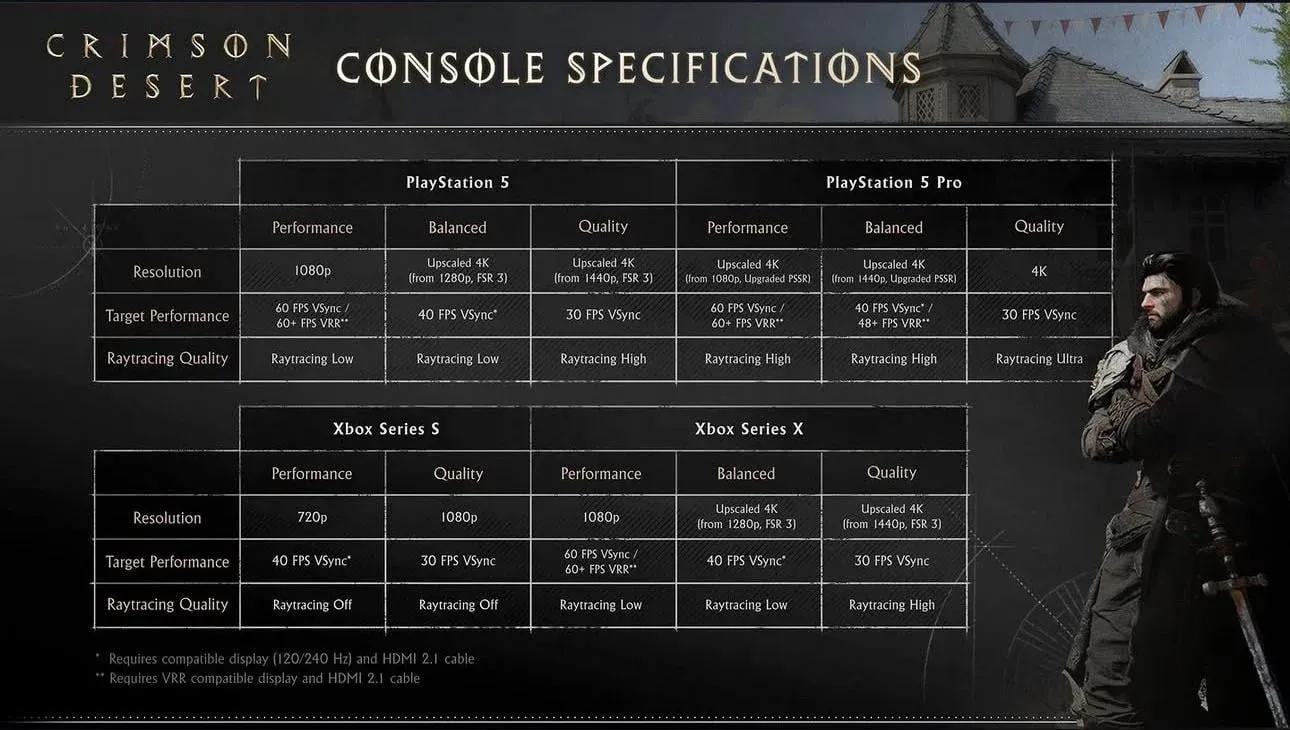
Balanced mode at 1440p/40FPS
Performance Mode: Fast but Flawed
Performance mode targets 60 FPS at 1080p, which sounds appealing for an action-heavy RPG. In practice, though, it comes with the most noticeable environmental pop-in of the three modes. Foliage, terrain, and even mountainous rock formations load in awkwardly mid-frame, creating a distracting visual shimmer in your peripheral vision. Character hair and fur elements, particularly protagonist Kliff's beard, also render at noticeably lower fidelity.
The 60 FPS itself is reportedly stable during the game's opening hours, but players have noted frame rate instability in dense city areas and during large-scale battles.
Balanced Mode: The Sweet Spot
Balanced mode runs at 1440p and 40 FPS, and it's the recommended starting point for most players. The visual quality sits much closer to Quality mode than Performance mode, while the 40 FPS target makes combat and exploration feel genuinely fluid. Pop-in is still present but noticeably reduced compared to Performance mode.
For players with a 120Hz display, 40 FPS divides cleanly into that refresh rate, meaning motion cadence feels smoother than a standard 30 FPS presentation.
Quality Mode: Beautiful but Demanding
Quality mode delivers upscaled 4K at 30 FPS with high ray tracing enabled. Pop-in is essentially eliminated in this mode, and the image quality is the best available on standard PS5 and Xbox Series X. The trade-off is that 30 FPS is a genuine limitation for Crimson Desert's fast-paced combat system.
If you prioritize visual fidelity and are comfortable with 30 FPS in action games, Quality mode is worth considering. For most players, though, Balanced mode will feel more satisfying to actually play.
Best In-Game Display Settings
Once your system settings are sorted, here are the recommended in-game display options to pair with your chosen graphics mode:
- Preset: Balanced (recommended starting point)
- Contrast: 50
- HDR: Off (unless you own an OLED TV or a proper full-array local dimming display)
- V-Sync: On
- Brightness: Adjust to personal preference based on your display
The HDR recommendation deserves a note. On most standard LED TVs, HDR can actually wash out the image in Crimson Desert rather than enhance it. If you're playing on an OLED or a high-quality FALD panel, enabling HDR can improve highlight detail and color depth. Otherwise, leaving it off produces a cleaner, more consistent picture.
For more tips on getting the most out of your favorite games, browse the latest guides on GAMES.GG to stay ahead of the curve.