
Crimson Desert launches players into one of the most demanding control schemes in recent action RPG memory. Between seven distinct skill combos, context-sensitive interactions, and a movement system that layers crouch, slide, mantle, and climb onto a single key, getting comfortable takes real effort. This guide breaks down every default binding for keyboard and mouse, PS5, and Xbox, then walks through the remapping options that actually make a difference.
Full keyboard and mouse controls
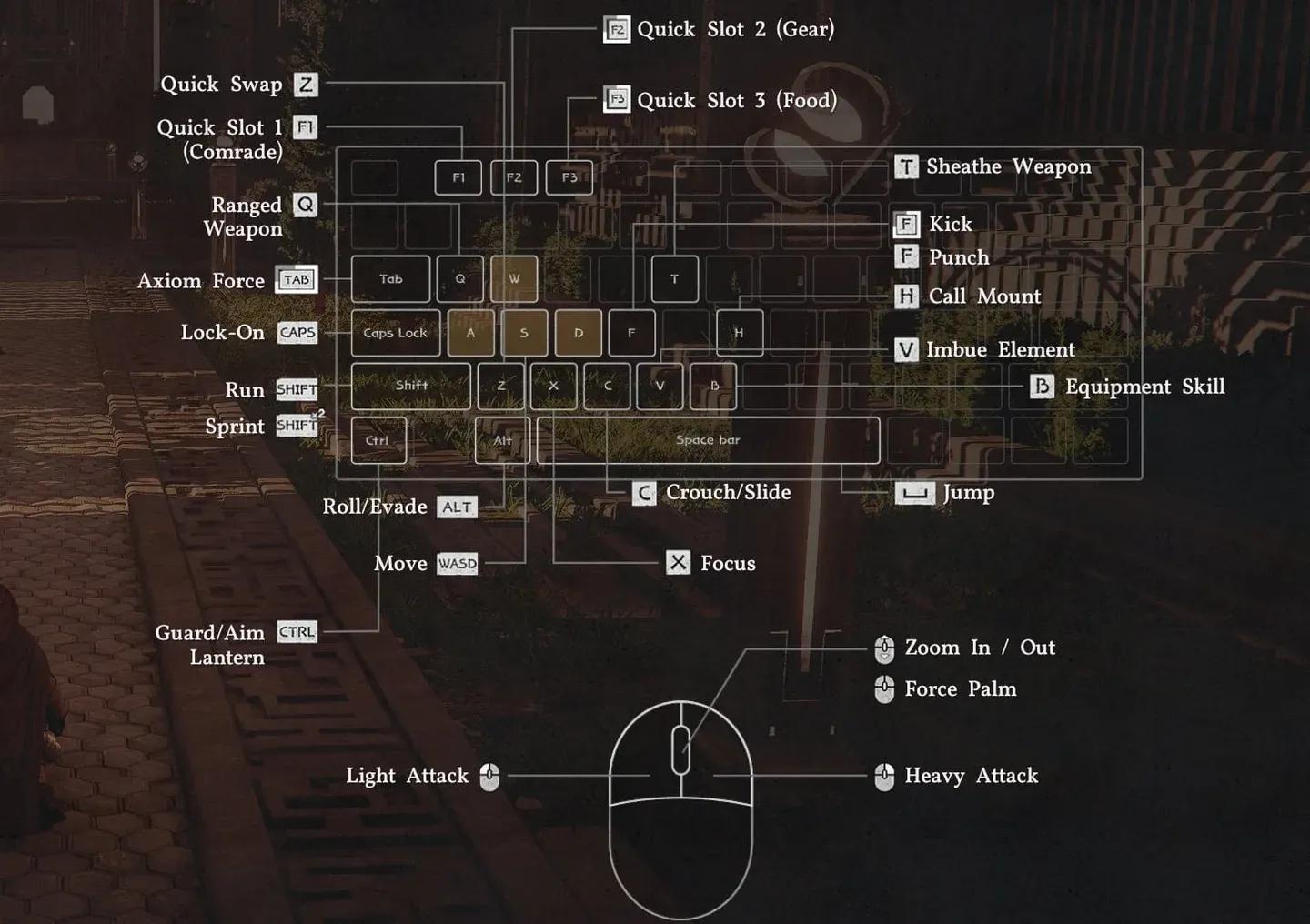
The default PC layout covers four major categories. Skill inputs stay consistent regardless of which weapon you have equipped, but the actual ability performed changes based on your loadout.
Key remapping control panel

Movement and camera
| Action | Key | Input Type |
|---|---|---|
| Move | WASD | Hold |
| Move Camera | Mouse | Motion |
| Camera Zoom In/Out | Mouse Wheel | Scroll |
| Lock-on | Caps Lock | Press |
| Run | Shift | Double Press (Toggle) |
| Crouch | C | Hold |
| Slide | C | Hold (While Running) |
| Jump | Space | Press |
| Precision Jump | Ctrl + Space | Hold Ctrl, then Press |
| Double Jump (Unlocked) | Space | Press (Mid-air) |
| Mantle | Space | Press (Near Ledge) |
| Climb | Space + WASD | Jump Towards Wall |
| Roll | Alt | Press |
| Evade | Alt | Double Press |
| Evade (Alt Bind) | Mouse 5 | Press |
Basic controls
| Action | Key | Input Type |
|---|---|---|
| Quick Menu (Last) | Esc | Press |
| Scroll Menu | Esc | Hold |
| Inventory | I | Press |
| Skills | K | Press |
| Journal | J | Press |
| Map | M | Press |
| Use Gear | B | Press/Hold |
| Force Palm | Middle Mouse Button | Press |
| Call Mount | H | Press |
| Dismount / Put Down Item | R | Press |
| Comrade Quick Slot | F1 | Hold |
| Gear Quick Slot | F2 | Hold |
| Food Quick Slot | F3 | Hold |
| Stow Weapon | T | Press |
Interaction
| Action | Key | Input Type |
|---|---|---|
| Loot Item / Enemy | E | Hold |
| Interact | Ctrl | Hold |
| Interaction 1 | E | Press (While Interacting) |
| Interaction 2 | R | Press (While Interacting) |
| Interaction 3 | T | Press (While Interacting) |
| Interaction 4 | G | Press (While Interacting) |
| Previous | Q | Press |
| Next | E | Press |
| Lift Object | E | Press (While Interacting) |
| Place Object | R | Press (While Interacting) |
| Push | Left Mouse Button | Hold |
| Pull | Right Mouse Button | Hold |
Combat
| Action | Key | Input Type |
|---|---|---|
| Light Attack | LMB | Press/Hold to Combo |
| Heavy Attack | RMB | Press/Hold to Combo |
| Punch/Kick | F | Press |
| Aim | Q or M4 | Press |
| Fire | LMB | Press (While Aiming) |
| Focus | X | Press |
| Axiom Force | Tab | Press |
| Aim / Guard / Focus Light | Ctrl or M4 | Press |
| Skill 1 | RMB + LMB | Combo Press |
| Skill 2 | RMB + Ctrl | Combo Press |
| Skill 3 | RMB + Shift | Combo Press |
| Skill 4 | LMB + Alt | Combo Press |
| Skill 5 | LMB + Shift | Combo Press |
| Skill 6 | LMB + Space | Combo Press |
| Skill 7 | LMB + Ctrl | Combo Press |
| Weapon Swap | Z | Press |
| Grappling: Throw | F + LMB | Combo Press |
| Grappling: Lariat | F + RMB | Combo Press |
| Enemy Vault | Space + LMB | Combo Press |
| Imbue Element | V | Hold |
| Skill: Flame | 1 | Press |
| Skill: Frost | 2 | Press |
| Skill: Lightning | 3 | Press |
| Skill: Wind | 4 | Press |
Full PS5 and Xbox controller controls
Console bindings follow the same structural logic as PC, with skill combos using trigger-plus-bumper combinations instead of mouse-plus-key presses.
Movement and camera (console)
| Action | PS5 | Xbox |
|---|---|---|
| Move | LS | LS |
| Move Camera | RS | RS |
| Camera Zoom | Trackpad | View Button |
| Lock-on | D-Pad Down | D-Pad Down |
| Run | X (Hold) | A (Hold) |
| Sprint (Toggle) | X (Double Press) | A (Double Press) |
| Crouch / Slide | L3 | RS Click |
| Jump | Square | X |
| Precision Jump | L1 + Square | LB + X |
| Roll | Circle | B |
| Evade | Circle (Double Press) | B (Double Press) |
Basic controls (console)
| Action | PS5 | Xbox |
|---|---|---|
| Quick Menu | Options | Menu |
| Scroll Menu | Options (Hold) | Menu (Hold) |
| Use Gear | L1 | LB |
| Force Palm | R3 | RS Click |
| Call Mount | D-Pad Up | D-Pad Up |
| Dismount / Put Down Item | Triangle | Y |
| Comrade Quick Slot | D-Pad Up (Hold) | D-Pad Up (Hold) |
| Gear Quick Slot | D-Pad Left (Hold) | D-Pad Left (Hold) |
| Food Quick Slot | D-Pad Right (Hold) | D-Pad Right (Hold) |
| Stow Weapon | D-Pad Left | D-Pad Left |
Combat (console)
| Action | PS5 | Xbox |
|---|---|---|
| Light Attack | R1 | RB |
| Heavy Attack | R2 | RT |
| Punch/Kick | Triangle | Y |
| Aim (Ranged) | L2 (Hold) | LT (Hold) |
| Fire | L2 (Release) | LT (Release) |
| Focus | X | A |
| Axiom Force | L3 (Hold) | LS (Hold) |
| Block/Parry | L1 | LB |
| Skill 1 | R2 + R1 | RT + RB |
| Skill 2 | R2 + L1 | RT + LB |
| Skill 3 | R2 + X | RT + A |
| Skill 4 | R1 + Circle | RB + B |
| Skill 5 | R1 + X | RB + A |
| Skill 6 | R1 + Square | RB + X |
| Skill 7 | R1 + L1 | RB + LB |
| Grappling: Throw | Triangle + R1 | Y + RB |
| Grappling: Lariat | Triangle + R2 | Y + RT |
| Enemy Vault | Square + R1 | X + RB |
How do you remap controls in Crimson Desert?
Remapping works differently depending on your platform. On PC, full key rebinding is available through the pause menu. Open Settings, navigate to the Inputs sub-menu, and change any binding you want. If a new binding conflicts with an existing one, the game will ask whether you want to overwrite it. Be careful here: some default bindings already share keys, and overwriting them without planning ahead can require a full reset to defaults.
To save your changes, press Space to apply.
On consoles, native remapping is not currently available through the in-game menus. Pearl Abyss has confirmed that control accessibility improvements are coming in a future patch, though full remapping has not been officially confirmed as part of that update. For now, PS5 players with a DualSense Edge and Xbox players with an Elite Controller can remap inputs through their respective controller software.
Players on Steam can also remap controller inputs through Steam Input, though the in-game tutorials and menus will continue displaying the original default bindings regardless of what you've remapped.
What are the best control remaps for PC?
The default PC layout has a few genuinely awkward placements that become obvious the moment combat gets serious. After testing the control scheme across extended play sessions, three bindings stand out as the most worth changing.
Lock-on defaults to Caps Lock, which sits far from the action cluster and is easy to accidentally toggle. Moving it to Tab makes it far more accessible.
Axiom Force defaults to Tab, but it feeds into a large number of attacks and skill combos, so it needs a closer home. Remapping it to R works well since Dismount and Interaction 2 (both originally on R) are low-urgency actions that can be moved elsewhere without any combat impact.
Evade originally sat on Alt, which is uncomfortable for rapid double-tapping. Update 1.00.003 added Mouse 5 as a second default for Evade, which makes this less urgent, but the evade attack binding still benefits from being on the side button.
Here's the full recommended remap chain from the VULKK controls guide:
| Action | Default Key | Recommended Remap |
|---|---|---|
| Lock-on | Caps Lock | Tab |
| Evade | Alt | Mouse 5 |
| Guard / Aim (Alt) | Mouse 4 | Unbound |
| Axiom Force | Tab | R |
| Dismount | R | Y |
| Interaction 2 | R | 5 |
| Skill 4 | LMB + Alt | LMB + Mouse 5 |
| Blinding Flash | Ctrl + LMB | Mouse 4 |
The logic here is a cascade: freeing up Tab for Lock-on requires moving Axiom Force, which requires relocating Dismount and Interaction 2 to keys that don't matter in combat. Blinding Flash lands on Mouse 4 for quick access during both combat and treasure hunting, though note that this will unbind the secondary Guard/Aim mapping if it hasn't been assigned elsewhere.
Console recommendations
For standard PS5 or Xbox controllers, the default layout is playable but not ideal. The biggest pain points are the stick-click functions: L3 for crouch and R3 for Force Palm both require pressing down on your thumbsticks, which is imprecise and hard on the hardware over time.
If you own a DualSense Edge or Xbox Elite Controller, the recommended change is to move Run and Jump off the face buttons and assign L3 and R3 to the rear paddles instead. This keeps your thumbs on the sticks during the movement-heavy sequences where crouch and Force Palm come up most often.
For more guides covering Crimson Desert systems, weapons, and world exploration, browse the full guides section at GAMES.GG.