
Pearl Abyss built Crimson Desert on its proprietary BlackSpace Engine, and the results speak for themselves visually. But even a well-optimized engine needs a little help from your side of the screen. Whether you're running a budget GPU or a top-tier rig, the right settings can mean the difference between a stuttery slideshow and a locked, fluid 90+ FPS experience. This guide breaks down exactly what to change, what to leave alone, and why each setting matters.
What Makes Crimson Desert's Graphics Settings Unique?
Crimson Desert ships with a deceptively large number of tweakable options, and not all of them behave the way you'd expect. Simply dropping from the Cinematic preset to Low doesn't guarantee better performance. In fact, several settings are unaffected by preset changes entirely, and some lower-tier options can actually make your frame rate worse while degrading image quality at the same time.
The game's biggest visual weakness is noise, particularly in dimly lit interiors. Addressing that requires targeted adjustments rather than a blanket preset switch. The sections below walk through the best configuration for three hardware tiers: low-end PCs, high-end PCs, and Mac.

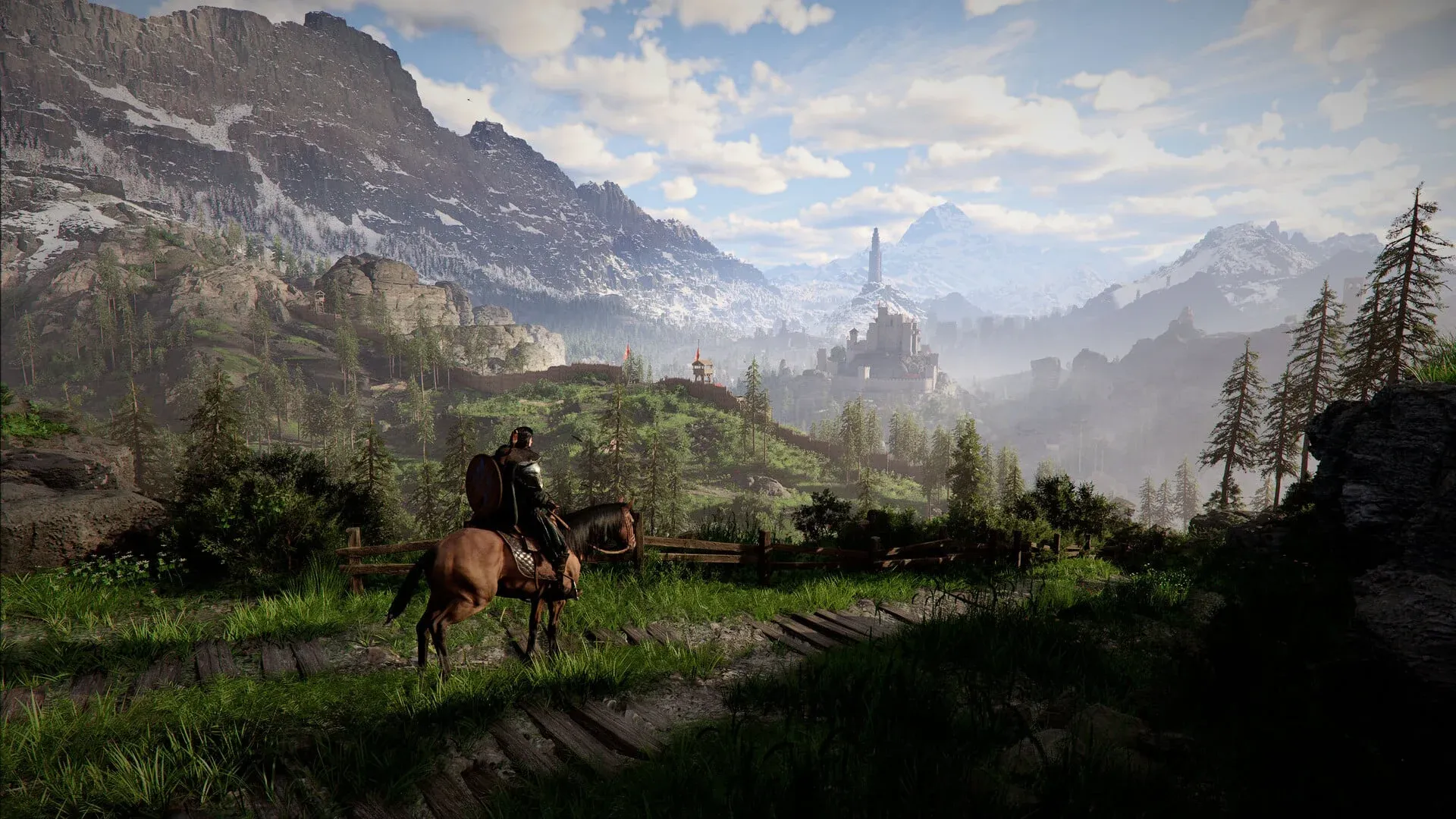
Best Settings for Low-End PCs
| Setting | Low-End PC Recommendation |
|---|---|
| Model Quality | Low |
| Texture Quality | Cinematic |
| Shadow Quality | High / Ultra |
| Ray Tracing | Off |
| Lighting Quality | Ultra |
| Reflection Quality | High |
| Advanced Weather Effect | Off |
| Water Quality | Ultra |
| Foliage Density | Low / Medium |
| Volumetric Fog Quality | High |
| Effect Quality | Cinematic |
| Simulation Quality | Cinematic |
| Post-processing Effect Quality | Cinematic |
| Blur Intensity | 0 |
| Upscaling Mode | DLSS Quality / DLAA |
| Ray Reconstruction | On (DLSS Performance) |
| Ray Regeneration | On (DLSS Performance) |
What Are the Best Settings for High-End PCs?
| Setting | High-End PC Recommendation |
|---|---|
| Model Quality | Ultra |
| Texture Quality | Cinematic |
| Shadow Quality | Ultra |
| Ray Tracing | On |
| Lighting Quality | Cinematic / Ultra |
| Reflection Quality | Cinematic |
| Advanced Weather Effect | On |
| Water Quality | Cinematic |
| Foliage Density | Cinematic |
| Volumetric Fog Quality | High |
| Effect Quality | Cinematic |
| Simulation Quality | Cinematic |
| Post-processing Effect Quality | Cinematic |
| Blur Intensity | 0 |
| Upscaling Mode | DLSS Quality / DLAA |
| Ray Reconstruction | On (DLSS Performance) |
| Ray Regeneration | On (FSR Performance) |
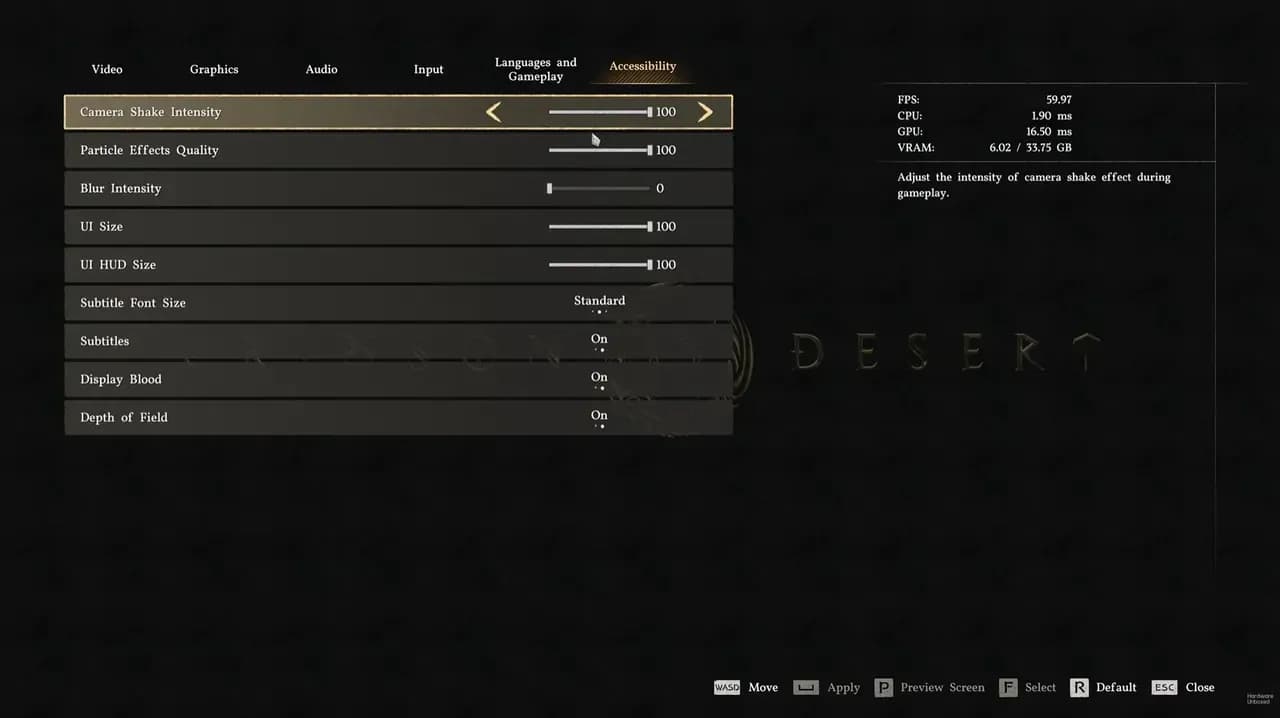
Graphics preset selection screen
Best Settings for Mac Users
Mac performance in Crimson Desert tracks closely with the low-end PC profile. Use the same configuration as the low-end table above, and consider pulling a few additional settings down if frame rates still feel rough. Foliage Density and Reflection Quality are the first candidates to reduce further on Mac hardware.
Ray Tracing should stay off on Mac. The GPU architecture differences mean the performance trade-off is unfavorable compared to running without it.
How to Further Boost Performance Beyond In-Game Settings
The in-game settings get you most of the way there, but a few Windows-level tweaks can push things further.
- Install on an SSD: Crimson Desert streams a large amount of texture and asset data. An SSD dramatically reduces load times and prevents mid-gameplay texture pop-in that can stutter frame pacing.
- Disable startup apps: Open Task Manager, navigate to the Startup tab, and disable anything non-essential. Background apps compete for RAM and CPU cycles during gameplay.
- Update GPU drivers: Both NVIDIA and AMD have released day-one optimized drivers for Crimson Desert. Running outdated drivers means leaving performance on the table.
- Enable Hardware-Accelerated GPU Scheduling: Found in Windows Graphics Settings, this option improves GPU efficiency and reduces latency in DirectX 12 titles.
Minimum Hardware Targets
Before you start adjusting settings, here's where your hardware needs to land for different performance tiers:
- 60 FPS at 1440p High preset: RTX 4070 or RX 7700 XT minimum
- 60 FPS at 1440p Ultra/Cinematic: RTX 4080 or RX 7900 XTX
- Ray Reconstruction and Ray Regeneration viable: RTX 5070 Ti or RX 9070 XT or better
If your GPU sits below the RTX 4070 tier, drop to 1080p and use DLSS Quality or FSR Quality upscaling. Frame Generation becomes essential below that threshold to hit 60 FPS at 1440p without sacrificing visual settings.
Final Tips Before You Jump In
Always run Crimson Desert in Fullscreen mode rather than borderless windowed. Fullscreen gives the game exclusive GPU access, which translates to lower system latency and more consistent frame delivery. Keep V-Sync off and let your monitor's variable refresh rate (G-Sync or FreeSync) handle frame smoothing instead.
For the latest on Crimson Desert and other titles worth optimizing, browse more guides at GAMES.GG to stay up to date on performance tips, builds, and everything in between.