Search games, articles, guides...CtrlK
Sign InGet Started
Fix Everwind crashes, black screens, and stuttering with these proven step-by-step solutions for UE5 startup errors and low FPS.

Written by Larc
Content Writer
See more GAMES.GG guides on Google
Add us as a preferred source and our guides show up first in your results.
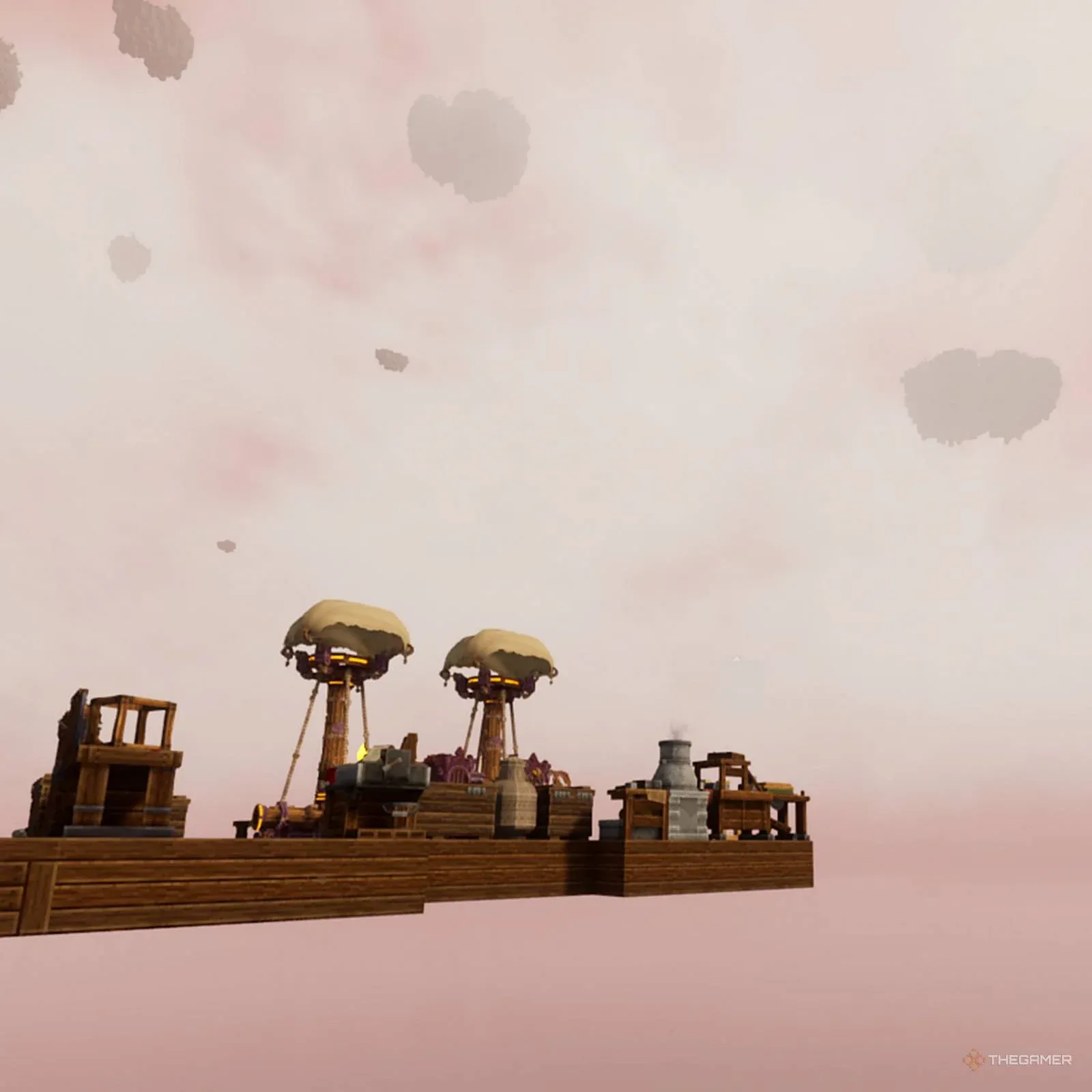
Everwind Airship Base Guide: Build, Farm, and Fly Right
Master Everwind's airship base with tips on ship setup, Carpenter Station recipes, farming crops, and Engineering skill tree upgrades.
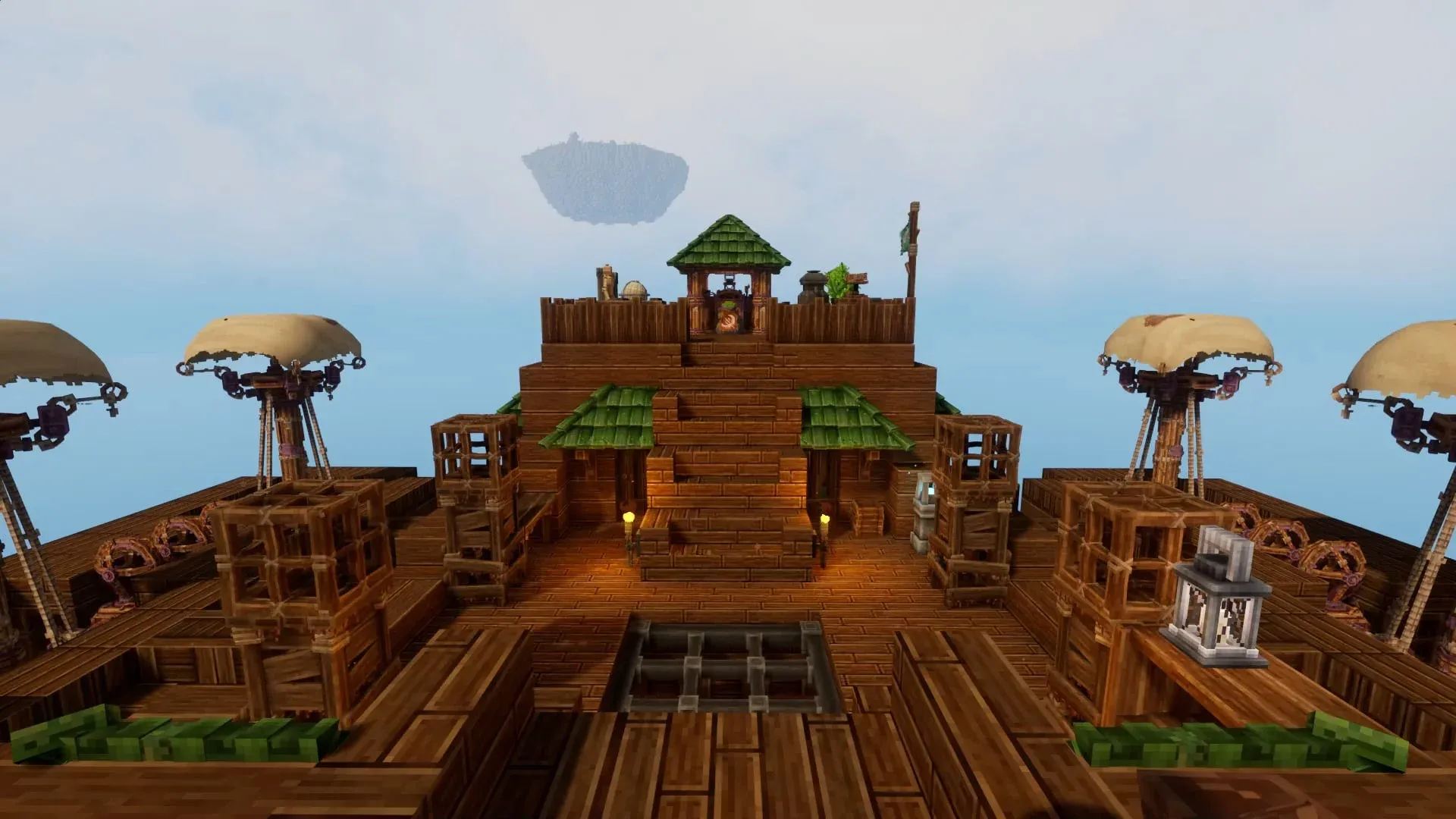
Everwind Farming Guide: Grow Food on Your Airship
Learn how to set up crops, craft the right soil, and keep plants alive on your airship in Everwind.
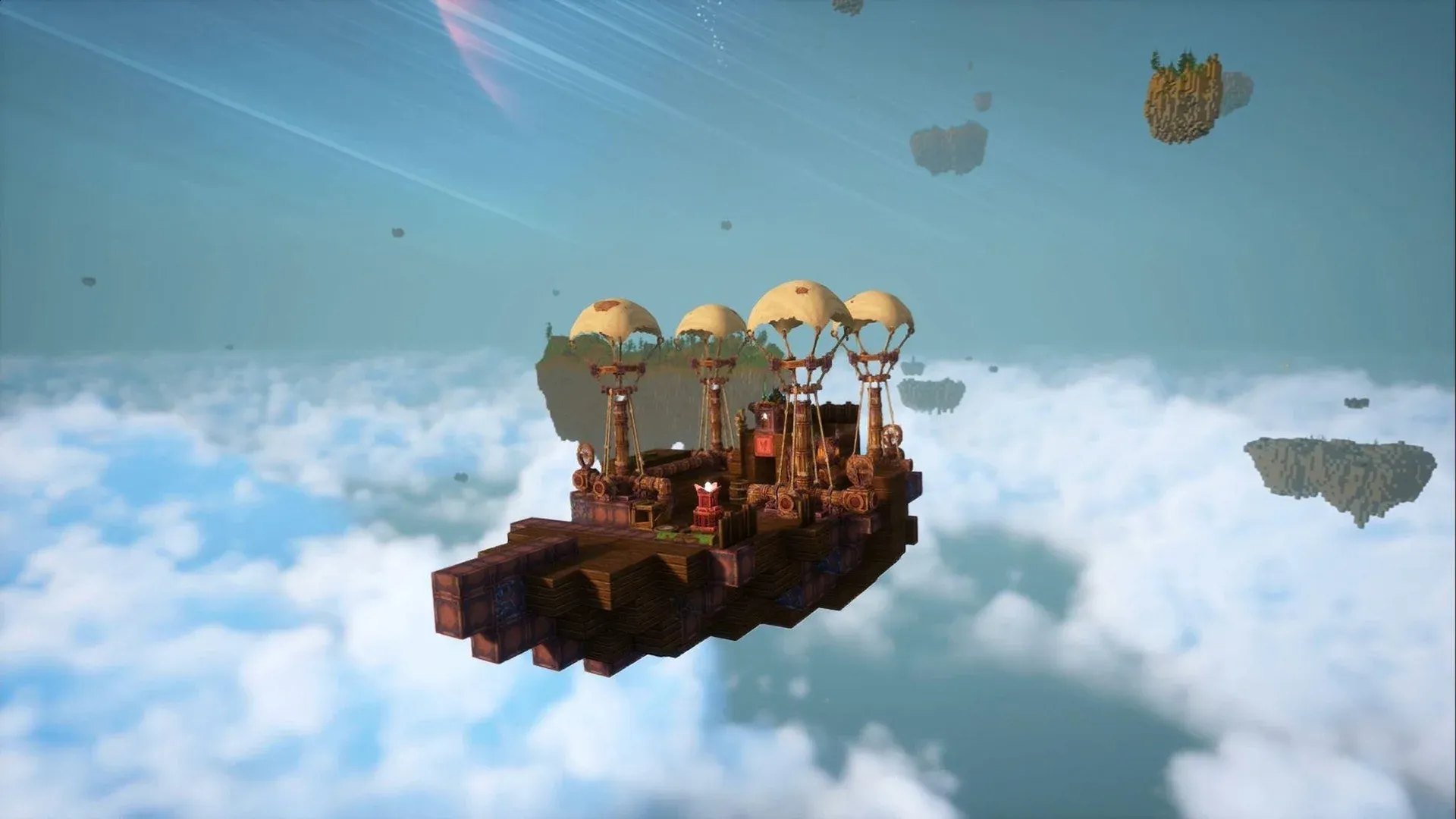
Everwind Airship Building Guide: Upgrades, Builds & Tips
Build and upgrade your Everwind airship from scratch. Full upgrade tables, power tips, and layout advice to fly faster and higher.
Everwind's Early Access launch dropped players into a world of procedural sky-islands and airship combat, but for a frustrating number of people, the game never made it past the loading screen. Unreal Engine 5 startup crashes, silent black screens, and stuttering during dense storm sequences are among the most-reported issues right now. The good news? Almost every one of these problems has a clear, actionable fix, and you probably won't need to reinstall 40 GB of data to solve them.
Before running through any troubleshooting steps, confirm that your hardware clears the minimum bar. Everwind renders dense volumetric clouds and fully procedural island biomes, which means underpowered hardware often causes silent crashes where the game closes with zero error message. Check the table below against your own specs.
| Component | Minimum | Recommended |
|---|---|---|
| OS | Windows 10 64-bit (22H2) | Windows 11 64-bit |
| CPU | Intel Core i5-8400 / AMD Ryzen 5 2600 | Intel Core i7-12700K / AMD Ryzen 7 5800X3D |
| RAM | 16 GB | 32 GB |
| GPU | NVIDIA GTX 1060 / AMD RX 580 (6 GB) | NVIDIA RTX 3070 / AMD RX 6700 XT |
| Storage | 40 GB SSD | 40 GB NVMe SSD |
Corrupted installation files are the single most common trigger for Everwind crashing on startup. Even a single missing voxel texture or audio package is enough to trip the engine before the main menu loads.
Lumen GI settings panel
Everwind runs on Unreal Engine 5, which has strict requirements for the software environment it compiles shaders in. Outdated GPU drivers are the second most common cause of desktop crashes at launch.
If you can hear Everwind's wind effects and menu audio but the screen stays black, or the game closes the moment you click Play, a background application conflict is almost certainly the cause.
Unreal Engine 5 generates specific error strings that point to distinct underlying problems. Here's what each one means and how to address it.
0xc0000005 (Access Violation)Your antivirus software is blocking Everwind from writing save data to disk. Add the Everwind installation folder to your Windows Defender exclusion list, or launch the game with administrator privileges.
Your GPU VRAM is being exhausted, or you're hitting the known power draw instability on Intel 13th and 14th Gen CPUs. Before launching, open the game's config file and set Texture Quality to Medium. Owners of affected Intel CPUs can also try underclocking P-cores slightly using Intel XTU.
Right-click Everwind in Steam, open Properties, go to Launch Options, and type -dx11 to force DirectX 11 mode. This bypasses the DX12 initialization crash on older GPUs and is a reliable workaround until a driver fix is available.
EXCEPTION_ACCESS_VIOLATIONThis error typically appears when the game tries to load a large procedural biome and runs into RAM instability. Temporarily disable XMP/EXPO profiles in your BIOS, or close memory-heavy background apps like Chrome before launching.
Even players who get past the startup screen often hit severe frame rate drops when flying into dense storm systems or heavily populated sky-islands. These are the most impactful settings to change first.
For more troubleshooting guides and tips across a wide range of titles, browse the latest guides on GAMES.GG to keep your setup optimized as the game continues to receive updates.