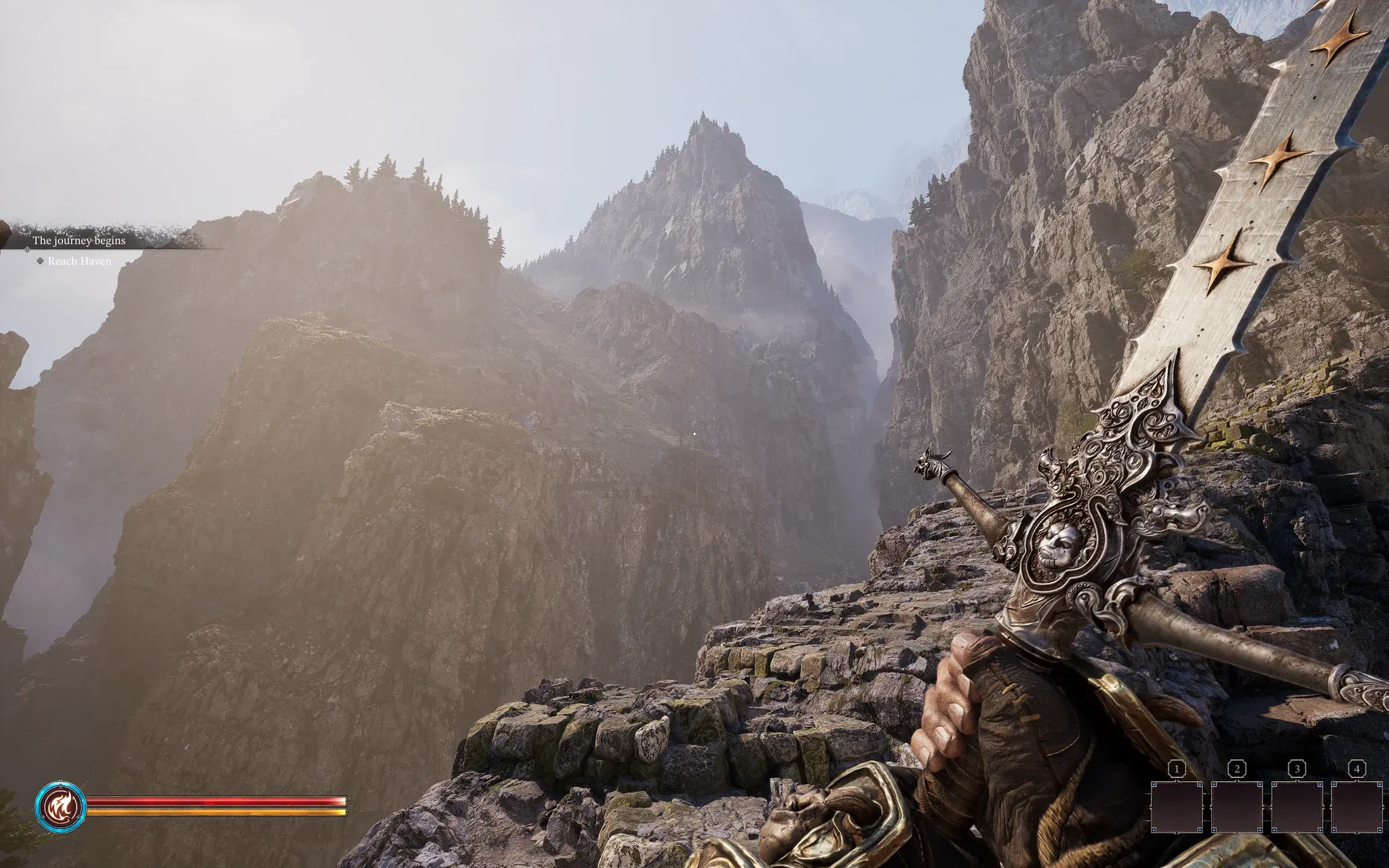


Fatekeeper launched into Early Access with some of the most detailed fantasy environments seen in the genre this year, but that visual ambition has a real cost. Reports of stuttering, frame drops, and inconsistent performance have been widespread since launch, even on hardware that should handle it comfortably. The good news is that a handful of specific settings carry most of the performance load, and targeting those first gets you to smooth gameplay without gutting the visuals entirely.
What makes Fatekeeper so demanding on PC?
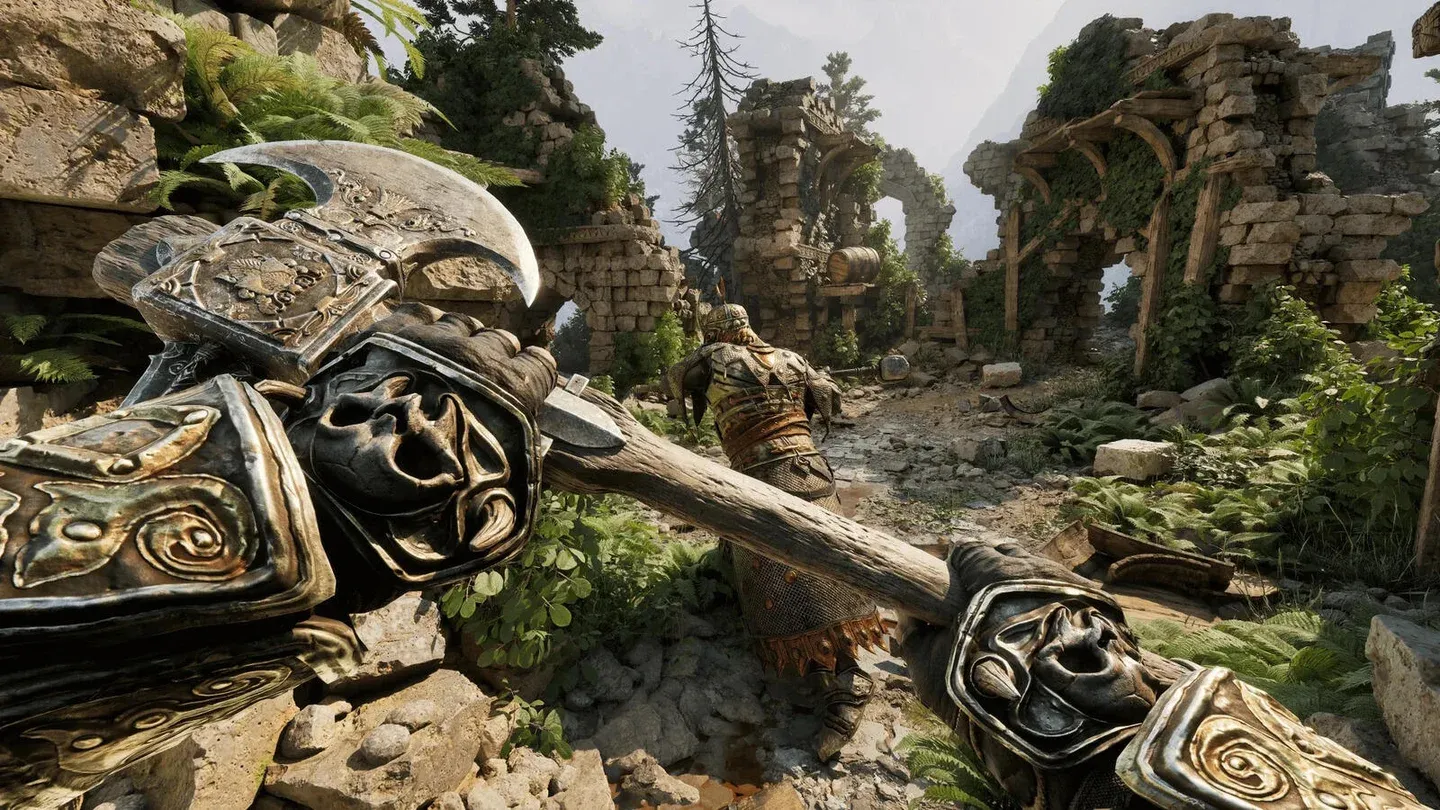
The game runs on modern rendering technology with dynamic lighting, dense foliage, high-resolution textures, and large open fantasy environments. Shadow rendering, advanced global illumination, and detailed geometry all stack up simultaneously, which is why mid-range hardware gets hit harder than expected. This isn't a case where turning everything to Low magically solves things. You need to know which settings actually matter.
Custom preset settings screen
The recommended settings for most systems
For the majority of players, a custom medium configuration with targeted reductions on the most expensive settings gives the best results. Here's the full breakdown:
Three settings stand out as the biggest performance drains: Shadow Quality, Reflection Quality, and Shading Quality. Drop all three to Low before touching anything else.
Why should Shadow Quality be your first cut?
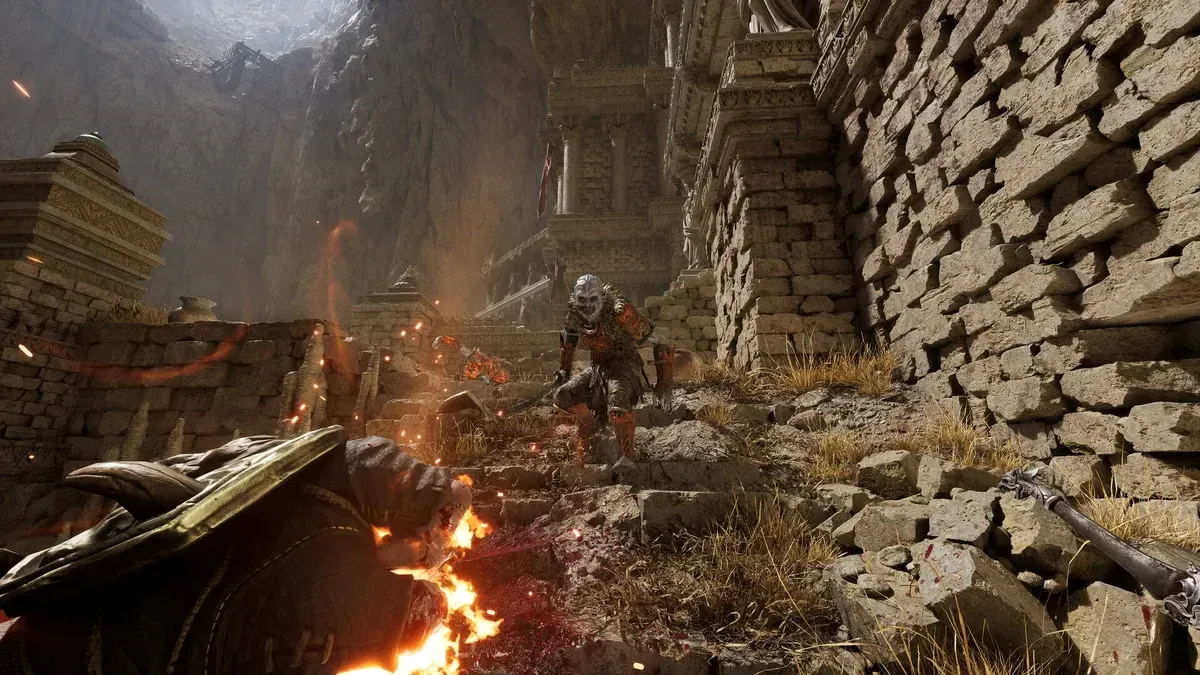
Shadow rendering places a constant load on the GPU across every scene, not just during demanding moments. Lowering Shadow Quality to Low produces some of the largest FPS gains available in Fatekeeper, with minimal visual impact during actual combat and exploration. Most players won't notice the difference while moving through the world.
The same logic applies to Shading Quality and Reflection Quality. These two settings are expensive to render but their absence is subtle. After testing these reductions across different hardware configurations, the frame stability improvement is consistent and immediate.
Shadow quality set to Low
What upscaling options does Fatekeeper support?
Fatekeeper supports TSR and FSR as its primary upscaling solutions. Native DLSS is not included at launch. For players targeting stable 60 FPS, upscaling in Balanced mode often delivers more performance than reducing multiple individual settings.
- NVIDIA GPU users: TSR (Temporal Super Resolution)
- AMD GPU users: FSR (FidelityFX Super Resolution)
- Upscaling Mode: Balanced for most systems, Performance if you're still struggling
Image quality softens slightly at Performance mode, but the FPS gains are substantial enough to justify it on weaker hardware. Balanced mode is the sweet spot for most setups.
How do you fix stuttering in Fatekeeper?
Low average FPS and stuttering are different problems with different solutions. Stuttering in Fatekeeper is frequently caused by shader compilation, asset loading, and API overhead rather than raw graphical load. Your frame counter can look fine while the game still hitches noticeably.
Steps that consistently reduce stuttering:
- Install Fatekeeper on an SSD, not a hard drive
- Update your GPU drivers to the latest available version
- Enable upscaling (TSR or FSR)
- Cap FPS at 60 using the in-game limiter
- Run the built-in benchmark tool, which auto-adjusts settings based on your detected hardware
- Restart the game after making major graphics changes
The benchmark tool is worth running even if you've already manually configured your settings. Several players have reported it catches hardware-specific adjustments that manual configuration misses.
Should you enable VSync in Fatekeeper?
For a single-player fantasy RPG, yes. Fatekeeper isn't a competitive shooter where input latency is a deciding factor. Enabling VSync produces more consistent frame delivery and eliminates screen tearing, which is noticeable in a visually detailed game like this one. If your frame rate holds above 60 FPS consistently, you can experiment with turning it off, but for most systems the stability benefit outweighs the minor latency addition.
Best settings for low-end and older PCs
If you're running older hardware, prioritize performance above everything else. These are the settings to drop to Low immediately:
- Shadow Quality: Low
- Reflection Quality: Low
- Foliage Quality: Low
- Shading Quality: Low
- Landscape Quality: Low
Pair those reductions with Upscaling set to Performance Mode and an FPS cap of 60. This combination gives the largest possible performance headroom while keeping the game visually functional.
A few system-level tweaks also help regardless of your graphics configuration: close background applications, use fullscreen mode rather than borderless windowed, keep Windows updated, and make sure your graphics drivers are current. These won't double your frame rate, but they eliminate bottlenecks that graphics settings can't fix.
Quick summary: the settings that matter most
If you take nothing else from this guide, these are the changes with the highest impact-to-effort ratio:
- Shadow Quality to Low
- Reflection Quality to Low
- Shading Quality to Low
- Enable TSR or FSR in Balanced mode
- Cap FPS at 60 and enable VSync
- Run the benchmark tool and install on an SSD
Everything else can stay at Medium without a meaningful performance cost for most systems. Fatekeeper's visual strengths are real, and you don't need to strip the game bare to run it well. Targeted cuts to the three most expensive settings, combined with upscaling, gets most players to a smooth experience without waiting for the developers to ship optimization patches.
For more strategies and system guides across adventure games and beyond, the full Fatekeeper strategy guide collection has everything you need to get the most out of your playthrough.