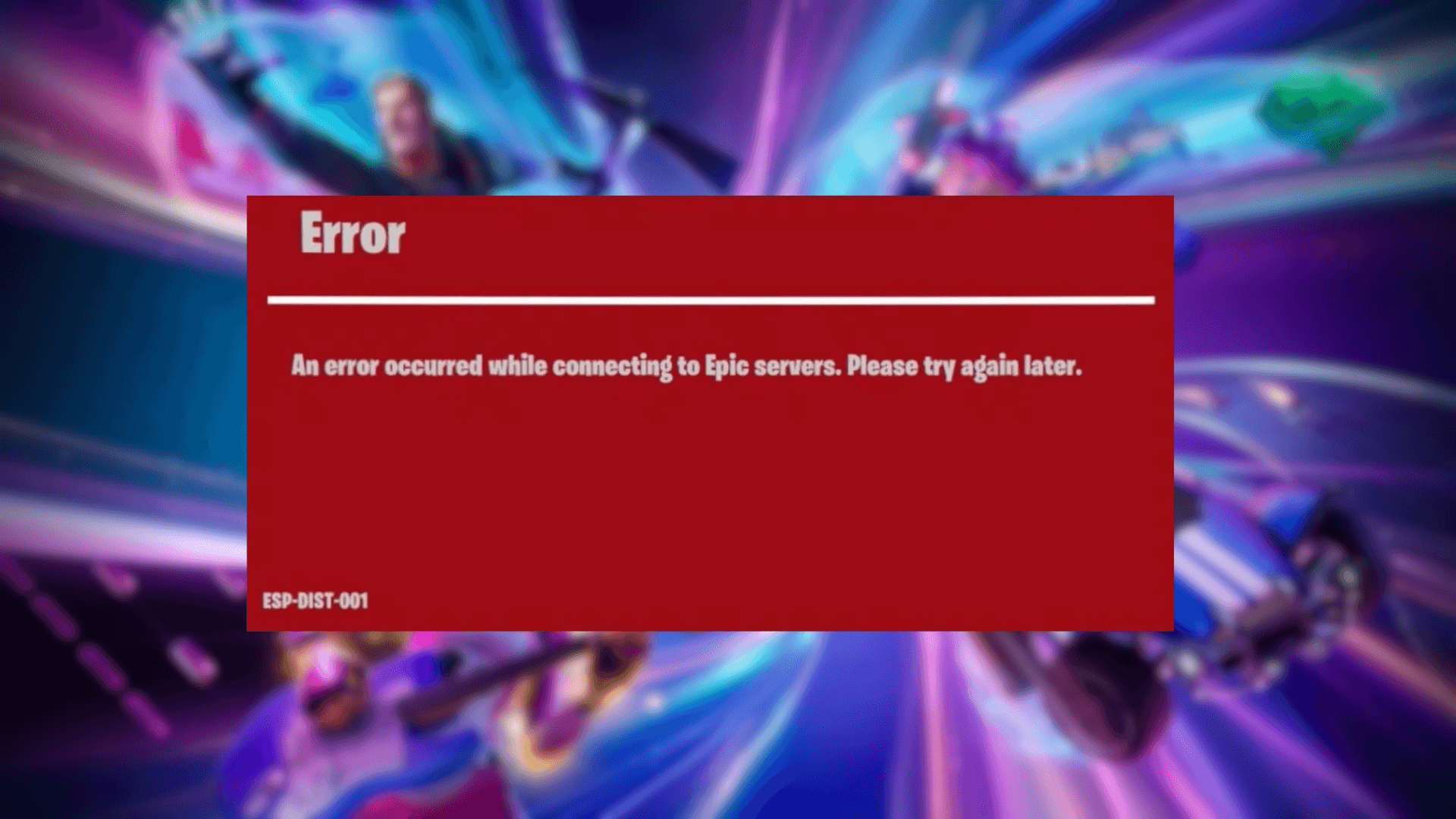


You sit down to play Fortnite, load it up, and instead of dropping into the island you get a wall of text and an error code. The Esp-Dist-001 error is a network handshake failure, meaning your console and Epic's servers failed to complete the connection needed to validate your account, pull your inventory, and sync your V-Bucks balance. The good news: it almost never requires a full reinstall, and the fixes are quick.
What is the Esp-Dist-001 error?
ESP error codes in Fortnite point to a breakdown in the communication layer between your platform and Epic Games' servers. When you launch the game, your system runs through a handshake sequence: it validates your login credentials, retrieves your account data, and syncs your locker and Battle Pass progress. If your console's temporary cache holds corrupted data, or your network can't complete that handshake cleanly, the whole process stalls and Esp-Dist-001 appears.
This is a connectivity issue, not an account issue. It has nothing to do with bans or account suspensions.
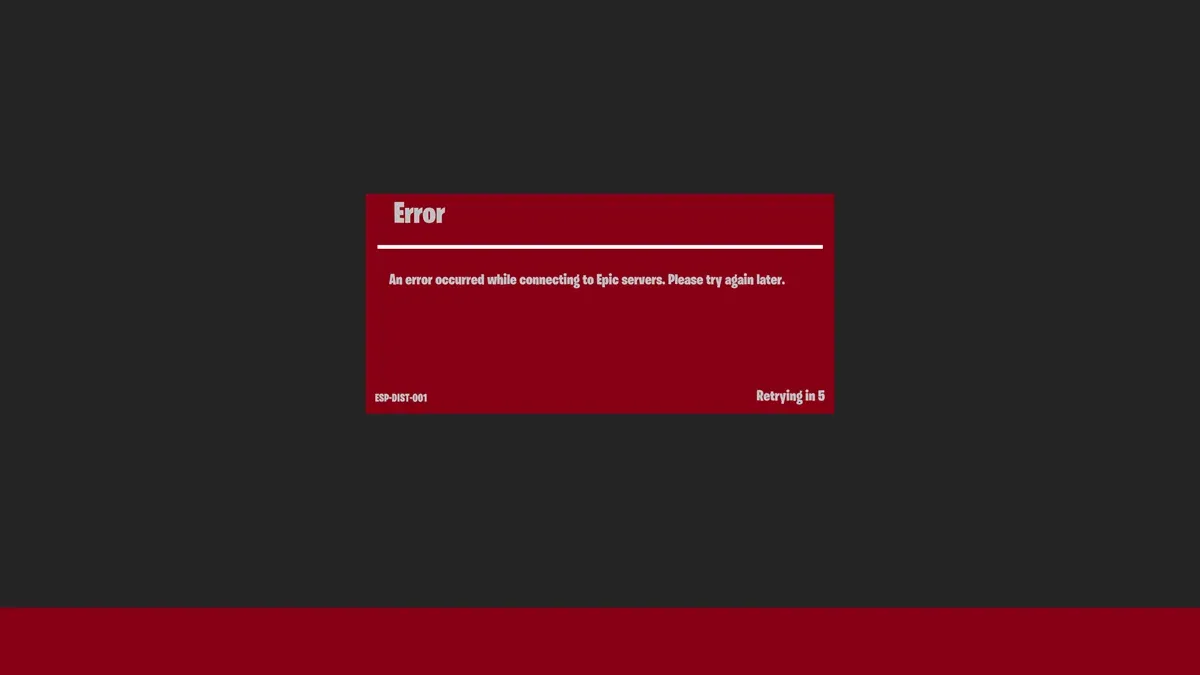
The Esp-Dist-001 error screen
How to fix the Esp-Dist-001 error in Fortnite
There are three main fixes, ordered from most likely to solve the problem to least. Work through them in sequence.
Fix 1: Clear your console cache
Corrupted local cache data is the most common cause of Esp-Dist-001. Clearing it resets the temporary login data your console holds without touching your Fortnite locker or Battle Pass progress.
Nintendo Switch
- Open System Settings from the home screen.
- Scroll down to System, then select Formatting Options.
- Choose Reset Cache at the top of the list.
- Select the user profile you play Fortnite on and confirm by pressing Reset.
- Hold the Power Button for 3 seconds, select Power Options, then choose Restart.
PlayStation and Xbox
- Shut the console down completely. Do not use Rest Mode or Sleep Mode.
- Unplug the power cable from the back of the console.
- Wait a full 60 seconds. This drains the internal capacitors and fully flushes the cache memory.
- Plug the power cable back in, boot the console, and relaunch Fortnite.
Fix 2: Check Epic Games server status
Sometimes the error has nothing to do with your setup. If Epic's matchmaking services or authentication systems are experiencing degraded performance, your platform will throw an ESP error regardless of how clean your local data is.
Visit the official Epic Games Server Status page at status.epicgames.com before changing anything on your network. If Fortnite or Epic Online Services show any degraded or outage status, the only real fix is waiting for Epic to resolve it on their end.
Fix 3: Power cycle your router
If Epic's services are all green and the cache clear didn't resolve the issue, the problem may sit with your home network. A DNS glitch or stale IP assignment on your router can prevent the handshake from completing.
- Unplug both your modem and your router from the power outlet.
- Leave them unplugged for at least 30 seconds.
- Plug them back in and wait for all indicator lights to stabilize.
- Boot your console and launch Fortnite.
This forces your router to request a fresh IP address and clears any DNS cache that might be pointing your connection in the wrong direction.
Get back to the actual game
Once Esp-Dist-001 is cleared, your session data and locker sync exactly as normal. If you want to make the most of your time in Chapter 7 Season 3, check out the full Fortnite guides collection for everything from Sprite mechanics to boss locations. And if the game still feels sluggish after reconnecting, the Fortnite FPS and settings optimization guide covers every graphics and network tweak worth making on both PC and console.