

Forza Horizon 6 arrives on PC in surprisingly solid shape. The auto-detect feature picks a reasonable preset based on your hardware, but that preset usually leaves performance headroom untapped or burns GPU cycles on settings that look identical two notches lower. After testing every major setting with frame-time data, here's what to adjust, what to ignore, and where the actual visual upgrades live.
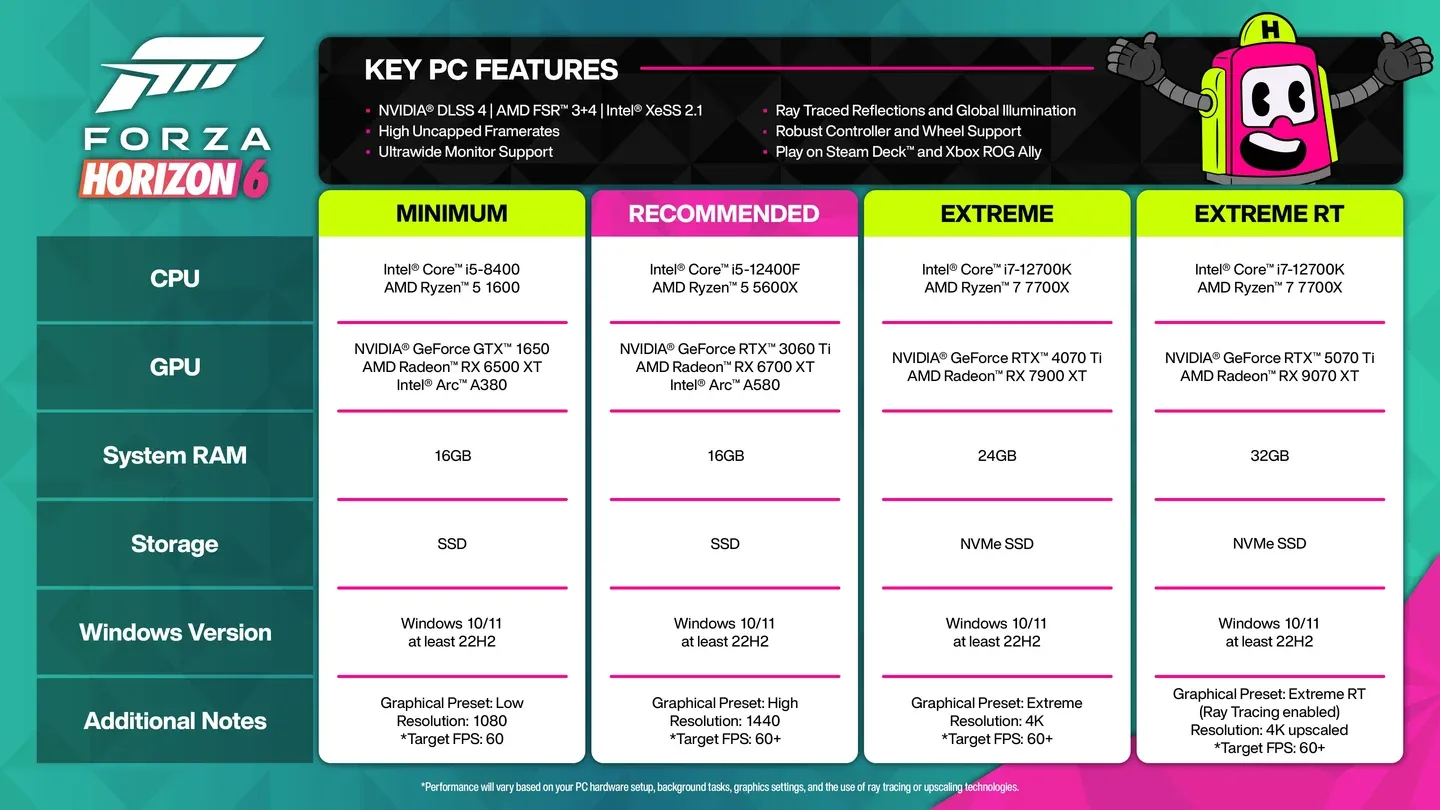
What are the minimum and recommended PC specs for Forza Horizon 6?
Before changing anything, verify your system meets the requirements on Steam. The minimum bar is lower than most current open-world titles.
The GTX 1650 minimum is notable. That card is three generations old, and Playground clearly prioritized broad compatibility. The 16 GB RAM requirement is consistent across both tiers, which has become standard for 2026 releases. If you need download help first, the Forza Horizon 6 preload guide covering file sizes and download steps walks through the process before you touch settings.
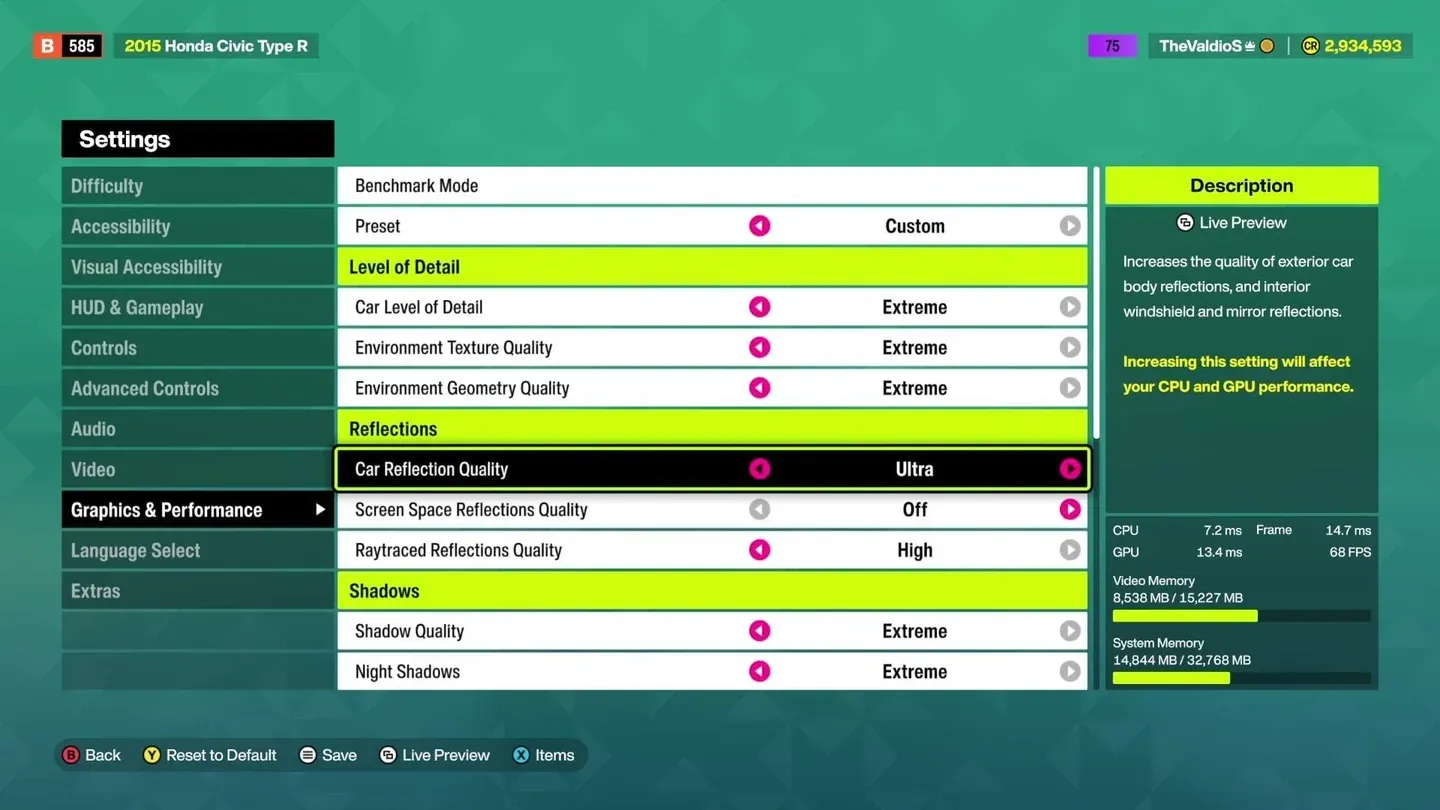
Video settings overview
Which upscaling technology should you use?
This is the single most important choice in the menu. Testing on an RTX 4070 Ti with an AMD Ryzen 7 9800X3D at 2K resolution reveals clear winners and one option to avoid completely.
Nvidia DLSS (for Nvidia GPU owners)
DLSS DLAA at native resolution delivers 50 FPS with the sharpest image of any native option, handling fine vehicle geometry and chain-link fences without the temporal smearing TAA introduces. For a frame rate boost, DLSS Quality jumps to 70 FPS (37% over TAA) while remaining visually near-identical to native. DLSS Balanced and Performance modes show diminishing returns on clarity for frame gains you could achieve by lowering other settings instead.
Nvidia's 50-series GPUs also support 4x Multi Frame Generation, which the game explicitly accommodates
AMD FSR 3.1.5 (for AMD GPU owners)
FSR3 Quality matches DLSS Quality at 70 FPS and looks sharp, though fine meshes and distant scenes show slight graininess compared to DLSS. FSR3 Performance hits 86 FPS but introduces visible flickering on thin objects. Acceptable if you desperately need frames, not ideal otherwise.
Intel XeSS (for Intel GPU owners)
XeSS Ultra Quality at 67 FPS is the cleanest option in Intel's lineup. XeSS Ultra Quality Plus is technically sharper but only adds 10 FPS over native, making it difficult to justify. XeSS Balanced at 73 FPS is the best compromise for Intel Arc users who want a meaningful performance bump without sacrificing too much clarity.
AMD FidelityFX CAS: avoid it
Every CAS mode in testing produces aggressive oversharpening that turns the image into a mess of jagged edges and visual noise. The FPS numbers look appealing on paper (87 FPS at Performance), but the picture quality is genuinely worse than running a lower native preset. Skip it entirely.
DLSS upscaling settings panel
What graphics settings actually affect FPS?
Testing reveals that most settings labeled Extreme are not worth the GPU cost because the visual difference from Ultra or High is undetectable during actual racing.
Ray tracing: the one upgrade that genuinely matters
Raytraced Reflections on High gives cars that physically accurate paint finish with self-reflections (parts of the car reflecting off each other) that screen-space methods cannot replicate. Dropping to Medium reduces reflection resolution slightly with minimal visible difference at speed. Turning ray tracing off entirely switches the engine to static cubemaps, and the car body immediately looks flat and less detailed.
Raytraced Global Illumination (RTGI) on Medium is the sweet spot. High is marginally better but costs significantly more GPU budget. Off makes lighting look noticeably flat and plasticky, particularly in tunnels and under building overhangs.
If your GPU cannot sustain smooth framerates with ray tracing enabled, the fallback is:
- Screen Space GI (SSGI) on High (not off, not Medium)
- Screen Space Reflections (SSR) on High or above
Dropping SSR to Medium causes your own car to disappear from reflective surfaces in the world. That is not a subtle trade.
Shadows: High is the floor, not the ceiling
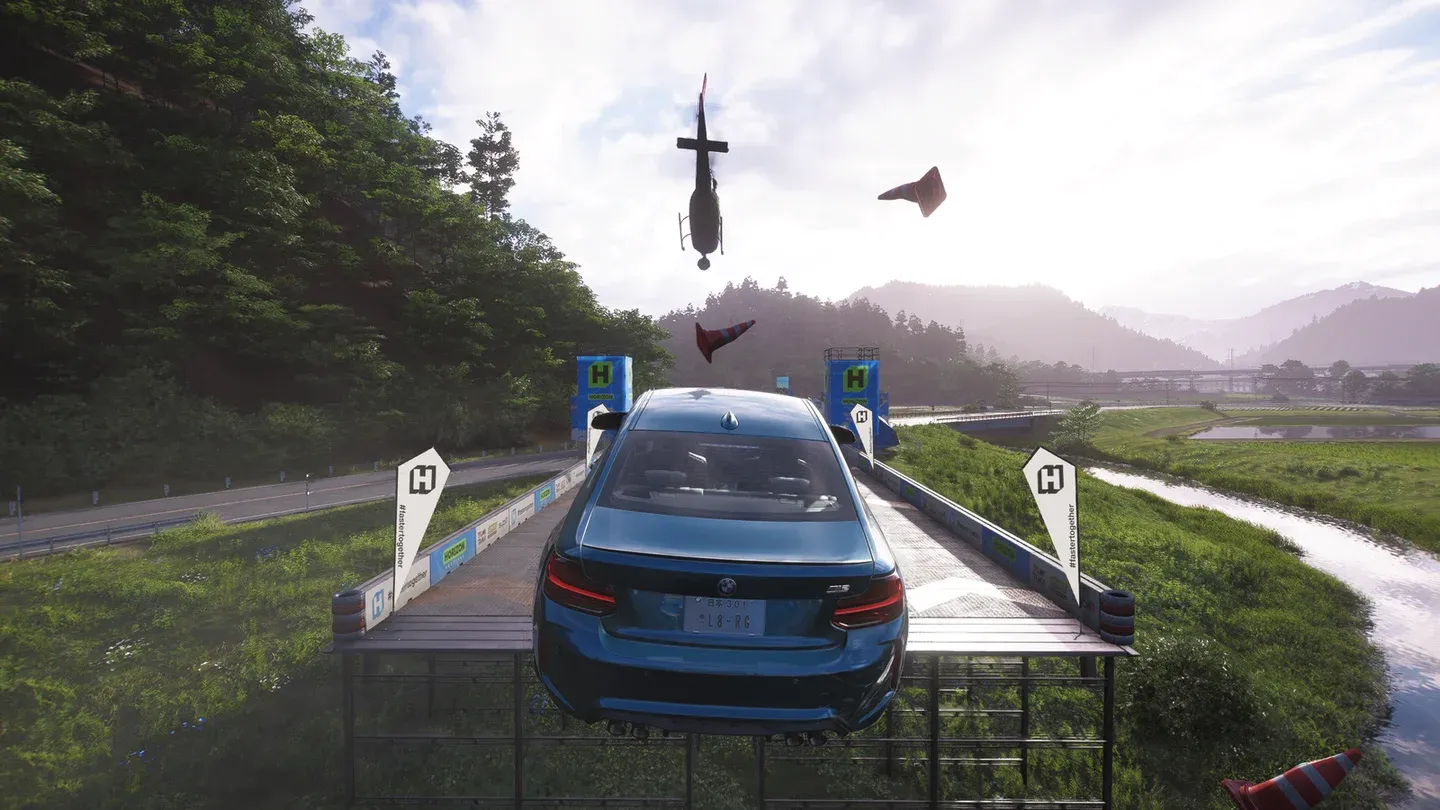
Shadow Quality at High maintains realistic edge softness and shadow rendering distance. Ultra and Extreme refine edges slightly but are not noticeable at racing speeds. Low introduces jagged shadow edges and heavy flickering during movement. Turning shadows off entirely makes vehicles appear to float.
Night Shadows deserve special attention. Disabling them causes headlights to pass through solid objects with no shadow cast behind them. The night racing atmosphere collapses completely. Keep this at Ultra or Extreme regardless of your other shadow settings.
Settings where Extreme wastes your GPU budget
Testing reveals several settings show no meaningful visual difference between High and Extreme:
- Shader Quality: Extreme, Ultra, and High are visually identical. There is no point going above High.
- Car Level of Detail: The difference between Extreme and Low is only 2 FPS. Lowering car LOD degrades geometry without recovering performance.
- Environment Texture Quality: Has virtually no FPS impact if your VRAM is sufficient. Use Ultra or High. Only drop lower if you are experiencing stuttering from VRAM overflow.
Shadow quality comparison
Recommended settings by GPU tier
Non-graphics settings worth changing before you race
The visual settings get most attention, but several other options have a real impact on your experience.
Motion Blur: Turn off both the standard Motion Blur and the UI Motion Blur options. These are potential nausea triggers, and they also obscure visual information during fast corners. The setting appears in both the Video menu and Visual Accessibility.
Difficulty: Forza Horizon 6 ships with 9 difficulty tiers from Tourist to Unbeatable, plus individual driving assist toggles. The game rewards harder difficulty settings with more credits per race. The Average tier is the intended baseline experience, but spending time here before your first race is worth it.
Audio Output: Set this to match your actual hardware. Headphone mode and speaker mode process audio differently, and running the wrong one noticeably degrades the engine sound mix.
Streamer Mode: If you plan to record or stream, enable this before your first session. It replaces licensed music with royalty-free alternatives to prevent copyright claims on your content.
Graphics Mode on console/console-style settings: For active racing, Performance mode prioritizes frame rate. For photo mode or free roam, Quality mode maximizes visual fidelity. On PC, the full manual settings menu gives you more control than either preset.
What's the fastest way to get a stable 60 FPS without ray tracing?
If your GPU sits below the RTX 3060 Ti tier, skip ray tracing entirely and build around this combination:
- SSGI at High (not off)
- SSR at High (not Medium or below)
- Shadow Quality at High
- Night Shadows at Ultra
- Car Reflection Quality at High
- Environment Textures at High (or Ultra if VRAM allows)
- Shader Quality at High
- Upscaling at FSR3 Quality or DLSS Quality
This configuration keeps the image looking modern and three-dimensional without the GPU overhead of ray tracing. The key insight from testing is that SSGI and SSR at High are non-negotiable for image quality without RT. Everything else is secondary.
For more on what to expect from the Japan map and new features before you start tweaking settings, the Forza Horizon 6 beginner's guide covering the Japan map and new mechanics is a good companion read. And for everything else you need before launch, the full Forza Horizon 6 guide collection has you covered on cars, events, and progression.