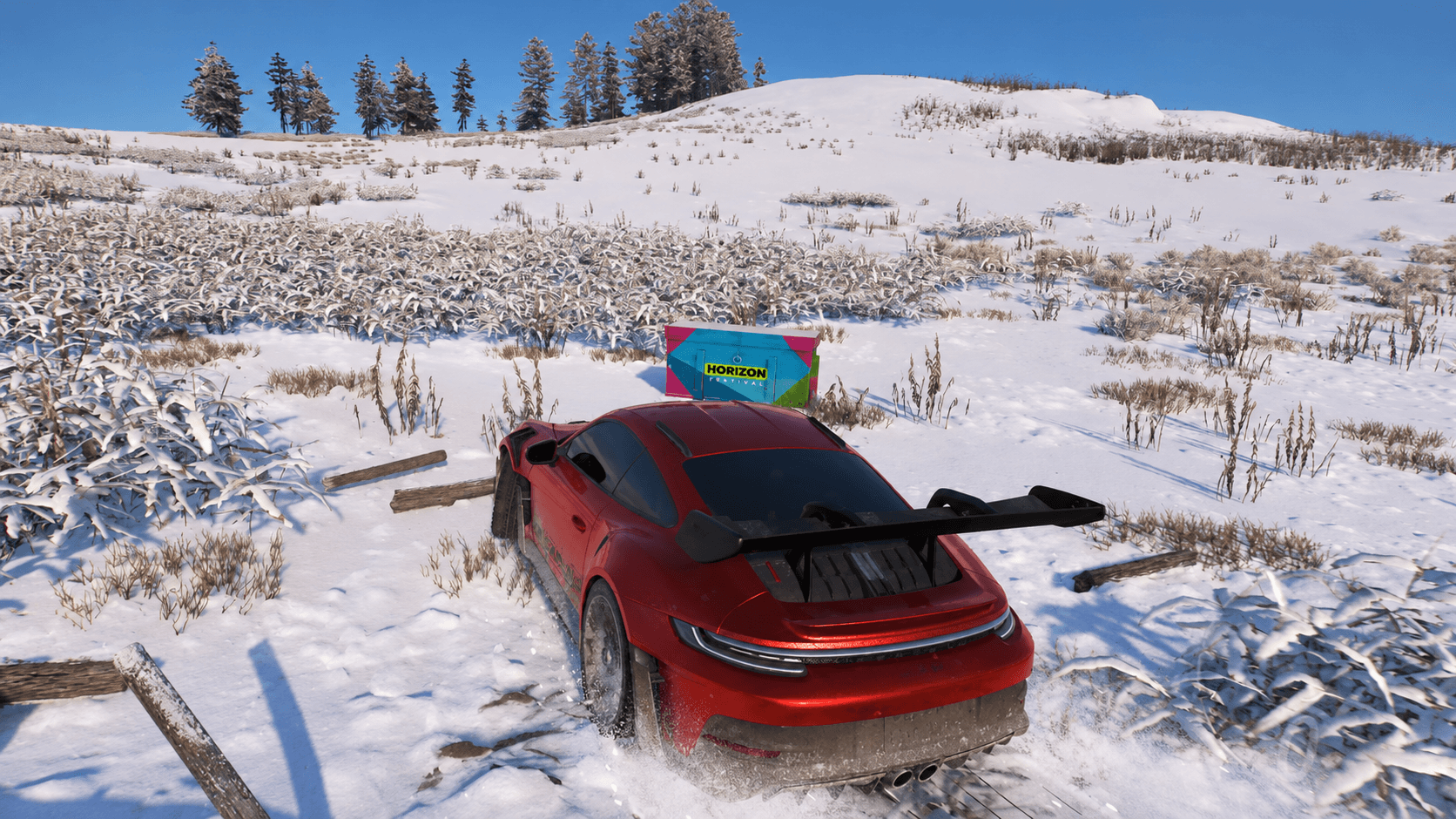
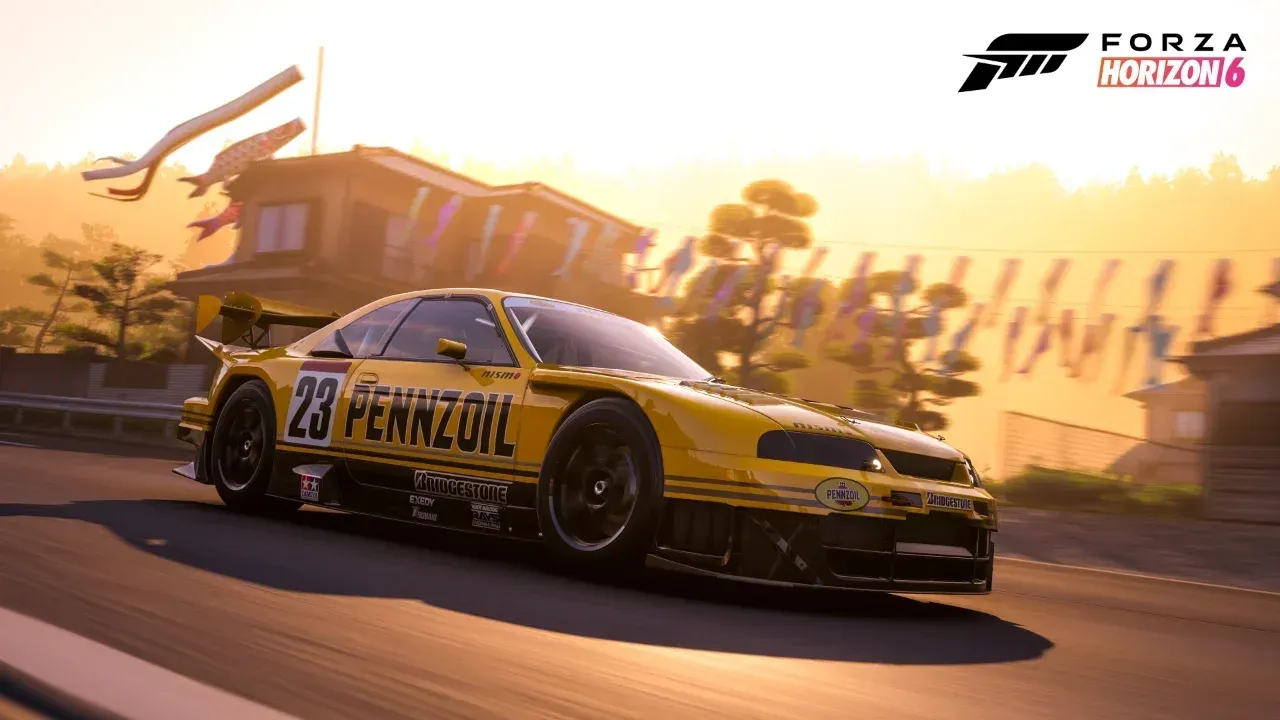
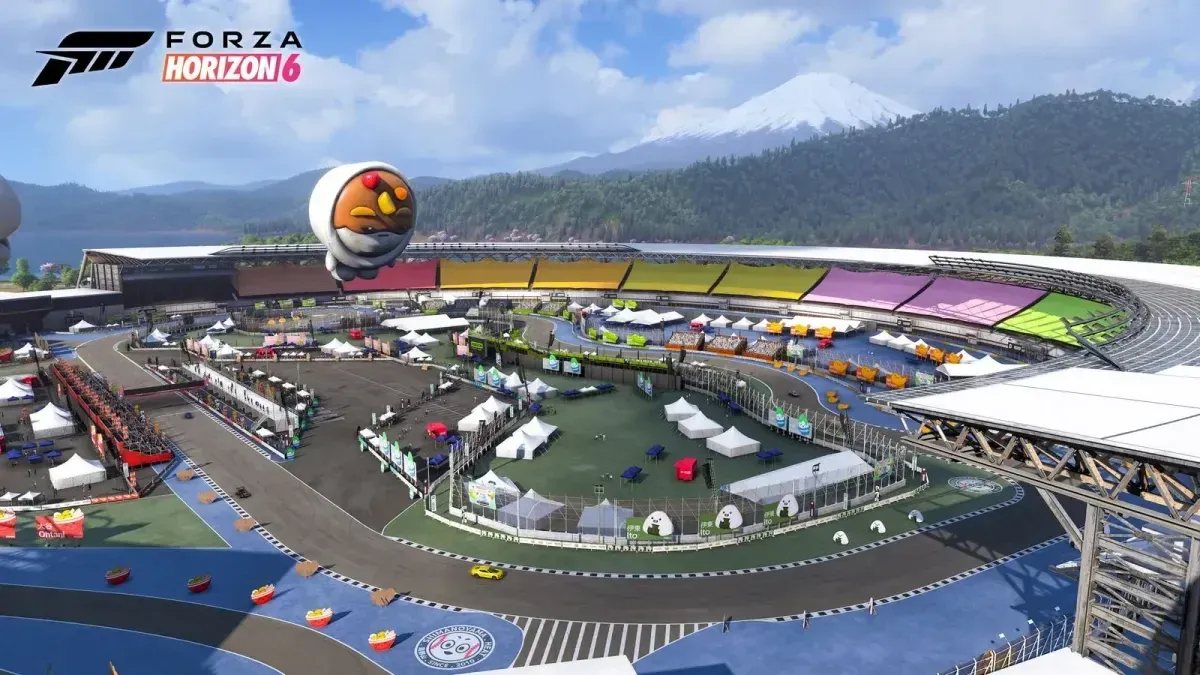
Forza Horizon 6 has one of the better photo modes in racing games right now. With Japan as the backdrop, from Mt. Fuji to the Kinkaku-Ji Temple, there are genuinely great shots waiting at every turn. The catch is that getting those images off your console or PC and onto your desktop takes a few extra steps that the game doesn't explain well. Here's exactly how the whole process works.
How does Forza Horizon 6 Photo Mode work?
The Photo Mode in Forza Horizon 6 lets you pause the action and compose a shot with full camera control. When you save an image, the mode automatically strips out all HUD elements and on-screen text, so the exported file is a clean, UI-free picture at your current display resolution. That makes these files genuinely usable as wallpapers or for sharing on social media, not just blurry screenshots with a minimap in the corner.
The resolution of the downloaded file matches whatever resolution you're running the game at, so playing at 4K means you get a 4K image.
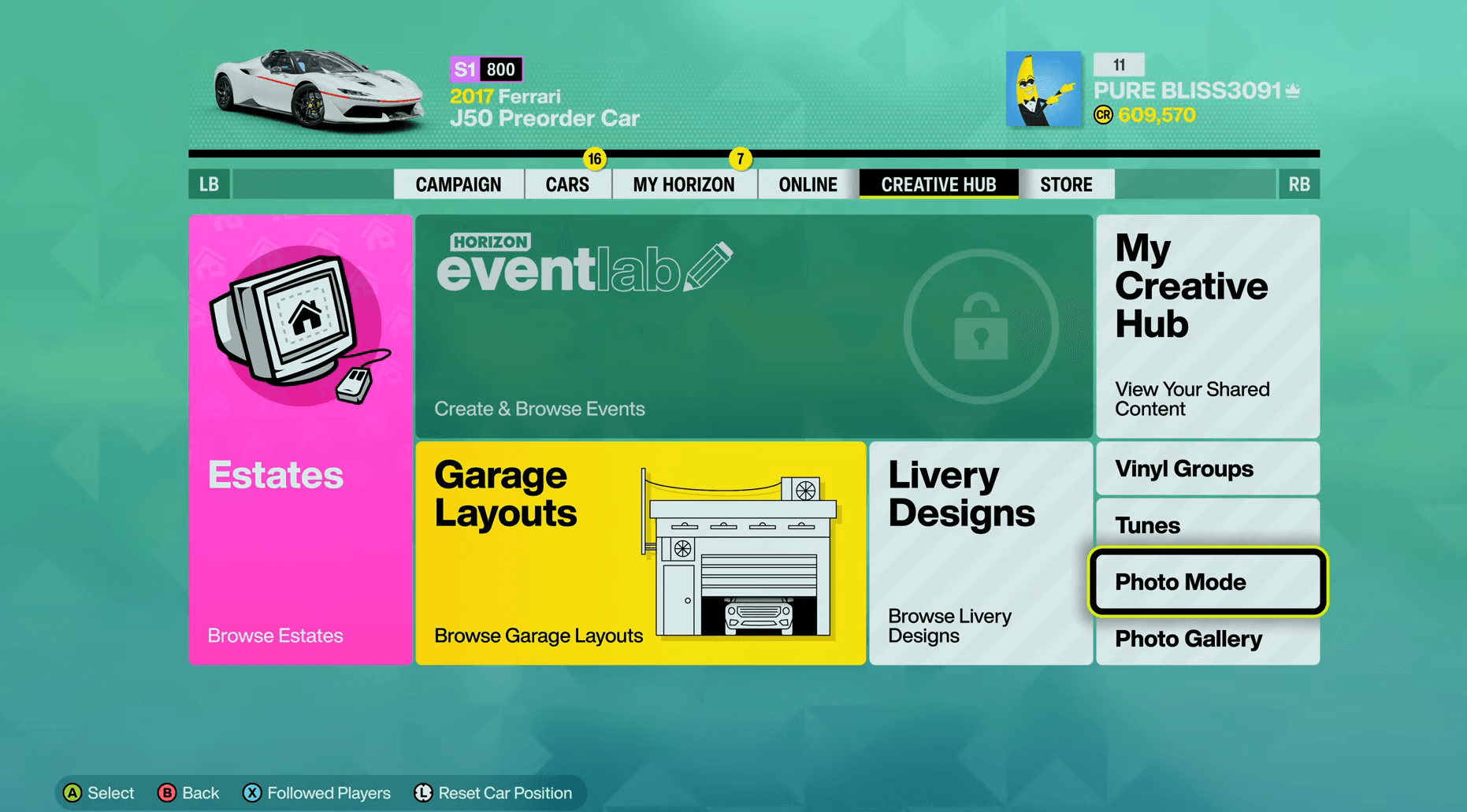
Forza Horizon 6 Photo Mode Guide: How to Download Your Pictures

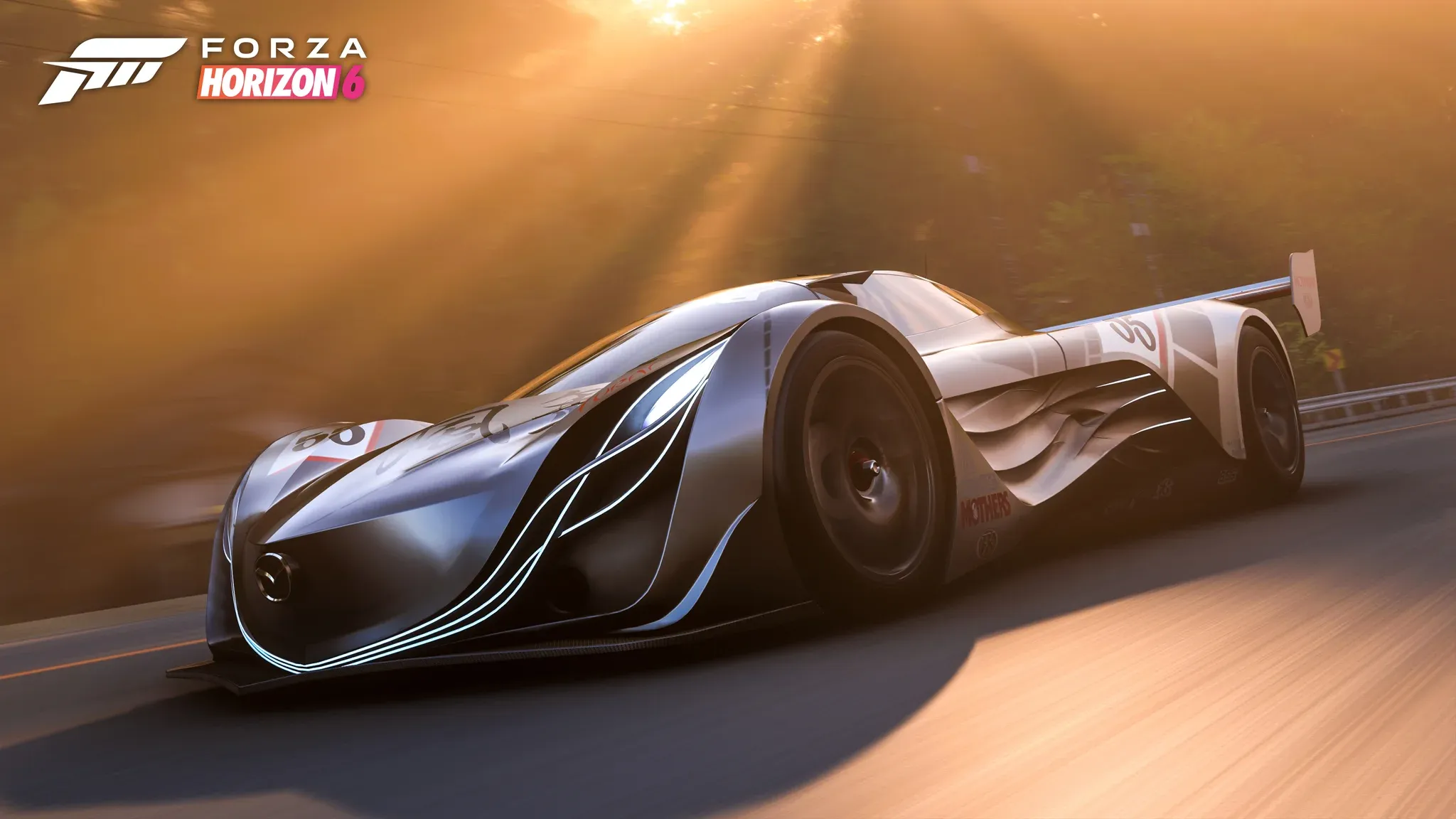
How to download your Forza Horizon 6 photos
The process runs through the official Forza website at forza.net/myforza. Here's the full sequence:
- Inside the game, open Photo Mode and compose your shot.
- Take the picture, then choose to save and share it. This step is mandatory. If you only save without sharing, the image will not upload to the website and you won't be able to download it.
- Assign a file name to the photo before confirming.
- Open a browser and go to forza.net/myforza.
- Log in using the same account you play Forza Horizon 6 with.
- Locate your uploaded photo and download it.
The downloaded file will be at the same resolution as your in-game display, with no UI overlay.
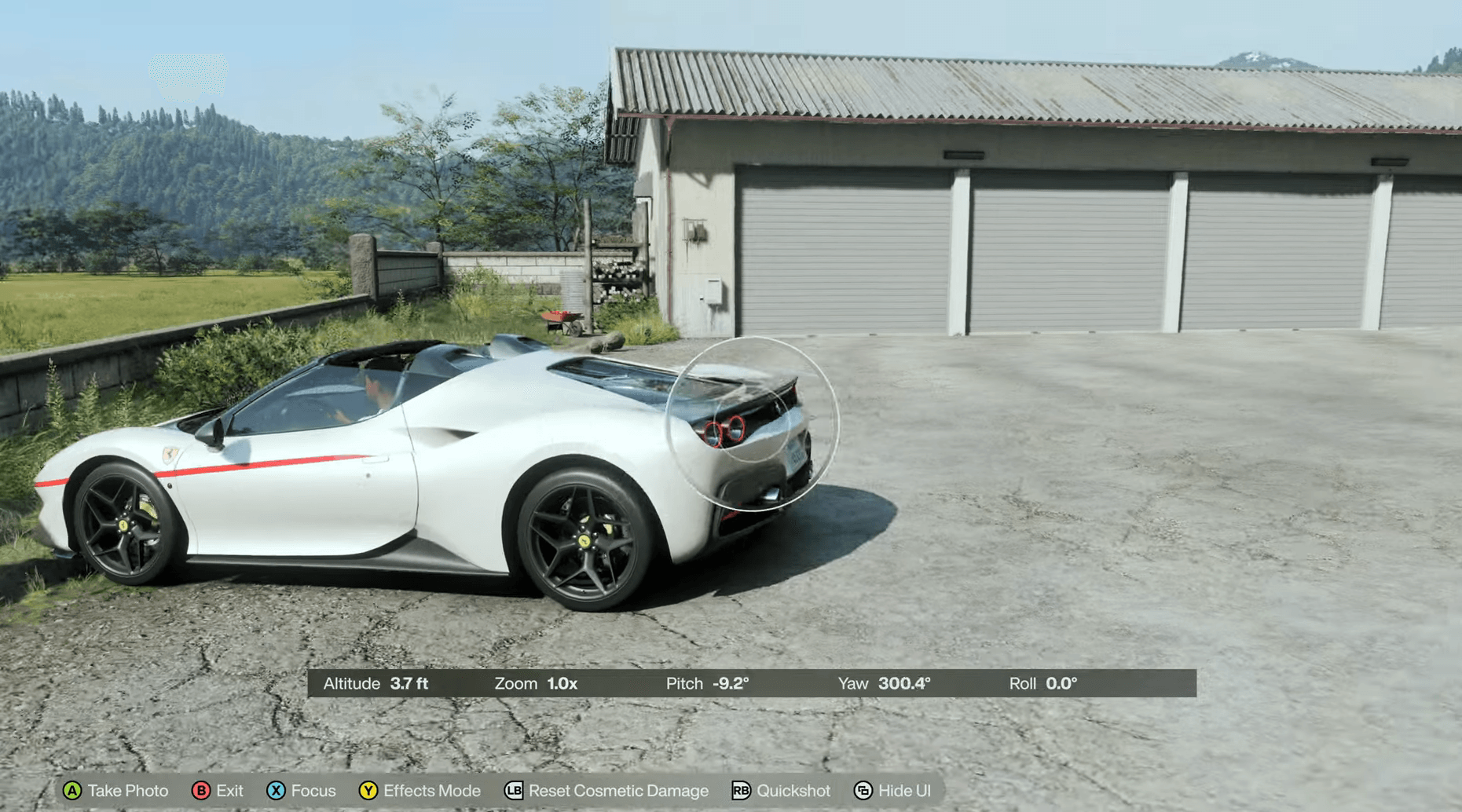
Forza Horizon 6 Photo Mode Guide: How to Download Your Pictures
Are there alternative methods for PC players?
PC players have two additional options that bypass the Forza website entirely.
- Steam overlay screenshots: If you're running Forza Horizon 6 through Steam, the standard Steam screenshot function works normally. These captures include the HUD unless you're already in Photo Mode when you press the button.
- Xbox Game Bar: Players using the Xbox app on PC can use the Game Bar (Win + G) to capture screenshots at any point during gameplay.
Both PC methods are quick and convenient, but neither one strips the UI the way Photo Mode does. For clean, wallpaper-quality images, the Photo Mode plus forza.net route is still the better option.
What else should you know before you start?
A few things worth keeping in mind before you go deep on photography:
- The share step is not optional if you want to download the image. The game lets you save without sharing, which only stores it locally in a way that isn't accessible outside the game.
- File names matter for organization. The forza.net library can get cluttered fast if every photo has an auto-generated name.
- Photo Mode resolution is tied to your current game resolution setting, not a fixed output size. Bumping up your resolution before a session will get you larger files.
If you're still getting the game set up, the Forza Horizon 6 preload guide covers file sizes and download steps for both PC and Xbox. For everything else, the full Forza Horizon 6 guide collection has you covered on settings, rewards, and more.