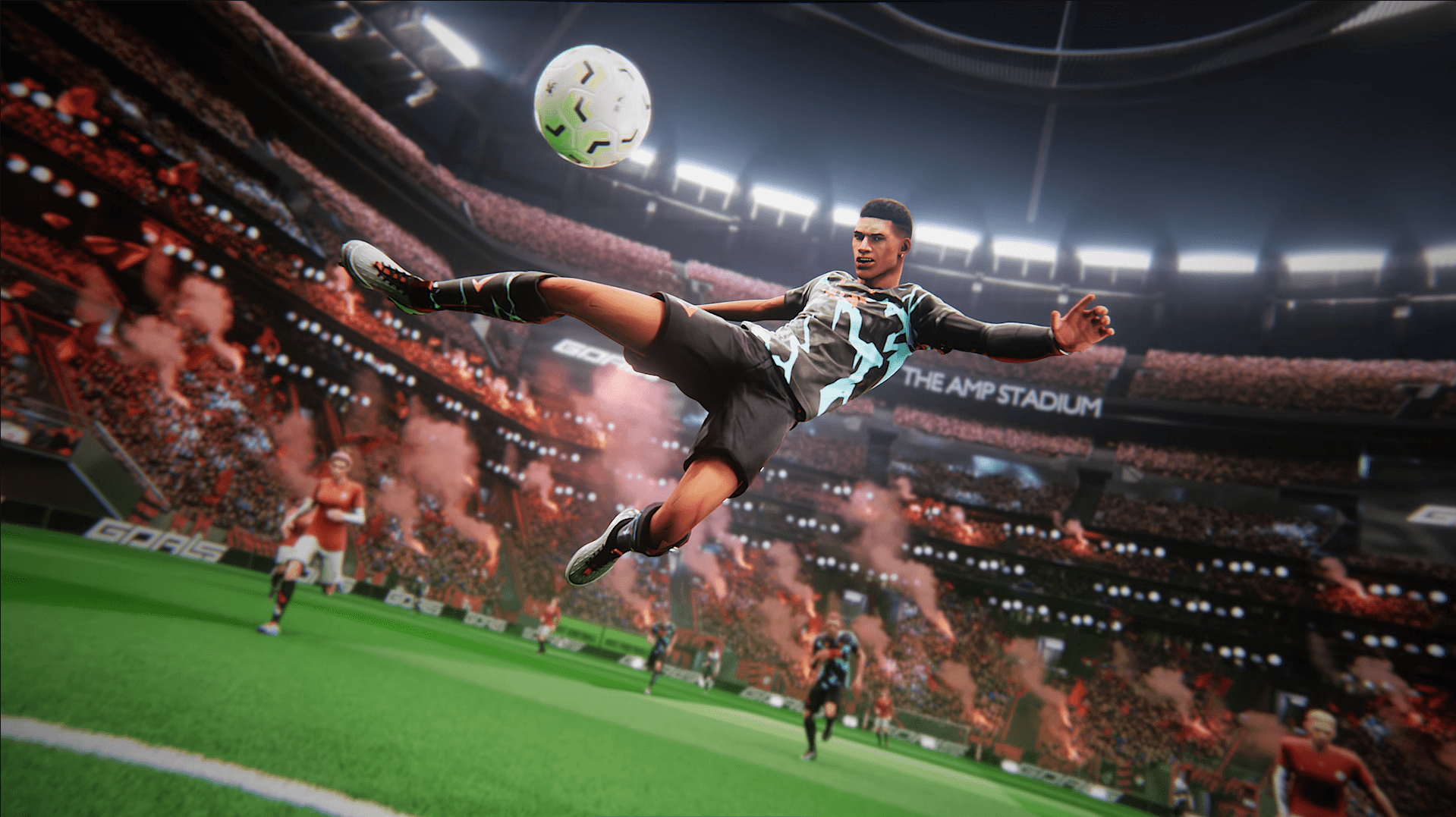


Free-to-play football game GOALS has some of the lightest system requirements in the genre, but that does not mean you can ignore the settings menu. Stutters and input lag during a penalty shootout or a last-minute counter-attack can cost you a match before your hardware even breaks a sweat. The good news: a few targeted adjustments across the graphics menu get you smooth, responsive gameplay without making the game look like it was rendered in 2003.
What are the best GOALS graphics settings for max FPS?
The settings below were tested on an AMD Ryzen 7 5700X paired with an AMD Radeon RX 9060 XT 16 GB and 32 GB of DDR4 RAM, with the game installed on an SSD (which the game recommends). This gives a solid mid-to-high-end baseline, and the recommended values below scale down sensibly for weaker hardware too.
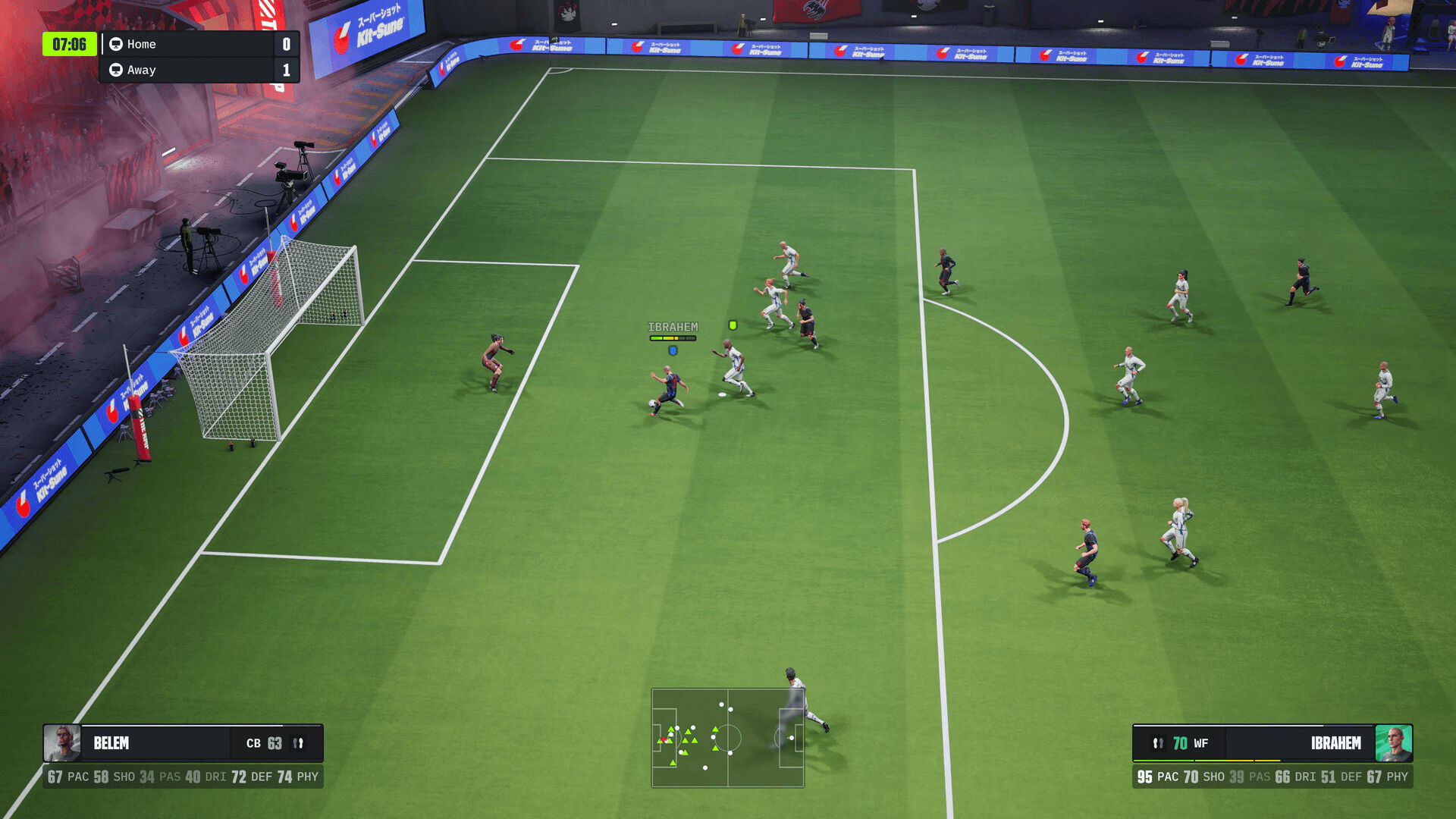
GOALS Guide: Best Graphics Settings for Max FPS
Recommended Settings
Why does Rendering Quality matter so much?
Rendering Quality at Medium is the single most impactful setting in the menu. Pushing it to High or Ultra will noticeably tax your GPU during busy match moments, particularly when the ball is in a crowded penalty area. Medium holds up visually and keeps frame times consistent, which matters far more in a fast-paced football game than a few extra texture details on the crowd.
Should you turn on Frame Generation?
Keep Frame Generation off unless your hardware is genuinely struggling. On capable setups it adds latency, which is the opposite of what you want in a game where reaction time determines whether you intercept a through-ball or watch it sail past your keeper. If your frame rate is already sitting comfortably above 60, leave it disabled.
What does Thermal Mode do in GOALS?
Thermal Mode set to Temperature tells the game to automatically scale back performance before your hardware starts throttling. On laptops or smaller desktop builds with limited airflow, this setting prevents the sudden FPS drops that happen when your CPU or GPU hits a thermal ceiling mid-match. It is not a setting most sports games expose directly, so it is worth paying attention to.
How does anti-aliasing work without DLSS support?
GOALS does not currently support DLSS, which means Nvidia users cannot rely on AI upscaling to recover frames after cranking up resolution. FXAA is the practical alternative: it smooths jagged edges with a very low performance cost, making it the right call for Nvidia hardware. AMD users get FSR (FidelityFX Super Resolution), which handles upscaling more efficiently on AMD GPUs and is the stronger choice on that platform.
Resolution Scale at Quality gives you a good balance between sharpness and performance. If you drop everything else and still see stutters, switching Resolution Scale to Performance is the next lever to pull.
Quick tips for a smoother GOALS experience
- Install GOALS on an SSD rather than a hard drive. The game's own recommendation, and it makes a measurable difference to load times and texture streaming.
- Keep Latency Reduction on at all times. The performance cost is negligible and the input responsiveness benefit is real.
- Most stutters in GOALS during online play are caused by network issues, not GPU performance. If your frame rate looks fine in the overlay but the game feels choppy, check your connection before adjusting graphics settings.
- VSync is worth enabling if you notice screen tearing on your monitor, but be aware it will cap your frame rate to your display's refresh rate.
For more tips and strategy on the game, the GOALS guides collection covers everything from controls to advanced match tactics.