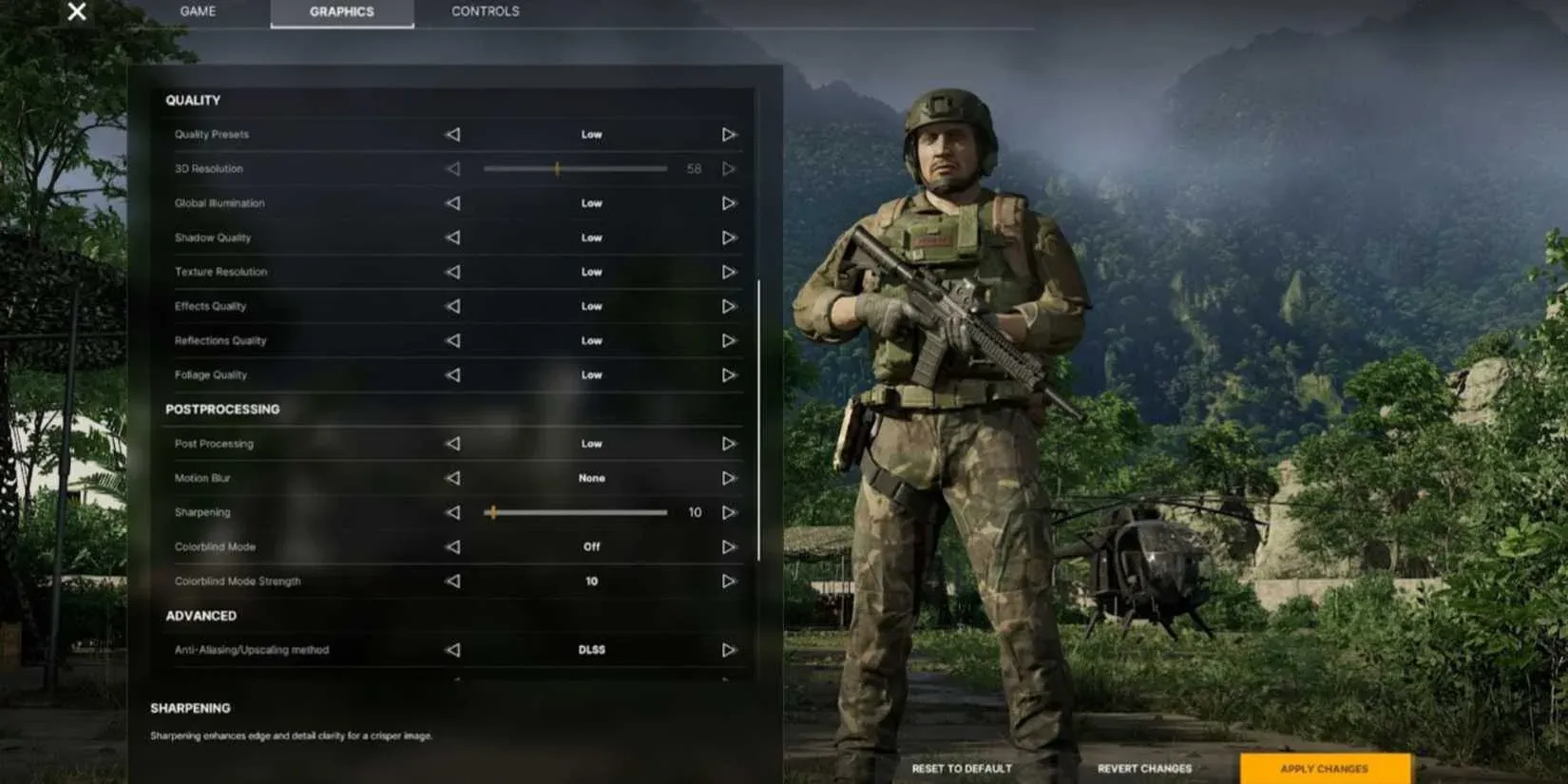


Grayzone Warfare is a game where spotting an enemy half-hidden in jungle undergrowth before they spot you can decide the entire match. That makes graphics settings more than a visual preference — they're a tactical tool. Getting them wrong means blurry textures, missed targets, and frame drops at the worst possible moment. Getting them right means a cleaner image, better situational awareness, and a system that isn't choking under the load.
What graphics settings actually matter in Grayzone Warfare?
Not every setting carries equal weight. Some have a major impact on both performance and visibility. Others are cosmetic at best and frame-rate killers at worst. The breakdown below covers the settings worth your attention, what each one does in practice, and how to approach them depending on your hardware.
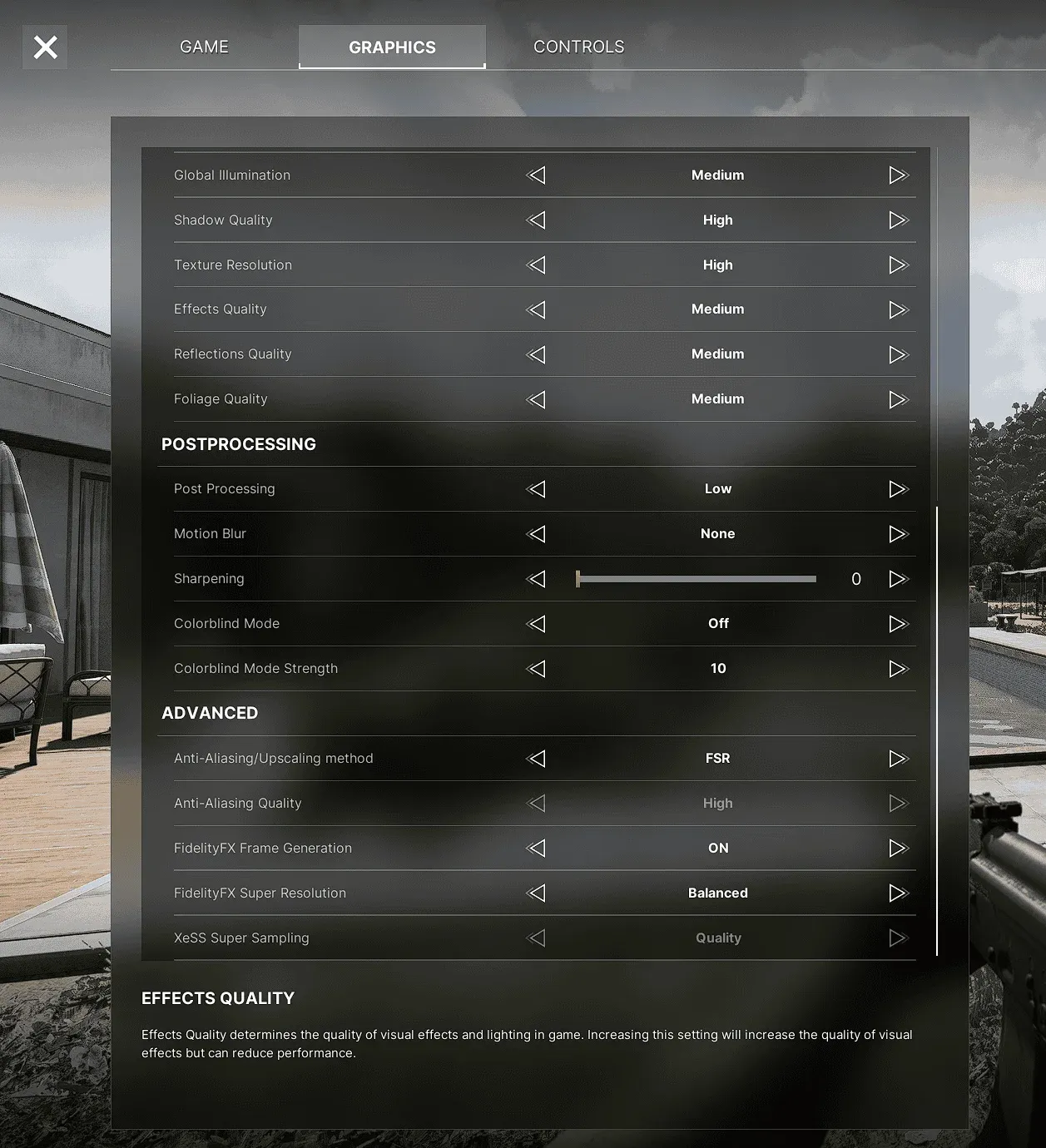
Graphics settings overview
Texture quality
Texture quality determines how sharp and detailed surfaces look — building walls, vegetation, ground cover, uniforms. At high settings, you can read the terrain more accurately: a patch of disturbed earth, a shadow behind a wall, the outline of gear on a prone enemy. At low settings, surfaces turn muddy and objects blend together in ways that genuinely hurt your ability to read the environment.
If your GPU has 8GB of VRAM or more, run textures at high. Below that, medium is the safe call. Dropping to low rarely gives you enough performance headroom to justify the visibility loss.
Lighting
Lighting in Grayzone Warfare does two things: it sets the atmosphere, and it determines how readable different areas of the map are. In shadowed interiors or during night operations, well-configured lighting helps you assess threat angles faster. Poorly calibrated lighting either washes out detail in bright areas or makes dark zones unreadable.
Lighting settings affect color grading and shadow intensity together, so changes here interact with your shadow quality setting. Running lighting at a high preset while keeping shadows low can produce inconsistent results — objects cast soft, unconvincing shadows that make depth harder to judge.
Anti-aliasing
Anti-aliasing smooths the jagged edges that appear on object outlines, especially at distance. In a game where you're scanning treelines and rooftops for movement, jagged edges create visual noise that makes targets harder to pick out. Enabling anti-aliasing reduces that noise and produces cleaner silhouettes.
The tradeoff is performance. Temporal anti-aliasing (TAA) is typically the least demanding option and works well at 1080p and 1440p. If you're running at native 4K, you can often reduce or disable anti-aliasing since the pixel density handles much of the edge smoothing naturally.
Shadow quality
Shadows are one of the more tactically relevant settings in Grayzone Warfare. High shadow quality means enemies and objects cast defined, readable shadows — useful for detecting movement around corners or spotting someone prone in a shaded area. Well-rendered shadows can reveal hidden enemy positions and indicate incoming fire trajectories, giving you information you wouldn't have otherwise.
The performance cost is real, though. Shadow rendering is GPU-intensive, and dropping from high to medium often recovers a meaningful number of frames without gutting the tactical value of shadows entirely. Running shadows at low removes most of that positional information and is only worth considering on hardware that genuinely can't hold a stable frame rate otherwise.
Draw distance
Draw distance controls how far out the game renders objects. Higher values mean you can see structures, vehicles, and potentially enemies at longer ranges. Lower values pop objects in closer, which reduces the visual load but also cuts off your sightlines.
For a game with open environments and long-range engagements, draw distance matters. Setting it too low means targets appear out of nowhere at ranges where you'd expect to have advance warning. This is a balance between visual fidelity and frame rate — find the highest setting your system can sustain without dropping below your target frame rate.
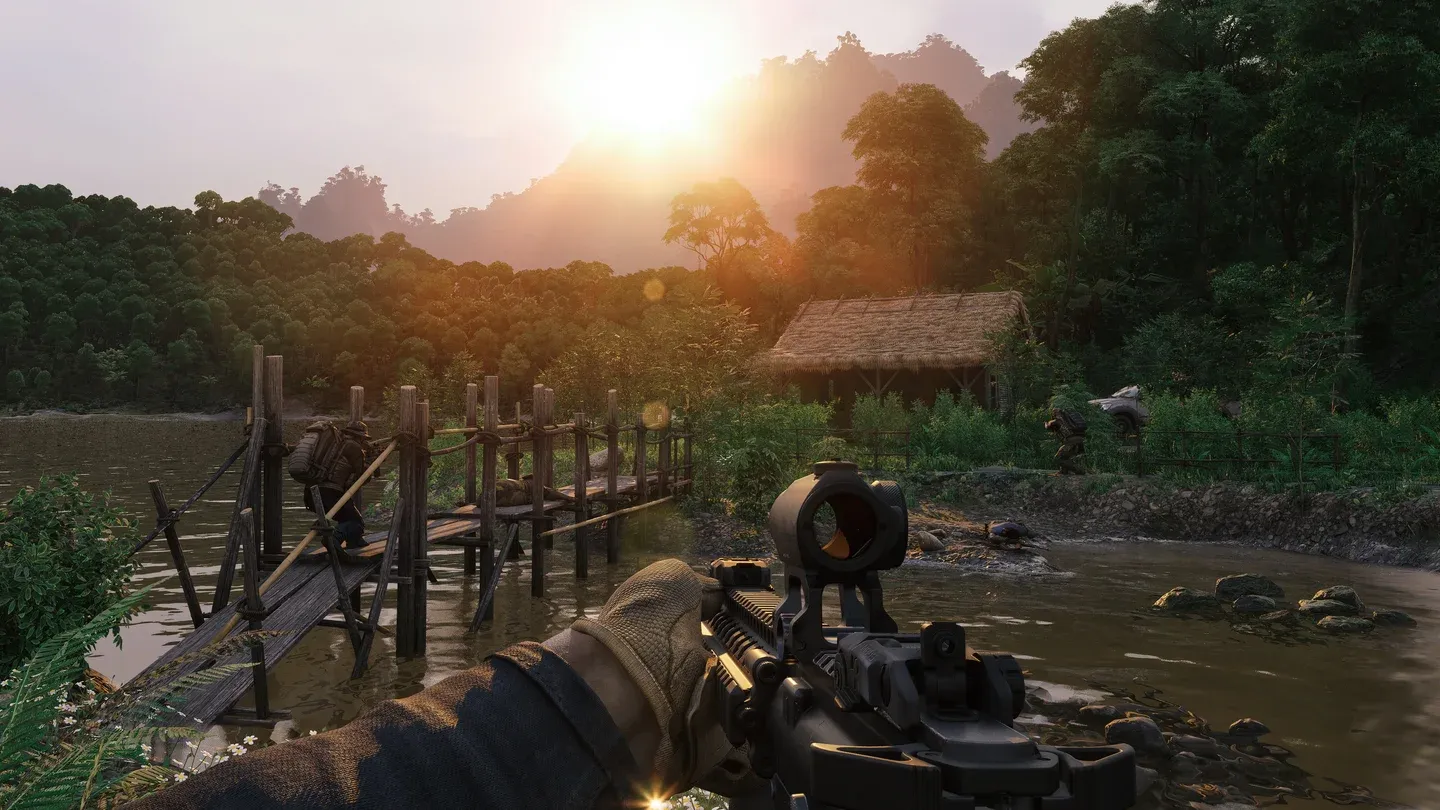
Draw distance at max vs reduced
Effects quality
Explosions, smoke, fire, and particle effects fall under effects quality. Visually, high settings make combat feel more physical and reactive. Tactically, realistic smoke effects can obscure enemy movements or mark positions, and explosion particles can indicate where fire is coming from.
Effects quality is also one of the more scalable settings — most players won't notice a significant visual difference between high and medium, but the frame rate difference during heavy combat can be substantial. Medium is a reasonable default for most systems. High is worth enabling if you have headroom to spare.
Motion blur
Turn it off. Motion blur adds a blurring effect to fast camera movement and fast-moving objects, which sounds immersive until you're trying to track a target during a sprint or a vehicle pass. The performance cost and the visibility reduction both work against you. Competitive players regularly disable motion blur to improve reaction times and target tracking.
Resolution
Resolution is the foundation everything else sits on. Higher resolutions render more pixels, which means sharper images, less aliasing, and better visibility at range. The tradeoff is raw GPU demand — running at 4K costs roughly four times the pixel processing of 1080p.
For most players, 1440p hits the best balance between image clarity and performance. 1080p is still perfectly playable and allows higher settings elsewhere. 4K is worth targeting only if your GPU can sustain it without sacrificing frame rate consistency.
Recommended settings by hardware tier
The table below summarizes where to start based on your system. Adjust from there based on your actual frame rate targets.
How to monitor whether your settings are actually working
Adjusting settings without tracking the result is guesswork. Use an in-game frame rate counter or a tool like MSI Afterburner to watch your frame rate and GPU/CPU usage while you make changes. The goal is a stable frame rate at your target (60fps minimum for tactical play, 100+ for smoother tracking) without your GPU or CPU sitting at 99% utilization.
If your GPU is maxed out, reduce resolution or effects quality first. If your CPU is the bottleneck, draw distance and simulation-heavy settings are the place to cut. Temperature matters too — sustained high temperatures cause thermal throttling, which drops performance regardless of your settings.
For more guides covering performance optimization and tactical games, browse more guides at GAMES.GG.
Advanced options worth exploring
Beyond the core eight settings, some configurations of Grayzone Warfare expose additional options like ambient occlusion (adds contact shadows and depth to surfaces) and tessellation (adds geometric detail to terrain). Both improve visual realism at a performance cost. Ambient occlusion in particular adds perceptible depth to environments and is worth enabling at medium if your system has the headroom. Tessellation is lower priority — the visual gain is subtle and the cost is not.