

अपने कंट्रोलर को परफेक्टली सेट करना, फाइनल सर्कल को जीतने और साइडलाइन से देखने के बीच का अंतर हो सकता है। Battlefield REDSEC में precision की ज़रूरत होती है, और जब आप ऐसे seasoned players का सामना कर रहे होते हैं जिन्होंने अपने setup के हर पहलू को optimize किया है, तो default settings काम नहीं आतीं।
Battle royale mode, traditional Battlefield multiplayer से काफी अलग लगता है, जिसमें ऐसे adjustments की ज़रूरत होती है जो quick target acquisition और smooth movement flow को prioritize करते हैं। यहाँ बताया गया है कि आप maximum performance के लिए अपने कंट्रोलर को कैसे कॉन्फ़िगर कर सकते हैं।
REDSEC में कंट्रोलर ऑप्टिमाइज़ेशन क्यों ज़रूरी है
Battlefield REDSEC आपको intense firefights में डालता है जहाँ split-second reactions से survival तय होता है। traditional Battlefield modes के विपरीत, battle royale format का मतलब है कि हर engagement आपकी आखिरी हो सकती है, जिससे precise aim और fluid movement बिल्कुल ज़रूरी हो जाते हैं।
गेम की default controller settings एक अधिक casual experience के पक्ष में हैं, लेकिन competitive play के लिए fine-tuned responsiveness की ज़रूरत होती है। एक बार जब ये settings ठीक से कॉन्फ़िगर हो जाती हैं, तो आपको target tracking, recoil control और overall game feel में तुरंत सुधार दिखाई देगा।
Best controller settings for ...
Aim Settings
Core Sensitivity Configuration
आपकी नींव Infantry Aim Sensitivity से शुरू होती है। quick target acquisition और precise tracking के बीच perfect balance के लिए इसे 45 पर सेट करें। यह सेटिंग आपको sustained fire के दौरान control बनाए रखते हुए दुश्मनों पर तेज़ी से snap करने की अनुमति देती है।
Advanced Aim Assist Configuration
REDSEC में Aim Assist settings पर विशेष ध्यान देने की ज़रूरत है। competitive parity बनाए रखने के लिए Infantry Aim Assist को 100 पर रखें, लेकिन supporting settings को fine-tune करें:
- Infantry Aim Assist Slowdown: 100
- Infantry Aim Assist Zoom Snap: 100
- Soldier Aim Input Curve: BF4 (सबसे responsive feel प्रदान करता है)
BF4 input curve, standard curve की तुलना में बेहतर responsiveness प्रदान करता है, जिससे आपको वह snappy feel मिलती है जिसे veteran players पसंद करते हैं।
Movement Settings
Sprint and Mobility Options
REDSEC के open environments में smooth movement आपको जीवित रखता है। अधिकतम fluidity के लिए इन settings को कॉन्फ़िगर करें:
लंबे rotations के दौरान thumb fatigue को रोकने के लिए Infantry Sprint को Toggle पर सेट किया जाना चाहिए। obstacles को navigate करते समय momentum बनाए रखने के लिए Vault Over Sprint को enable करें, और movement states के बीच quick transitions के लिए Crouch Toggle Sprint को Stand पर सेट करें।
Slide and Crouch Mechanics
Crouch Slide को All पर सेट करने से यह सुनिश्चित होता है कि आप किसी भी stance से slide कर सकते हैं, जो firefights के दौरान quick repositioning के लिए महत्वपूर्ण है। movement को seamlessly chain करने के लिए Double Tap Crouch For Sprint Slide को enable करें।
Alternate button layout यहाँ सबसे अच्छा काम करता है, crouch को right analog stick पर swap करता है ताकि movement controls पर अपने thumbs को रखते हुए तुरंत access मिल सके।
Zoom Sensitivity
Scope-Specific Settings
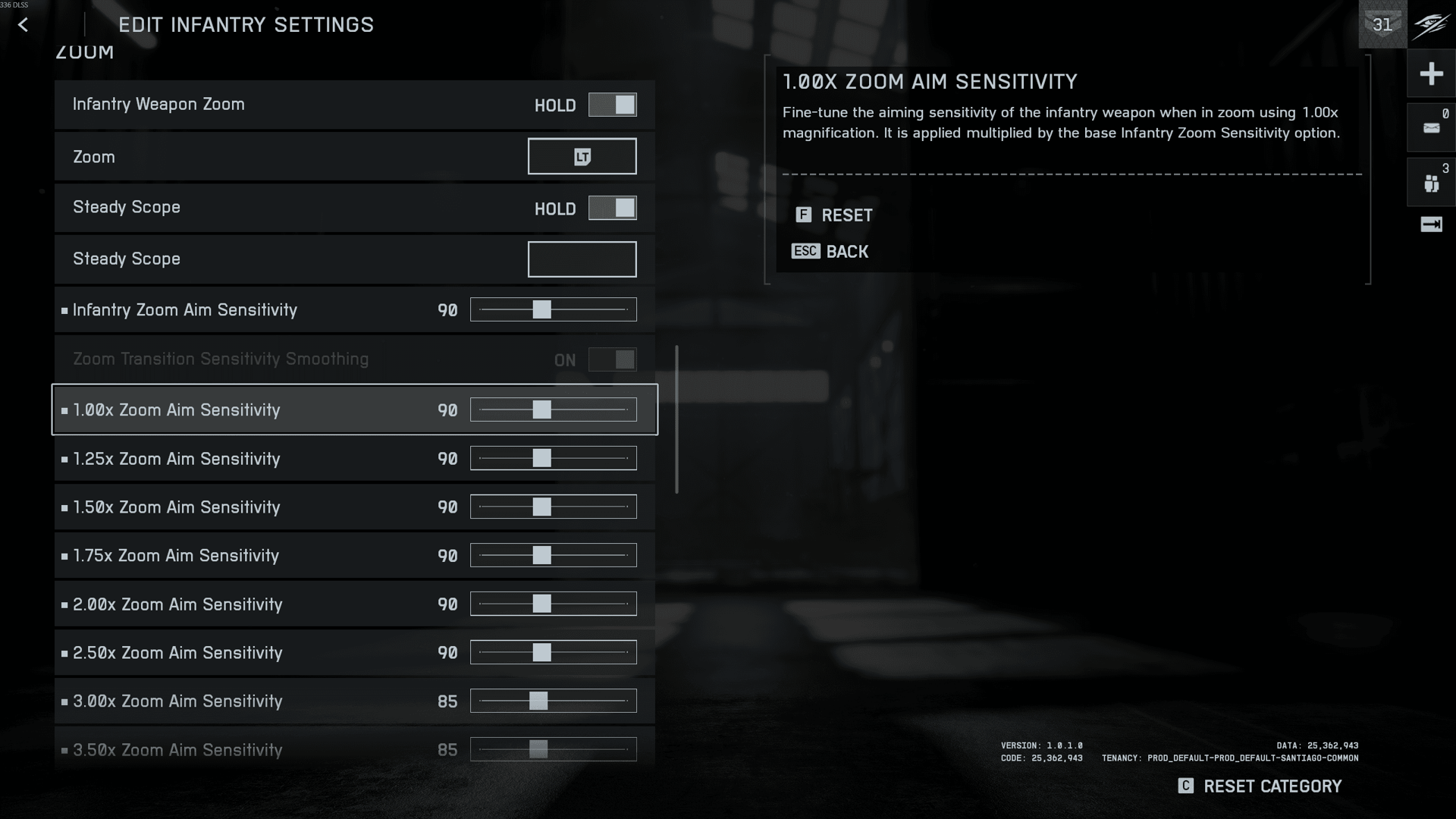
optimal performance के लिए विभिन्न zoom levels को अलग-अलग sensitivities की आवश्यकता होती है। यहाँ वह breakdown है जो सभी weapon types पर काम करता है:
Infantry Weapon Zoom को toggle के बजाय Hold पर सेट किया जाना चाहिए, जिससे आपको इस बात पर सटीक control मिलता है कि आप कब scoped हैं और situational awareness बनाए रखते हैं।
Steady Scope Configuration
Steady Scope को Hold पर सेट करें और easy access के लिए इसे Click Left Joystick पर bind करें। यह उन महत्वपूर्ण long-range shots के लिए आवश्यक हो जाता है जहाँ stability का हर bit मायने रखता है।
Controller Hardware Optimization
Deadzone Settings for Responsiveness
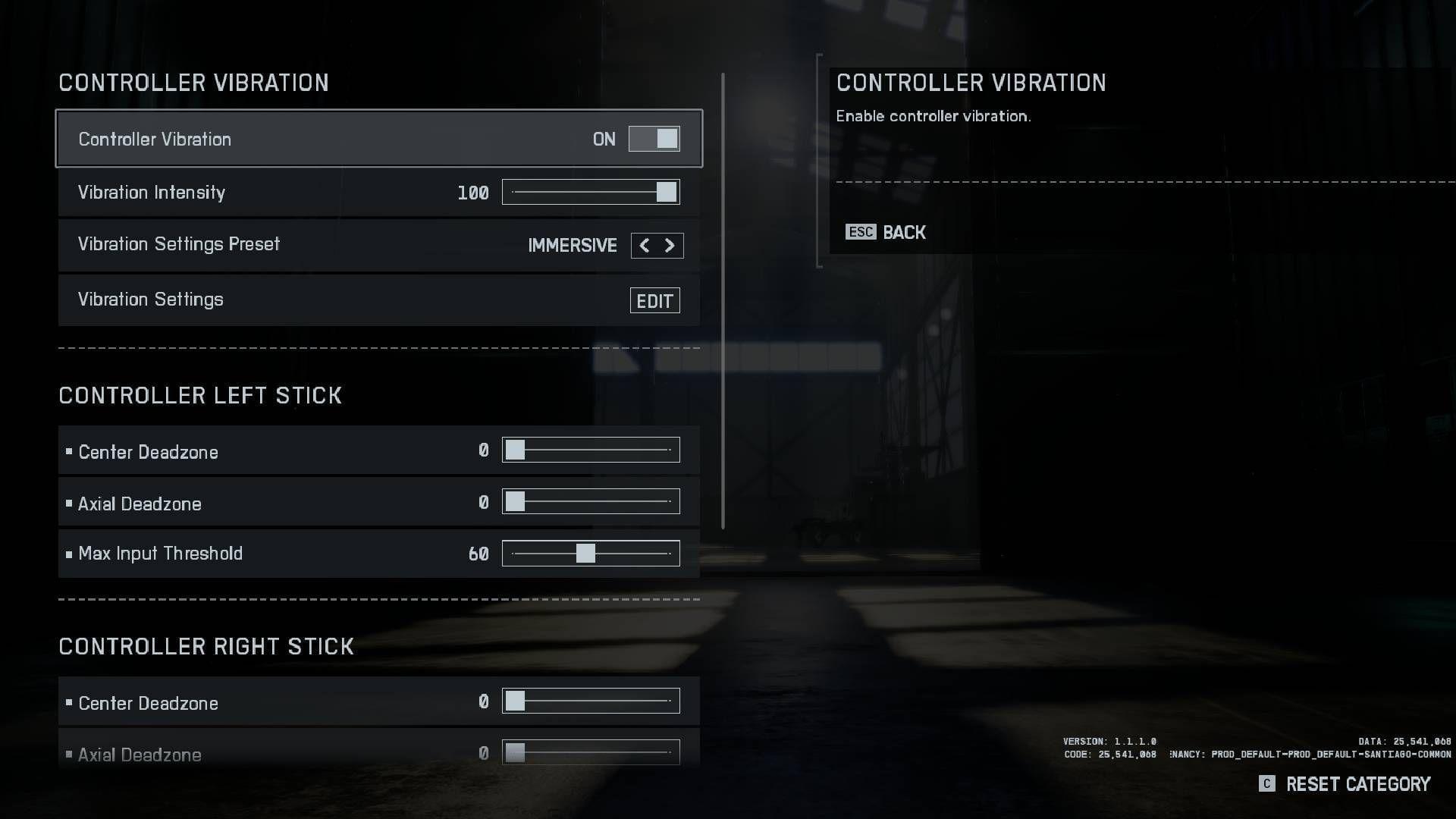
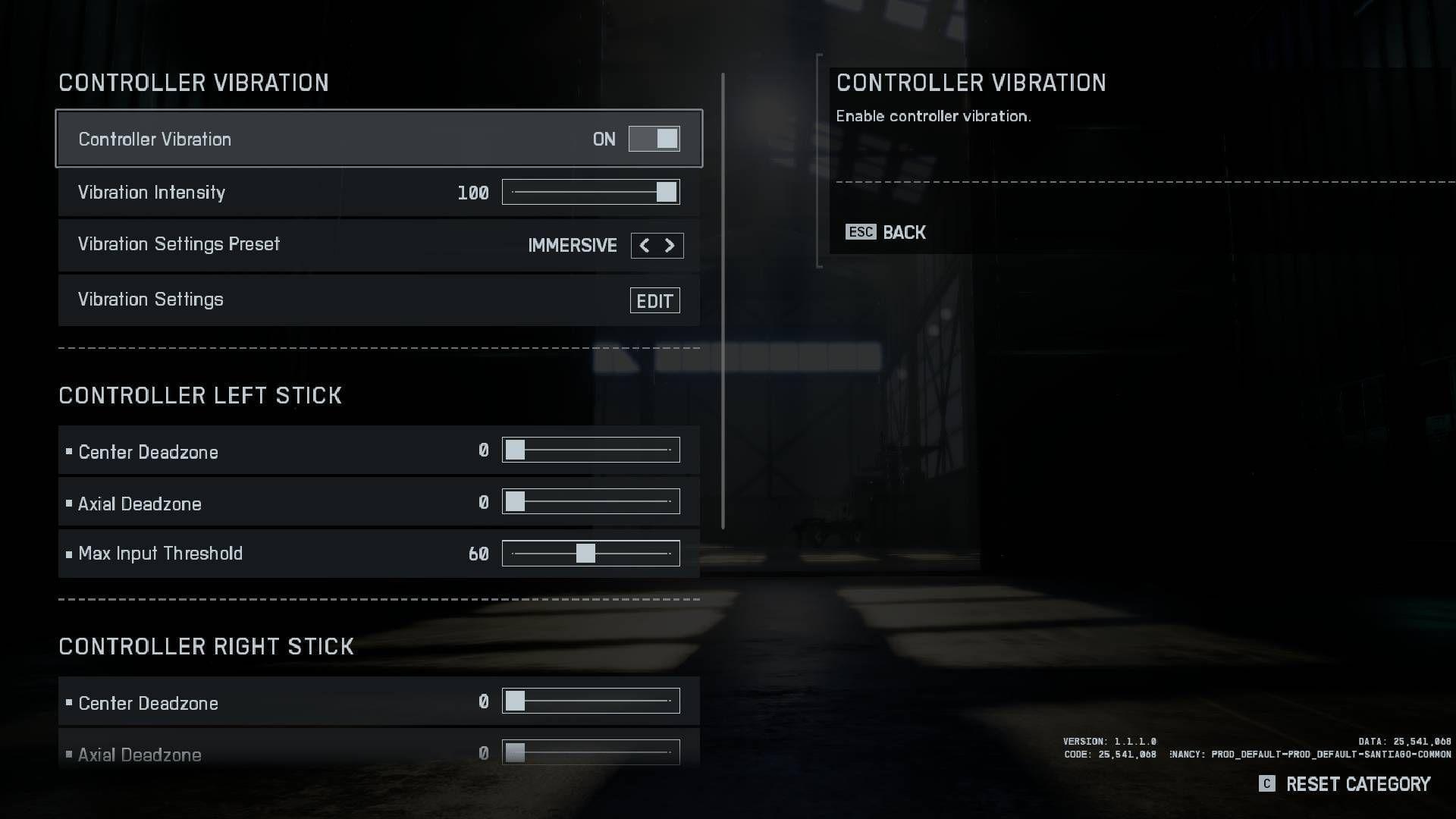
आपके कंट्रोलर का physical response सीधे in-game performance को प्रभावित करता है। ये deadzone settings stick drift को रोकते हुए input lag को खत्म करती हैं:
Controller Left Stick:
- Center Deadzone: 2
- Axial Deadzone: 5
- Max Input Threshold: 100
Controller Right Stick:
- Center Deadzone: 2
- Axial Deadzone: 5
- Max Input Threshold: 100
Trigger Optimization
instant trigger response के लिए LT Deadzone और RT Deadzone दोनों को 0 पर सेट करें। यह dead zone को खत्म करता है जो महत्वपूर्ण क्षणों में आपके shots को delay कर सकता है।
Best controller settings for ...
Vehicle Control Adjustments
Ground and Air Vehicle Settings
Vehicles को उनके unique handling characteristics के कारण अलग-अलग sensitivity settings की आवश्यकता होती है। Vehicle Aim Sensitivity को 30 पर सेट करें - infantry settings से कम क्योंकि vehicles को सटीक रूप से control करना कठिन होता है।
aircraft के लिए, Helicopter Control Sensitivity को 30 पर रखें और अधिक direct control के लिए Helicopter Control Assists को बंद कर दें। independent turret movement के लिए Decouple Tank Turret Aiming From Turret को enable करें।
Advanced Features and Fine-Tuning
Flick Look Configuration
Infantry Flick Look Mode को Always पर सेट करें जिसमें 90 threshold और 100 speed हो, जिससे आपको flanking enemies पर तेज़ी से प्रतिक्रिया देने के लिए rapid 180-degree turns करने में मदद मिलती है।
Interaction Priority Settings
loot करने या teammates को revive करने की कोशिश करते समय गलती से reloading से बचने के लिए Interact & Reload को Prioritize Interact पर सेट करें। यह single setting clutch situations में अनगिनत frustrating moments को रोकती है।