

Invincible VS is a 3v3 tag-team fighter built by Quarter Up, a studio stacked with Killer Instinct veterans, and it runs at a pace that punishes even a single dropped frame. On the ROG Ally and ROG Xbox Ally X, hitting a stable 60 FPS takes some deliberate configuration. After testing both devices at 1080p, here are the exact settings that get you there.
What is Invincible VS and why does performance matter?
Invincible VS launched on April 30, 2026, and brings 18 characters from the Amazon series and Image Comics into a competitive fighting system. Mark Grayson, Omni-Man, and newcomer Ella Mental headline the roster, all voiced by the original cast. The core mechanics, Active Tags for extending combos and Counter Tags for escaping pressure, demand frame-accurate inputs. A frame rate that dips below 60 mid-combo is not just annoying; it costs you rounds.
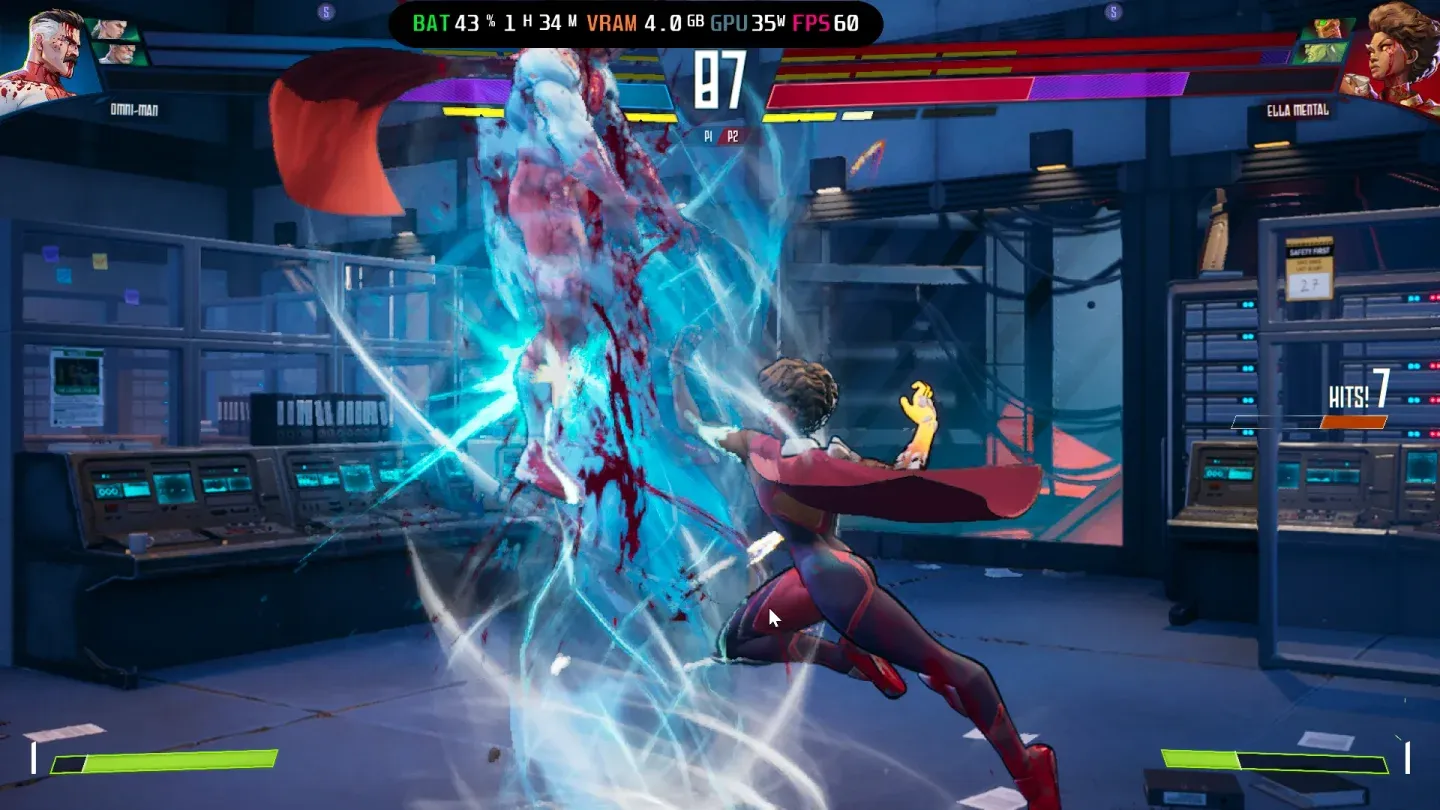
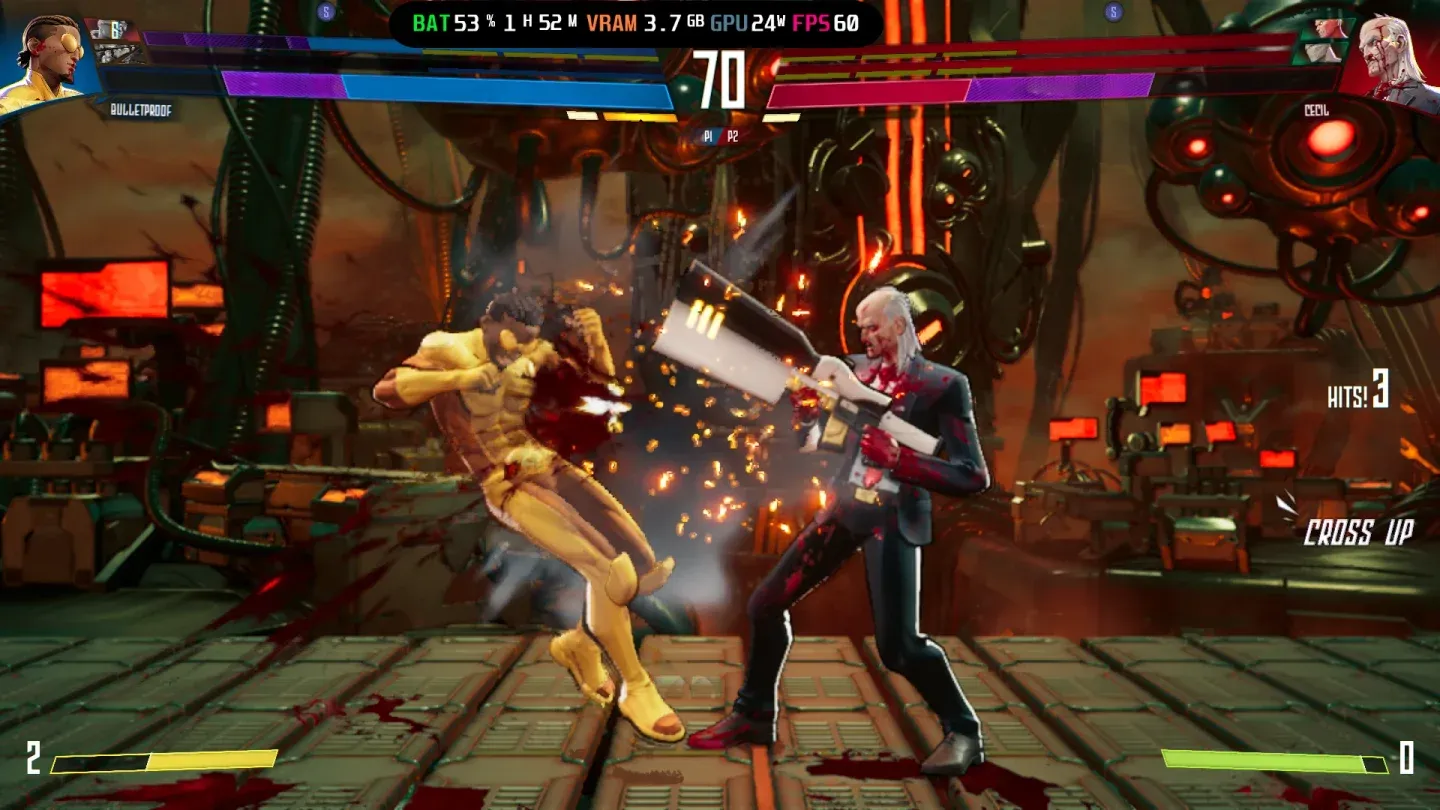
The game's most demanding stage is the Nuclear Missile Base, which features dynamic destructive backgrounds that rebuild each round. Both tested devices showed their lowest frame rates on this stage specifically, so treat it as your benchmark for worst-case performance.

Nuclear Missile Base performance test
How do you set up VRAM correctly on ROG Ally?
Before touching any in-game graphics option, set your VRAM to 5GB or above. Both the ROG Ally and the ROG Xbox Ally X benefit from this allocation when running Invincible VS. If you leave VRAM at the default lower value, expect texture pop-in and frame pacing issues regardless of what you set inside the game.
To adjust VRAM, follow the dedicated VRAM guide on the ROG Ally Life site. It walks through the BIOS steps needed to increase the allocation. Do this first.
How do you configure TDP for the best frame rate?
TDP configuration is handled through Armoury Crate SE, not inside the game itself. The process is the same on both devices but the target wattages differ.
Open Armoury Crate, tap Settings, select Operating Mode, then switch to Manual Mode. Once that is active, the Command Center slider becomes adjustable.
ROG Ally and ROG Ally X TDP
Max out the slider. At 25W to 30W, testing produced an average of 50 to 60 FPS at 1080p, with the lower end appearing on the Nuclear Missile Base stage.
ROG Xbox Ally X TDP
Max out the slider to reach 35W Turbo Mode or run at 30W. At 30W to 35W, the ROG Xbox Ally X delivered a near-60 FPS experience at 1080p across most stages.
Armoury Crate TDP slider setup
What are the best in-game graphics settings?
The settings below come directly from hands-on testing at 1080p. The two devices share most values but differ on Resolution Quality and Ambient Occlusion.
Comparison table: ROG Ally vs ROG Xbox Ally X
The ROG Ally runs at Resolution Quality 40 with Ambient Occlusion off because the hardware needs that headroom to stay near 60 FPS. The ROG Xbox Ally X has enough extra TDP headroom at 35W to push Resolution Quality to 50 and keep Ambient Occlusion on without meaningful frame rate cost.
In-game graphics settings panel
Why turn Motion Blur off in a fighting game?
Motion Blur is off on both devices for a practical reason: fast character movement and combo animations already create natural motion blur through the animation itself. Adding a post-process blur layer makes it harder to read opponent animations, which is exactly the information you need during Active Tag sequences. Turn it off and leave it off.
TAA (Temporal Anti-Aliasing) stays on because it handles the jagged edges on character models without the frame rate cost of higher-quality AA methods. At 1080p on a handheld screen, the difference between TAA and more expensive options is negligible.
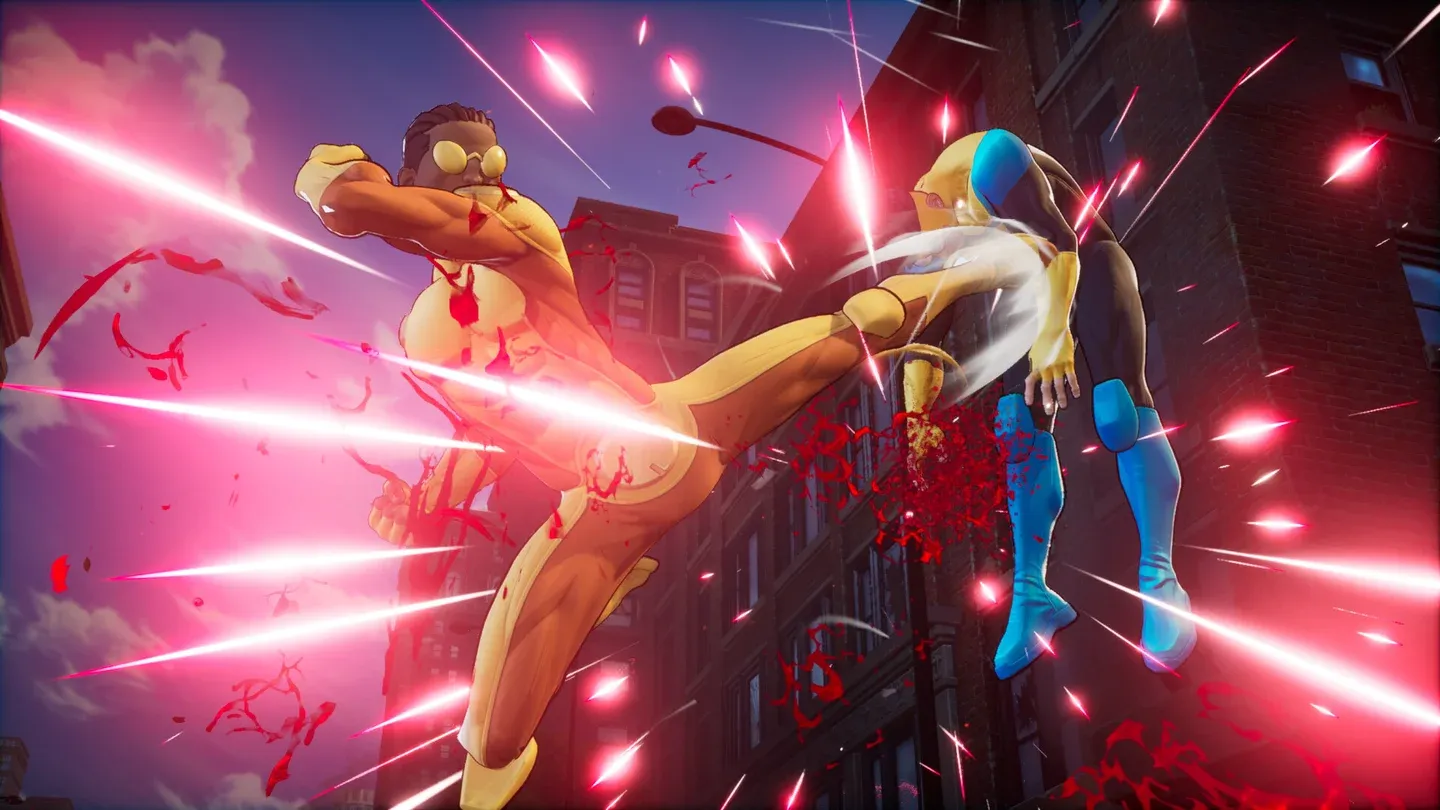
Active Tag combo in action
What makes Invincible VS run differently from other fighters?
The dynamic backgrounds are the main variable. Most fighting games use static or looping backgrounds that have a predictable GPU cost. The Nuclear Missile Base in Invincible VS changes its geometry each round as destruction accumulates, which means the GPU workload is not constant. This is why the stage-specific performance dips appear even with optimized settings. There is no in-game option to disable background destruction, so accepting occasional dips on that stage is the realistic expectation.
For a deeper look at the game's mechanics, including how the 3v3 tag system works in practice, the Invincible VS gameplay guide at invinciblevs.org covers Active Tags, Counter Tags, and team composition in detail. If you are planning to run the game on PC rather than a handheld, the PC system requirements and optimization guide at the same site breaks down minimum and recommended specs alongside graphics settings advice.
Quick setup checklist
- Set VRAM to 5GB or above in BIOS before launching
- Open Armoury Crate, switch to Manual Mode, max out TDP slider
- Set Window Mode to Fullscreen and Resolution to 1920 x 1080
- Turn VSync, Motion Blur, Reflections, and (on ROG Ally) Ambient Occlusion off
- Set Shadow Quality to Medium and Shadow Type to Simple
- Set Anti-Aliasing to TAA
- ROG Ally: Resolution Quality 40. ROG Xbox Ally X: Resolution Quality 50
For more fighting game guides and handheld gaming tips, browse the full guides library at GAMES.GG.