
Life Is Strange Reunion runs well on most modern PCs, but that doesn't mean the default settings are optimal. After spending time testing different configurations on mid-range hardware, a few tweaks make a real difference between a smooth playthrough and an experience interrupted by stutters. Here's what actually works.
What are the best graphics settings for Life Is Strange Reunion?
The settings below are tuned for mid-range systems, tested on a Ryzen 5600G, NVIDIA RTX 3060 12 GB, and 16 GB DDR5 RAM. If your rig is significantly more powerful than that, the default settings will likely serve you fine. These recommendations are for anyone who wants consistent frame delivery without sacrificing too much visual fidelity.
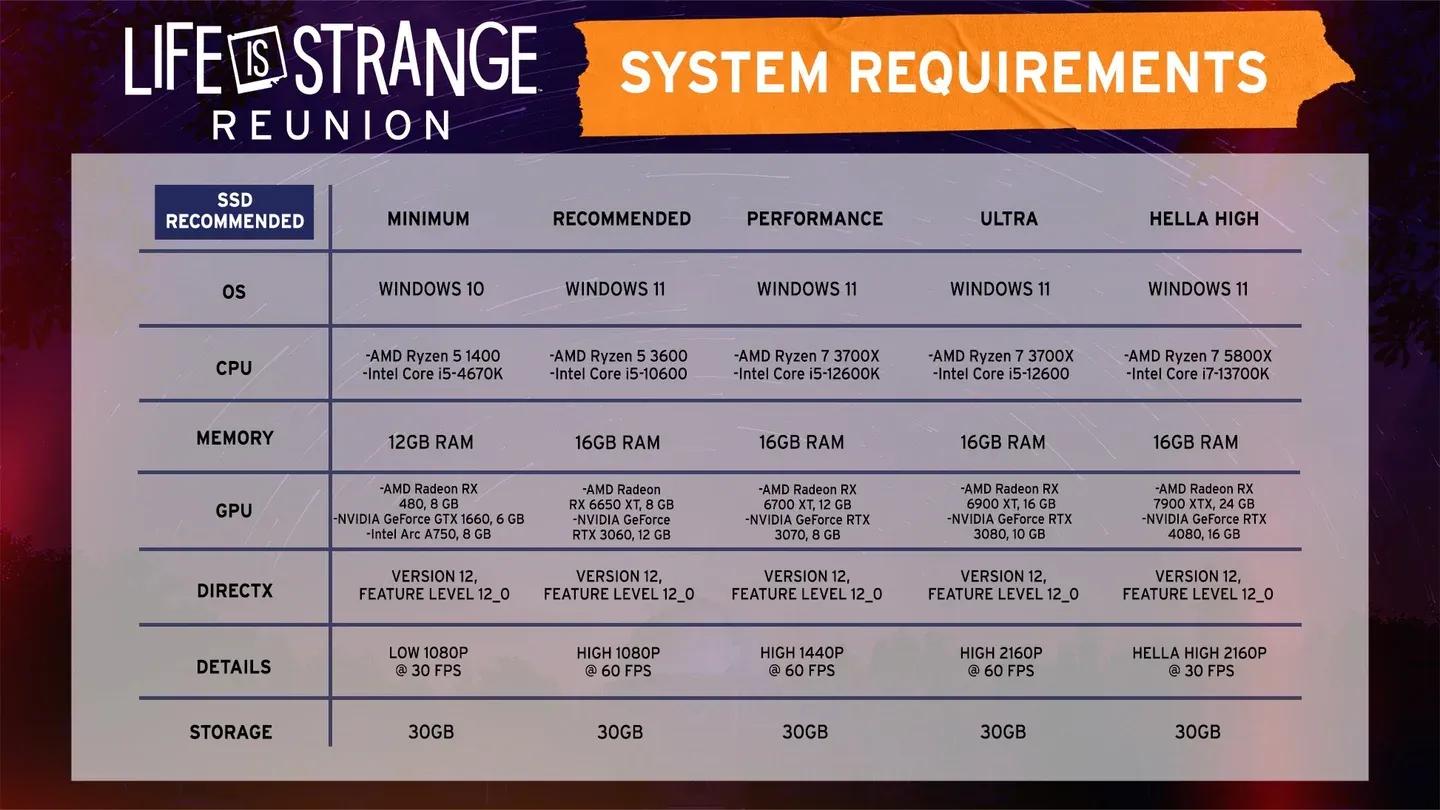
Graphics settings overview

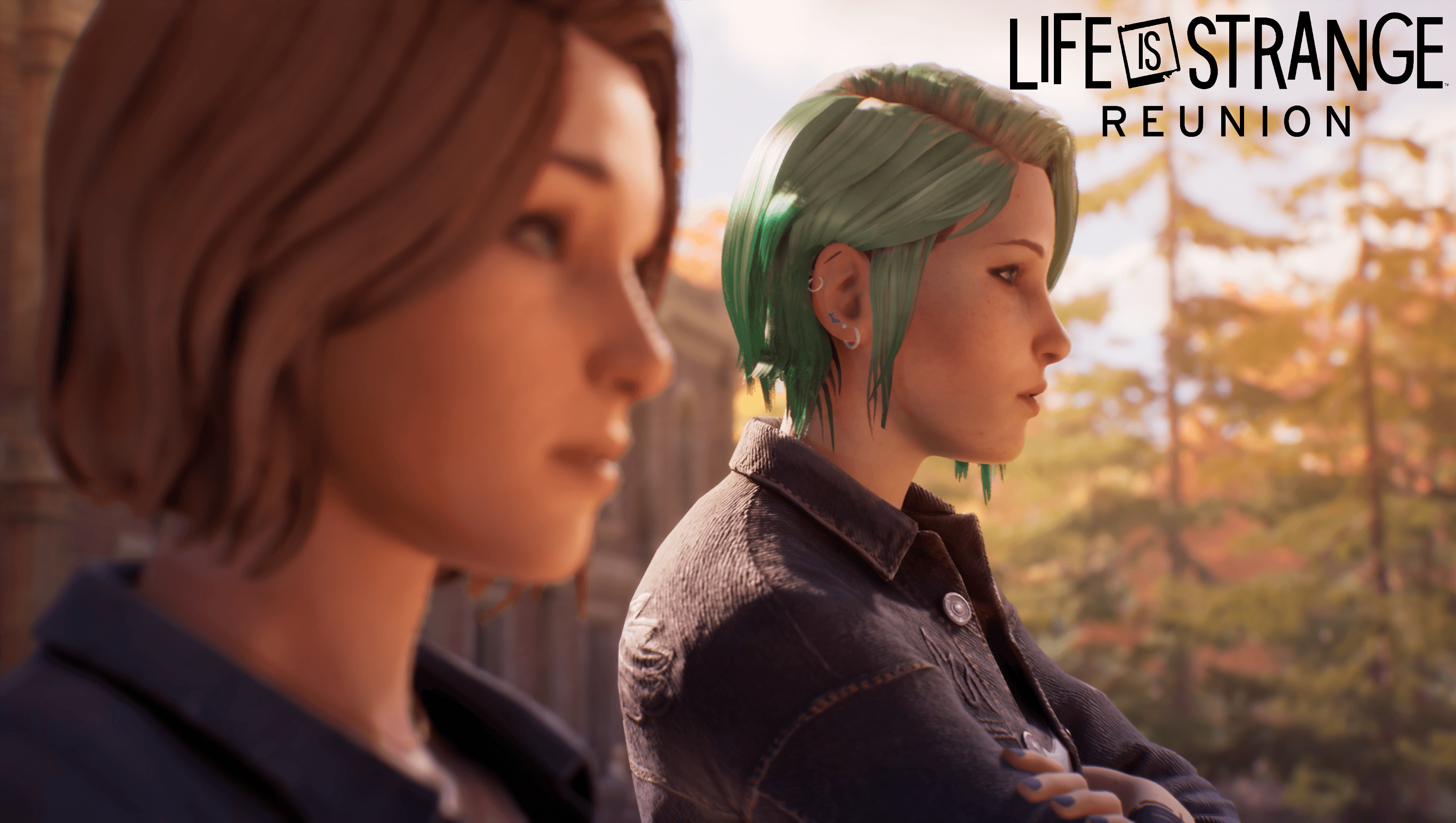
Display settings
- Resolution: Set to your monitor's native resolution. 1920x1080 is the sweet spot for performance on mid-range hardware.
- Window Mode: Borderless works best if you're on a multi-monitor setup. Fullscreen is fine for single-monitor users.
- Max Frame Rate: Cap at 60 FPS. Uncapped introduces stutters on mid-range systems that aren't worth the occasional higher frame count.
- Resolution Scale: Set to around 75% (three-quarters of the slider). Dropping this too far makes the image noticeably soft.
- Secondary Scale: 50%. This handles secondary render resolution and has a bigger performance impact than it looks.
- VSync: Off. It adds input lag with minimal visual benefit, and the 60 FPS cap already handles screen tearing effectively.
Quality settings
- Anti-Aliasing: Medium
- Global Illumination Quality: High (this one is worth keeping up — it has a significant visual impact on Reunion's environments)
- Effects: Medium
- Shadow Quality: Medium
- Reflection Quality: Medium
- Texture Quality: Medium
- Post Process Quality: Medium, or High if your system handles it. High post processing makes the image noticeably richer, so test it before defaulting to Medium.
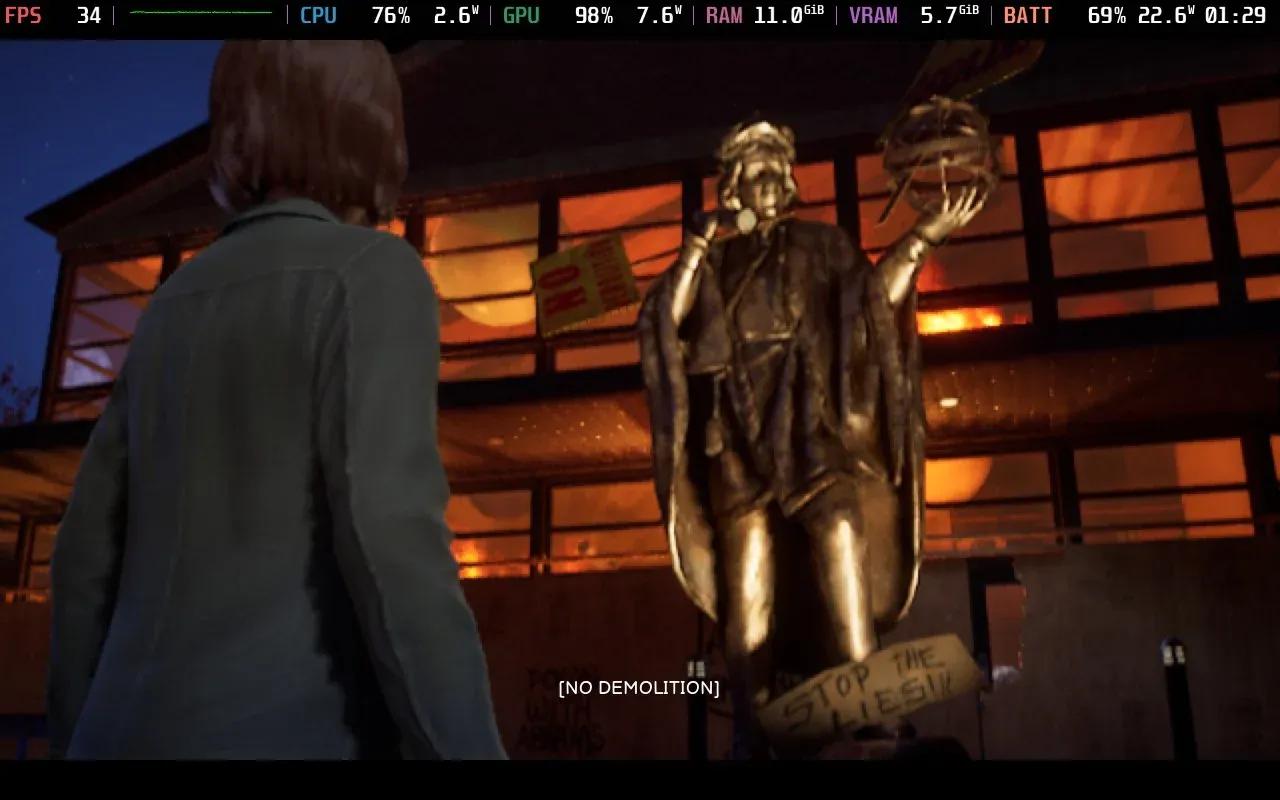
Shadow quality: Medium vs High
Settings comparison: performance vs quality
| Setting | Performance Priority | Quality Priority |
|---|---|---|
| Resolution Scale | 50% | 100% |
| Anti-Aliasing | Low | High |
| Global Illumination | Medium | High |
| Shadow Quality | Low | High |
| Texture Quality | Medium | High |
| Post Process Quality | Medium | High |
| Max Frame Rate | 60 FPS | Uncapped |
| VSync | Off | Off |
Why does VSync hurt more than it helps here?
VSync in Life Is Strange Reunion doesn't offer much benefit because the game's frame pacing is already handled better by the 60 FPS cap. Turning VSync on introduces a small but consistent input lag, and on a narrative game where you're making dialogue choices and exploring environments, that lag feels slightly off even if you can't immediately identify it. Keeping it off and capping the frame rate manually gives you the best of both worlds.
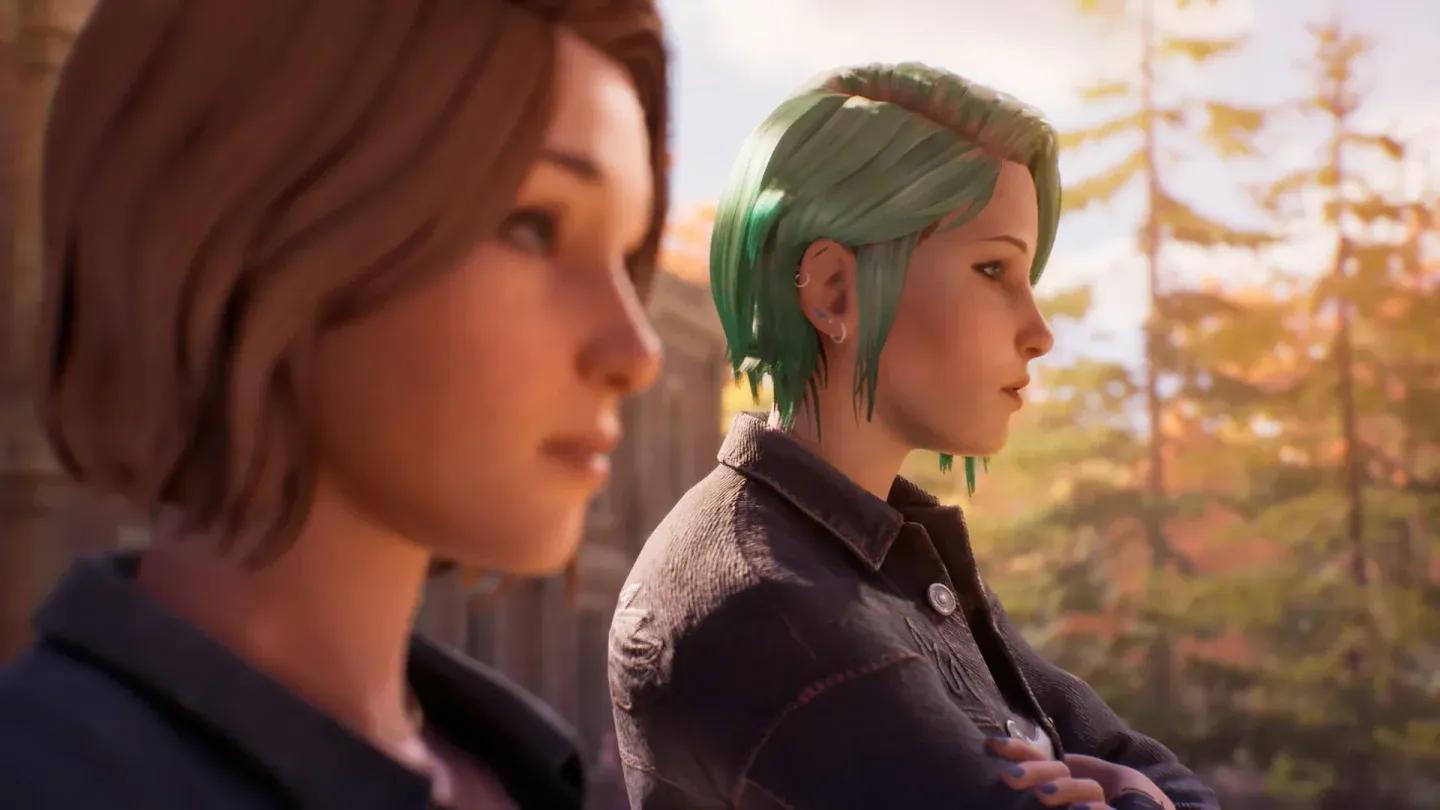
Post process quality at High
What about Global Illumination — is it worth keeping on High?
Global Illumination Quality is one setting worth leaving at High even on mid-range systems. Reunion's art direction relies heavily on natural and ambient lighting to set mood, and dropping GI to Medium or Low noticeably flattens the look of indoor scenes and outdoor environments. The performance cost is relatively contained compared to shadow quality or texture resolution, so it's a good trade.
Testing on the same mid-range setup shows that these settings interact in predictable ways across different hardware configurations. The balance between visual quality and frame stability holds up consistently when you stick to the recommended ranges.
How to check if your settings are working
After applying the settings, load into a scene with heavy lighting and outdoor geometry. Watch for frame dips or micro-stutters during camera pans. If you're still seeing hitches, try dropping Secondary Scale from 50% to 40% and Shadow Quality from Medium to Low. Those two settings together have the largest performance impact without gutting the visual quality.
If you want more detail on how individual settings behave across different GPU tiers before you start fine-tuning, the extended settings breakdown covers those interactions in depth.
Recommended settings at a glance
- Resolution: Native (1920x1080 recommended)
- Window Mode: Borderless
- Max Frame Rate: 60 FPS
- Resolution Scale: 75%
- Secondary Scale: 50%
- VSync: Off
- Anti-Aliasing: Medium
- Global Illumination Quality: High
- Effects: Medium
- Shadow Quality: Medium
- Reflection Quality: Medium
- Texture Quality: Medium
- Post Process Quality: Medium (bump to High if performance allows)
These settings hold up well for the first several hours of play. Minor stutters that do appear are expected to be addressed in upcoming patches, so keep an eye on patch notes from Square Enix for any performance updates. For more PC gaming guides, browse the full guides section at GAMES.GG.