
Getting your settings dialed in before you drop into a match can be the difference between extracting successfully and losing everything. Marathon is an extraction shooter where every encounter counts, and having sluggish aim or misaligned keybinds will cost you runs that should have been wins. Whether you're playing on a controller or keyboard and mouse, this guide breaks down exactly what to set and why each value matters.
Best Controller Settings in Marathon
The controller configuration in Marathon covers everything from how fast your camera moves to how the analog sticks handle minor drift. Getting these values right means your Runner responds exactly how you intend, whether you're snapping onto a target or carefully peeking a corner.

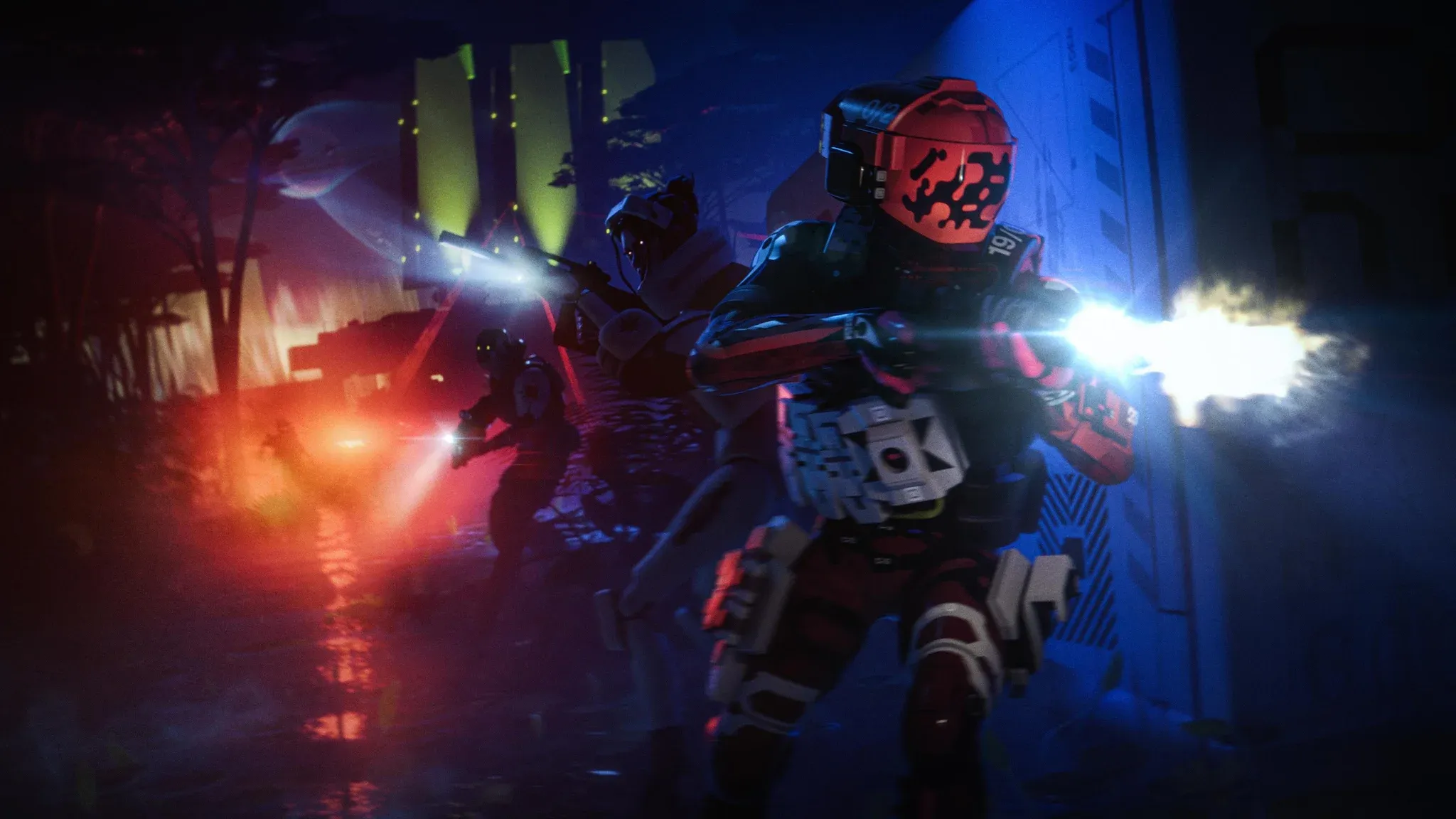
What Are the Recommended Controller Sensitivity Values?
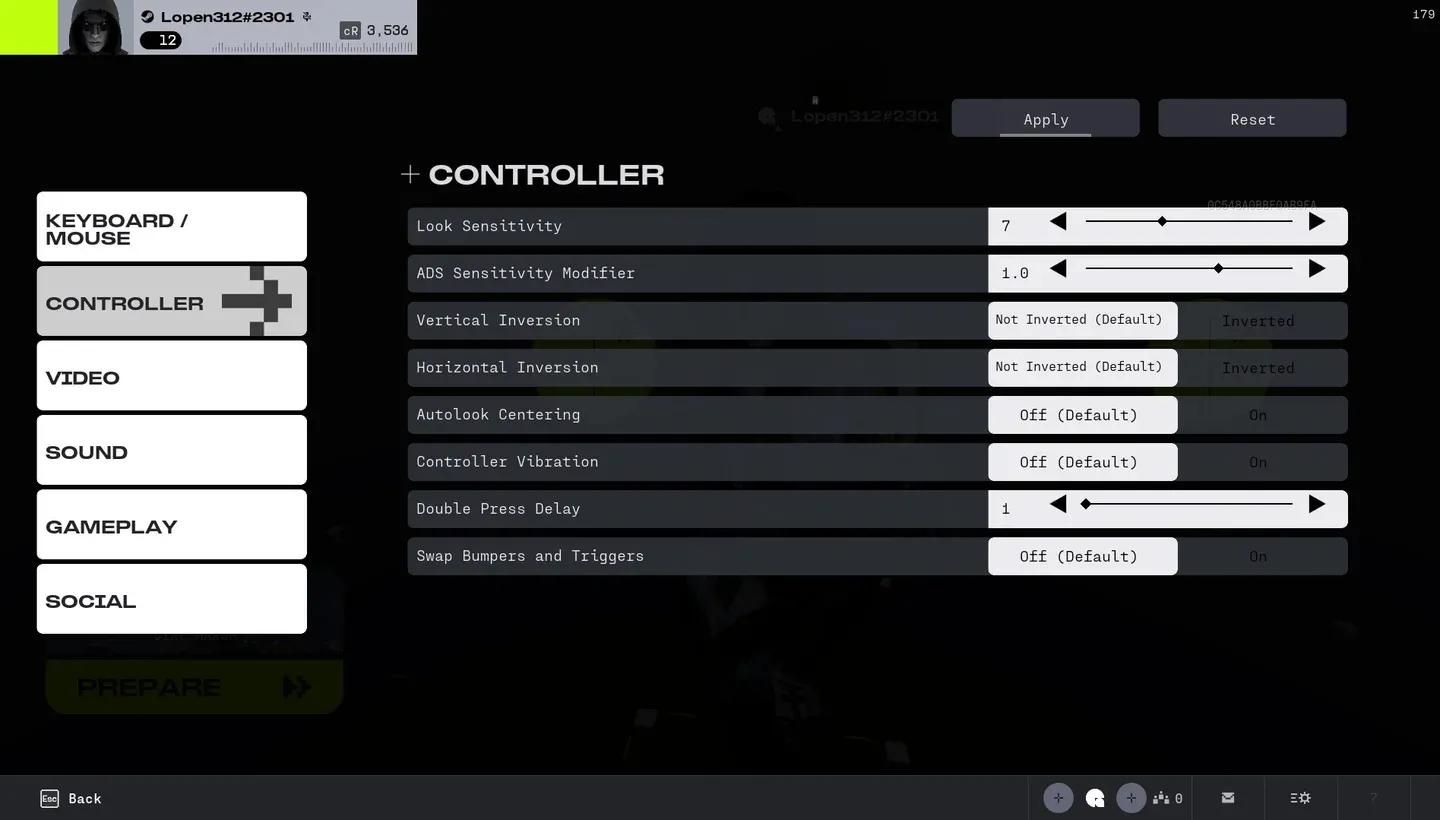
Marathon controller sensitivity screen
Sensitivity is the single setting that affects your performance most directly. Too high and your aim becomes jittery under pressure. Too low and you can't track fast-moving targets.
| Setting | Recommended Value | Why It Works |
|---|---|---|
| Look Sensitivity | 6 | Fast enough for quick turns, stable enough to avoid shakiness |
| ADS Sensitivity Modifier | 1.4 | Keeps aim-down-sight speed consistent with hip-fire pacing |
| Aim Response Curve | Classic | Linear stick-to-camera mapping with standard acceleration |
| Vertical Inversion | Not Inverted | Push up to look up, standard for shooters |
| Horizontal Inversion | Not Inverted | Push left to look left, standard for shooters |
| Axial Dead Zone | 0.13 | Filters out X and Y axis drift without delaying inputs |
| Radial Dead Zone | 0.14 | Gives near-instant stick response with minimal unintended movement |
| Autolook Centering | Off | Stops the camera from auto-resetting during firefights |
| Controller Vibration | Off | Removes distraction during high-stakes competitive moments |
| Double Press Delay | 1 | Fastest setting for snappy double-tap actions |
| Swap Bumpers and Triggers | Off | Keeps LB/RB and LT/RT in their default positions |
Full Controller Button Layout for Marathon
Knowing your default bindings lets you plan ability usage and movement without hesitation. Here's the complete character control layout:
| Action | Controller Input |
|---|---|
| Fire | RT |
| Alt Fire / Hold Zoom | LT |
| Cycle Zoom | Left Stick |
| Jump | A |
| Toggle Crouch | B |
| Toggle Sprint | Left Stick (click) |
| Reload | X |
| Interact | X |
| Interact Secondary | Y |
| Tactical Ability | LB |
| Prime Ability | LB + RB |
| Trait Ability | Hold B |
| Quick Melee | Right Stick (click) |
| Use Equipment | RB |
| Open Equipment Pack | Hold Left D-Pad |
| Quick Plug | Up D-Pad |
| Open Ping Radial Menu | Hold Up D-Pad |
| Switch Weapon | Y |
| Equip Knife | Hold Y |
| Use Consumable | Down D-Pad |
| Use/Open Consumable Radial | Hold Down D-Pad |
| Swap Comms Radial | RB |
| Open Loadout | Options |
| Open Map | Select |
| Toggle Weapon Action | Left D-Pad |
| Proximity Voice Broadcast | Hold Right D-Pad |
Best Keyboard and Mouse Settings in Marathon
PC players have a precision advantage with mouse input, but that advantage disappears if your sensitivity and smoothing settings aren't tuned correctly. These values give you sharp, predictable movement that translates directly into better aim.
What Sensitivity Should You Use on Keyboard and Mouse?
| Setting | Recommended Value | Why It Works |
|---|---|---|
| Look Sensitivity | 1.2 | Allows fast tracking without overshooting targets |
| ADS Sensitivity Modifier | 1.4 | Matches ADS speed to your hip-fire muscle memory |
| Vertical Inversion | Not Inverted | Standard orientation for FPS players |
| Horizontal Inversion | Not Inverted | Standard orientation for FPS players |
| Aim Smoothing | Off | Removes input lag and gives you raw, direct mouse response |
Common Movement Keybinds
| Action | Default Key |
|---|---|
| Move Forward | W |
| Move Left | A |
| Move Backward | S |
| Move Right | D |
| Open Loadout | Tab |
| Open Map | M |
Full Keyboard Character Control Layout
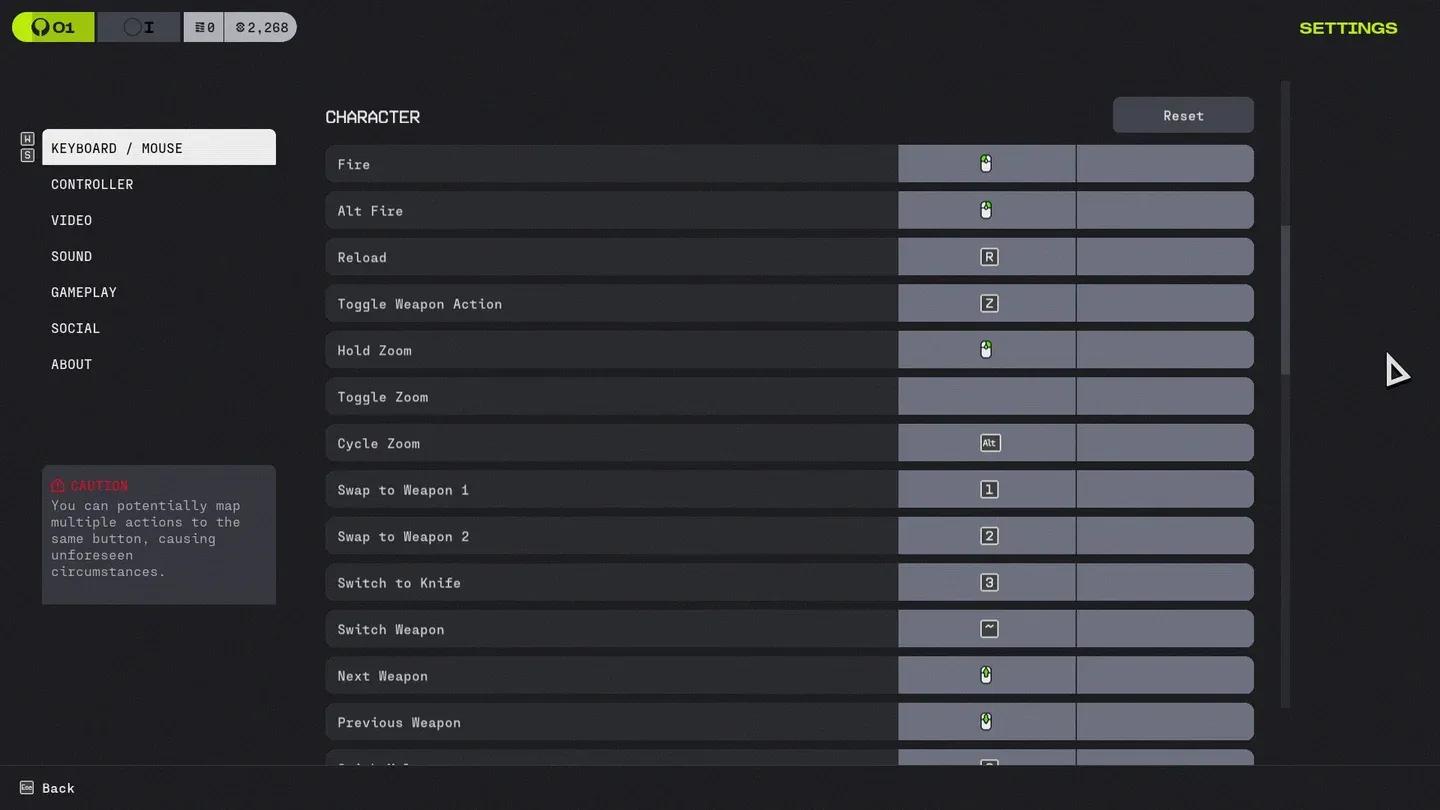
Marathon keyboard controls screen
| Action | Default Key |
|---|---|
| Fire / Light Attack | Left Click |
| Alt Fire / Hold Zoom / Heavy Attack | Right Click |
| Cycle Zoom | Alt |
| Swap to Weapon 1 | 1 |
| Swap to Weapon 2 | 2 |
| Switch to Knife | 3 |
| Switch Weapon | ` (tilde) |
| Next / Previous Weapon | Scroll Wheel |
| Jump | Space |
| Toggle Crouch | Ctrl |
| Reload | R |
| Interact | E |
| Interact Secondary | X |
| Prime Ability | Q |
| Tactical Ability | F |
| Trait Ability | V |
| Quick Melee | C |
| Use Equipment | G |
| Open Equipment Radial | 5 |
| Use/Open Consumable Radial | 4 |
| Quick Ping | Middle Mouse Button |
| Toggle Weapon Action | Z |
| Proximity Voice Broadcast | Y |
| Open Text Chat | Enter |
| Reply to Whisper | P |
| Exit Craft | E |
| Craft Primary Action | F |
| Craft Secondary Action | V |
How to Adjust Your Settings in Marathon
Changing your controls takes less than a minute once you know where to look. Here's the process for both input types:
- Launch Marathon and reach the main menu.
- Click the burger icon in the bottom right corner of your screen.
- Select Settings from the pop-up menu.
- Choose either the Controller tab or the Keyboard and Mouse tab depending on your setup.
- Apply your changes and exit the menu.
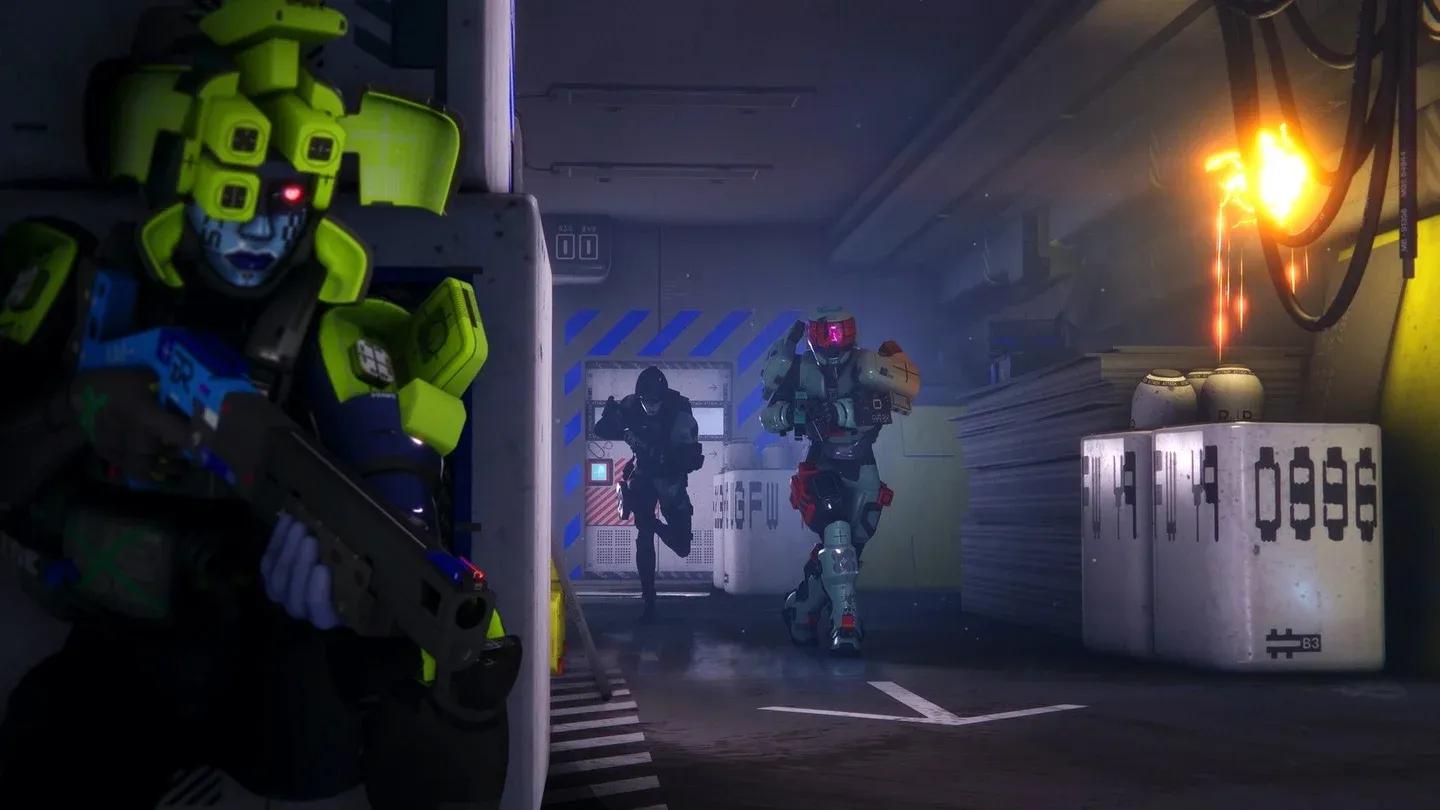
Marathon settings can make or break your battles
Marathon Controller vs. Keyboard and Mouse: Which Should You Use?
Both input methods are fully supported in Marathon, and neither is objectively superior for every player. Here's a quick comparison to help you decide:
| Factor | Controller | Keyboard & Mouse |
|---|---|---|
| Aim Precision | Good with aim assist | Excellent raw precision |
| Movement Control | Analog stick fluidity | Digital but faster key access |
| Ability Access | Requires button combos | Single key per ability |
| Learning Curve | Lower for console players | Lower for PC veterans |
| Best For | Casual and console players | Competitive PC players |
Your muscle memory and hardware comfort matter more than any theoretical advantage. Stick with what lets you focus on the game rather than your inputs.
Frequently Asked Questions
What Is the Best Double Press Delay for Controllers in Marathon?
Set it to 1. This is the fastest option and ensures your double-tap actions fire cleanly without misfires or missed inputs during tense moments.
Can You Change Settings During a Match in Marathon?
No. Core settings like sensitivity and inversion are locked once you're in an active match. Make all your adjustments from the main menu before queuing. Keybinds can be customized freely from the Keyboard and Mouse tab at any time between matches, and you can reset everything to default if a change doesn't work out.