Search games, articles, guides...CtrlK
Sign InGet Started
Boost your Marathon FPS with proven in-game settings, Windows tweaks and network optimization tips for smoother, more competitive gameplay.

Written by Hub
Head of Business Dev
See more GAMES.GG guides on Google
Add us as a preferred source and our guides show up first in your results.
Marathon Sponsored Survival Guide: How to Run Solo PvE
Stop getting farmed in Sponsored Survival. Here's how to lock ROOKs out of your lobby and survive Night Marsh solo.
Marathon Sentinel Guide: Master Area Denial in Season 2
Learn every Sentinel ability, the best Season 2 loadout, and how to lock down zones so enemies walk into your traps.

Marathon Sentinel Shell Guide: Abilities and Builds for Season 2
Master the Sentinel Runner Shell in Marathon Season 2 with the best builds, loadouts, and area denial strategies.
Getting smooth, stable frames in Marathon isn't just about looking good. It directly decides whether your shots connect, whether your movement feels responsive, and whether you survive that final extraction fight or get eliminated by someone running a cleaner setup. This guide walks you through every layer of performance optimization, from in-game settings to Windows configuration and network stability, so you can hit that competitive frame rate and keep it there.
Marathon is a fast-paced extraction shooter where split-second decisions determine survival. At 30 FPS, movement feels delayed and shots feel imprecise. At 144+ FPS, your inputs translate almost instantly to on-screen action, your tracking stays consistent through chaotic firefights, and visual feedback arrives fast enough to actually react to.
Here's a practical breakdown of what each FPS range means for your gameplay:
| FPS Range | Experience Quality | Competitive Viability |
|---|---|---|
| 144+ FPS | Perfectly smooth, instant feedback | ✅ Ideal for ranked play |
| 90–144 FPS | Very fluid, minimal disadvantage | ✅ Competitive |
| 60–90 FPS | Playable but slightly sluggish | ⚠️ Minor disadvantage |
| 30–60 FPS | Noticeable stutter, delayed inputs | ❌ Hard to compete |
| Below 30 FPS | Unstable, frustrating | ❌ Unplayable |
The performance gap between 60 FPS and 144 FPS isn't subtle in a game like Marathon. Late-game extraction zones, ability-heavy encounters, and dense PvP fights all stress your system at exactly the moments when consistent frames matter most.
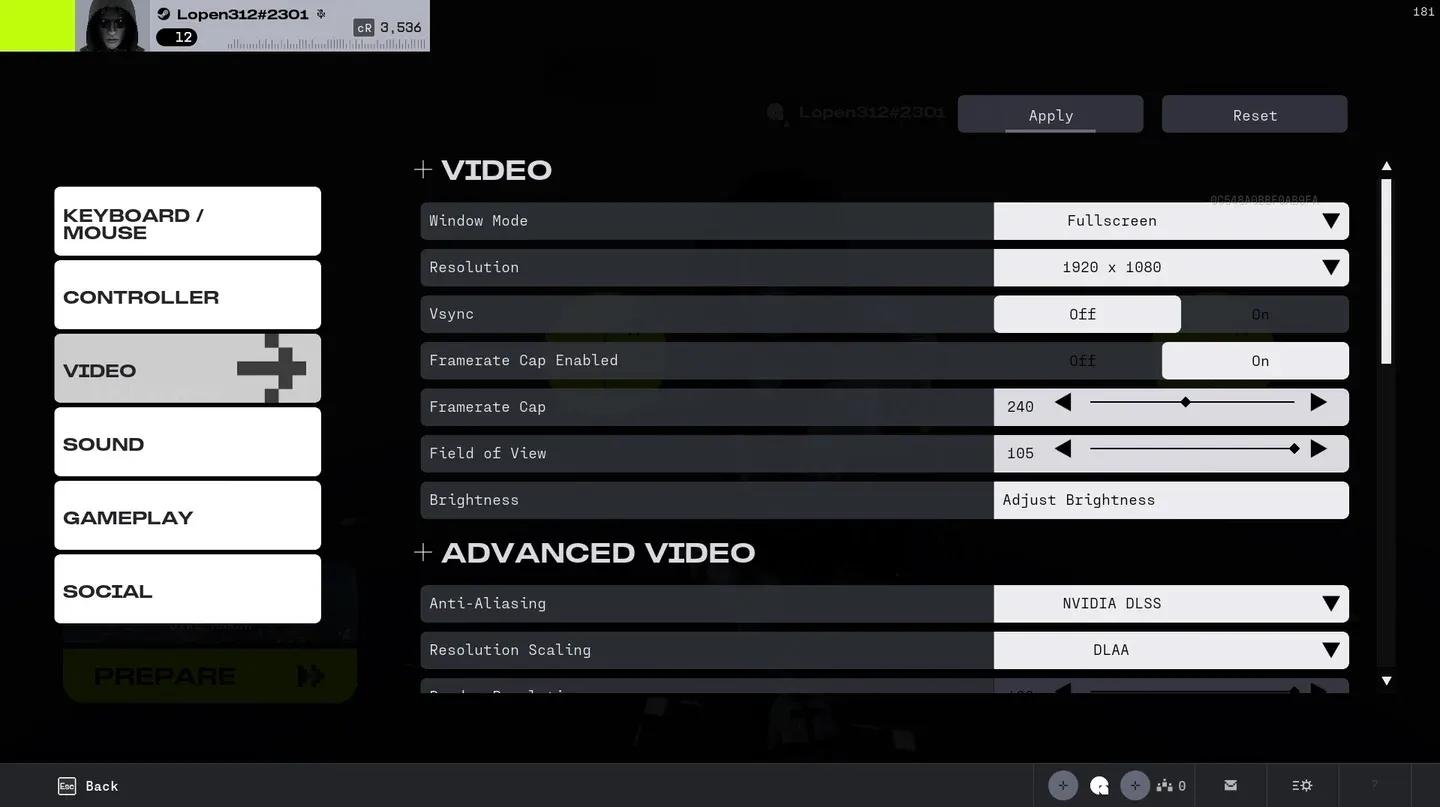
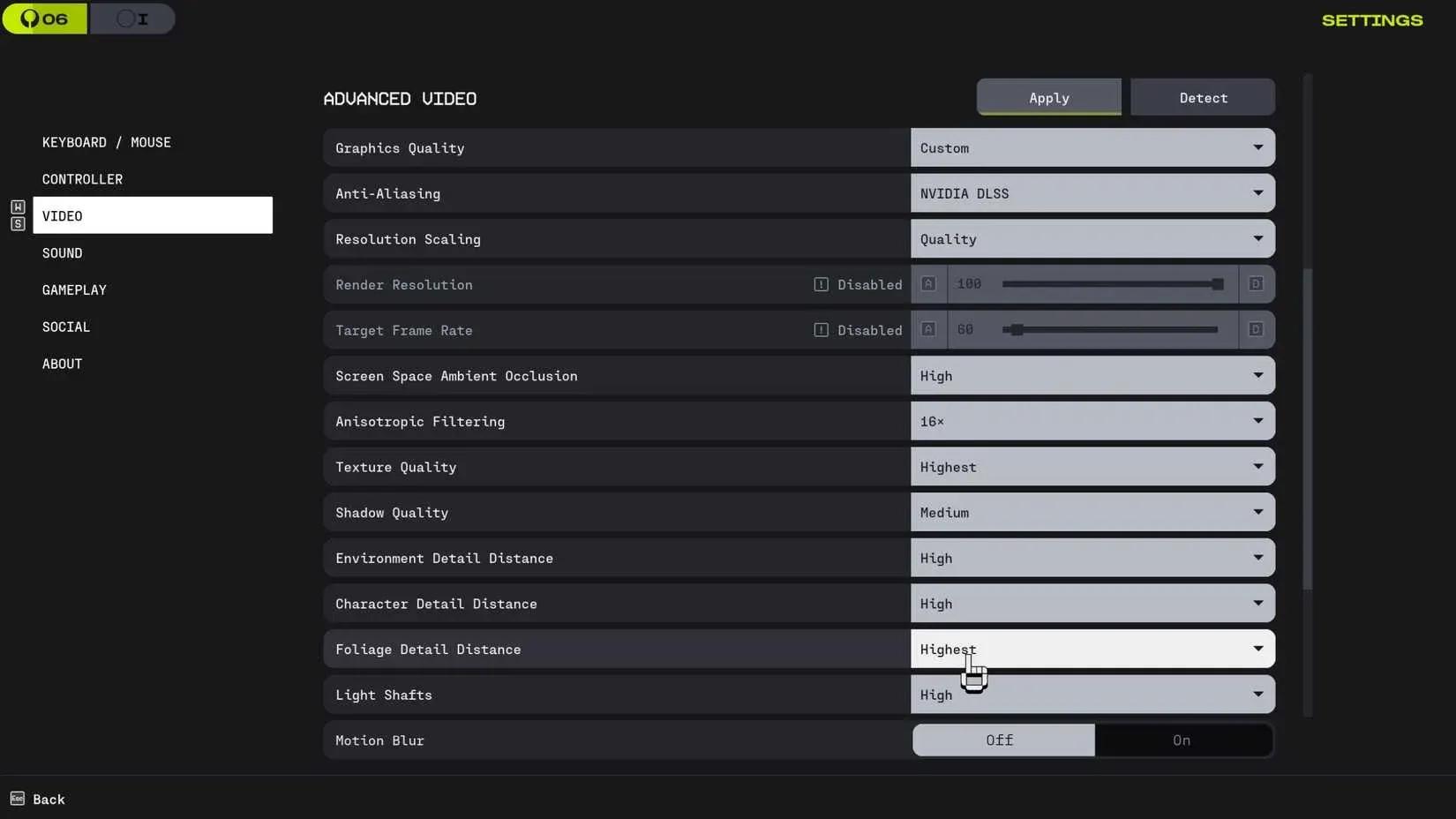
Marathon graphics settings panel
Your first performance gains come from inside the game itself. The goal here is to strip away visual effects that cost significant GPU resources without meaningfully improving your ability to play.
Run at your monitor's native resolution with a render scale between 95–100%. Dropping render scale too aggressively introduces blurriness that makes tracking enemies harder, which defeats the purpose of chasing performance.
Set your overall preset to Medium or Balanced. This keeps geometry and texture quality at a level that doesn't hurt readability while freeing up GPU headroom for consistent frame delivery.
These settings have the highest performance cost and the lowest gameplay value:
Keep Shadows at Low or Medium. Ultra shadow quality is one of the biggest single FPS costs in most shooters, and the visual difference in a firefight is negligible.
Reduce post-processing effects across the board. These are the settings that make the game look cinematic but create instability during particle-heavy moments like explosions and ability activations.
Set your FPS limit slightly above your monitor's refresh rate (for example, 165 if you're on a 144Hz display). This prevents the GPU from doing unnecessary work while keeping frame pacing tight.
Always use Exclusive Fullscreen mode. Windowed and borderless modes add latency between your GPU and display.
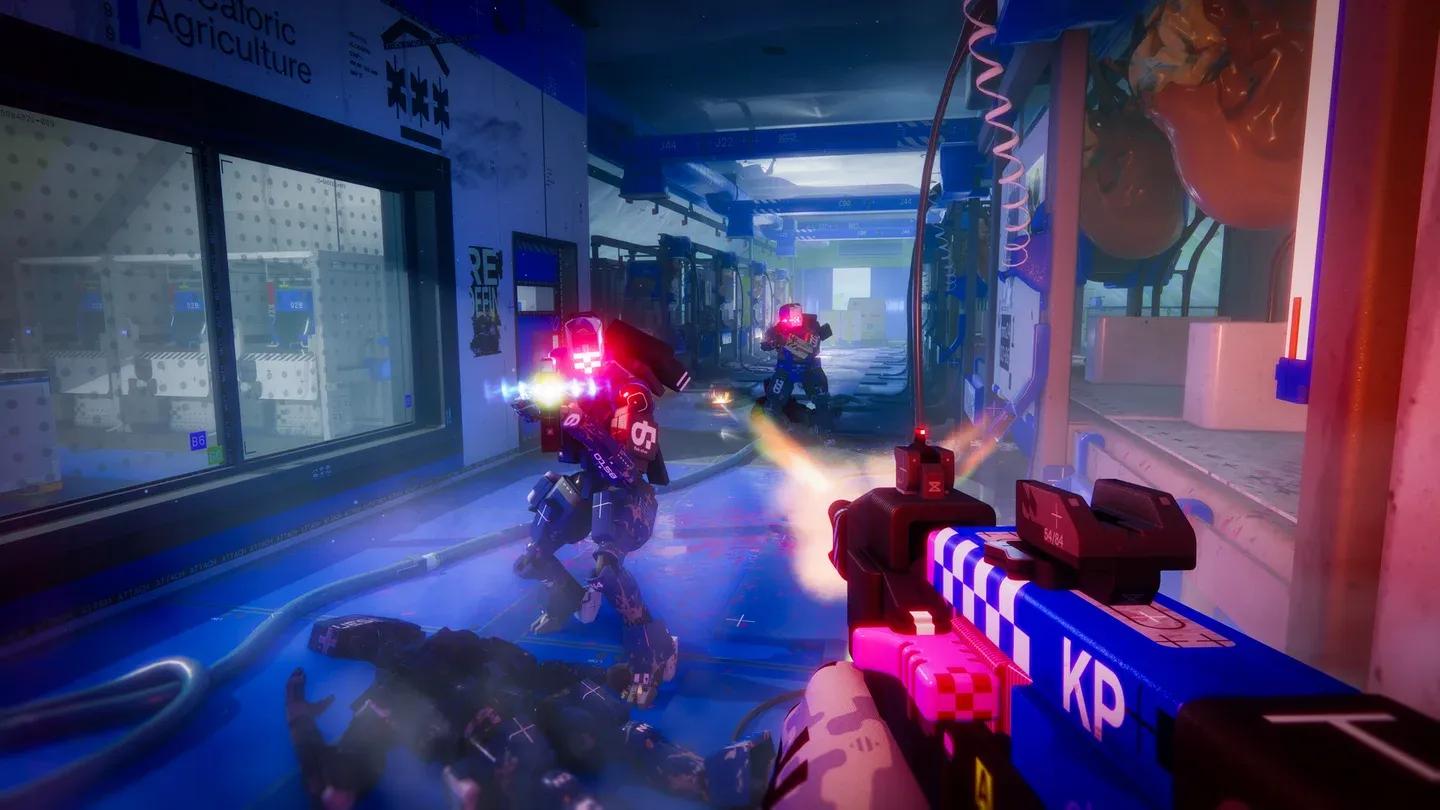
Fullscreen mode configuration
System-level settings have a bigger impact than most players realize. These tweaks reduce background interference and ensure your CPU and GPU are fully committed to Marathon.
Xbox Game Bar and Game DVR run background recording processes that consume CPU and memory. Disable both through Settings > Gaming > Xbox Game Bar and Settings > Gaming > Captures. These features are useful for casual recording but actively hurt competitive performance.
Before launching Marathon, close anything non-essential: browsers, Discord video, streaming software, and any background updaters. Each one competes for CPU scheduling time and RAM bandwidth.
Keep your GPU drivers current. Both NVIDIA and AMD regularly release driver updates optimized for new titles, and running outdated drivers is a common source of unexplained stuttering.
Beyond in-game options, your GPU software offers additional performance controls that most players never touch.
Navigate to Manage 3D Settings and apply these for Marathon:
In Gaming > Marathon profile:
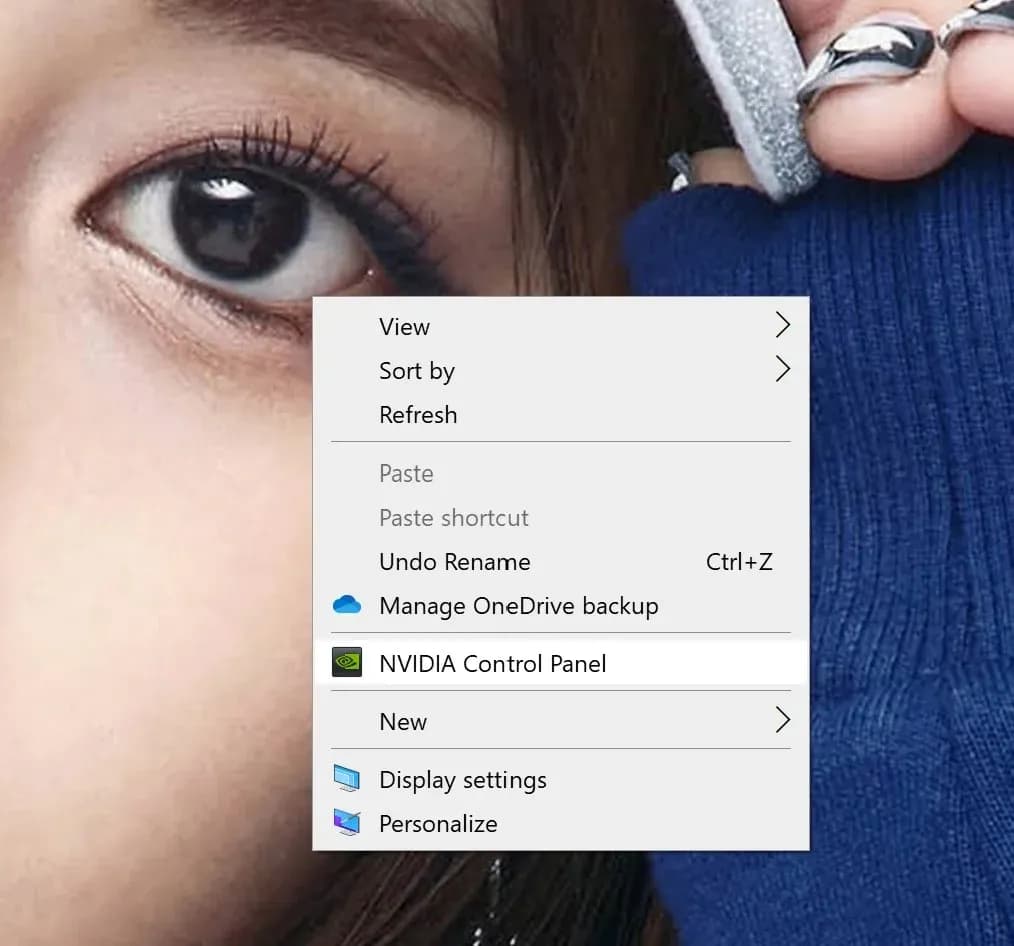
NVIDIA low latency configuration
This is where a lot of players get confused. FPS feels like a pure hardware metric, but in online games the connection between your machine and the server directly affects how frames are rendered and delivered.
Here's the chain: your inputs get sent to the server, the server processes them, and the response comes back before your client renders the next frame. When network latency spikes or packets get lost, that chain breaks. The game client has to wait for re-synchronization, which shows up as micro-stutters, frame drops, and delayed hit registration.
Specific symptoms of network-induced performance problems include:
Network optimization tools designed specifically for gaming (not VPNs, which route through single tunnels and often increase latency) use multi-path routing to find the most stable connection between you and the game server. This stabilizes frame pacing and can improve perceived performance by 20–60% depending on how unstable your routing was to begin with.
Network ping analyzer results
Before considering upgrades, squeeze more out of what you already have.
Thermal management is the most overlooked free performance gain. Dust buildup restricts airflow, raises temperatures, and triggers thermal throttling, which directly reduces your sustained FPS. Clean your PC physically, check that case fans are positioned for good airflow, and monitor CPU and GPU temperatures under load.
If your CPU or GPU is consistently hitting thermal limits during Marathon sessions, reapplying thermal paste (an advanced but free fix) can recover significant performance on older hardware.
Optimization has limits. Consider upgrading if:
If you do upgrade, prioritize in this order:
Every layer of this guide builds on the others. In-game settings reduce GPU load. Windows tweaks eliminate background interference. GPU control panel settings cut input latency. Network optimization stabilizes frame pacing. Hardware maintenance prevents thermal throttling.
None of these steps requires spending money, and together they can transform a stuttery, inconsistent experience into the stable, responsive performance that competitive extraction shooting demands. Start with in-game settings, work through the system tweaks, and pay attention to your frame stability as much as your frame count. That's what actually wins fights in Marathon.