
Getting kicked out of Marathon with a cryptic error code is one of the most frustrating experiences in any new game launch. Whether you're staring at Currant, W:8:80090305, or Nightingale, the good news is that most of these issues have workable solutions you can try right now. This guide breaks down every major error code reported during the Server Slam playtest, explains what's actually causing them, and walks you through the fastest fixes on PC, PS5, and Xbox Series X|S.
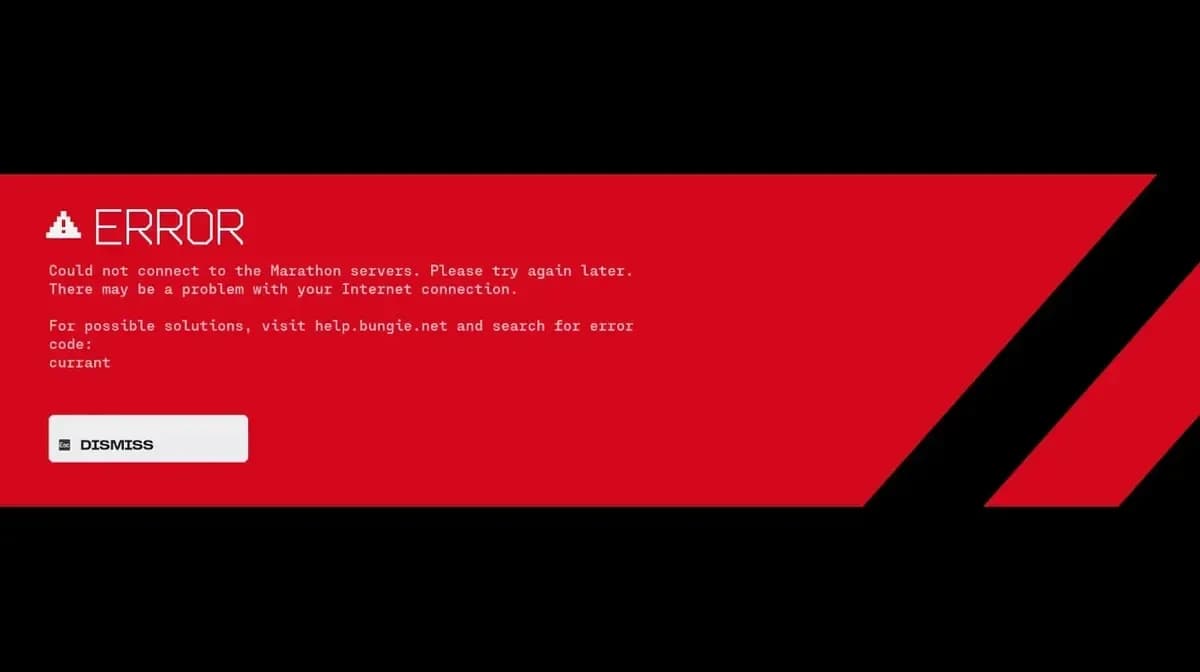
Marathon Currant error screen
What Is the Marathon Currant Error Code?
The Currant error is the most widely reported issue during the Server Slam playtest. It signals a network connectivity problem between your machine and Bungie's servers, but here's the thing: in most cases, your internet is perfectly fine. Hundreds of players on Reddit and the official Discord have confirmed they were getting Currant while other games and apps ran without a hitch.
The real culprit is usually a combination of server-side stress from the massive player influx and client-side networking quirks. Bungie acknowledged the problem and was actively investigating during the Server Slam period.

Known Causes of the Currant Error
- Unstable Wi-Fi or packet loss during peak traffic
- ISP routing hiccups affecting Bungie's CDN connections
- NAT or firewall configuration blocking the handshake
- Sheer server overload from simultaneous logins
How to Fix the Currant Error
- Switch to a wired Ethernet connection if you're on Wi-Fi. This single step resolves the error for a significant number of players.
- Fully close Marathon and relaunch it from scratch.
- Restart your router and modem, wait 60 seconds, then reconnect.
- Restart your PC or console entirely.
- In Settings > Network, disable cross-platform play. Several players on Reddit confirmed this got them into matches when nothing else worked.
- If the above steps don't help, wait 10-15 minutes and try again. During peak Server Slam traffic, the queue simply needs time to stabilize.
All Marathon Error Codes Explained
Below is a full breakdown of every error code and symptom reported during the Server Slam, along with the fastest fixes for each.
Marathon network settings panel
Error Code W:8:80090305
This is a server connection timeout. Your authentication handshake request exceeded the server's time limit, which happens constantly during peak traffic. The fix is straightforward: restart the Marathon application to generate a fresh authentication token. Post-restart wait times are usually short.
Error Code Nightingale
Nightingale means Marathon failed to download configuration files from the CDN. It shows up most often on Xbox, where you'll see a "Checking for Updates" loading bar that never finishes.
- Change your DNS to Cloudflare (1.1.1.1) or Google (8.8.8.8) instead of your ISP's default.
- Xbox: Power cycle your console by unplugging it for at least 5 minutes, or clear the alternate MAC address in network settings.
- PC: Open an admin Command Prompt and run ipconfig /flushdns followed by netsh winsock reset, then restart.
Error Code Salak
Salak is an antivirus interference error, most commonly linked to Kaspersky on PC. Your security software is blocking Marathon's config fetch. Add Marathon as a firewall exception in your antivirus settings to resolve it.
Error Code PAPRIKA
A general connection error that shares symptoms with W:8. Restart the game, verify your network connection, and if it's during peak hours, simply wait and retry. High simultaneous traffic is the usual trigger.
Error Code WEAVE
Similar to PAPRIKA, WEAVE shows up alongside "could not connect" messages or mid-session disconnects. Restart the game, confirm your network is stable, and try again after a few minutes.
Currant / Ginger Errors
Both of these indicate host-to-client interruptions caused by packet loss, Wi-Fi instability, or ISP routing problems. Use a wired connection and disable any active VPN. Importantly, if you do disconnect mid-run, Marathon has a reconnection system and inventory rollback built in, so your loot isn't automatically lost.
Quick Reference Error Code Table
| Error / Symptom | Root Cause | Fastest Fix |
|---|---|---|
| W:8:80090305 | Auth timeout | Restart the game |
| PAPRIKA | Connection/server load | Restart; check network; wait |
| WEAVE | Disconnect/connection drop | Restart; verify network; retry |
| Nightingale | CDN config failure | Change DNS to 1.1.1.1 or 8.8.8.8 |
| Salak | Antivirus blocking | Whitelist Marathon in firewall |
| Currant / Ginger | Packet loss / Wi-Fi instability | Wired connection; disable VPN |
| Matchmaking fails | Crossplay pool issues | Disable crossplay in settings |
| Steam download timeout | Steam auth issue | Add to library first; restart as Admin |
| Mouse not working | Overlay conflict | Disable overlays; try Alt+Enter |
| Proximity chat dead | Mic icon / IPv6 issue | Click mic icon on banner; disable IPv6 |
| Redacted username | Profile sync issue | Verify profile on Bungie.net |
| Crash on death/exfil | Controller/OBS conflict | Use KB+M; switch to display capture |
Platform-Specific Fixes
PS5 Marathon app force close
PS5 Troubleshooting
- If you're stuck on an infinite "Connecting to Marathon Servers" loop, force close the app from the PS5 dashboard and relaunch. Authentication queues get stuck on PS5 more often than other platforms.
- Marathon Server Slam is free to access, but PS+ is required for online play. If the store incorrectly blocks you, wait and retry or check @BungieHelp for status updates.
- Overheating during extended sessions is a reported issue. Make sure your PS5 has proper ventilation and clear any dust from the vents.
Xbox Series X|S Troubleshooting
- Search "Marathon Server Slam" directly in the Microsoft Store if you can't find the game.
- For "Missing Files" errors or tutorial crashes, do a hard reset by unplugging the power supply, then delete and reinstall the game from the dashboard.
- Nightingale errors on Xbox respond well to a full power cycle (5+ minutes unplugged) or clearing the alternate MAC address in Settings > Network > Advanced Settings.
PC-Specific Issues
AMD RX 560/570/580/590 users are reporting black buildings and missing textures. This is a widespread issue on Polaris-architecture GPUs. Do a clean install of the latest AMD Adrenalin drivers (Beta or Stable) while Bungie works on a dedicated fix.
For low FPS or unplayable performance, update your graphics drivers and lower in-game settings. Linux and Steam Deck players currently have no workaround since BattlEye anti-cheat blocks Proton.
How to Fix Mouse and Input Issues on PC
If your mouse stops responding after a few seconds or doesn't work at all in Marathon, overlays are almost always the culprit. Here's the official Bungie guidance:
- Steam overlay: Go to Settings > In Game and turn off "Enable the Steam Overlay while in-game". Alternatively, press Shift+Tab in-game to open and close the overlay once.
- Discord: Disable the Discord overlay entirely, or switch to the web version of Discord during your session.
- Streaming software: If you're streaming, capture your whole screen rather than the Marathon game window specifically.
- Mouse polling rate: If your mouse freezes after a few seconds, lower your polling rate below 1000 Hz in your mouse software or Windows settings.
- Press Alt+Enter to switch to windowed mode if the issue persists, or try running Steam as Administrator.
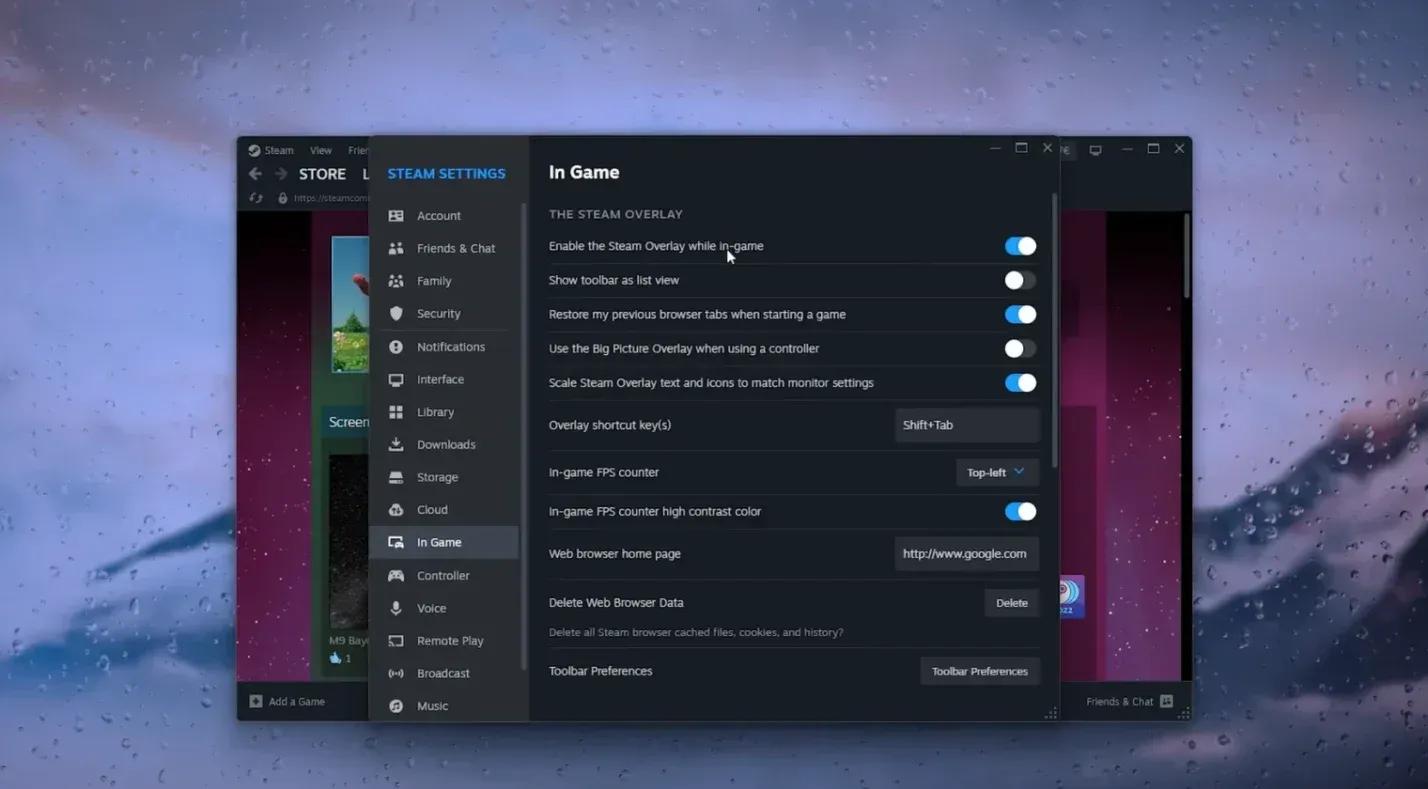
Steam overlay disable setting
Other Common In-Game Issues
Proximity Chat Not Working
Even with voice enabled in settings, proximity chat requires you to click the microphone icon on your player banner to activate it. If it's still silent after that, disable IPv6 in your router settings to force an IPv4 connection, which resolves the issue for most players.
Username Showing as "Redacted"
Bungie is investigating this display bug. For a quick fix, log into Bungie.net and verify or update your profile. If that doesn't sync things up, you'll need to file an appeal through Bungie's official support.
Can't Progress Past Registration or EULA
Hold the confirm button and wait for the meter to fill completely. Tapping it won't register. This trips up a surprising number of players on their first launch.
Crashes on Launch, Death, or Exfil
Crashes are expected during a stress-test event. A few specific triggers have been identified:
- Controller causing crashes: Switch to keyboard and mouse temporarily and report the issue to Bungie's forums.
- OBS causing PC restarts: Avoid OBS game capture mode. Use display capture or stream your whole screen instead.
- If crashes persist after restarting, a full reinstall is the next step. Submit a bug report with your DXDiag and MSInfo files to the Marathon Help Center for faster triage from the team.
Why Are So Many Errors Happening?
Server Slam events are intentionally designed to push servers past their limits. Bungie's goal is to identify breaking points before the full launch, which means a wave of players hitting the servers simultaneously is the whole point. Most connection errors during this window are temporary and resolve as the backend stabilizes. The Currant and W:8:80090305 errors in particular are almost always traffic-related rather than something wrong with your setup.
If you've worked through all the steps above and still can't connect, the honest answer is to wait it out. The developers are monitoring reports in real time and pushing fixes as they identify root causes.