You load up Minecraft, type in your friend's server address, hit connect, and get hit with "Connection timed out: getsockopt." No further explanation. The game just drops you back to the menu like nothing happened. This error means your game attempted to open a network connection to a server but something cut it off before the handshake completed. The frustrating part is that "something" could be your firewall, your DNS resolver, an unstable router, or even an outdated Java installation. There is no single culprit, which is why most players waste time trying random fixes.
What actually causes the getsockopt error in Minecraft?
The error is a network-layer failure, not a game bug. Minecraft's Java Edition relies on javaw.exe to handle all outgoing connections. If your firewall treats that process as a threat, it silently blocks the connection attempt. Your DNS resolver can also be the problem: if it's slow or misconfigured, the domain lookup for the server address fails before a connection even starts. Server downtime is another common cause that players overlook entirely. Before spending 20 minutes adjusting system settings, spend 30 seconds confirming the server is actually online.
Mods are not the cause. The getsockopt error is a network and system-level issue, so your mod list has no bearing on whether it appears.
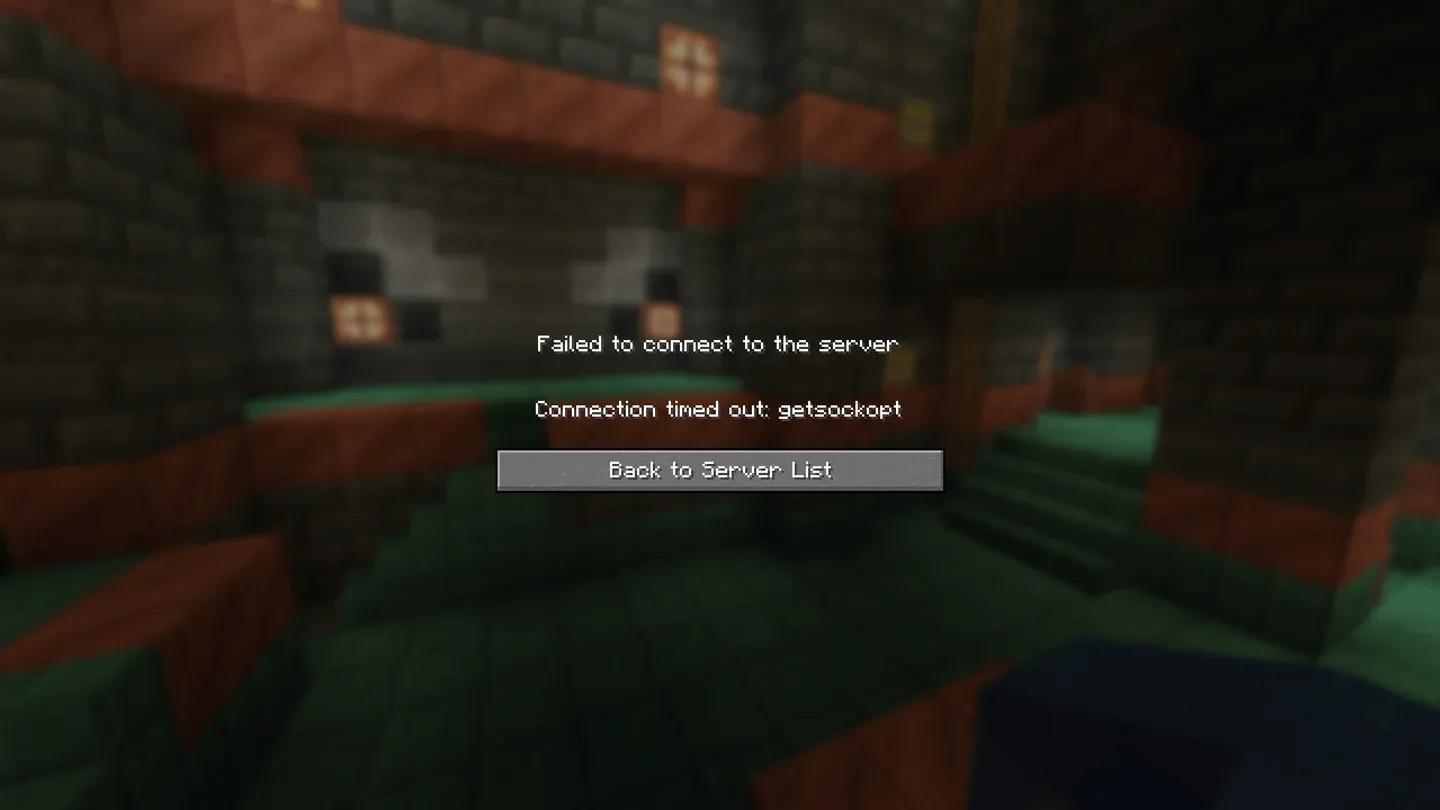
The getsockopt timeout error


How to fix the Minecraft getsockopt error: quick checks first
Run through these before touching any settings:
- Confirm the server is online and the IP address has no typos
- Restart your router (unplug it, wait 30 seconds, plug it back in)
- Check that your Wi-Fi or Ethernet connection is stable
- Verify you're running an up-to-date version of Java
A router restart alone resolves this error more often than most players expect. Only move on to the steps below if the error persists after these basics.
Allow Minecraft through your firewall
This is the most common fix. Windows Defender Firewall can block javaw.exe, the process Minecraft uses for network activity, without showing you any warning. Here's the exact process:
- Open the Start Menu and search for Windows Defender Firewall, then open it.
- Click Allow an app or feature through Windows Defender Firewall.
- Scroll the list to find javaw.exe or Java Platform SE binary. Check both the Private and Public columns.
- Find Minecraft and Minecraft Launcher in the same list and check both columns for each.
- If neither entry exists, click Allow another app and navigate to the folder where Minecraft is installed to add them manually.
After saving, relaunch Minecraft and attempt the connection again.
Should you disable the firewall completely to test?
Temporarily disabling the firewall is useful as a diagnostic step, not a permanent fix. If the getsockopt error disappears the moment you turn the firewall off, you've confirmed that the firewall is the problem and can focus your troubleshooting there.
To disable it temporarily: open Windows Defender Firewall, click Turn Windows Defender Firewall on or off, and select the off option for both private and public networks. Test the connection, then turn it back on immediately afterward. Leaving the firewall disabled while browsing the internet exposes your system to real risk, so this is a test only.
How to change your DNS to fix getsockopt errors
Your default DNS server is assigned by your internet provider. Some ISP DNS servers are slow or unreliable, which causes connection lookups to fail before Minecraft can reach the server. Switching to Google's public DNS (8.8.8.8 and 8.8.4.4) is a fast, reversible fix.
- Open Control Panel and go to Network and Internet, then Network and Sharing Center.
- Click Change Adapter Settings.
- Right-click your active connection (Ethernet or Wi-Fi) and select Properties.
- Select Internet Protocol Version 4 (TCP/IPv4) and click Properties.
- Choose Use the following DNS server addresses.
- Set Preferred DNS server to 8.8.8.8.
- Set Alternate DNS server to 8.8.4.4.
- Click OK and restart your PC.
What if none of these fixes work?
If you've worked through every step above and the getsockopt error still appears, the next move is updating Java. Minecraft runs on Java, and an outdated version can cause compatibility problems with server connections. Download the latest version from the official Java site, install it, and retest.
Double-check the server IP address one more time as well. A single wrong character in the address produces a "connection refused" variant of the getsockopt error that no amount of firewall tweaking will resolve.
If the error only appears on specific servers and not others, the problem is on the server side, not yours. Reach out to the server admin or contact Mojang Studios support directly for issues that persist across all servers after trying every fix.
More Minecraft guides worth bookmarking
Once your connection is sorted, there's plenty to get into. The Minecraft guides collection covers everything from new biomes to block mechanics added in recent updates. If you've been exploring the Chaos Cubed content, the guide on how to get Potent Sulfur is worth reading before you head into those areas. And if you want a broader look at what makes the game worth the time investment, the Minecraft review lays it out plainly.