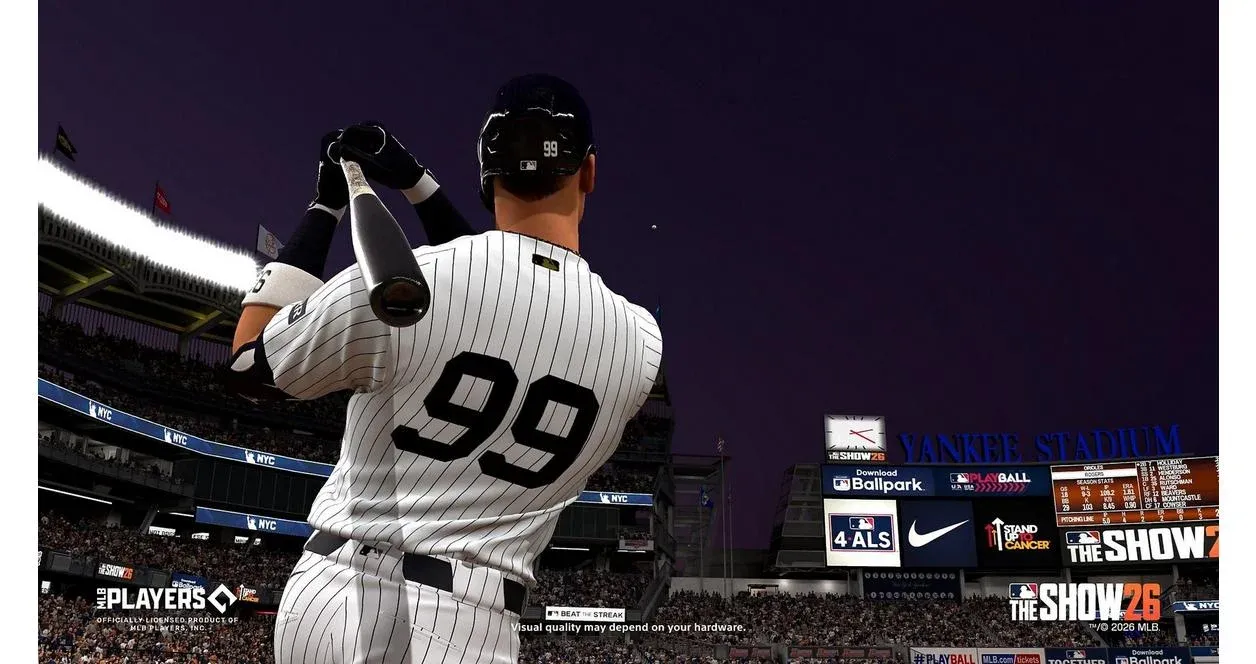


Getting the Most Out of MLB The Show 26 Right Away
MLB The Show 26 dropped early access on March 12, and players jumping into Diamond Dynasty, Franchise Mode, and Mini Seasons are already hunting for every edge they can find. Here's the thing: the fastest path to better performance isn't grinding for hours, it's spending five minutes in the settings menu before your first pitch. The right adjustments to your camera, hitting interface, pitching system, and gameplay pacing can make the experience feel sharper, faster, and far more competitive from the jump.
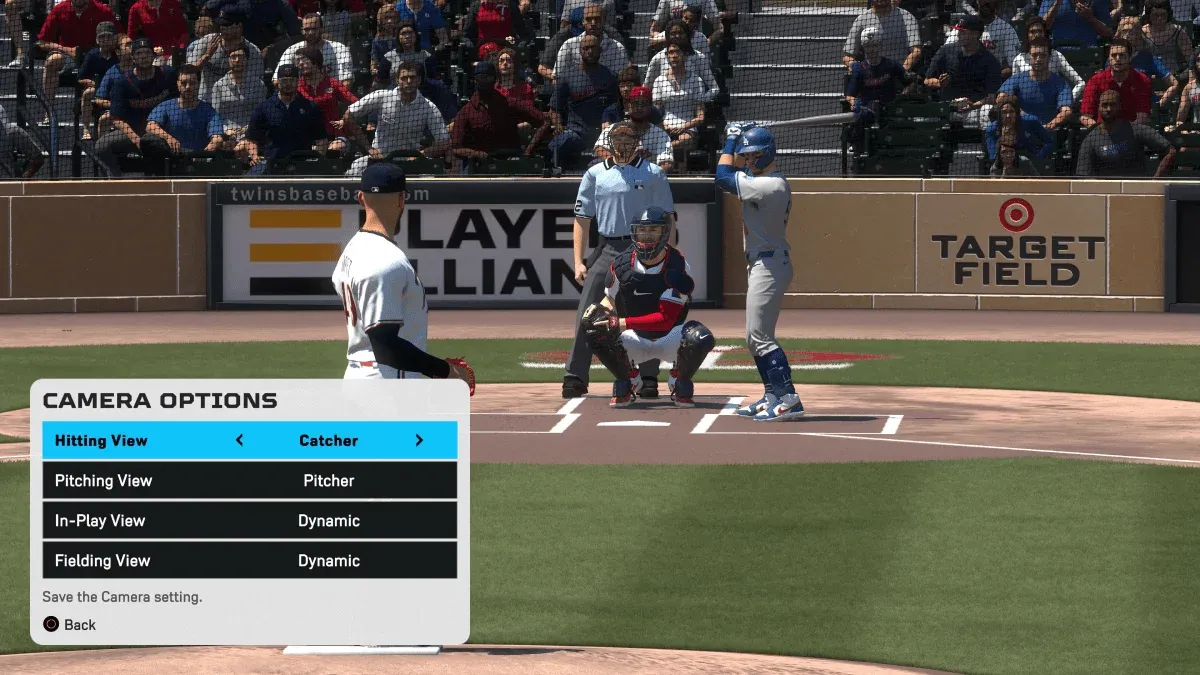
Strike Zone camera setup
What Are the Best Camera Settings in MLB The Show 26?
Camera choice is one of the most impactful decisions you'll make before stepping into the batter's box. The wrong angle can cost you pitch recognition time, and in a game where fractions of a second matter, that adds up fast.
Hitting Camera
The Strike Zone camera is the go-to competitive option for most players. It positions the view directly behind the catcher, giving you a clean sightline on pitch movement and location as the ball travels toward the plate. When you're facing a pitcher with an elevated arm slot or elite velocity, switching to Strike Zone High gives you a slightly elevated perspective that makes high fastballs easier to pick up.
MLB The Show 26 also introduces a new hitting depth-of-field blur feature, which softens the stadium background while you're batting. This reduces visual noise from crowd animations in busy ballparks, helping you keep focus on the ball itself.
Fielding Camera
For fielding, the High camera provides a wider overhead view that makes tracking fly balls and line drives much more intuitive. Pair that with Dynamic set for in-play view, and the camera will shift naturally based on where the ball is hit.
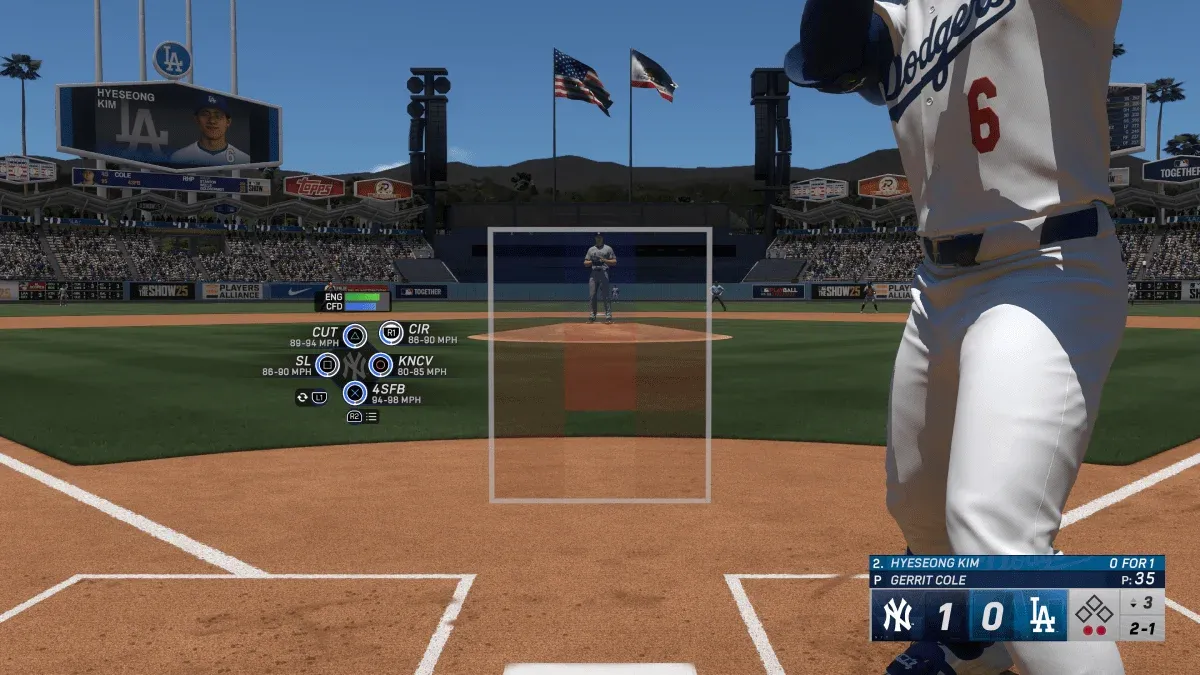
High fielding camera angle
What Are the Best Hitting Settings for MLB The Show 26?
Hitting settings are where player preference plays the biggest role, but there are a few configurations that give you the most control regardless of experience level.
Which Hitting Interface Should You Use?
MLB The Show 26 offers multiple hitting interfaces, and picking the right one depends on where you are as a player:
- Directional: The most accessible option. Focuses purely on timing rather than pitch location, making it ideal if you're new to the series or returning after a long break.
- Zone: The standard choice for players looking to grow. Zone hitting gives you direct control over the PCI (plate coverage indicator), letting you position your swing to match pitch location. This is where most competitive players land.
For Zone hitting, starting with PCI Sensitivity at maximum gives you the widest range of motion when tracking pitches. You can always dial it back manually as you get comfortable, but starting restricted feels limiting early on. Set PCI Style to Bat for a clean visual, and keep PCI Anchor turned off so your cursor doesn't get stuck in one position.
Turning Guess Pitch off is also worth considering. While guessing can pay off occasionally, it creates a habit of gambling on pitch type rather than reading the ball out of the hand.
Recommended Hitting Settings
- PCI Sensitivity: Max
- PCI Style: Bat
- PCI Anchor: Off
- Guess Pitch: Off
What Are the Best Pitching Settings for MLB The Show 26?
On the mound, your interface choice shapes how much control and skill expression you have over each pitch.
Pitching Interface Options
- Classic: The beginner-friendly choice. Classic pitching strips away complexity and lets new players focus on pitch selection and location without worrying about execution mechanics.
- Pinpoint: The advanced option for players who want maximum control. Pinpoint Pitching requires you to trace a gesture on the thumbstick to execute each pitch. Nail the trace and you'll hit your spot with precision. Miss it and the pitch misses its location. It rewards practice with noticeably tighter command.
For the pitch marker, setting it to Pitch Trail gives you a visible trace of where the pitch is headed, which helps with reading pitch movement both offensively and defensively.
On throws, Button Accuracy for the throwing interface and enabling Throw Canceling gives you more control over when and how you release the ball on infield and outfield throws.
How Do You Speed Up Gameplay in MLB The Show 26?
Grinding offline modes like Diamond Dynasty or Mini Seasons can feel slow if you're playing through every pitch at full CPU pace. A few toggles can cut significant time from each session.
Quick CPU Pitching is the most impactful of these. Turning it on stops the CPU from drawing out its pre-pitch routine, which adds up across a full nine-inning game. Combined with Fast Play presentation mode (which skips broadcast cutscenes), you can shave several minutes per game during long grinding sessions.
Other gameplay adjustments worth making for offline play:
- Quick CPU Pitching: On
- Auto Defensive Shift: Off
- Injuries: Off (for offline grinding)
- Balks and Ejections: Off
- Perfect Close Play Calls: On
Disabling Auto Defensive Shift is particularly useful because it prevents the CPU from automatically repositioning fielders in ways that can create awkward defensive gaps and turn routine plays into extra-base hits.
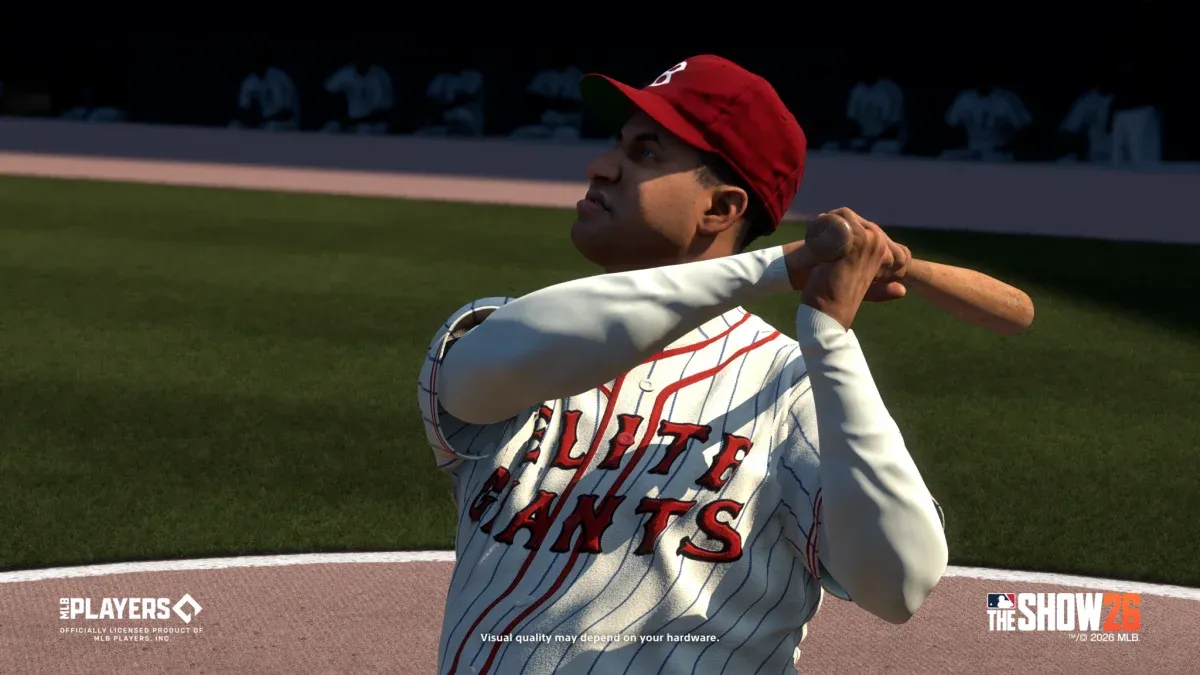
Gameplay pacing settings menu
Audio and Presentation: What Should You Change?
These settings won't affect your win-loss record, but they make a real difference in how fresh the game feels after 50+ Diamond Dynasty games.
Most serious grinders mute commentary entirely. The commentary tracks repeat frequently during long sessions, and turning it off eliminates the distraction. Sound effects, on the other hand, are worth keeping at a high level because the audio feedback from pitch contact and swing timing helps reinforce good habits.
Recommended audio setup for grinding:
- Commentary: Off
- Crowd Volume: Low or Off
- Sound Effects: High
- Menu Sound Effects: Mid
- PitchCom: Off
- Fast Play Presentation Mode: On
Difficulty Settings: Where Should Beginners Start?
For players new to the series, starting at Beginner or Amateur difficulty gives you the space to learn pitch recognition and timing without being overwhelmed. Once those fundamentals click, switching to Dynamic Difficulty is a smart move. Dynamic Difficulty scales the challenge based on your actual performance, so it keeps the game competitive as you improve without requiring you to manually bump the slider every time you go on a hot streak.
Full Recommended Settings Summary
These settings form a solid foundation whether you're stepping into MLB The Show 26 for the first time or returning as a veteran looking to sharpen your early access experience. Adjust from here based on what feels right for your playstyle, and don't be afraid to revisit the settings menu as your skills develop.