Search games, articles, guides...CtrlK
Sign InGet Started

Master Paralives Build Mode from walls to terrain tools. Learn every UI icon, roof style, and customization trick to build your first home.

Written by Larc
Content Writer
See more GAMES.GG guides on Google
Add us as a preferred source and our guides show up first in your results.
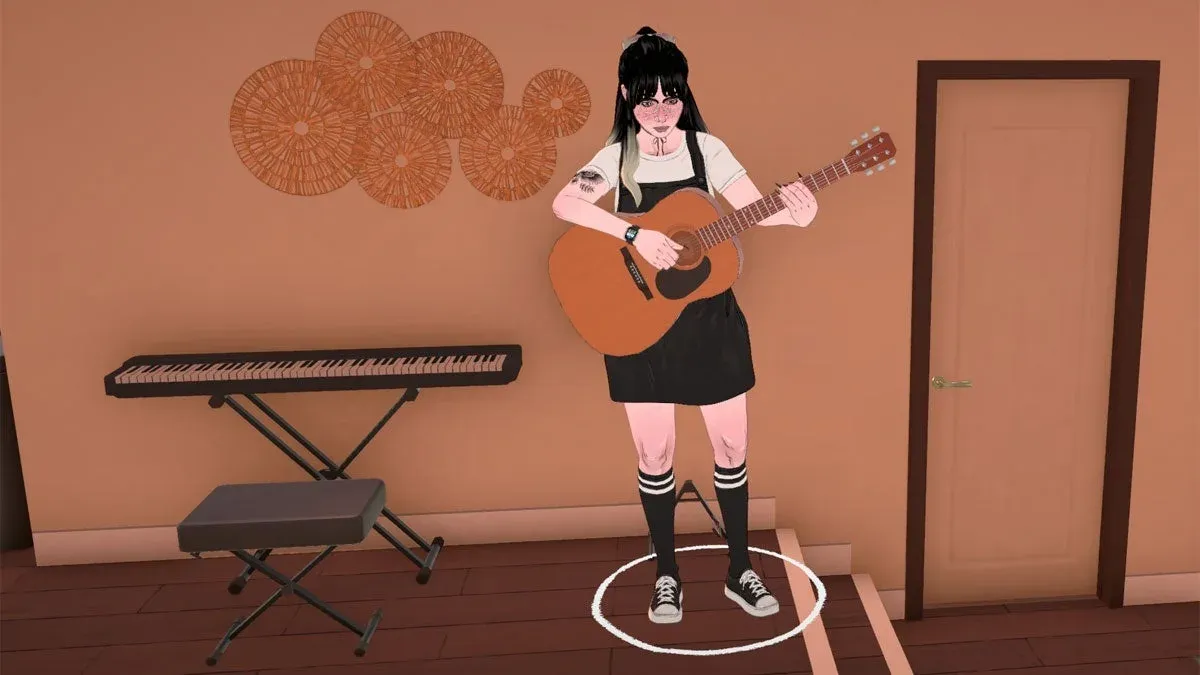
Paralives Music Skill Guide: Level Up Guitar, Piano, and Triangle Fast
Master the Music Knowledge Skill in Paralives and level up guitar, piano, and triangle faster with every method explained.
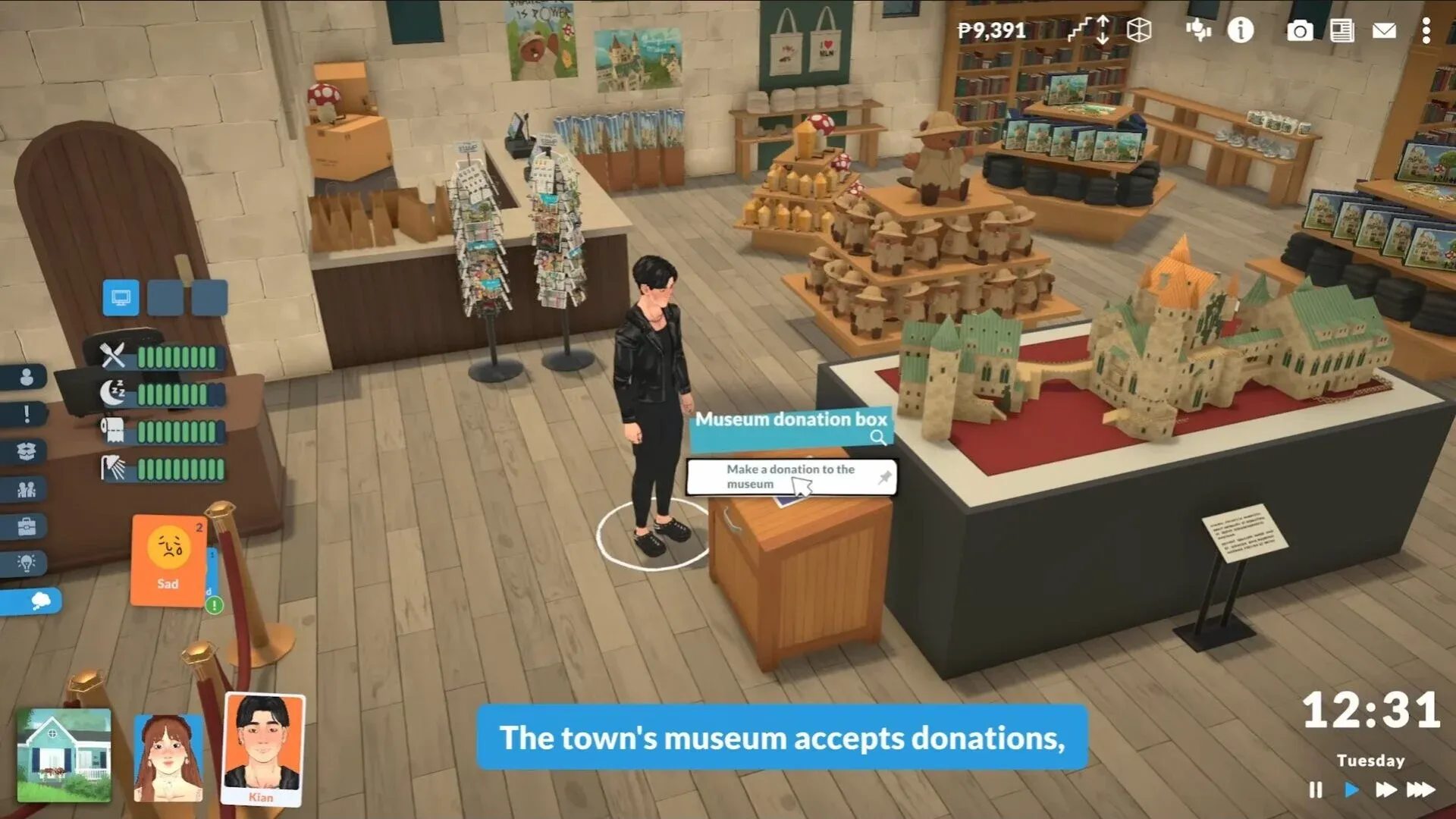
Paralives Museum Collectibles Guide: All Donations and Rewards
Every collectible, donation milestone, and reward for the Paralives museum explained, with full lists of mushrooms, gems, artifacts, and paintings.
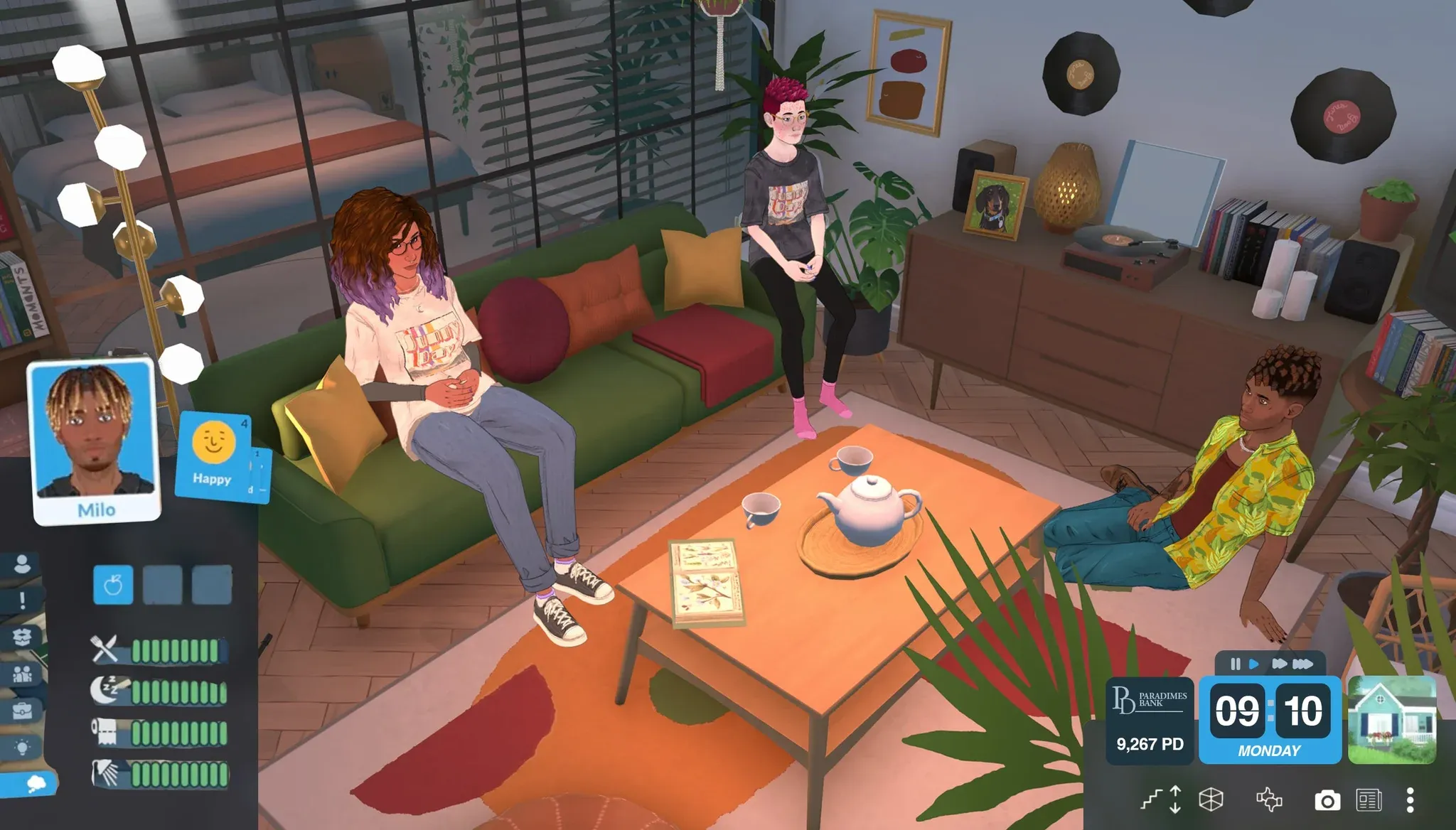
Paralives Personality System: How to Level Up Traits and Talents
Learn how Wants, Life Goals, and Personality Points work in Paralives to unlock powerful social perks and talent upgrades.
Paralives drops you into Build Mode with a staggering number of tools right from the start. For a life sim in Early Access, the sheer depth of what you can create, from curved walls to fully sculpted terrain, is genuinely impressive. This guide breaks down every major system in Build Mode so you know exactly what each tool does before you place a single wall.
Before touching any tool, you need to pick a lot. Paralives places you in Melino, the game's open-world town, where empty lots span a wide range of settings: beachside plots, farm land, residential neighborhoods, and canyon-view properties. You can also build in an empty flat world created specifically for construction if you want a blank canvas.
Once you're on a lot, press TAB or click the house icon in the bottom-left corner to enter Build Mode. The interface will feel busy at first, but it's organized into clear categories once you know where to look.
Choose your lot in Melino
The top-left corner holds four main categories:
The top-right corner holds utility tools:
| Icon | Function |
|---|---|
| Paradimes balance | Shows your household's current funds |
| Cursor Mode | Standard selection and interaction |
| Sledgehammer | Demolish individual objects or walls |
| Pipette | Copy style from existing objects |
| Bulldoze | Remove the entire lot at once |
| Undo / Redo | Step back or forward through changes |
| Move Up/Down Floor | Navigate between building levels |
| Wall Visibility | Toggle walls for interior editing |
| Lighting | Set time of day to preview lighting conditions |
| Photo Mode | Capture your build |
The Build Mode category contains eight subcategories. Almost every tool includes its own color wheel for texture and tone customization, so you're never locked into default finishes.
Three wall types are available: standard wall, half-wall, and invisible wall. All three can be built straight or curved. Half-walls have adjustable height, and holding Shift while dragging any wall enables half-grid placement for more precise layouts.
After selecting a wall type, options appear at the bottom of the screen to adjust wall height and thickness. Thicker walls open up possibilities for classical or brutalist architecture that looks genuinely different from the default. The three-dots icon adds options like separator walls and grid alignment.
One current limitation: in this Early Access version, windows and doors cannot be placed on curved walls.
Wall height and thickness controls
The platform system connects directly to wall-building. Any room you create can have its floor height adjusted independently, letting you build raised sections, sunken lounges, split-level living rooms, or proper foundations without needing separate structural tricks.
Four paint modes cover walls, floors, ceilings, and roofs.
Five door categories exist: exterior doors, interior doors, patio doors, closet doors, and arches. Each door lets you customize colors and textures, choose which side faces the exterior, and flip the opening direction.
Arches stand out here. Unlike standard doors, arches can be dragged to adjust their width, and some also adjust in height. That combination makes them useful for anything from wide open-plan living spaces to dramatic cathedral-style entrances.
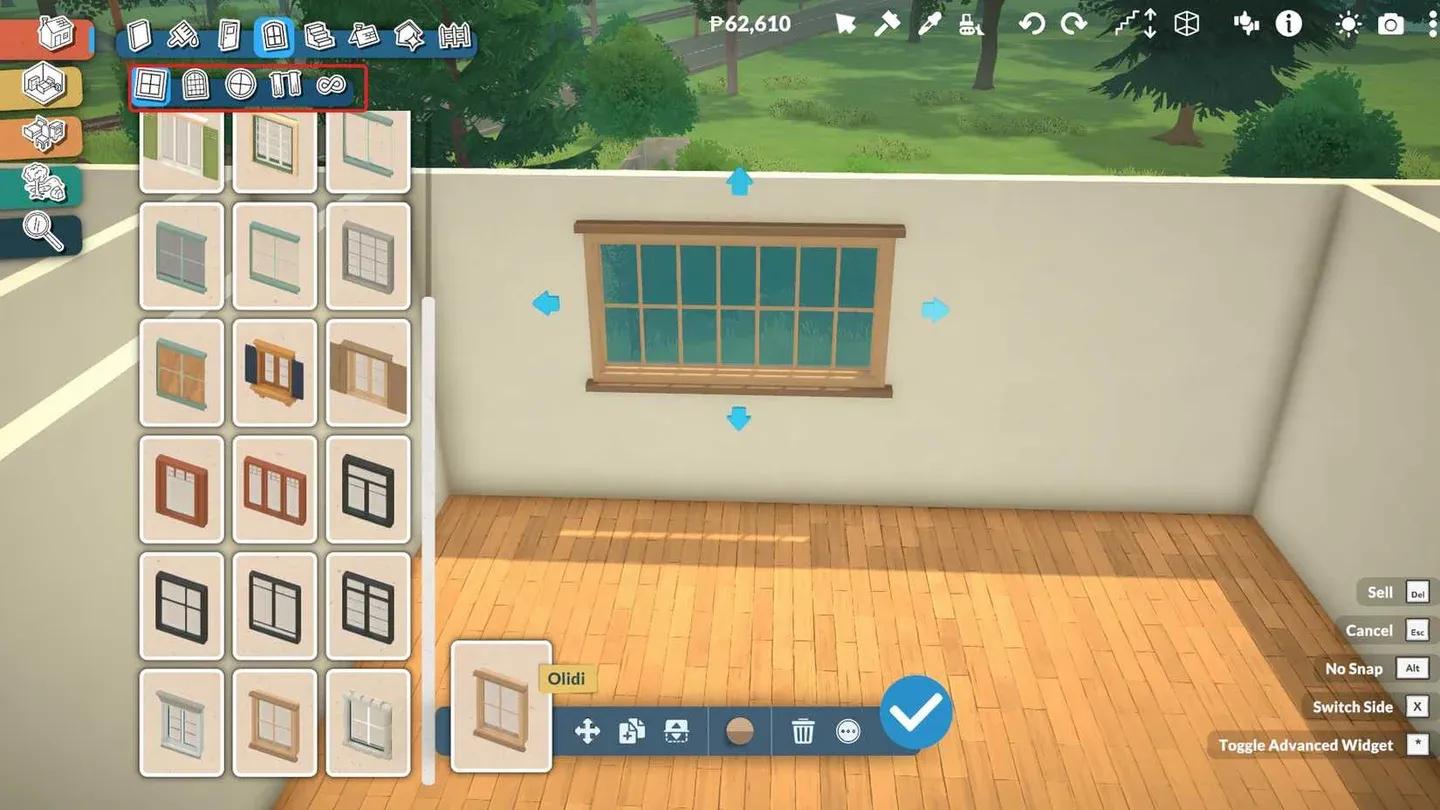
Three window categories are available: angular windows, arched windows, and decorative windows, plus a separate section for curtains and blinds. Many windows can be resized by dragging, and they share the same flip and exterior-facing options as doors.
8 staircase styles are available. After placing one, click and drag the arrows to resize both width and height. Options at the bottom of the screen let you remove the wall underneath the stairs for decorative use, and toggle railings on both sides, one side, or none at all.
A separate tool automatically places a fence around the upstairs floor opening to prevent your Parafolk from falling. Stairs can also be placed diagonally.
The roof system is the biggest single feature in Build Mode, and the game itself notes it is still unfinished. Some roofs may not perfectly match irregular floor plans at this stage. That said, 18 roof styles are available, each adjustable in height and width, with color controlled through the Roof Paint tool.
Chimneys and fireplaces sit inside the same Roof category, and chimney height can also be adjusted.
18 roof styles to choose from
Four subcategories handle decorative structural elements: Molding, Columns, Details, and Miscellaneous.
Fences behave similarly to walls but currently cannot be placed in curved shapes. Height is adjustable. There are no functional fence gates in this Early Access version, but fences work well for defining gardens, patios, and private outdoor areas.
Three subcategories handle outdoor customization: Plants, Terrain Sculpting, and Terrain Painting.
Seven plant categories are available: trees, shrubs, flowers, weeds, vines, rocks, and planters. Plants and rocks can be resized freely and recolored. The Creation Style system allows for plant designs ranging from realistic Earth vegetation to fantastical or alien-looking arrangements.
Two settings control sculpting: size and intensity. Four tools do the actual work: Elevate, Lower, Smooth, and Flatten. Use these to create hills, carved paths, cliffs, or level ground for building.
Terrain Paint applies ground textures across your lot. These textures use a 3D resolution system, meaning the terrain reads as having real depth rather than flat 2D color. This makes a significant visual difference when building on sloped or sculpted ground.
With curved walls, adjustable arches, 18 roof styles, resizable windows, platform-based foundations, and full terrain sculpting, the range is genuinely broad even in Early Access. Cozy suburban homes, modern apartments, classical mansions with columns and molding, and experimental builds with split-level platforms all sit within reach of the current toolset.
If you want to skip the grind while experimenting with layouts, our Paralives money cheats guide covers every way to get Paradimes fast, including custom amounts and the console shortcuts for both PC and Mac.
Build Mode is one part of a much larger game. Once your house is built, Melino has community spaces, museums, and events worth exploring. Check out the Paralives guides collection for coverage of donations, careers, families, and everything else the Early Access version has to offer.