
PowerWash Simulator has earned its reputation as one of the most genuinely relaxing games on PC, sitting at 97% positive across nearly 38,000 Steam reviews. The last thing you want interrupting that zen is a stuttering frame rate or muddy textures. Getting the settings right takes about five minutes and the difference is noticeable, whether you're running a mid-range rig or squeezing performance out of a handheld like the ROG Ally.
Why do graphics settings matter in PowerWash Simulator?
PowerWash Simulator is more demanding than it looks. The dirt-removal system tracks grime across entire surfaces in real time, and the water particle effects add up fast, especially in co-op sessions with up to six players. A machine that handles most indie games without a sweat can still dip below 60 FPS on the larger maps if settings are left at their defaults. The good news is that FuturLab has published recommended in-game settings to improve performance directly on their support portal, so there's a solid baseline to start from.
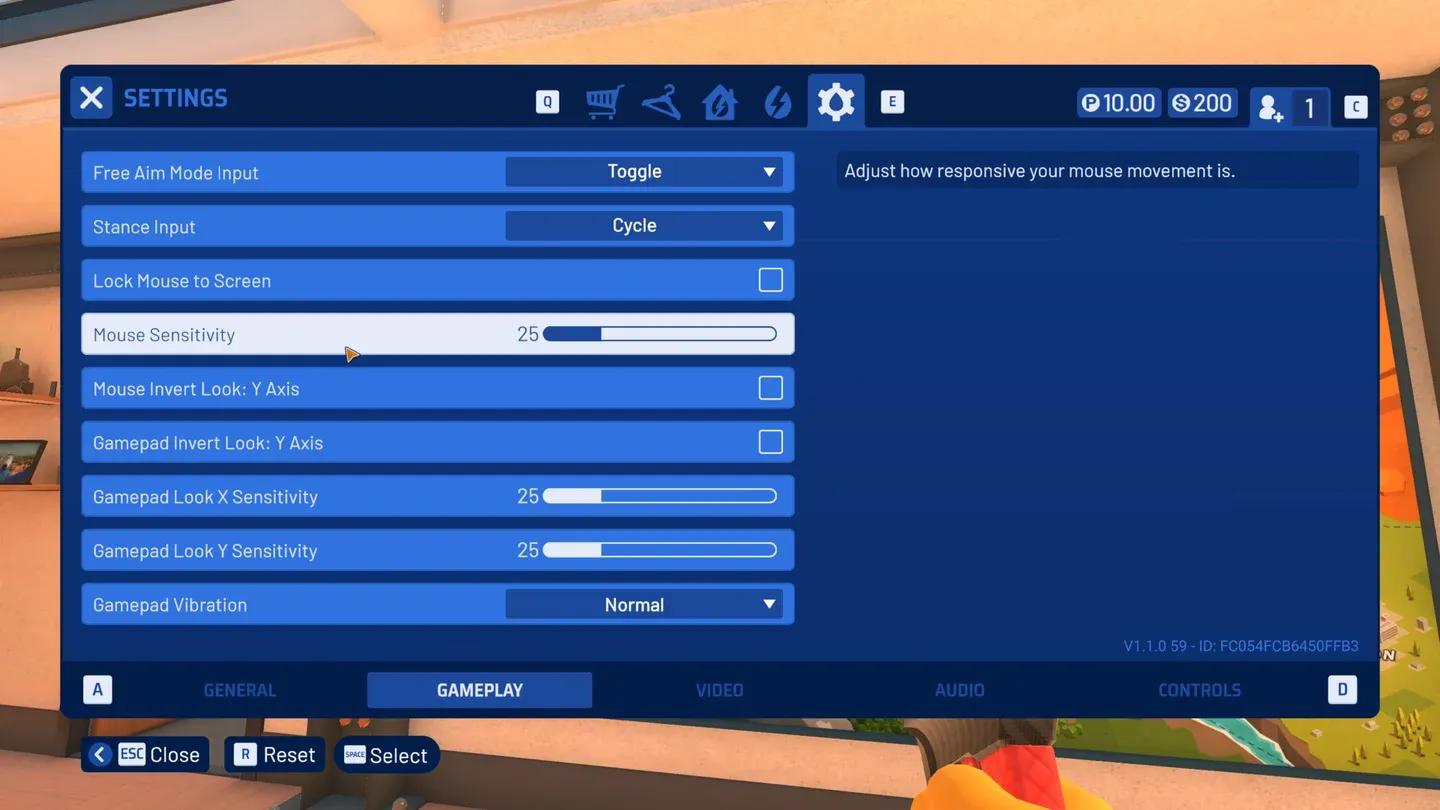
In-game graphics settings panel
What are the best graphics settings for performance?
The settings below are organized by impact. Start with the high-impact changes first, then fine-tune from there based on your hardware.
Resolution and display
- Resolution: Match your monitor's native resolution. Dropping below native hurts visual clarity more than it helps performance in this game.
- Display Mode: Fullscreen gives the best performance. Borderless windowed is fine for multitasking but adds a small overhead.
- V-Sync: Turn this off and use your GPU's frame limiter or a tool like RTSS instead. V-Sync in PowerWash Simulator can introduce input lag that makes aiming the washer feel sluggish.
- Frame Rate Limit: Cap at 60 FPS if your system struggles, or uncap if you have headroom. Uncapped on strong hardware keeps the washing feel responsive.
Texture and detail settings
- Texture Quality: High on 6GB+ VRAM cards, Medium on 4GB cards. Textures are where the visual payoff is most obvious in this game.
- Shadow Quality: This is the single biggest performance drain. Drop to Medium or Low on weaker GPUs. Shadows on dirt surfaces are barely noticeable during active washing.
- Ambient Occlusion: Set to Low or Off. The effect is subtle in outdoor environments and costs more than it gives.
- Anti-Aliasing: TAA at Medium is the sweet spot. FXAA works if you need more frames. MSAA is too expensive for the marginal quality gain.
Water and particle effects
Water simulation is the heart of the game, so this is where you need to be careful. Cutting water quality too aggressively makes the core loop feel worse.
- Water Quality: Keep at Medium minimum. Dropping to Low makes water look flat and removes some of the satisfying spray feedback.
- Particle Density: Medium is the safe choice. High particle density in co-op with multiple washers active simultaneously is a known frame rate killer.
- Foam Effects: Can be reduced to Low without noticeably changing the feel of washing.
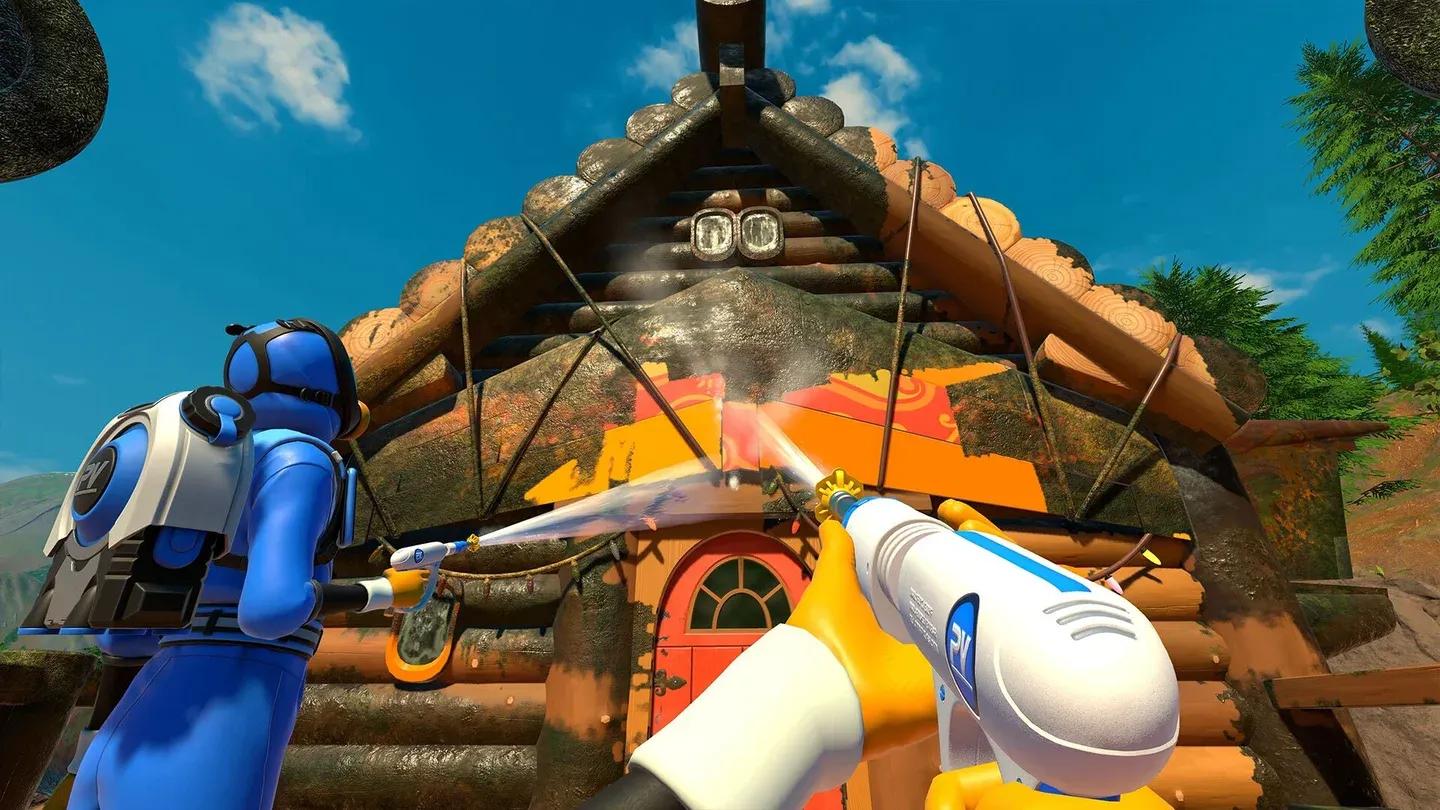
Water particle density in action
Settings comparison table
If you're playing in co-op with a full lobby of six players, drop Particle Density to Low before the session starts. The combined spray from multiple washers compounds the particle load significantly.
How to optimize settings on the ROG Ally
Handheld play is a different equation. The ROG Ally runs PowerWash Simulator 2 well, but TDP management is the real lever. According to detailed testing published at ROG Ally Life, multiple TDP configurations are viable, giving you genuine options between battery life and smooth performance. The core recommendation is to target 60 FPS at a lower TDP setting rather than pushing for uncapped frames, which drains the battery without delivering a meaningful gameplay improvement in a game this paced.
For handheld-specific settings:
- Resolution: 1080p at native for docked, 720p for handheld mode if battery is the priority
- Shadow Quality: Low on handheld mode
- Texture Quality: Medium
- Particle Density: Low
- Frame Rate Limit: 60 FPS hard cap
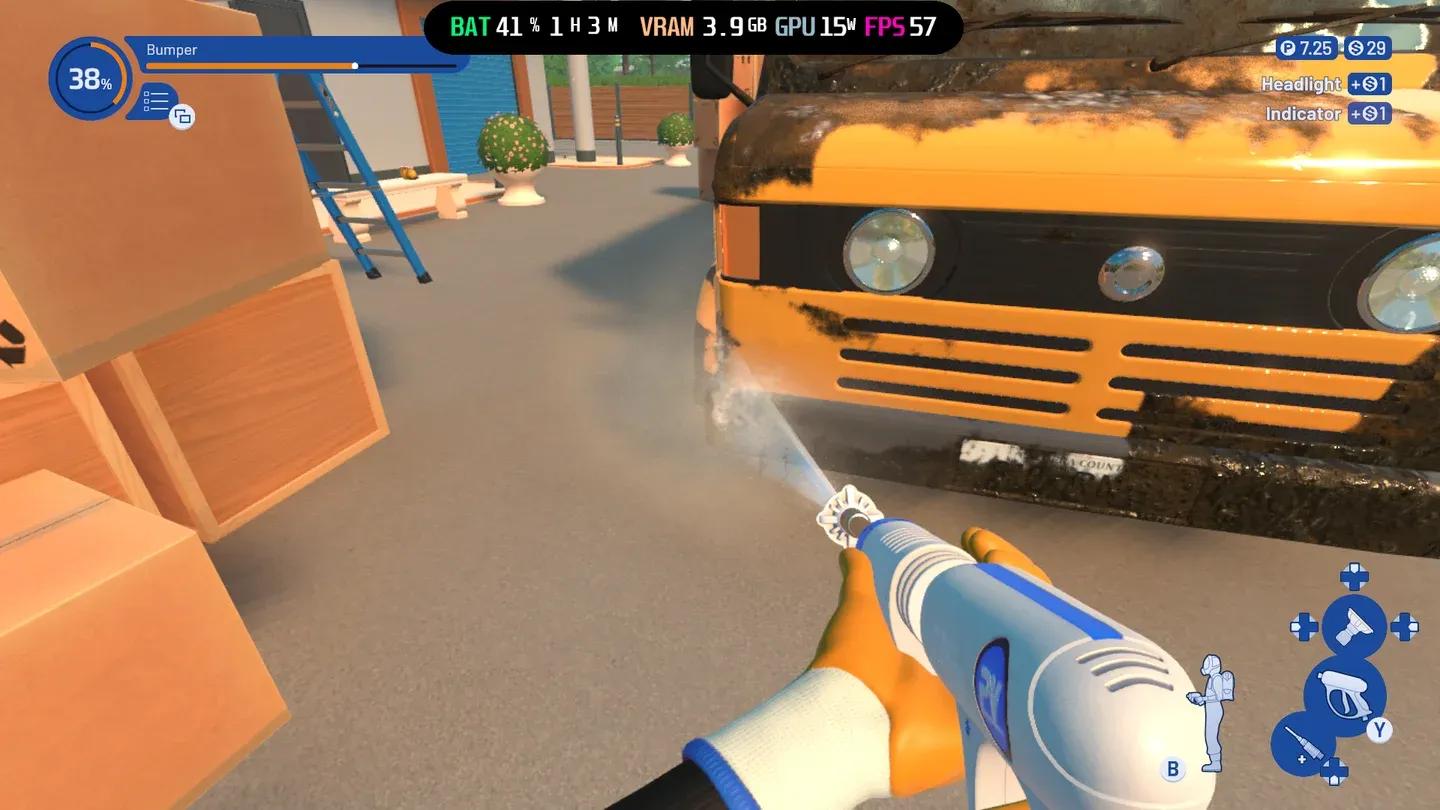
ROG Ally settings for PWS
What settings should you never touch?
A few settings look tempting to cut but genuinely hurt the experience:
- Water Quality below Low: The washing feedback loop depends on water visuals. Once it looks wrong, the relaxation factor evaporates.
- Texture Quality below Medium: Dirt textures become hard to read, making it difficult to spot remaining grime on surfaces. This actively makes the game harder to play.
- Resolution Scale below 75%: The game becomes visually noisy and the precision needed for cleaning tight spots suffers.
FuturLab notes that some performance issues are tied to specific map complexity rather than settings. If a particular map runs poorly even after optimization, that's expected behavior on the larger community and vehicle maps.
Does PowerWash Simulator 2 use the same settings?
Yes, largely. PowerWash Simulator 2 shares the same engine foundations and the settings menu is structured almost identically to the original. The same priorities apply: shadows first, particles second, water quality last. FuturLab's official guidance covers both games on their support page.
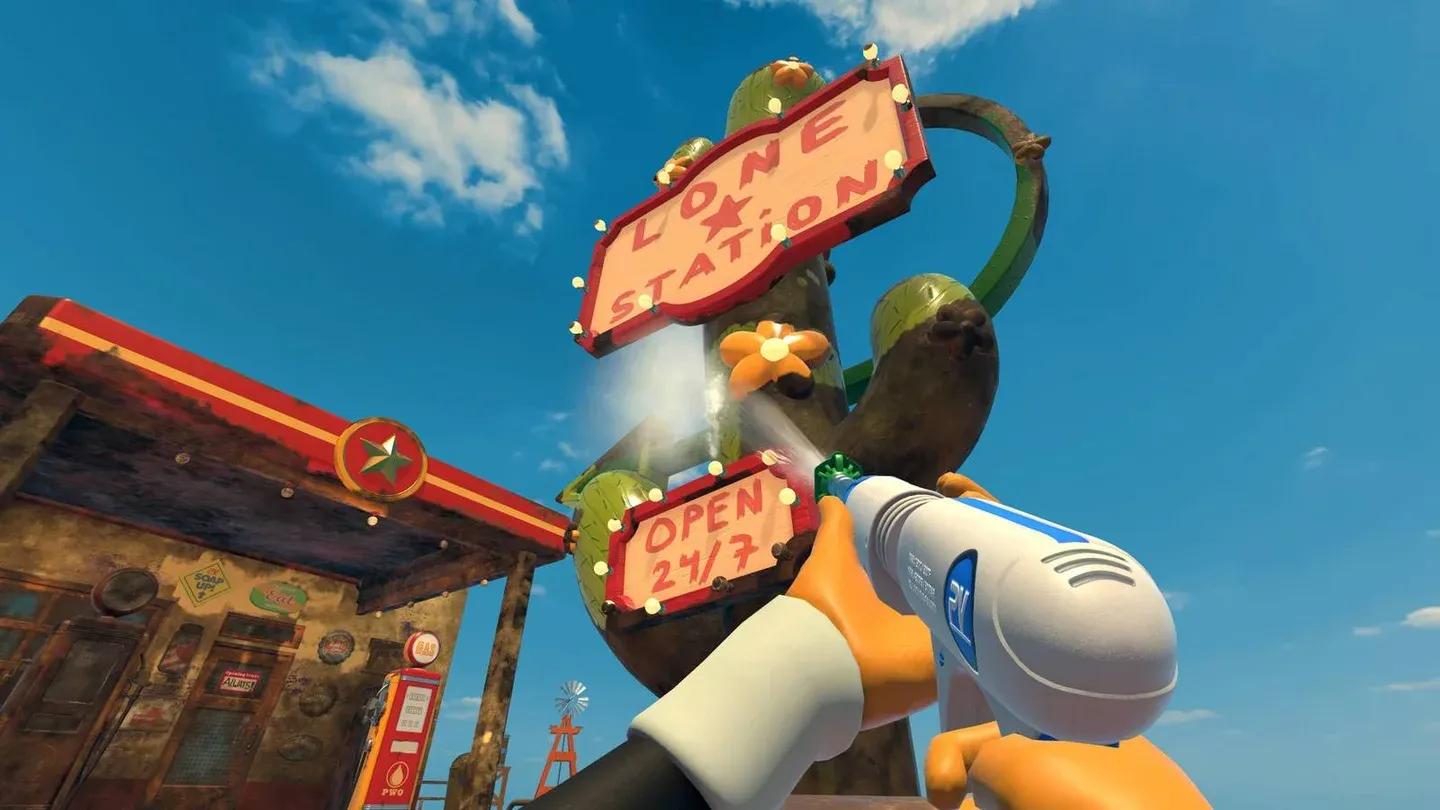
PWS2 settings layout
Quick-start presets by hardware tier
Budget GPU (GTX 1060 / RX 580 equivalent):
- Shadows: Low, AO: Off, Particles: Low, Textures: Medium, Water: Medium, AA: FXAA, V-Sync: Off, Cap: 60 FPS
Mid-range GPU (RTX 3060 / RX 6600 equivalent):
- Shadows: Medium, AO: Low, Particles: Medium, Textures: High, Water: Medium, AA: TAA Medium, V-Sync: Off, Cap: Uncapped
High-end GPU (RTX 4070+ / RX 7800 XT+):
- Shadows: High, AO: Medium, Particles: High, Textures: High, Water: High, AA: TAA High, V-Sync: Off, Cap: Uncapped
For more gaming optimization guides and tips across all platforms, browse the latest guides on GAMES.GG.