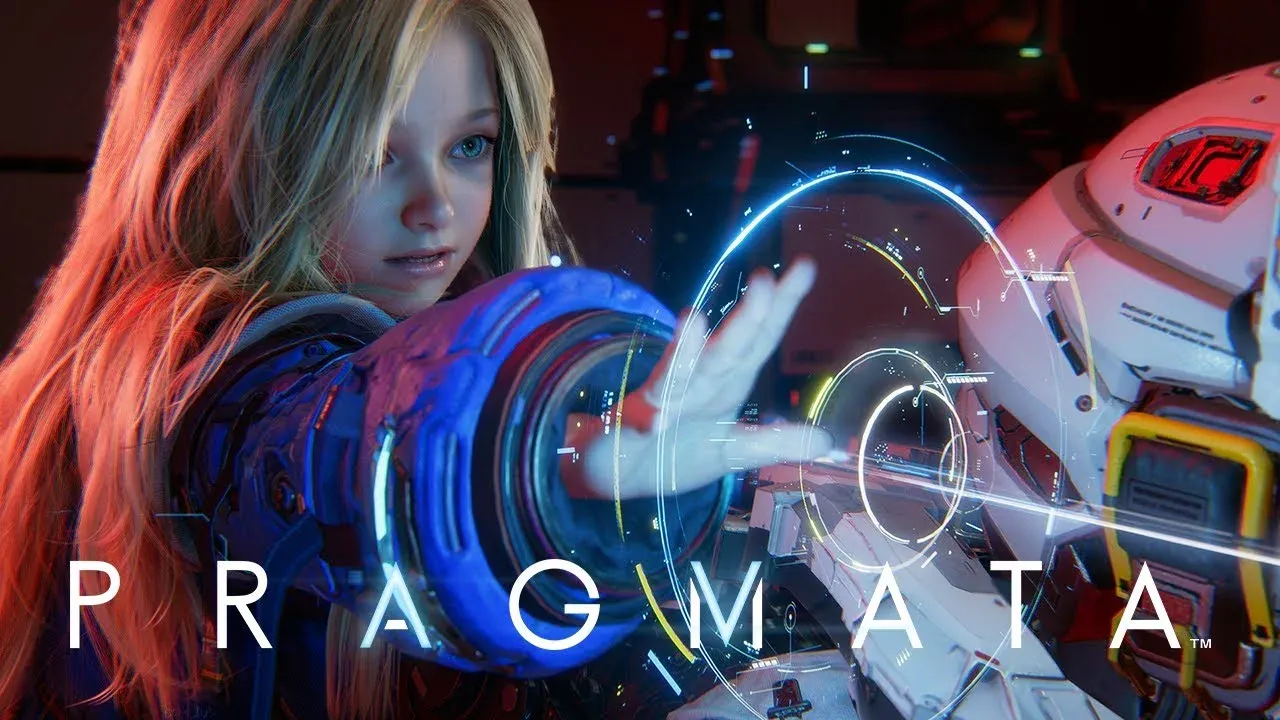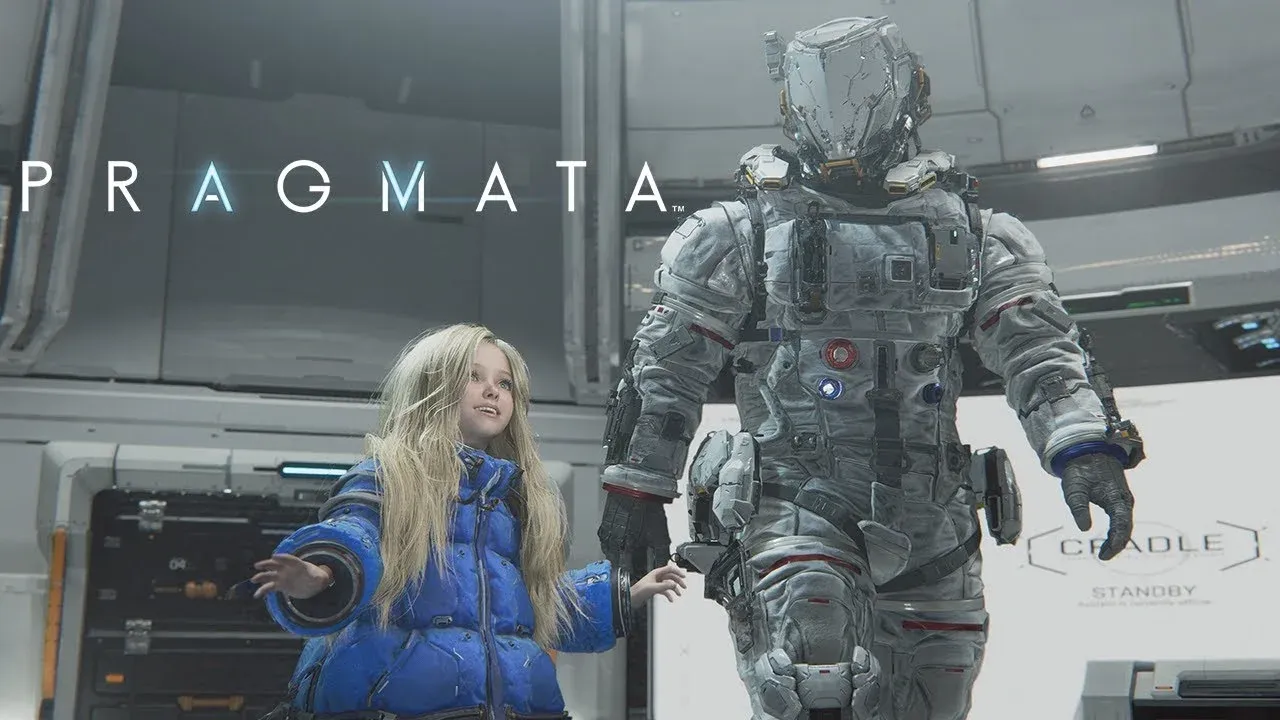

Pragmata is Capcom's first new IP in years, and it runs on the RE Engine, which means it's already well-optimized out of the box. Even so, there's real headroom to push performance further, especially on mid-range hardware. After testing settings across different GPU tiers, here's exactly what to change and why each setting matters.
What are the best Pragmata settings for performance?
These settings target the strongest quality-to-performance balance across a range of hardware. They're built to let you maintain visual fidelity without unnecessary frame drops.
| Setting | Recommended Value | Notes |
|---|---|---|
| Frame Rate | Variable | Uncaps for smoother performance |
| Ray Tracing | Off | On only for RTX 4070 or higher |
| Image Quality | 100% | Keep native unless using DLSS |
| Dynamic Resolution | Off | Avoid blurring at native res |
| Hair Quality | Medium | High if CPU allows |
| Texture Quality | High (2GB) | For GPUs with 8GB VRAM or less |
| Texture Filtering | High | Low cost, noticeable quality gain |
| Mesh Quality | Medium/High | Balance based on GPU |
| Shadow Quality | Medium | Strong FPS recovery setting |
| Shadow Cache | On | Reduces shadow recalculation cost |
| Contact Shadows | Off (CPU-limited) | Any on capable machines |
| Effects Quality | Medium/High | |
| Video Quality | Full HD | |
| Anti-Aliasing | FXAA+TAA | Solid balance of sharpness and cost |
| Ambient Occlusion | SSAO | Off for a solid FPS boost on weak GPUs |
| Volumetric Lighting | Low | High cost, low visual payoff |
| Bloom | Off | |
| Subsurface Scattering | Off (CPU-limited) | On otherwise |
| Motion Blur | Preference | Off recommended |
| Lens Flare | Preference | Off recommended |
| Lens Distortion | Preference | Off recommended |
| Depth of Field | Preference | Off recommended |
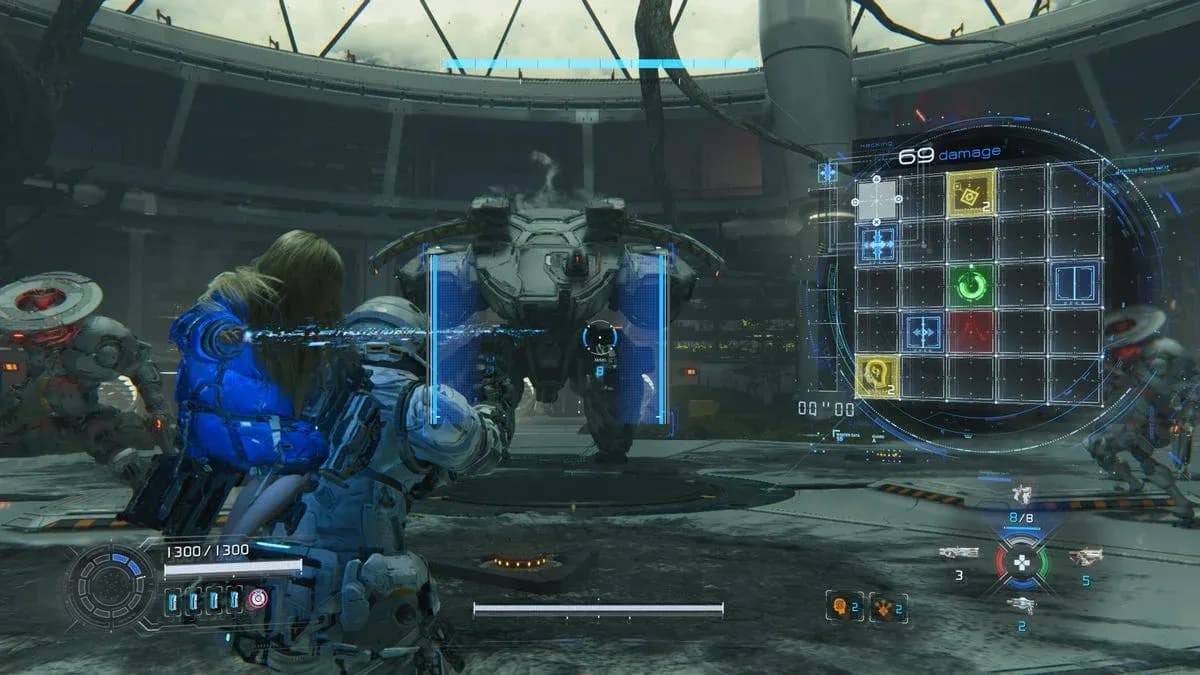
Pragmata graphics settings screen

Which settings have the biggest FPS impact?
Not every toggle is equal. Some settings drain performance without meaningfully improving what you see. Here's where to focus your attention first.
Ray Tracing
Ray Tracing is the single biggest performance cost in Pragmata. Keep it off unless you're running an RTX 4070 or higher. On cards below that threshold, the FPS drop isn't worth the visual improvement. Path Tracing goes even further and is only practical on RTX 4090 or 5090 hardware, where DLSS can offset the cost.
Ambient Occlusion
Dropping Ambient Occlusion from SSAO to Off can give a meaningful FPS boost on less capable machines. The visual difference is subtle in motion, making this one of the better performance-per-setting trades available.
Volumetric Lighting
Set Volumetric Lighting to Low. It's one of the more expensive effects in the RE Engine and the quality difference at Low versus High is hard to notice during active gameplay.
Shadow Quality
Shadow Quality at Medium with Shadow Cache enabled is the recommended baseline. Shadow Cache reduces the GPU cost of recalculating shadows each frame, so keeping it on is essentially free performance.
Should you use DLSS or Frame Generation in Pragmata?
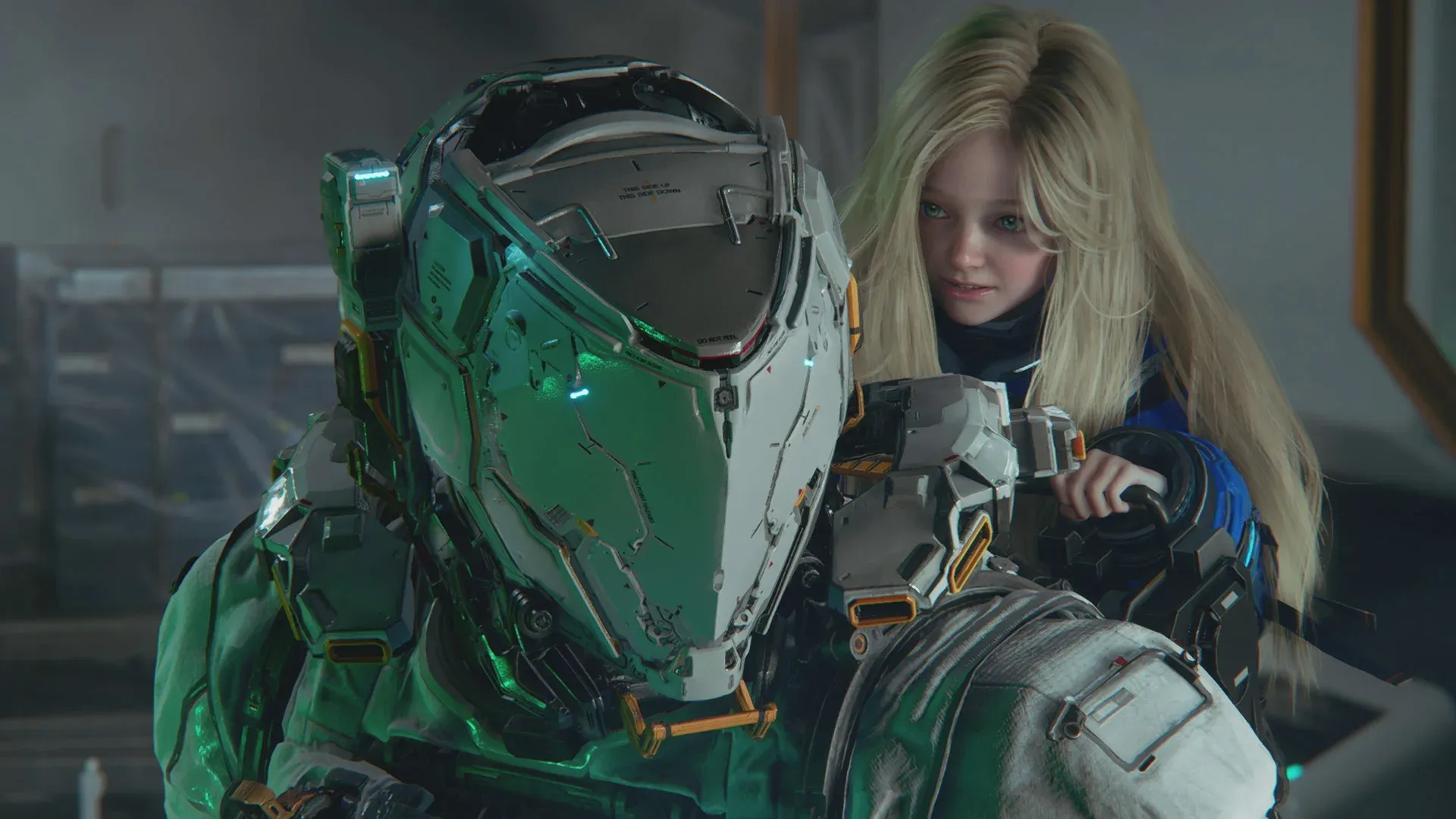
DLSS on Quality mode can help sustain higher visual settings without a proportional FPS cost. That said, native resolution is preferable when hardware permits, since upscaling introduces softness that's visible on sharp character detail like Diana's face.
Frame Generation adds frames at the cost of input lag. If you're playing a responsive action game and input latency matters to you, skip it. If you're on a mid-range GPU and want smoother motion in cutscene-heavy sections, it's a reasonable option.
Settings that are purely personal preference
Several options in Pragmata's menu have no meaningful performance impact and come down entirely to what you prefer visually.
- Motion Blur: Off is the default recommendation for most players, but some prefer it for cinematic feel
- Lens Flare: Purely aesthetic, no real FPS cost either way
- Lens Distortion: Same situation as Lens Flare
- Depth of Field: Can add cinematic depth to cutscenes but may feel distracting during gameplay
None of these will move your frame counter in any meaningful direction, so set them based on how you want the game to look.
For more guides covering Capcom's latest and other major releases, browse more guides at GAMES.GG.