Search games, articles, guides...CtrlK
Sign InGet Started

Get the best performance in Resident Evil Requiem with optimized PC graphics settings for every hardware tier, from budget to high-end rigs.
See more GAMES.GG stories on Google
Enjoyed this guide?
Add GAMES.GG as a preferred source and Google will show you more of our guides and news when you search.
updated
February 27th 2026
posted
February 27th 2026
Resident Evil Requiem runs on Capcom's battle-tested RE Engine, and the good news is that it's one of the better-optimized PC releases in recent memory. Whether you're creeping through the Wrenwood Hotel on a budget GTX 1660 or blasting through scenes on a high-end RTX setup, there's a configuration that'll keep your frames steady and the atmosphere intact. This guide breaks down exactly what to change, why it matters, and how to squeeze every bit of performance out of your rig.
Before touching any settings, make sure your hardware is in the conversation. Capcom has set a surprisingly accessible bar for this one.
| Spec | Minimum | Recommended |
|---|---|---|
| OS | Windows 11 (64-bit) | Windows 11 (64-bit) |
| CPU | Intel Core i5-8500 / AMD Ryzen 5 3500 | Intel Core i7-8700 / AMD Ryzen 5 5500 |
| RAM | 16 GB | 16 GB |
| GPU | GTX 1660 6GB / RX 5500 XT 8GB | RTX 2060 Super 8GB / RX 6600 8GB |
| DirectX | Version 12 | Version 12 |
The minimum GPU requirement dates back to 2019-era hardware, which tells you a lot about how well the RE Engine scales. You don't need a flagship card to enjoy this game, though a more powerful GPU opens up ray tracing and path tracing options that genuinely add to the atmosphere.

Resident Evil Requiem: Best Graphics & Optimization Guide
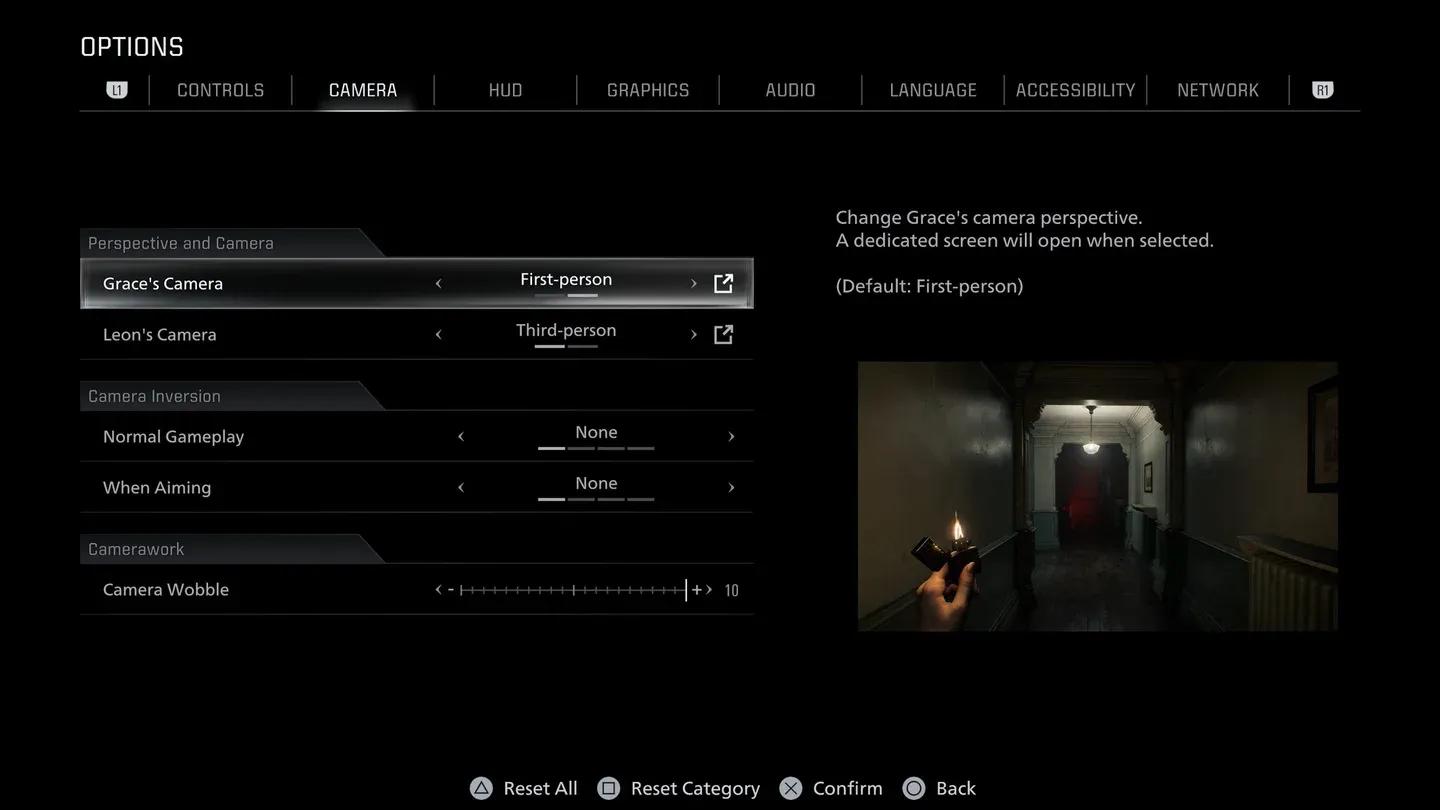
The settings menu has a lot of toggles, and not all of them carry equal weight. Below is a full breakdown across three performance tiers: Low, Medium, and High. Use this as your starting point, then fine-tune from there.
| Setting | Low | Medium | High |
|---|---|---|---|
| Display Mode | Borderless Window | Borderless Window | Borderless Window |
| HDR Mode | Auto | Auto | Auto |
| Vertical Synchronization | Off | Off | Off |
| Frame Rate | Variable | Variable | Variable |
| Motion Blur | On | On | On |
| Ray Tracing | Off | High | Path Tracing |
| Hair Strands | Off | Off | On |
| Texture Quality | Low | Normal | High |
| Texture Filter Quality | Medium (Trilinear) | High (ANISO x8) | High (ANISO x16) |
| Anti-Aliasing | Off | Off | TAA |
| Mesh Quality | Low | Low | Standard |
| Screen Space Reflections | Off | Off | On |
| Subsurface Scattering | Off | Low | High |
| Lens Distortion | Off | On | On + Chromatic Aberration |
| Depth of Field | Off | Off | On |
| Particle Lighting | Off | Off | On |
| Volumetric Fog Resolution | Lowest | Normal | High |
| Lens Dirt | Off | Off | On |
| Lens Flare | Off | Low | High |
| Shadow Quality | Low | Normal | High |
| Contact Shadows | Off | Off | On |
| Ambient Occlusion | Off | Normal | High |
| VFX Quality | Low | Low | Standard |
Resident Evil Requiem: Best Graphics & Optimization Guide
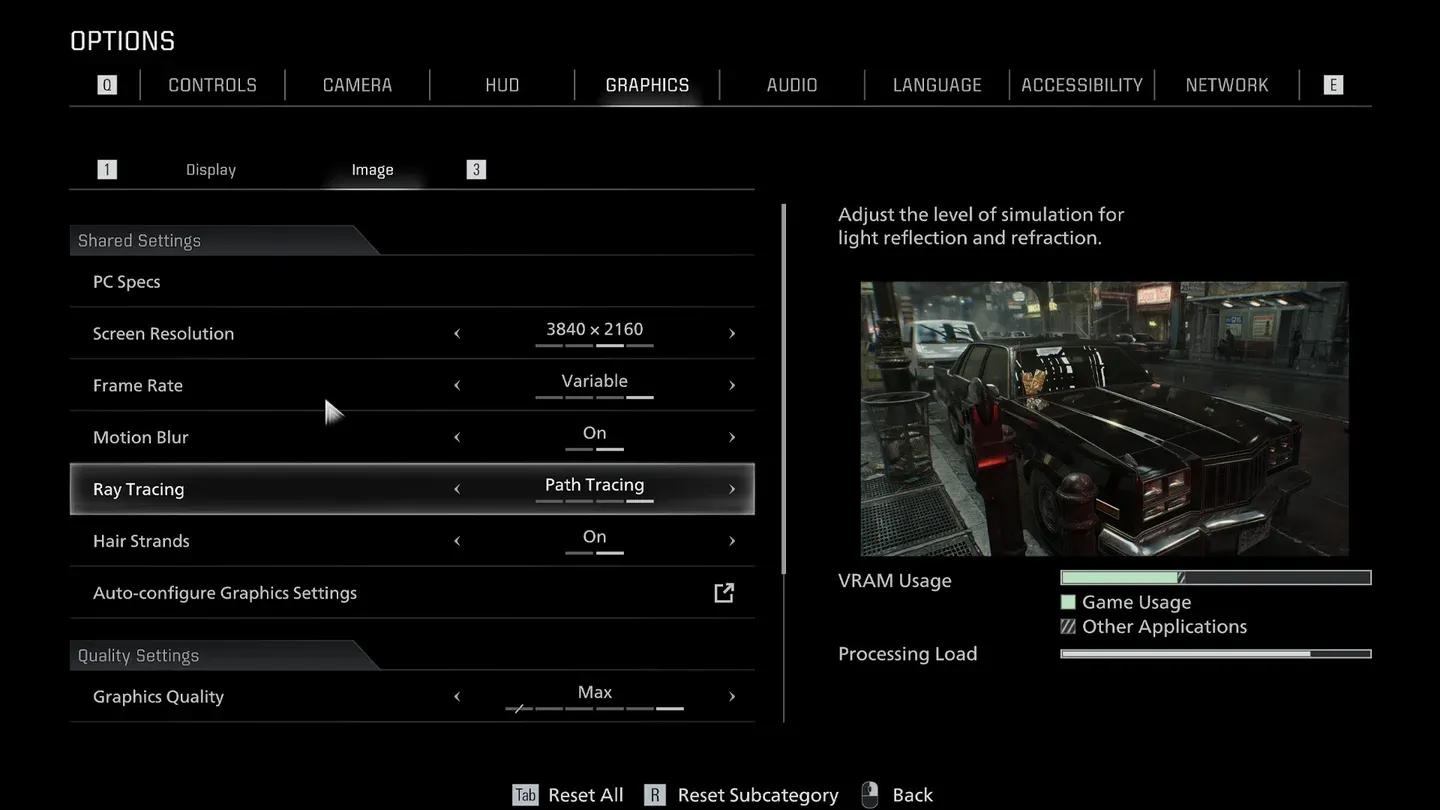
If you're running something in the RTX 4070 range or above, you have room to push the visuals hard. Testing on an RTX 5090 paired with an AMD Ryzen 7 9800X3D showed the game averaging around 200fps at 5120x2160 with maxed settings, with 1% lows sitting at 170fps. That's exceptional stability for a horror game where sudden frame drops can genuinely ruin a tense moment.
For high-end setups, here are the key settings to prioritize:
Ray tracing in Resident Evil Requiem improves lighting and reflections noticeably, particularly in the hotel's indoor environments. That said, the performance cost is real. For most players, turning ray tracing off and keeping Screen Space Reflections active delivers a solid visual result at a fraction of the GPU cost. Path Tracing is genuinely impressive but reserved for those with flagship hardware.
Budget cards like the GTX 1660 or RX 5500 XT should stick firmly to the Low settings column. The RE Engine is genuinely efficient at these settings, and the game remains visually coherent even with shadows and reflections dialed back. You won't lose the atmosphere, just some of the finer details.
Mid-range GPUs in the RTX 2060 Super or RX 6600 class are well-suited to the Medium tier. At this level, you get proper shadow quality, Anisotropic filtering at x8, and volumetric fog that keeps the horror grounded. Testing even showed the RTX 5050 (a budget-tier card) running smoothly on low settings without needing Frame Generation at all.
Resident Evil Requiem: Best Graphics & Optimization Guide
Resident Evil Requiem supports both Nvidia DLSS and AMD FSR 3.1.5, and both are worth using if you need a frame rate boost without dropping resolution settings.
For the upscaling mode itself, Quality is the sweet spot for most players. It recovers most of the frame rate lost to ray tracing while keeping visuals sharp.
Keeping an eye on your frame rate and GPU usage while tweaking settings is the fastest way to find your optimal configuration.
No, an SSD isn't a hard requirement to run the game. That said, installing Resident Evil Requiem on an SSD over a traditional hard drive will cut load times significantly. A mid-range NVMe drive is more than sufficient; you don't need a top-tier PCIe 5.0 drive to see the benefits.
Like its predecessors Resident Evil 7 and Village, Resident Evil Requiem ships without a field of view (FOV) slider. This forces a tighter default view than many PC players prefer. It's a recurring frustration with Capcom's RE Engine titles, and while the community may eventually find workarounds, there's no official fix at launch.
On the positive side, the game supports native ultrawide aspect ratios and includes HDR support, both of which are welcome additions that many modern releases still skip.
Here's a quick checklist to run through before you start your playthrough:
With the right configuration dialed in, Resident Evil Requiem delivers a smooth, tense, and visually striking experience on a wide range of hardware. The RE Engine's efficiency means you don't have to sacrifice atmosphere for performance.