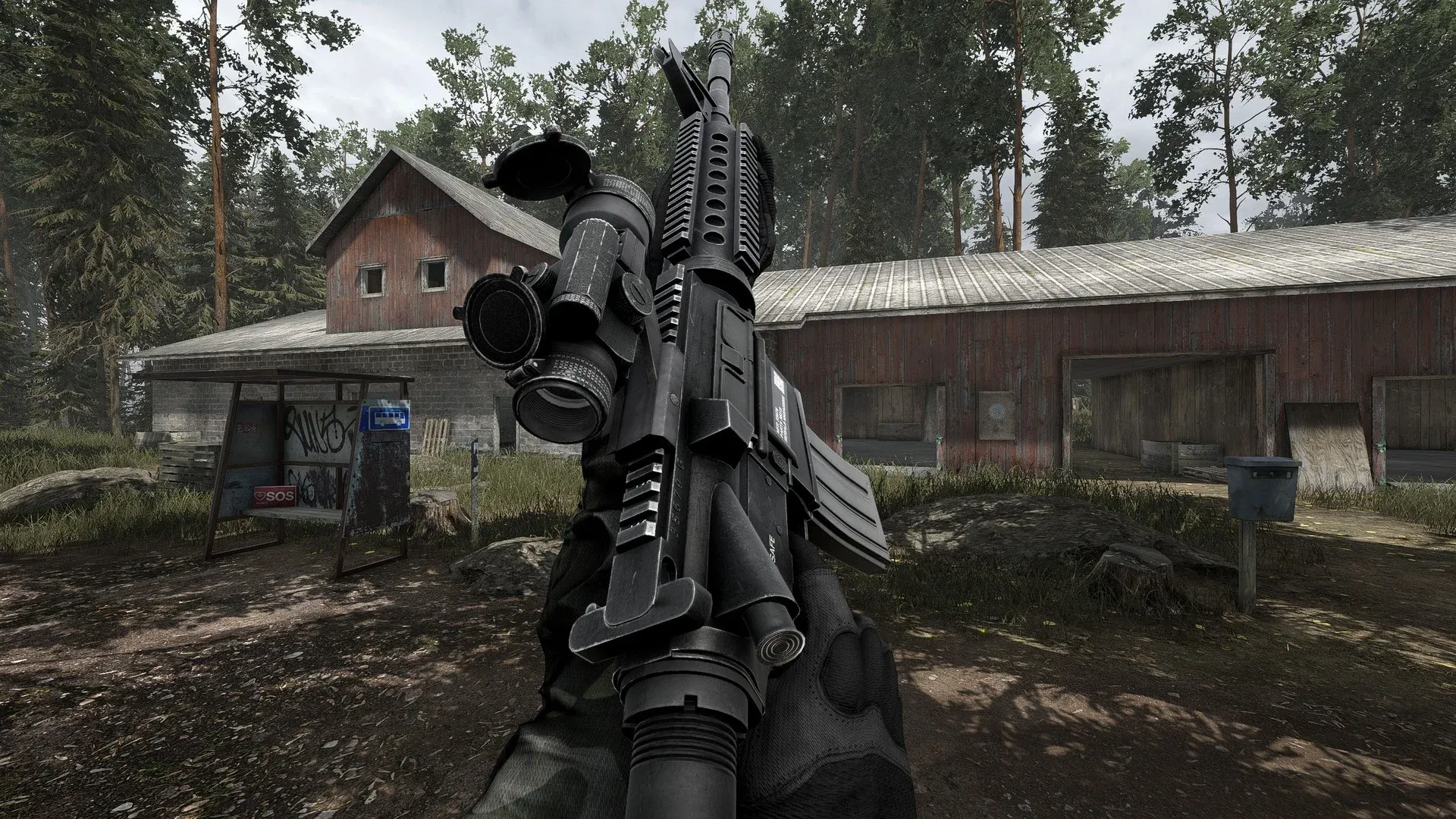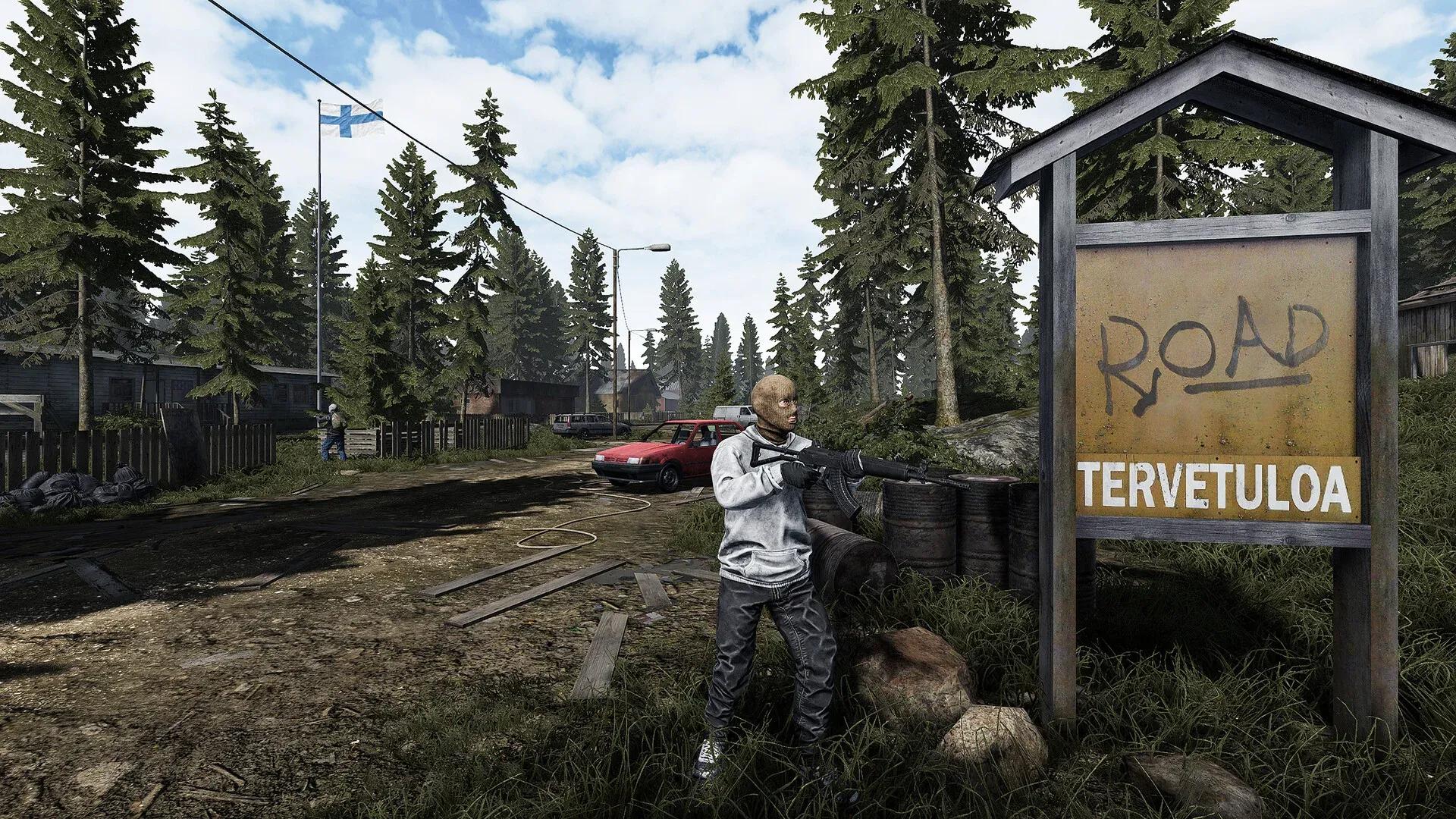

Road to Vostok hit Steam Early Access on April 7, 2026, built by a single developer, Antti Tiihonen, on the Godot 4 engine. That engine choice delivers some genuinely impressive physics and lighting, but it also comes with specific performance quirks that will absolutely ruin a run if you leave settings at their defaults. Frame drops mid-firefight in a permadeath game are not just annoying. They end runs. This guide covers every fix that actually works, from in-game sliders to Windows-level configuration, tested across hardware ranging from a GTX 1060 to an RTX 4090.
Why does Road to Vostok run poorly on capable hardware?
The Godot 4 engine processes dynamic lighting, spatial audio, and real-time ballistics simultaneously. Fire an unsuppressed rifle inside a concrete structure and the engine calculates the bullet physics, the muzzle flash as a live light source bouncing off surfaces, and the audio reverb all at once. On a modern high-end rig that produces atmosphere. On anything older, it creates a CPU bottleneck that no amount of GPU muscle can solve.
The other major culprit is Picture-in-Picture (PiP) scope rendering. Road to Vostok renders the entire game world twice when you aim through a magnified optic: once for your peripheral view and once inside the scope lens. That effectively doubles GPU load the instant you press aim-down-sights. Turning off PiP is the single largest FPS gain available in the game, consistently delivering the biggest performance jump across all hardware tiers.
Dense Finnish forest foliage compounds the problem further. Thousands of individual pine trees with dynamic sway animations punish VRAM-limited cards hard. The game also streams assets dynamically as you move across the map, which means a mechanical hard drive will produce 2 to 3 second hard freezes every time you cross into a new zone. An SSD is not a luxury here.

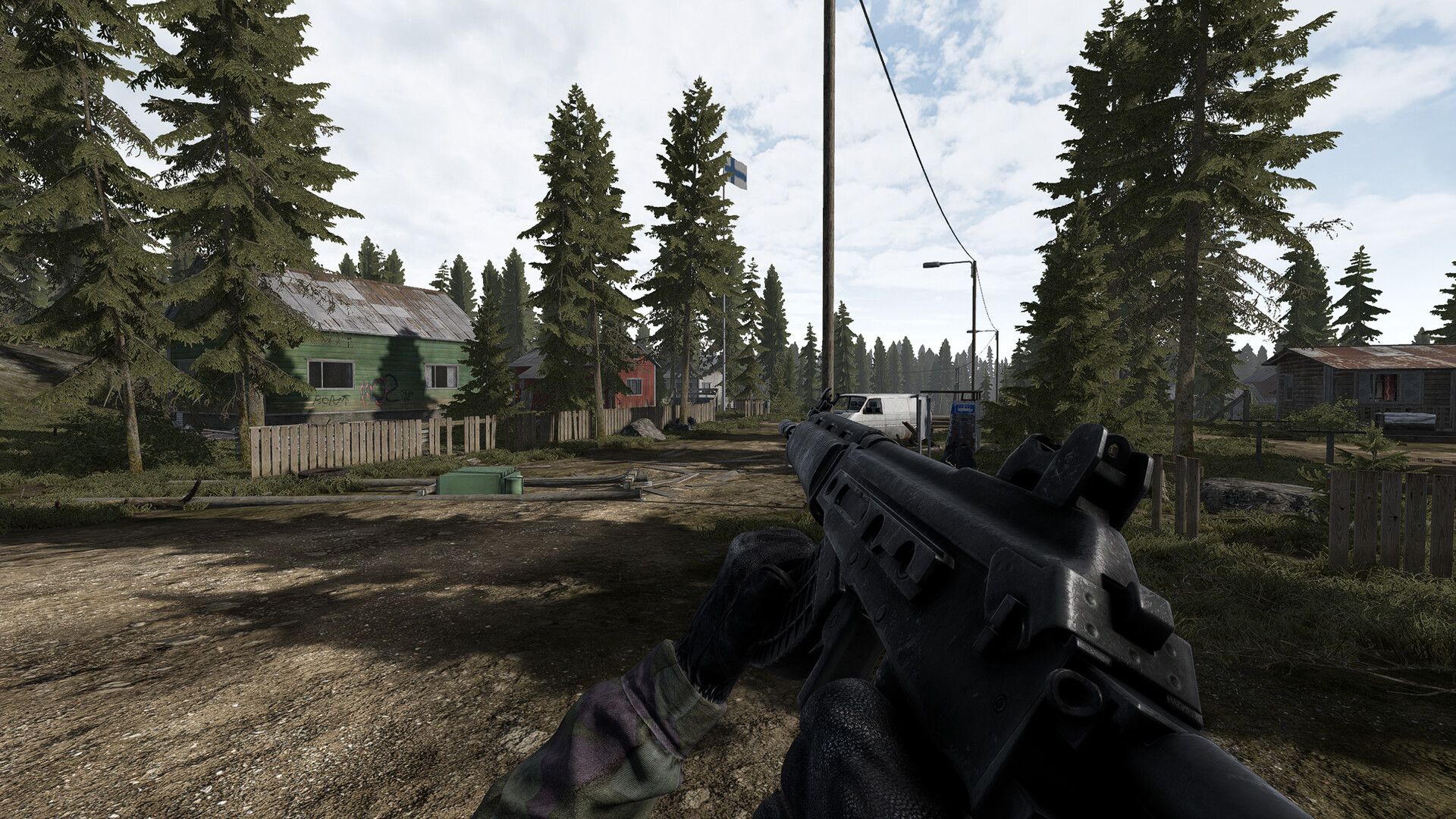
What are the best in-game graphics settings for Road to Vostok?
The goal is maximum enemy visibility at rock-solid frame pacing. Setting everything to Ultra and wondering why the game stutters when scoping a distant treeline is a common mistake. The table below reflects settings tested across multiple hardware configurations, prioritizing both performance and the visual clarity needed to spot camouflaged targets.
| Setting | Recommended Value | Performance Impact | Reason |
|---|---|---|---|
| Display Mode | Exclusive Fullscreen | High | Forces Windows to dedicate GPU resources fully to the game, reducing input lag |
| Texture Quality | High (if VRAM above 8GB) | Low | Keeps enemy camouflage and armor types readable at range |
| Shadow Quality | Medium | Very High | Removes pixelated artifacts while saving significant GPU overhead versus High or Ultra |
| Foliage Density | Low or Medium | High | Reduces grass clustering, making prone enemies easier to spot |
| Volumetric Fog | Off or Low | Very High | Severely limits sniper visibility and hammers VRAM; turning this off can boost FPS by 15 to 20 percent |
| Volumetric Clouds | Low | Medium | You are not looking at the sky during a firefight |
| Anti-Aliasing | TAA (Temporal) | Medium | Eliminates fence shimmer that can be mistaken for movement; FSR can cause ghosting on fast targets in the current build |
| Ambient Occlusion | Medium | Medium | Helps spot enemies hiding in dark bunker corners |
| Motion Blur | Off | Low | Kills peripheral sharpness with no tactical benefit |
| V-Sync | Off | Low | Forces frame buffering that creates fatal input delay on sniper flicks |
| PiP Scope Rendering | Off (use Zoom mode) | Extreme | Rendering the world twice for scope magnification is the top single FPS killer in the game |
For FOV, a value between 90 and 95 is optimal. It avoids fisheye distortion while giving enough peripheral vision to catch flanking movement in dense pine forests.
How to fix Road to Vostok stuttering and freezes
Stuttering in Road to Vostok falls into distinct categories, and the fix depends on which type you are experiencing. Throwing random solutions at the problem wastes time.
Identifying your stutter type
| Symptom | Trigger | Root Cause | Fix |
|---|---|---|---|
| Freeze on first shot with a new weapon | Firing a weapon type for the first time | Uncompiled Vulkan shaders | Clear GPU shader cache |
| Hard freeze crossing map zones | Moving between Village and Industrial areas | Slow asset streaming from HDD | Move game to NVMe SSD |
| ADS lag with magnified scopes | Zooming with an LPVO or sniper scope | PiP dual-render overload | Disable PiP, lower Shadow Quality |
| Random micro-stutters in forests | Walking through dense foliage | Windows CFG interfering with Godot memory management | Disable Control Flow Guard for the executable |
Clear the Vulkan shader cache
Godot 4 compiles shaders on the fly the first time it encounters new visual effects. If your cache contains corrupted data from demo builds or previous updates, the CPU stalls the GPU mid-frame, producing that signature 1 to 1.5 second freeze. Clearing it forces a clean rebuild on next launch.
For NVIDIA users:
- Press Windows Key + R, type %localappdata%, press Enter
- Open the NVIDIA folder, then DXCache and GLCache
- Delete all files inside (skip any flagged as in-use)
For AMD users:
- Open AMD Adrenalin software
- Go to Settings (gear icon) > Graphics > Advanced
- Click Reset Shader Cache
The first launch after clearing will be slightly slower as the cache rebuilds. After that, mid-combat stuttering from shader compilation should drop dramatically.
Disable Windows Control Flow Guard for Road to Vostok
Windows Control Flow Guard (CFG) is a security feature that scans memory operations in real time. Godot 4's aggressive memory garbage collection during map transitions conflicts with it directly, producing the traversal hitches players report when moving between zones. Disabling CFG for the game executable only does not affect system security elsewhere.
- Press the Windows Key, search for Exploit Protection, open it
- Click the Program settings tab, then Add program to customize > Choose exact file path
- Navigate to your Steam installation and select Road to Vostok.exe
- Find Control flow guard (CFG), check Override system settings, toggle it Off, click Apply
- Restart your PC
Clear the Godot shader cache from AppData
Separate from the GPU driver cache, Godot stores its own compiled shaders in AppData. Corrupted files from demo installs are a documented cause of black screen loading loops and stutters on launch.
- Press Windows Key + R, type %APPDATA%, press Enter
- Navigate to the Road to Vostok folder (or Road to Vostok Demo if you played the demo)
- Delete the shader_cache folder entirely
- Relaunch the game; it rebuilds automatically
How to fix the Road to Vostok black screen on launch
Black screen on launch, where you hear ambient audio but see nothing, became especially common after the rendering API switch to DirectX ahead of Early Access. Work through these fixes in order.
Fix 1: Verify game files via Steam Right-click Road to Vostok in your Library > Properties > Installed Files > Verify integrity of game files.
Fix 2: Clear the AppData shader cache (see steps above)
Fix 3: Force a rendering driver via Steam launch options Right-click Road to Vostok > Properties > General > Launch Options field. Try these one at a time:
- Force DirectX 12: --rendering-driver d3d12
- Force Vulkan: --rendering-driver vulkan --rendering-method forward_plus
- Force OpenGL (older GPUs): --rendering-driver opengl3
- Lower-power rendering (integrated graphics): --rendering-method mobile
AMD Radeon users experiencing visual corruption should update AMD Adrenalin drivers to version 25.9.2, which is the confirmed fix for RX 6800 XT and other RDNA-generation cards. If that version is unavailable for your hardware, fall back to 25.6.1 or the --rendering-driver opengl3 launch option.
Windows-level optimizations that actually move the needle
In-game settings only go so far. These system-level changes address the performance floor.
Enable Hardware-Accelerated GPU Scheduling (HAGS) Go to Windows Settings > System > Display > Graphics Settings. Toggle on Hardware-Accelerated GPU Scheduling. This lets your GPU manage its own memory queue, reducing latency. Restart after enabling.
Set Windows power plan to High Performance Go to Control Panel > Power Options > High Performance. The Balanced plan throttles CPU clock speeds mid-game. Multiple players have confirmed this fixed their lag spikes. On laptops specifically, an uncapped frame rate can cause thermal throttling that paradoxically lowers average FPS. Capping at 60 FPS creates a steady workload and prevents thermal spikes.
NVIDIA Control Panel program settings Right-click desktop > NVIDIA Control Panel > Manage 3D Settings > Program Settings > select Road to Vostok:
- Power Management Mode: Prefer Maximum Performance
- Texture Filtering Quality: High Performance
- Low Latency Mode: Ultra
Disable third-party overlays OBS, NVIDIA ShadowPlay, Steelseries Moments, and the Steam recording overlay all have documented conflicts with Godot's Vulkan backend. Disable them to identify the culprit. To disable the Steam overlay specifically: right-click Road to Vostok > Properties > General > uncheck Enable the Steam Overlay while in-game.
Disable fullscreen optimizations on the executable In Steam, right-click Road to Vostok > Manage > Browse Local Files. Right-click the .exe > Properties > Compatibility tab > check Disable fullscreen optimizations. Optionally enable Run this program as administrator.
What about controller support?
Road to Vostok does not have native controller support in its current Early Access state. The developer has confirmed plans to add it before full release. The workaround is Steam Input: go to Steam Settings > Controller, enable Configuration Support for your controller type, then right-click Road to Vostok > Properties > Controller > Enable Steam Input. From there, use the Controller Configuration screen to map buttons to keyboard keys.
How to read the crash log
Before trying any fix for a crash to desktop, check the log first. It saves time. The log file is located at:
%APPDATA%\Godot\app_userdata\Road to Vostok\logs\godot.log
For the demo build: %APPDATA%\Roaming\Road to Vostok Demo
The log will usually point directly at the failing shader, driver, or memory address, which tells you whether you need a driver update, a cache clear, or a rendering API switch.
For more technical details on known bugs and community-documented fixes, the Road to Vostok PCGamingWiki page tracks workarounds as the game updates through Early Access. The official Road to Vostok site also carries developer FAQ updates directly from Antti as patches roll out.
Quick reference: Steam launch options cheat sheet
- --rendering-driver d3d12 — Force DirectX 12
- --rendering-driver vulkan --rendering-method forward_plus — Force Vulkan
- --rendering-driver opengl3 — Force OpenGL (best fallback for older AMD and Intel)
- --rendering-method mobile — Lower-power rendering for integrated graphics
These are the only launch options confirmed to work with the Godot engine build. Everything else is noise.
For more PC gaming performance guides and game-specific optimization breakdowns, browse the latest guides on GAMES.GG.