

Soulmask hit version 1.0 on April 10, 2026, and with it came a proper dedicated server system worth actually using. Whether you want a private PvE world for your tribe or a full PvP server open to the public, getting a dedicated server running is straightforward once you know the exact steps. This guide walks through everything: hardware requirements, server files, port forwarding, game modes, and the GameXishu.json config that controls nearly every gameplay variable.
What do you need before setting up a Soulmask server?
Before touching SteamCMD, confirm your hardware meets the minimum requirements. The server process alone consumes over 12GB of RAM, so 16GB is the hard minimum. Running both maps simultaneously demands even more headroom.
Linux is also supported. The only difference is the SteamCMD App ID: use 3017300 for Linux and 3017310 for Windows.
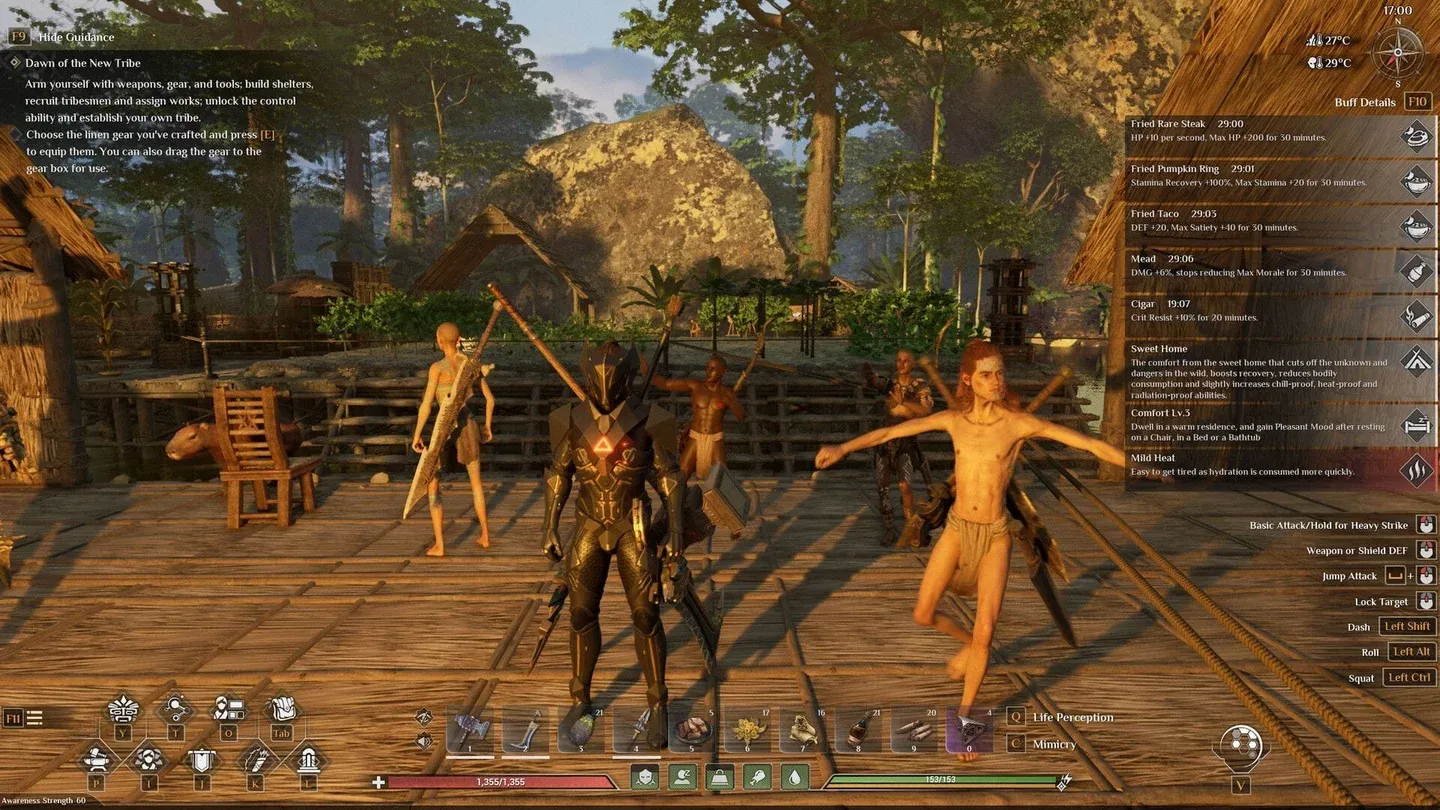
Server launch batch file setup
How to download and install Soulmask server files
The setup process uses SteamCMD, Valve's command-line tool for downloading dedicated server files without owning the game on that machine.
- Create a folder for your server files, such as C:\SoulmaskServer.
- Download SteamCMD from the official Valve developer wiki and extract it into that folder.
- Create a batch file called UpdateSoulmask.bat with this content:
- steamcmd.exe +login anonymous +force_install_dir C:\SoulmaskServer +app_update 3017310 validate +quit
- Right-click the batch file and run it as Administrator.
- Wait for the download to finish. All server files will appear in your install directory.
Once the files are downloaded, create a second batch file called StartServer.bat to launch the server. The core launch command looks like this:
- WSServer-Win64-Shipping.exe Level01_Main -server -log -UTF8Output -forcepassthrough -MULTIHOME=0.0.0.0 -Port=8777 -QueryPort=27015 -EchoPort=18888 -SteamServerName="My Soulmask Server" -MaxPlayers=60 -PSW="joinpassword" -adminpsw="adminpassword" -pve -saving=300 -backup=900 -online=Steam
Replace the passwords and server name with your own values. If you don't want a join password, remove the -PSW parameter entirely.
What game modes are available in Soulmask 1.0?
Soulmask 1.0 ships with four distinct modes, each changing how the game plays at a fundamental level. The available modes are:
- Survival Mode — The default experience with rebalanced mid-to-late game progression.
- Tribe Mode — Centers on tribesman management, automation, and civilization building. Adds a Tribe Upgrade System, a Tech Tree tied to Tribe Level, random merchant events, a reputation system, and more aggressive invasions via Invasion Totems.
- PVP Mode — Full player-versus-player rules enabled across the server.
- Warrior Mode — A combat-focused speedrun mode. Near-death state, building decay, invasions, and inventory drops on death are all disabled. You start as a blank character (Common quality, no talents) with a starter gear kit. Enemies are more numerous, AI is smarter, dodge i-frames are nerfed, and progression is accelerated.
All four modes remain fully adjustable through GameXishu.json, so nothing is locked in stone once you pick a mode.

Tribe Mode tech tree screen
How to configure port forwarding for Soulmask
Port forwarding is where most first-time server hosts run into problems. Soulmask requires four ports to be open, and two of them are non-negotiable for players to find and connect to your server.
Forward all four ports on your router and confirm that Windows Firewall (or your Linux firewall equivalent) allows inbound traffic on each one. If your server doesn't appear in the Steam server browser after setup, the most common culprit is port 27015 UDP being blocked. Your server's direct-connect invitation code is stored in the WS.log file at WS\Saved\Logs\WS.log, which players can use to connect manually if the browser listing fails.
Key server launch parameters explained
The StartServer.bat command accepts a long list of parameters. These are the ones you'll actually adjust regularly:
- -MaxPlayers=N — Sets the player cap, up to a maximum of 70.
- -GongHuiMaxMember=N — Controls the maximum tribe member count, defaulting to 20.
- -gamedistindex=N — Sets the region index (0 through 7) for event scheduling and time zones.
- -pve / -pvp — Toggles the server's combat ruleset.
- -initbackup — Creates a backup automatically on server startup, useful after updates.
- -serverpm=MASK — Handles whitelist, blacklist, and banning via permission lists.
How does GameXishu.json work?
GameXishu.json is the single file that controls virtually every tunable variable in Soulmask. It lives at WS\Saved\GameplaySettings\GameXishu.json and only appears after the server's first run, so start the server once, shut it down cleanly, then edit the file.
The setting categories include:
- Experience and Progression — XP multipliers for awareness, character, mask, proficiency, gathering, crafting, and combat.
- Resources and Crafting — Drop rates for gathering, mining, logging, slaughtering, and crafting speed.
- Survival — Food, water, and durability consumption rates, item decay timers, carry weight, and inventory size.
- Combat — PvE and PvP damage ratios, dodge i-frame duration, and structure damage.
- Tribe and Taming — Recruitment limits, taming speed, animal limits, and hibernation settings.
- Building — Decay rate, repair speed, construction limits, portal settings, and conveyor/power mine limits.
- Invasions — Heat accumulation, invasion scale and strength, enemy count, cooldown timers, and attack windows.
- Cluster — The KaiQiKuaFu toggle for cross-server mode.
How do you run both maps and set up a cross-map cluster?
Soulmask supports two maps: Cloud Mist Forest (the original, using Level01_Main) and Shifting Sands (the Egypt-themed DLC map, using DLC_Level01_Main). The Shifting Sands DLC was free to claim from April 10 to May 10, 2026.
To let players travel between both maps, you need to run two separate server instances linked as a cluster. Each server requires a unique server ID, its own set of ports, and the same join password. Cross-server mode must also be enabled by setting KaiQiKuaFu=1 in GameXishu.json on both servers.
The main server (Cloud Mist Forest) uses -serverid=1 -mainserverport=8781, and the child server (Shifting Sands) connects back with -serverid=2 -clientserverconnect=MAIN_IP:8781.
What transfers between maps: character data (level, mask, tech tree, tribesmen). What does not transfer: buildings, placed resources, and local inventory. Newly created characters also cannot transfer until they have progressed past the starting state.
How do you shut down the server safely?
Closing the server window directly risks save corruption. Use one of these methods instead:
- Ctrl+C in the server console window triggers a graceful shutdown with auto-save.
- Telnet via the EchoPort (default 18888) to issue a save/shutdown command.
- RCON if enabled, via an RCON client.
- In-game GM panel to save the world first, then close the server.
The world save file (world.db) lives at WS\Saved\Worlds\Dedicated\Level01_Main\world.db. Back it up regularly outside of the server's automatic backup schedule.
For more guides covering survival games, base-building mechanics, and server management across other titles, browse more guides on GAMES.GG.