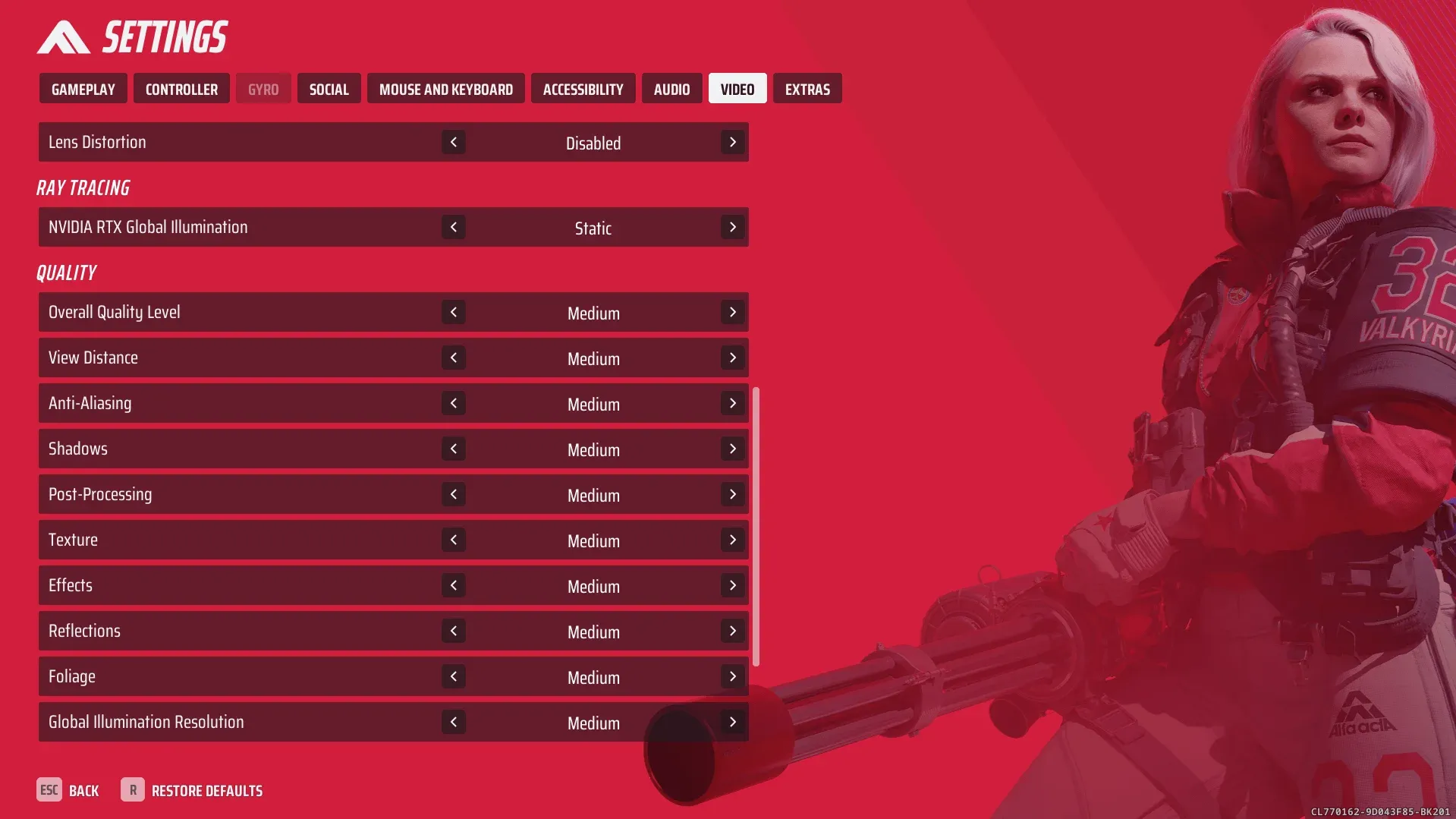


The Finals throws destruction physics, particle effects, and chaotic gunfights at your GPU all at once. Without the right settings, even a mid-range PC will choke during the moments that matter most. Getting your graphics config right is not just about frame counts. It directly affects how cleanly you can track enemies through smoke, debris, and collapsing walls. This guide breaks down exactly what to change, what to leave alone, and how to diagnose the real source of your stutters in THE FINALS.
What are the best graphics settings for The Finals?
The short answer: a custom medium-based preset with textures scaled to your VRAM, shadows and reflections dropped low, motion blur off, and an upscaler running at Quality or Balanced mode if your GPU supports it. The target is stable frametimes at 90 FPS or higher, not just a big number in the corner that spikes and dips.
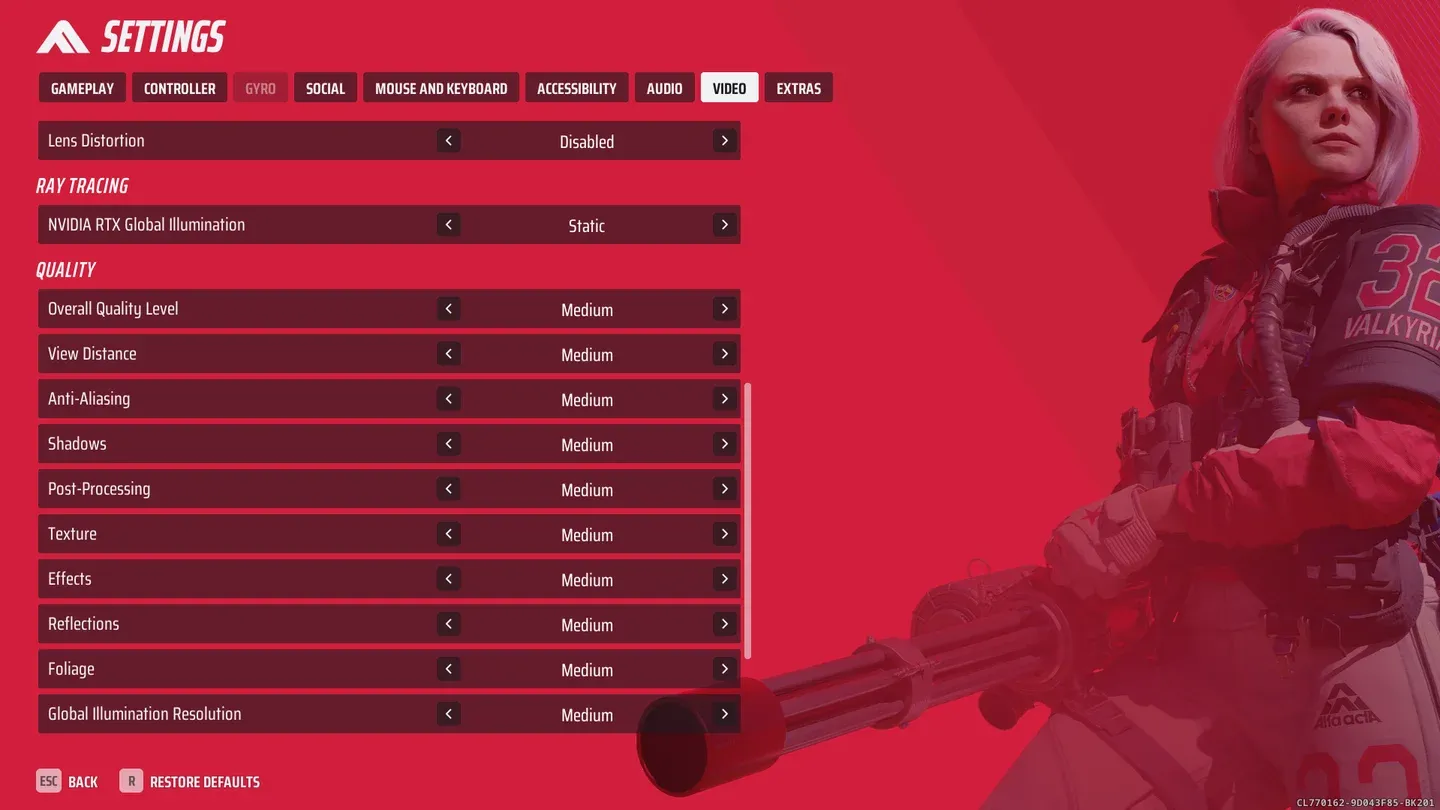
Graphics settings overview
Here is the full recommended setup for 1080p play:
What kills FPS the most in The Finals?
Destruction physics is the biggest offender. When a wall collapses or an explosion tears through a floor, the engine is processing geometry changes, particle effects, and lighting recalculations simultaneously. Ray tracing compounds this severely. During heavy firefights, ray tracing alone can cut frame rates by 30 to 40 percent compared to rasterized lighting.
The settings to drop first, in order of FPS impact:
- Ray tracing (disable entirely unless you have an RTX 4080 or better)
- Global illumination (lower to medium or low)
- Shadows (low gives back significant FPS with minimal visibility loss)
- Reflections / SSR (low or off; nobody is winning gunfights by admiring puddle reflections)
- Volumetric effects (lower reduces haze and fog density, which also helps visibility)
- Post-processing (low removes unnecessary film grain and lens effects)
Best settings for visibility and competitive play
Clarity beats cinematics in a game where enemies sprint through debris clouds and shoot through freshly opened holes in walls. A few specific changes make a real difference:
- Motion blur: Off. No exceptions. Motion blur actively obscures moving targets and adds perceived lag to your aim.
- Film grain: Off or minimum. It adds visual noise without any gameplay benefit.
- Sharpness: Moderate. Cranking sharpness too high creates haloing artifacts around edges, which can make distant players harder to read.
- Shadows: Low. Deep shadow rendering in dark interiors can hide enemy positions in ways that feel unfair rather than atmospheric.
- Upscaling: Native or Quality mode. Balanced upscaling at lower resolutions can soften fine details enough to affect target acquisition.
For players serious about competitive performance, pairing these visibility tweaks with optimized loadouts pays dividends. Check the best builds guide for Light, Medium, and Heavy classes once your settings are locked in.
How do you fix stutters in The Finals?
Stutter in The Finals is almost never a single-setting fix. The game's destruction system creates CPU and RAM spikes that no graphics preset change will solve on its own. Work through this checklist in order:
- Install on an SSD or NVMe drive. Asset streaming during destruction events hits mechanical hard drives hard. An NVMe SSD is the single most impactful hardware change for stutter reduction.
- Close background apps. Browsers, Discord overlays, recording software, and game launchers all consume RAM and CPU cycles that The Finals needs during peak moments.
- Check your RAM. 16GB is the minimum. If the game stutters consistently on larger maps or during multi-team fights, 32GB removes a common bottleneck.
- Lower shadows, reflections, and post-processing before touching anything else in the graphics menu.
- Monitor CPU and GPU usage separately. If GPU usage sits below 80 percent while FPS is low, the CPU or RAM is the real problem, not the graphics card.
- Update GPU drivers carefully. Only update if your current driver is causing known issues. A stable older driver often outperforms a freshly released one.
DLSS vs FSR quality modes
Should you use DLSS, FSR, or native resolution?
The right choice depends on your GPU and your FPS headroom:
- Native resolution: Use this if you are already hitting your target FPS comfortably. No upscaling artifacts, cleanest image.
- DLSS Quality (Nvidia RTX cards): Excellent image quality with a meaningful FPS boost. The first choice for RTX GPU owners who need more headroom.
- FSR Quality (any GPU): A solid option for AMD and older Nvidia cards. Image quality is slightly softer than DLSS Quality but far better than Balanced mode.
- DLSS or FSR Balanced: Use only when performance is genuinely more important than visual sharpness. At 1080p, Balanced mode can make distant enemies harder to read.
What hardware do you need for The Finals?
Here is the GPU breakdown by resolution target:
For the CPU, a Ryzen 5 5600 or Intel i5-12400F covers most 1080p and 1440p scenarios. The Finals is not extremely CPU-heavy at higher resolutions, but at 1080p the CPU becomes more of a factor as the GPU finishes its work faster.
VRAM: 8GB is the practical minimum. 12GB gives you room to run medium-to-high textures without risking VRAM overflow during heavy destruction sequences.
Low-end PC settings for The Finals
Running The Finals on older hardware is doable with the right compromises:
The goal on low-end hardware is stable FPS with consistent frametimes, not the highest possible average. A locked 60 FPS with no spikes plays better than an unlocked 80 FPS that drops to 45 during explosions.
For more strategies, builds, and tips across every class, browse the full The Finals strategy guides collection. The Finals sits alongside other competitive action games where performance optimization directly translates to better results in matches.