


The Seven Deadly Sins: Origin runs on Unreal Engine 5, and if you've spent any time in Britannia already, you've probably noticed the engine's infamous appetite for GPU resources. Stutters during combat, frame drops in open areas, and general performance inconsistency are common complaints. The good news is that a handful of targeted settings changes can make a real difference while the developers continue rolling out performance patches.
Best PC Settings
The settings below are organized into three tiers: Low (budget or older hardware), Medium (mid-range systems), and High (modern, capable rigs). Set Graphic Quality to Custom regardless of your tier so you can control each option individually.
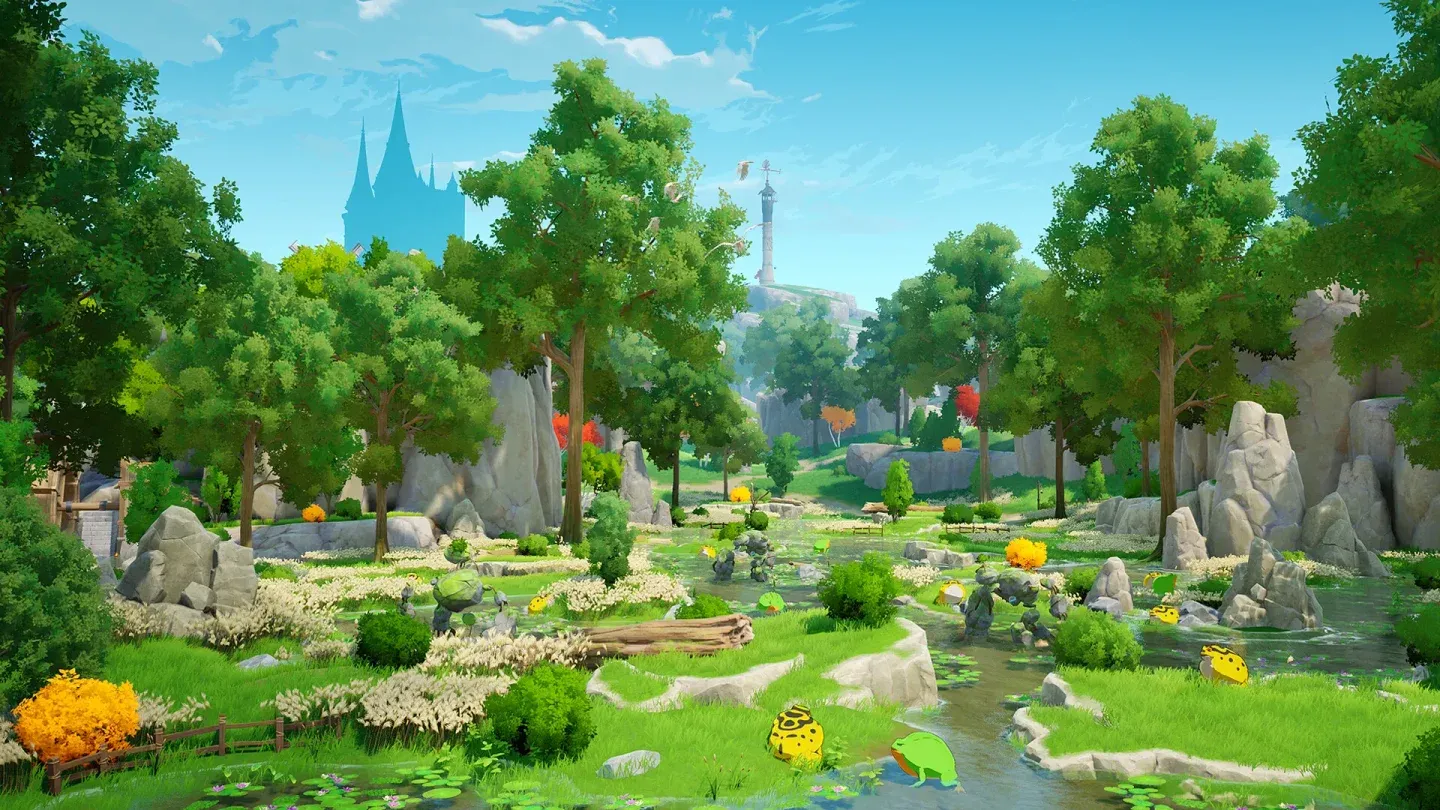
Shadow quality tier comparison
Setting-by-Setting Breakdown
Screen Mode and Resolution
Keep Screen Mode on Borderless across all hardware tiers. Fullscreen exclusive mode can introduce input lag and alt-tab instability in UE5 titles. For Resolution, run at your monitor's native resolution if your GPU can handle it. Drop to 1080p only if you're experiencing consistent frame rate issues at native.
Frame Rate and Vertical Sync
For low and medium-tier setups, cap the Frame Rate at 60 FPS. This prevents the GPU from overworking itself and reduces thermal throttling during extended play sessions. High-end users can push to 120 FPS, but drop back to 60 if stutters appear. Vertical Sync should stay off on lower-end hardware to avoid input lag penalties.
The Most Impactful Settings to Lower First
If you need to cut performance costs quickly, target these settings first:
- Post Processing has a disproportionate impact on GPU load. Dropping it to Very Low or Low often produces a noticeable FPS improvement.
- Global Illumination is one of UE5's most expensive features. Setting it to Very Low on budget hardware is strongly recommended.
- Special Effects can spike GPU usage heavily during combat. Reducing this setting specifically helps with in-fight stutters.
- Shadow Display and Shadow Quality are separate controls. Lower both together for the best combined impact.
View Distance and Environmental Detail
View Distance Quality controls how far the game renders world geometry. On lower-end systems, Low keeps the rendering budget tight without making the immediate play area look worse. Environmental Detail affects the density of objects in the scene. Medium is a solid middle ground for most players.
Texture Quality
Texture Quality is largely VRAM-dependent. If your GPU has 6GB or more, Medium is safe. High is viable if your system is stable, but watch for VRAM overflow causing stutters on cards with less than 8GB.
Reflection
Reflection is capped at Medium even for high-end recommendations. UE5's Lumen reflections are expensive, and the visual difference between Medium and High is marginal in most gameplay scenarios.
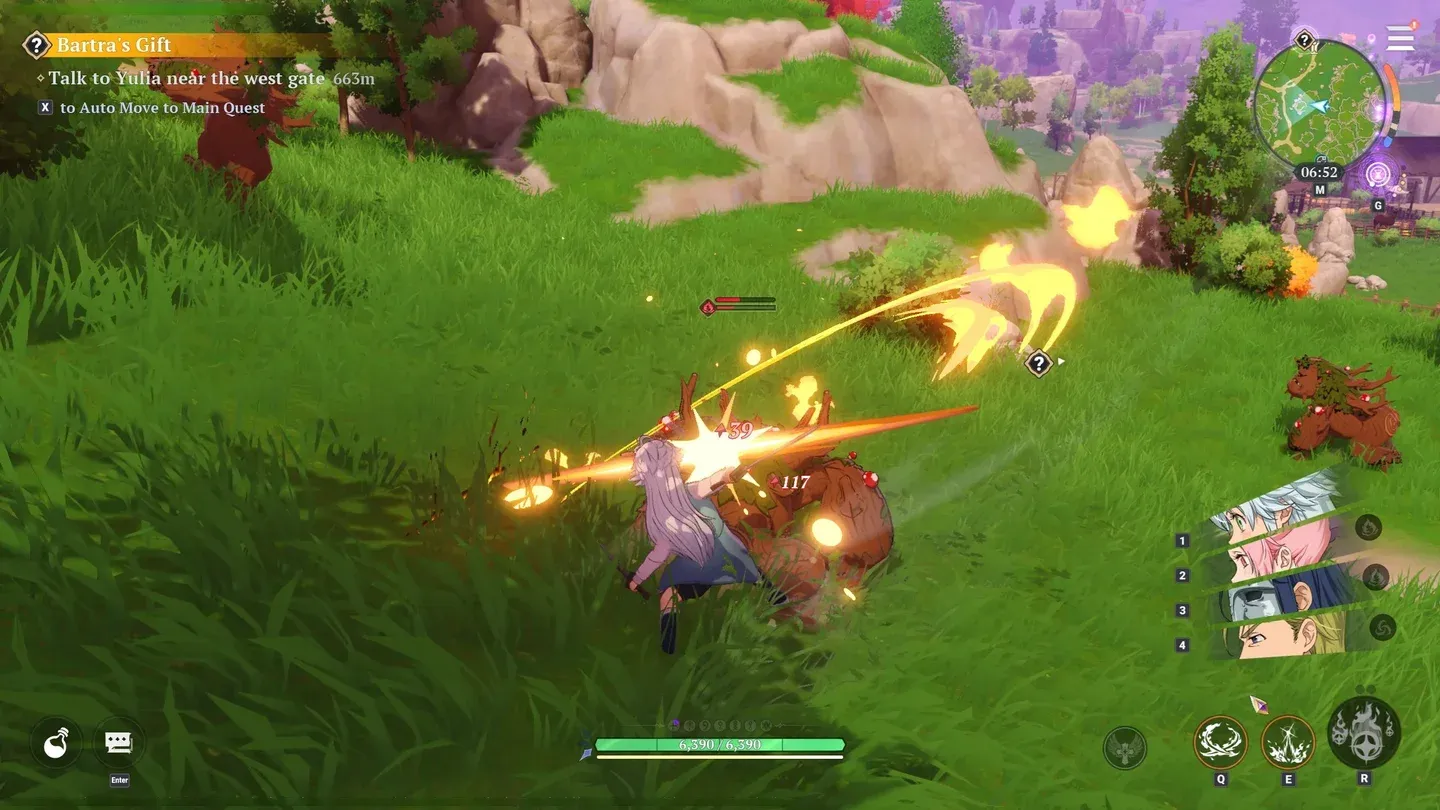
Open world rendering in Britannia
Minimum PC Requirements
Before adjusting settings, confirm your hardware at least meets the minimum specs listed on the official Steam page:
- OS: Windows 10 64-bit
- Processor: Intel i5-2500K or AMD FX-8350
- Memory: 16 GB RAM
- Graphics: NVIDIA GeForce GTX 1060 6GB
- Storage: 30 GB available space
- Architecture: 64-bit processor and operating system required
Additional Performance Tips
Beyond in-game settings, a few system-level adjustments can help:
- Close background applications before launching, especially browsers and streaming software that consume RAM.
- Make sure your GPU drivers are fully up to date. Both NVIDIA and AMD release driver updates that can include UE5-specific optimizations.
- Set your power plan to High Performance in Windows settings to prevent CPU throttling during intensive scenes.
- If you're experiencing memory leaks during long sessions, a full game restart every hour or two can help maintain stable performance until a patch addresses the root cause.
- Monitor your GPU temperature. UE5 titles can push thermals hard, and thermal throttling will tank your frame rate before you notice the heat.