
The Division Resurgence drops you into a demanding third-person looter shooter built on console-quality visuals running on mobile hardware. That tension between fidelity and frame rate is real, and the wrong settings will cost you fights. After testing configurations across device tiers, the settings breakdown below covers everything from graphics presets to gyro sensitivity values so you can stop guessing and start playing at your best.
How do you access graphics settings in The Division Resurgence?
Before changing anything, you need to unlock the Camp Hudson hub area by progressing through the early game. Once you're in, tap the SHD icon at the top right of the screen, then tap the settings (gear) icon at the bottom of the main menu. From there, select the Picture icon in the side menu to reach the graphics options.
This is not accessible from the main title screen, so new players sometimes miss it entirely.
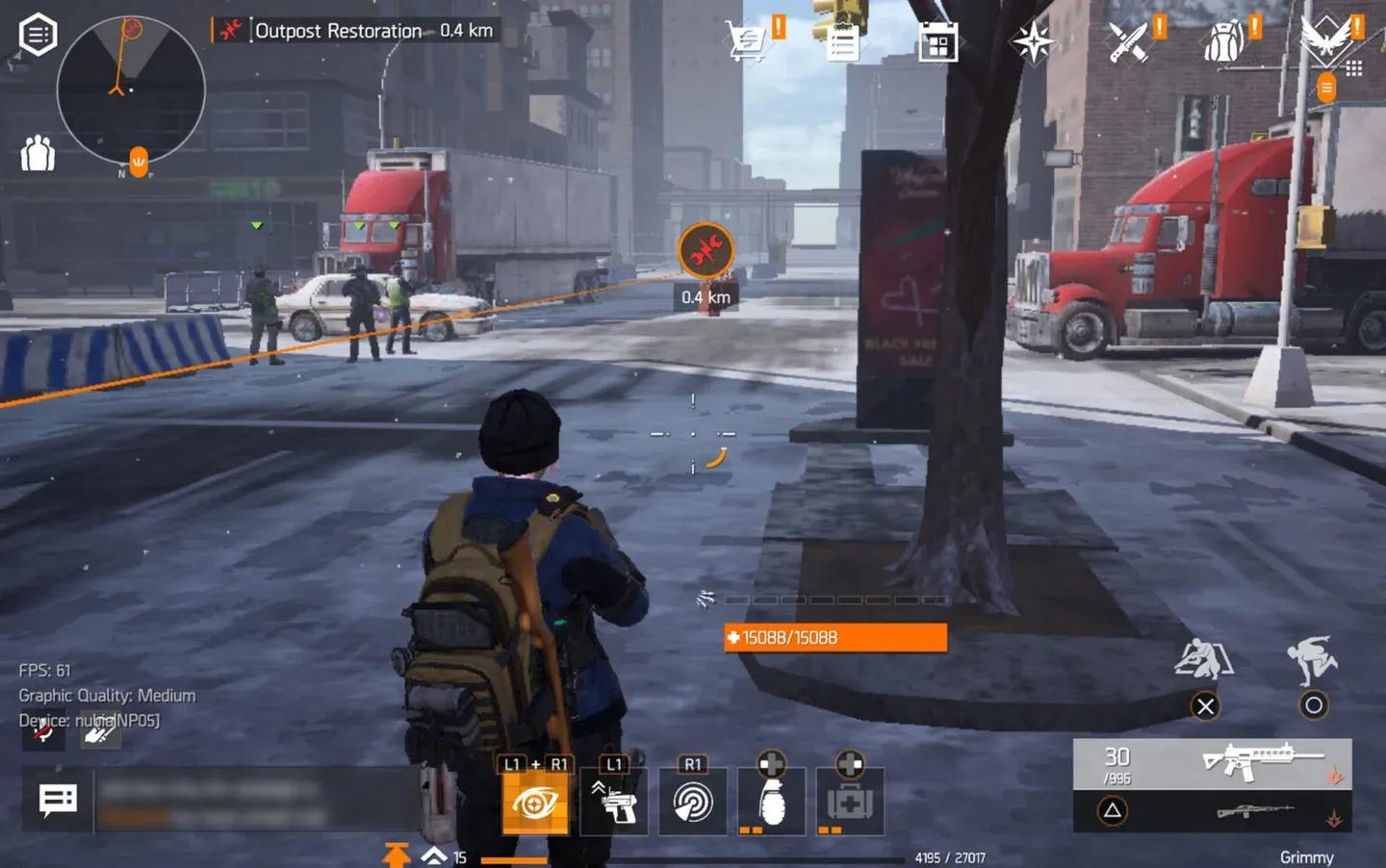
Accessing the settings menu


What are the best graphics settings for high FPS?
The Division Resurgence offers three distinct FPS presets, each tied to a resolution and quality tier. The breakdown looks like this:
| Preset | FPS Target | Graphics Quality | Resolution |
|---|---|---|---|
| Max Settings | 30 FPS | Maximum | High |
| Medium Settings | 45 FPS | Medium | Standard |
| Low Settings | 60 FPS | Low | Standard |
The core trade-off is straightforward: higher frame rates require lower visual quality. Selecting Low or Medium Graphics locks resolution to Standard but unlocks the High Framerate (60 FPS) option, which is the right call for competitive play and fast-paced content.
There is a notable catch here. Selecting High Graphics with the Medium Framerate setting produces a noticeably blurry image, and there is no workaround. The vegetation and world assets remain visible, which keeps the environment readable, but fine detail suffers. For players who prioritize visual quality over frame rate, this is the better compromise. For everyone else, Low or Medium Graphics at 60 FPS is the stronger choice.
For the remaining advanced settings, these do not significantly affect performance, so max them out:
- Shadow Quality: High
- VFX Quality: Very High
- Bloom: On
- Volumetric Lighting: On
- Anti-Aliasing: On
- Shoulder Aim Depth of Field: On
- Dynamic Resolution: On
If you're running into persistent lag or crashes beyond settings adjustments, the Division Resurgence Performance Fix Guide covering lag, crashes, and FPS drops covers additional stability fixes introduced with the Rise Up update.
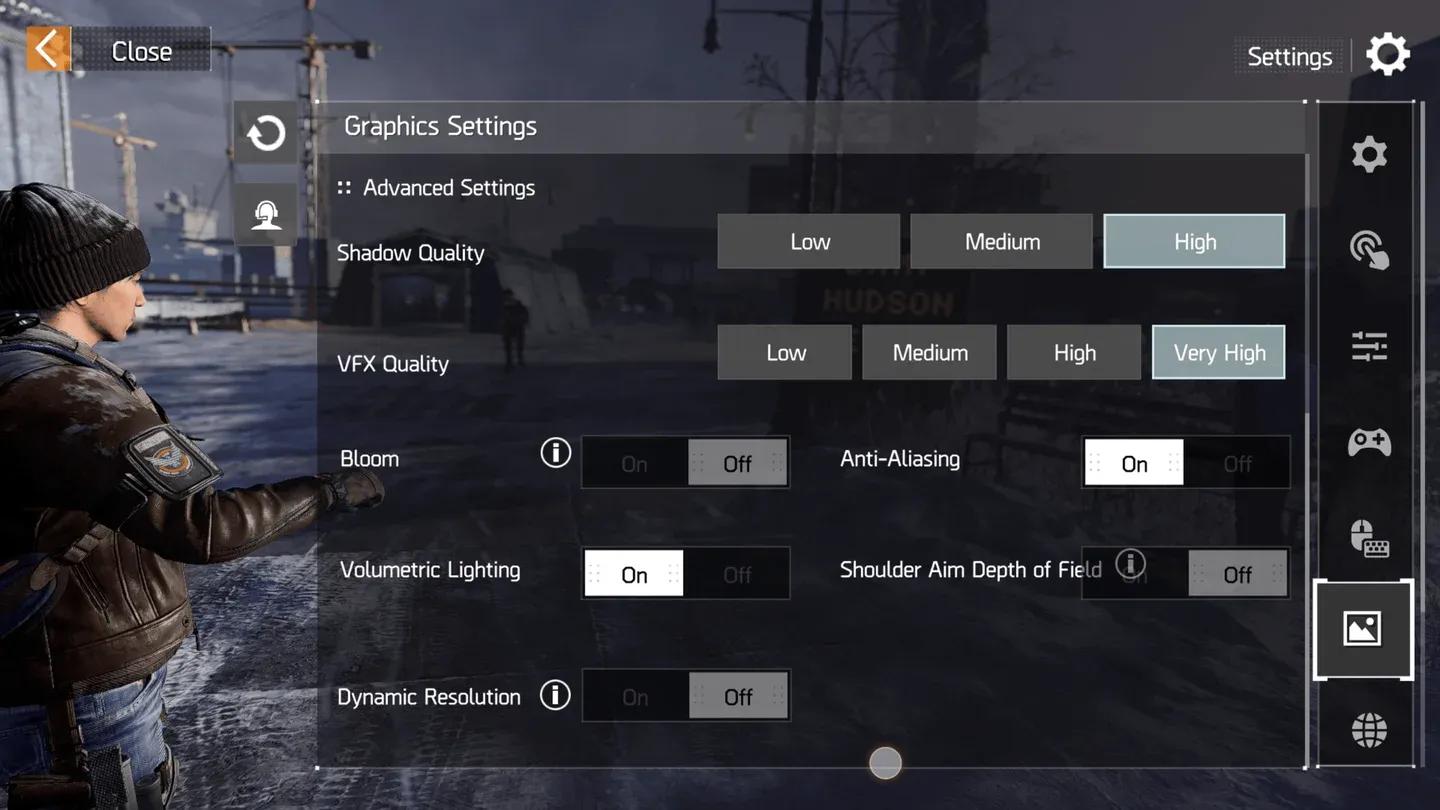
FPS preset selection screen
Best touch controls layout
Touch controls are the foundation of your mobile performance. The layout you choose affects how quickly you can aim, take cover, and fire without breaking your finger positioning mid-fight.
For players coming from other shooters or battle royale titles, a three or four-finger claw layout is worth learning. The learning curve is real, but the payoff is direct access to movement, ADS, cover, and fire without lifting fingers during engagements.
Place your ADS button and fire button in positions that feel natural for extended sessions. Comfort matters more than copying someone else's exact layout.
Best gameplay and combat settings
Quick settings
These are the recommended quick settings from testing:
- Cover Control (Entering Cover): Manual
- Auto-ADS: Enable All
- ADS View: Mixed
- Aim Assist: On
- Gyro Sensor (Rotation Switch): Enable when aiming
- Navigation (Vaulting): Manual
- Auto-climb: No
Combat settings
- Auto Enter Cover: No
- Display Enter Cover Button: Yes
- Display Exit Cover Button: No
- Cover Corner Input: Aim
- Sprint Sensitivity: 50
- Grenade Throw Mode: Release Mode
- Throw Assist: On
- Melee Attack Button Display: Trigger Display
Weapon settings
- Aim Mode: Hold
- Left Fire Button: Always on
- ADS View: Mixed
- ADS Perspective Quick Change: Off
- Camera Rotation on Aiming: On
- Aim Assist: On
- Reload Interruption: Off
- Auto-ADS Immediate Fire: Off
For release-to-fire, enable Release to Fire for Marksman Rifles, Rifles, and Shotguns. Auto-ADS should be enabled for all weapon types: Assault Rifles, SMGs, Shotguns, LMGs, Rifles, and Marksman Rifles.
Best sensitivity settings
Overall settings
- Global Sensitivity: Medium
- Sensitivity Toggle Mode: Toggle when aiming
- Enable Smoothing: Off
Touch sensitivity
These values give you responsive camera movement without losing control at range:
| Scope | Camera X-Axis | Camera Y-Axis | Firing X-Axis | Firing Y-Axis |
|---|---|---|---|---|
| No Scope | 75 | 75 | 75 | 75 |
| Third-Person Aim | 45 | 50 | 45 | 50 |
| 1x Scope | 60 | 60 | 55 | 55 |
| 4x Scope | 25 | 25 | 30 | 30 |
| 8x Scope | 20 | 20 | 25 | 25 |
| 12x Scope | 15 | 15 | 20 | 20 |
For sensitivity acceleration, set X-Axis to 200 and Y-Axis to 150 for camera sensitivity. Firing sensitivity acceleration should use X-Axis at 100 and Y-Axis at 100.
Best gyro settings
Gyro controls are worth using if you want tighter micro-adjustments when holding angles. The gyro activates during aiming, which keeps free-look movement unaffected.
- Rotation Switch: Enable when aiming
- Rotation Horizontal Reverse: On
- Rotation Vertical Reverse: On
Gyro sensitivity values
| Scope | Camera X-Axis | Camera Y-Axis | Firing X-Axis | Firing Y-Axis |
|---|---|---|---|---|
| No Scope | 30 | 30 | 30 | 30 |
| Third-Person Aim | 20 | 20 | 20 | 20 |
| 1x Scope | 15 | 15 | 14 | 14 |
| 4x Scope | 10 | 10 | 11 | 11 |
| 8x Scope | 8 | 8 | 8 | 8 |
| 12x Scope | 6 | 6 | 6 | 6 |
Both X-Axis and Y-Axis acceleration for gyro are set to 100 across camera and firing sensitivity.
General settings worth noting
- Radar Rotation: Rotate
- Auto Loot Settings: Superior, High-End, and Exotic
- Profanity Filter: No
If you're playing with a controller or keyboard and mouse, enable the corresponding External Device UI options in the Generic Settings menu.
These settings give you a strong starting point, but device variation means some values may need adjustment. Treat the sensitivity numbers as a baseline rather than a final answer. For more mobile gaming optimization guides and news, browse the latest guides at GAMES.GG.