
The complete Apex Legends settings guide for PC players
Bad settings quietly kill your performance in Apex Legends. You might have decent aim and solid game sense, but if your FPS is tanking, your FOV is too narrow, or your sensitivity is fighting your natural movement style, you're already at a disadvantage before the first shot lands. This guide breaks down every setting category that actually matters, from graphics and video to mouse, controller, FOV, and audio, so you can build a setup that works for your hardware and your playstyle.
How do you increase FPS and performance in Apex Legends?
The single most effective thing you can do for performance is drop your graphics settings as low as your tolerance allows. Lower settings free up processing budget, which translates directly to faster response times during fights. The game doesn't need to look good to play well.
Start by lowering a few options at a time and check your FPS counter after each change. You can display your FPS in-game while you play, which makes it easy to see exactly what each setting costs you.
Advanced video settings panel


Recommended video settings
These are solid starting points for the Video tab in Settings:
| Setting | Recommended Value |
|---|---|
| Display Mode | Full screen (single monitor), Windowed (multi-monitor) |
| Aspect Ratio | Monitor default |
| Resolution | Monitor default |
| Brightness | Slightly increased for visibility |
| Field of View | 90-110 |
| Sprint View Shake | Minimal or personal preference |
Recommended advanced video settings
For competitive play, these advanced settings reduce lag without sacrificing much visually:
| Setting | Recommended Value |
|---|---|
| V-Sync | Disabled (enable only if screen tearing occurs) |
| Nvidia Reflex | Enabled (Nvidia GPU only) |
| Adaptive Resolution FPS Target | Disabled |
| Anti-aliasing | None |
| Texture Streaming Budget | Low or Medium |
| Texture Filtering | Bilinear Filtering |
| Ambient Occlusion Quality | Disabled |
| Sun Shadow Coverage | Low |
| Sun Shadow Detail | Low |
| Spot Shadow Detail | Low |
| Volumetric Lighting | Disabled |
| Dynamic Spot Shadows | Disabled |
| Model Detail | Low |
| Effects Detail | Low |
| Impact Marks | Low or Disabled |
| Ragdolls | Low |
What are the best mouse settings for competitive Apex Legends?
Mouse sensitivity is personal, but there are ranges that work well for most players. The key variable is your aiming style: arm aimers generally prefer lower sensitivity for the extra control, while wrist aimers can handle higher sensitivity since their movements are smaller by nature.
Here's how the sensitivity ranges break down:
- Low sensitivity: 0.5-2.5
- Medium sensitivity: 2.5-3.5
- High sensitivity: 3.5-5.0
Most competitive players land in the low-to-medium range. A common starting point for competitive play is a Mouse Sensitivity of 3.0-5.0, with ADS Mouse Sensitivity Multiplier set to 1.0 and Mouse Acceleration turned off.
Your mouse's DPI also factors in. Common DPI values are 400, 800, and 1600. If you're running a high DPI like 1600, you'll typically want a lower in-game sensitivity to compensate. The two settings interact directly, so changing one means you may need to adjust the other.
How to test your sensitivity before committing
Before locking in a sensitivity, spend time in the Firing Range. Run through these drills:
- Shoot targets in a row from distance, moving between each one without stopping
- Track a moving target while standing still, then repeat while moving yourself
- Flick between widely spaced targets and vary the pattern to keep it unpredictable
These drills expose whether your sensitivity is too high (flicks overshoot) or too low (tracking feels sluggish). Adjust slowly, no more than 0.5 at a time, so your muscle memory has time to adapt.
What controller settings work best in Apex Legends?
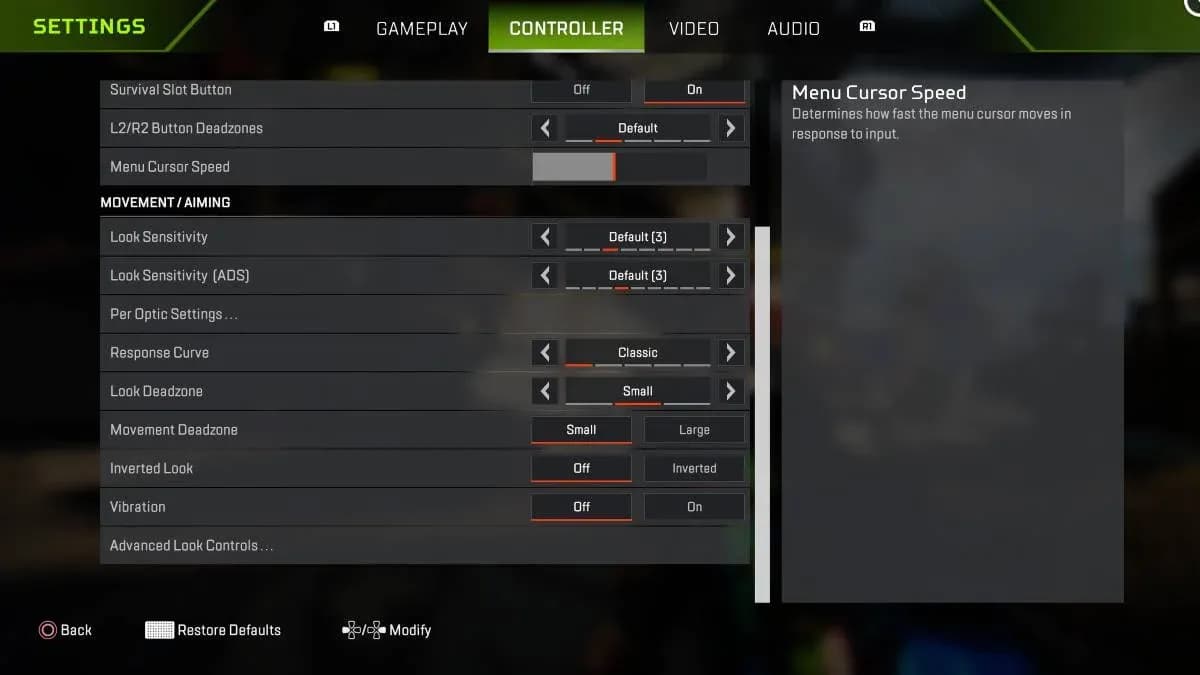
Controller players have a different set of considerations. One popular competitive setup is 4-3 sensitivity, where Look Sensitivity is set to 4 and Look Sensitivity (ADS) stays at 3 (the default). The higher look sensitivity keeps your movement snappy, while the lower ADS sensitivity gives you more precision when you're actually on target.
The Response Curve setting is worth paying attention to. Setting it to Linear makes your controller react more accurately to specific inputs, which helps with precision aiming. The tradeoff is that stick drift becomes more noticeable on Linear. If you're new to the game, start with Classic response curve instead. Classic has slower input speed and more stickiness, which keeps your aim steadier while you're still building fundamentals.
For more on picking the right Legend to pair with your controller setup, the Apex Legends character guide breaks down every Legend's playstyle and current meta standing.
What's the best FOV for Apex Legends?
Field of View controls how wide your visible area is. The default FOV when you first launch is 70, which is noticeably narrow. Expanding it lets you see more of your surroundings, though enemies at distance will appear smaller as a result.
The competitive sweet spot is 110 FOV. Most high-level players run somewhere in the 90-110 range. To adjust it:
- Open Settings
- Select the Video tab
- Adjust the Field of View slider
Start at 90 if 110 feels disorienting, then work upward. The wider view pays off most in close-quarters fights where peripheral awareness matters.
How do you improve aim in Apex Legends?
Settings only take you so far. The mechanical habits you build around those settings matter just as much.
A few principles that hold up across skill levels:
- Pre-aim common angles. Keep your crosshairs where enemies are likely to appear, even when no one's there. This reduces the reaction time gap when someone does show up.
- Understand bullet drop and travel time. Different weapons behave differently at range. Spending time in the Firing Range shooting at distance with unfamiliar weapons is faster than learning through failed fights.
- Control recoil actively. Aim at a wall and fire to see exactly which direction your weapon pulls. Counter that direction as you shoot. Smooth horizontal movement during sustained fire helps significantly.
- Slow down on precision shots. If you're using a long-range weapon, take the extra half-second to line up the shot properly. Rushing a sniper shot is almost always worse than waiting.
- Warm up before ranked. Ten minutes in the Firing Range before a session builds muscle memory and gets your tracking sharp before real stakes are involved.
For players who want to push their movement game further, the Apex Legends Pathfinder guide covers grapple mechanics and advanced mobility techniques that complement good aim fundamentals.
How should you set up audio in Apex Legends?
Audio settings are underrated. Hearing enemy footsteps, ability sounds, and reload cues clearly gives you information before your eyes do.
For competitive play, set Master Volume and Sound Effects Volume to maximum. Then pull down:
- Dialogue Volume
- Music Volume
- Lobby Music Volume
This removes audio clutter and keeps the sounds that actually tell you where enemies are at full volume. The music is fine for casual sessions, but in ranked it's just noise.
Putting it all together
The best settings are the ones you've tested and adjusted to fit how you actually play. Start with the recommendations here, spend real time in the Firing Range with each change, and adjust incrementally rather than overhauling everything at once. Small tweaks compound quickly.
Once your settings feel right, the next step is applying them in ranked. The Apex Legends ranked climbing guide covers positioning, RP strategy, and squad play to help you convert better performance into actual rank progress. For more Legend-specific guides and strategies, the full Apex Legends guide collection has everything organized by topic.