


The complete Apex Legends settings guide for better performance
Apex Legends is one of those games where the gap between a smooth 200 FPS and a stuttery 80 FPS is the difference between winning a third-party fight and dying to someone you never saw clearly. The settings menu looks simple on the surface, but there are a dozen decisions buried in there that directly affect how your game feels, how fast your inputs register, and how easily you can track enemies through smoke and chaos. This guide covers every category that matters, from video and audio to mouse, controller, and launch options.
What video settings have the biggest FPS impact?
Video settings are where most of your performance gains live. The goal is consistent frames over visual fidelity. Apex is a fast game, and a stable 144 FPS with flat frametimes feels dramatically better than 200 FPS with 20ms spikes.
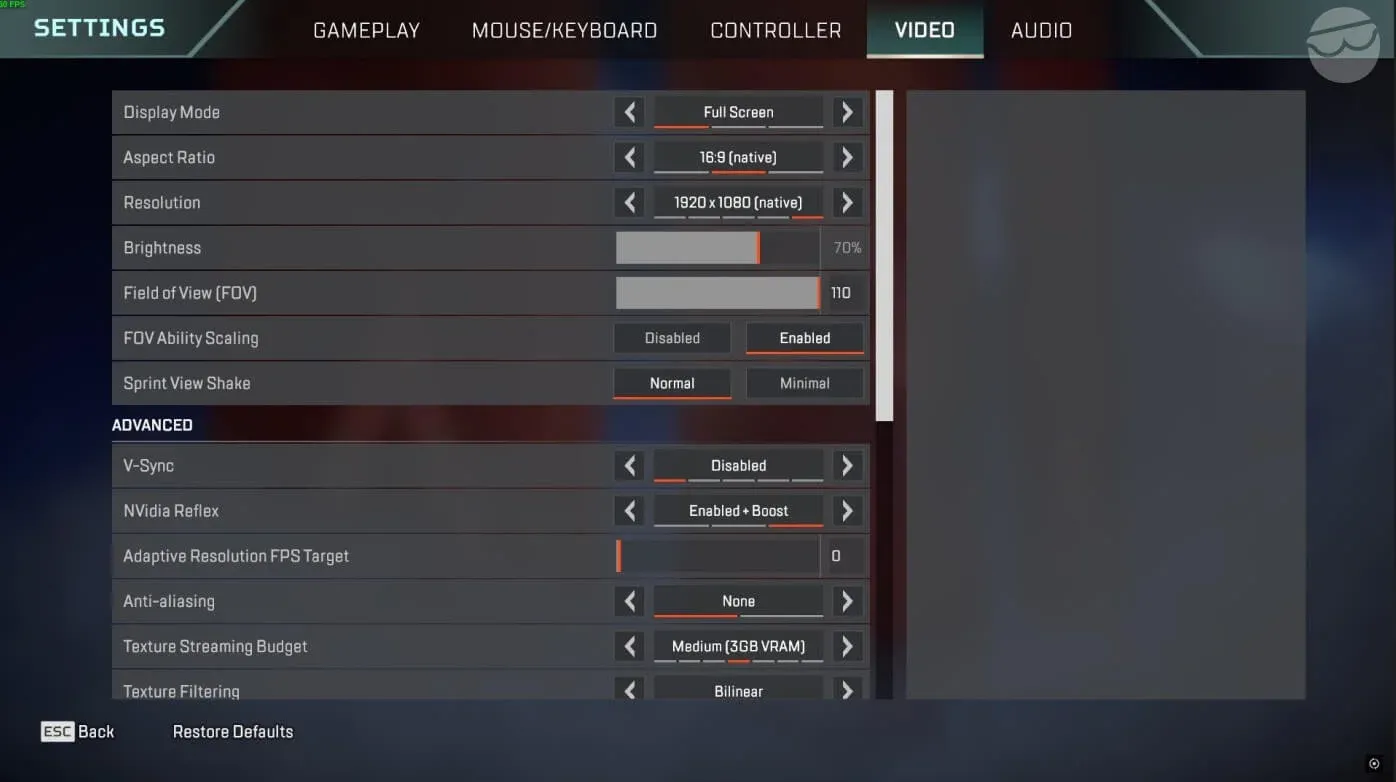
Advanced video settings panel
Display and resolution
Run Fullscreen mode, not Windowed Fullscreen. Fullscreen gives the game direct GPU access, which reduces rendering latency. Keep your resolution at native unless your PC genuinely cannot hold a stable framerate at native. Dropping resolution is a last resort, not a first step.
Field of View should sit between 100 and 110 for most players. The 104 mark is a strong middle ground: you get better peripheral awareness than 90 without enemies shrinking to pixel-sized dots at range the way they do at 110. Console players still defaulting to 70 FOV are giving up a significant awareness disadvantage. Raise it. FOV Ability Scaling should be disabled; there is no benefit to your screen warping during abilities.
Disable V-Sync entirely. It adds input latency that you will feel in close-range fights. If you have an NVIDIA GPU, enable NVIDIA Reflex (or Enabled + Boost) instead. It reduces input latency at the system level and costs you nothing in performance.
Set Adaptive Resolution FPS Target to 0. Leaving it active causes Apex to dynamically lower your internal resolution mid-fight to hit a framerate target, which makes the image look grainy at the worst possible moments.
Shadow and effects settings
Shadows are the single most expensive visual category in Apex. Disabling or minimizing them can add 15 to 40 FPS depending on your hardware tier.
Texture Streaming Budget is the one exception to the "go low" rule. If your GPU has 6GB or more of VRAM, set it to Medium or High. Apex is an older game and caps out around 8GB of texture memory. Exceeding your VRAM budget forces textures to stream from system RAM, which causes micro-stutters rather than outright FPS drops. Those stutters feel awful during firefights. Match the setting to what your card can actually hold.
Settings for low-end PCs
If your PC struggles to hold a stable framerate, prioritize consistency over raw numbers. Drop FOV to the 90-100 range, since lower FOV renders less of the scene and can meaningfully improve performance. Every shadow setting goes to Low or Disabled. Texture Streaming Budget drops to Low or Medium depending on your VRAM. The target is eliminating frame drops during Bangalore smoke, ultimate explosions, and final ring fights, where the game is hardest on hardware.
How do launch options improve Apex Legends performance?
Launch options are PC-only and work independently of in-game settings. They affect FPS caps, startup behavior, rendering thread priority, and input latency. Add them by right-clicking Apex in your library, going to Properties, and entering them in Advanced Launch Options.
A practical starting string for most players looks like this:
+fps_max 238 -novid -high -fullscreen -forcenovsync -no_render_on_input_thread +cl_ragdoll_collide 0
Add extra commands one at a time and test each one. If -preload causes freezes or longer load times on your machine, remove it. Some commands behave differently depending on hardware configuration.
What are the best mouse and keyboard settings?
Mouse settings come down to three non-negotiable rules: no mouse acceleration, consistent sensitivity, and scroll wheel binds for movement tech.
Turn Mouse Acceleration off. It makes your aim inconsistent because the same physical movement produces different in-game results depending on how fast you move the mouse. There is no scenario where this helps.
For sensitivity, 800 DPI with an in-game sensitivity of 1.2 to 1.8 is a common starting range. That is not a rule, just a practical baseline. Lower sensitivity gives more precision but requires more desk space. Higher sensitivity lets you turn faster but makes micro-adjustments harder to control. Set your ADS Multiplier to 1.0 to start and adjust from there once your base sensitivity feels locked in.
The movement binds that matter most for PC players:
- Jump: Space + Scroll Wheel Up (helps with zipline movement, wall jumps, and super glides)
- Move Forward: W + Scroll Wheel Down (enables tap strafing)
- Crouch: Hold is better than toggle for fast movement control
Mantle Boost, added as a universal movement feature in late 2025, has its own input and UI options in the Gameplay settings. Set Mantle Boost Activation to Jump and Mantle Boost UI to Minimal or Off once you have spent a few minutes in the Firing Range getting familiar with it.
What are the best controller settings for Apex Legends?
Controller settings follow a similar philosophy to mouse settings: minimize input delay, remove unnecessary feedback, and find a sensitivity that lets you track smoothly without oversteering.
The 4-3 sensitivity setup (Look at 4, ADS at 3) is common among competitive controller players. Linear response curve reacts more directly to stick input, which helps with precise tracking but makes stick drift more noticeable. If you are new to Apex on controller, start with Classic response curve, which has a softer input ramp that makes aim feel steadier while you are still building muscle memory.
Turn vibration off. It adds tactile feedback that can slightly disrupt micro-adjustments during sustained tracking. Set deadzones as low as your controller allows without stick drift appearing. If your aim creeps on its own, raise the deadzone slightly until it stops.
For button layout, Button Puncher or Evolved are popular options because they free up the right thumb for camera control while still letting you jump and crouch without awkward hand repositioning.
How should you set up Apex Legends audio?
Audio mix and volume settings
Audio in Apex carries a lot of competitive information: footsteps, reload sounds, ability activations, and incoming fire direction all feed into your decision-making. The settings goal is to maximize that signal and cut everything else.
Turn music off for ranked play. The Focus audio mix prioritizes gameplay sounds over ambient noise. Setting Legend, Ping, and Announcer Dialogue to Critical keeps the callouts that actually give you information (ability readiness, enemy spotted pings, ring warnings) while cutting the flavor voice lines that add nothing to a fight.
For hardware, directional audio accuracy matters more than bass response or cinematic sound profiles. Headsets with clear 40mm drivers and flat-ish tuning, like the Logitech G321 at the budget end or the SteelSeries Arctis Nova Elite for a premium wireless option, handle Apex's positional audio well. The Arctis Nova Elite uses 40mm carbon fiber drivers with 24-bit/96kHz audio, which makes tracking footstep distance noticeably easier. If mic quality is the priority, the Audeze Maxwell 2 uses a hypercardioid capsule with AI noise removal that keeps callouts clean even in loud environments.
What gameplay and HUD settings should you change?
A few gameplay settings have a bigger effect than they look.
Enemy Health Bar: turn it on. The information advantage is real and costs nothing. Enemy Highlights should also stay on; it makes nearby enemies easier to track visually during fast movement.
Crosshair Damage Feedback can go off. There are already damage numbers, a hit sound, and a health bar change telling you that your shots connected. The crosshair animation is redundant visual noise. Set Damage Numbers to Stacking for the cleanest readout.
Taking Damage Closes Deathbox/Menu should be off. Keeping this on interrupts armor swaps at the worst possible time.
Always Sprint and Auto Run are personal preference, but turning them off gives you slow-walk control, which matters for sound management. Slow walking produces less audio, which can be relevant when repositioning near enemies.
For HUD, keep Obituaries on (kill feed tempo tells you how the game is playing out), set Ping Opacity to Faded so you can see through your own pings, and enable Performance Display to keep FPS and ping visible at all times.
For a deeper look at how Legend choice affects your performance in these settings, the Apex Legends character guide covers playstyle breakdowns and Season 27 meta picks that pair well with an optimized setup. If you want to know which weapons reward a clean, low-latency setup the most, check the Season 28 weapon tier list for TTK data and top loadout pairings.
Once your settings are dialed in, the next step is applying them in ranked. The guide to ranking up fast in Apex Legends covers positioning, RP strategy, and squad play fundamentals that turn better performance into actual rank gains. For more guides across every aspect of the game, browse the full Apex Legends guide collection.