
Arknights: Endfield Unreal Engine 5 पर बना है, जिसका मतलब है कि visuals strong होंगे लेकिन hardware demands भी ज्यादा होंगी। अगर game को सही से tune नहीं किया गया, तो players को combat-heavy sections के दौरान frame drops, stuttering, या crashes का सामना करना पड़ सकता है। यह guide सिर्फ Arknights: Endfield के लिए best PC settings पर focus करता है, जिसका goal performance को improve करना है while visuals को clear और readable बनाए रखना है।
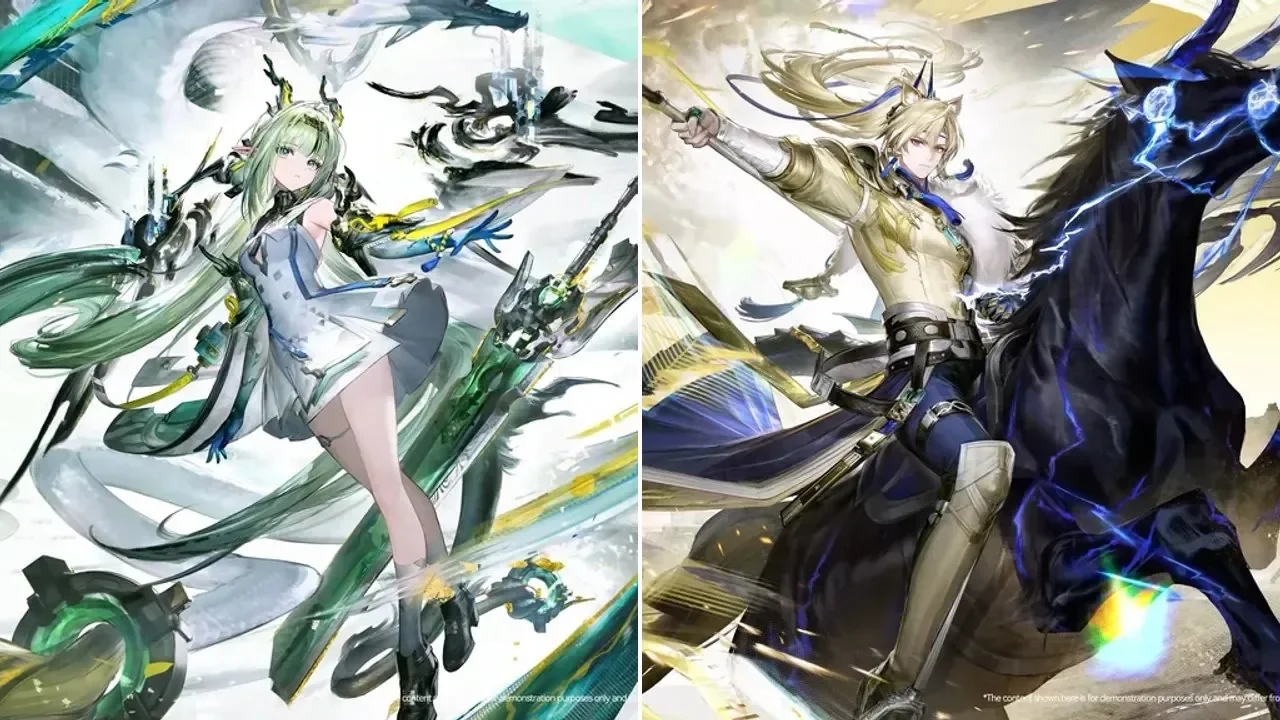
Game में Device Load और Estimated GPU Memory Usage meters शामिल हैं। Stable gameplay के लिए, दोनों को तीन bars से नीचे रहना चाहिए। अगर कोई भी meter spikes higher होता है, तो performance issues होने की संभावना है।
Graphics Settings
Graphics presets हमेशा Custom पर सेट होने चाहिए। Presets ऐसे effects enable कर देते हैं जो smooth gameplay के लिए ज़रूरी नहीं होते और performance को उम्मीद से ज़्यादा impact कर सकते हैं।
Recommended PC Graphics Settings
| Setting | Budget PC | Mid-Range PC | High-End PC |
|---|---|---|---|
| Graphics Quality | Custom | Custom | Custom |
| FPS Cap | 30 to 60 | 60 | 120 |
| Render Scale | 100% | 100% | 100% |
| Shadow Quality | Very Low | Medium | High |
| Texture Quality | Low | High | High |
| Volumetric Fog | Off | Medium | High |
| Anisotropic Sampling | x1 | x2 | x8 |
| Ambient Occlusion | Very Low | Medium | High |
| Screen Space Reflections | Off | High | Very High |
Shadows, volumetric fog, aur reflections ka performance par sabse zyada impact hota hai. Inko pehle kam karna frame rates ko stabilize karne ka sabse effective tareeka hai.

DirectX and Stability Settings
Arknights: Endfield default mein DirectX 12 use karta hai, lekin yeh kuch systems par crashes ya instability cause kar sakta hai.
| Setting | Recommended |
|---|---|
| Graphics API | DirectX 11 if crashes occur |
| Vertical Sync | Off |
DirectX 11 par switch karne se purane GPUs aur CPUs par stability improve hoti hai. Vertical Sync ko off hi rakha jana chahiye jab tak ki system G-Sync ya FreeSync use na kar raha ho, kyunki standard V-Sync se noticeable input lag hota hai.
Image Enhancement and Upscaling
Upscaling performance ko improve kar sakta hai, lekin har option enable karne layak nahi hai.
NVIDIA DLSS Settings
| Setting | Value |
|---|---|
| DLSS Super Resolution Mode | Balanced |
| Sharpening | 0 |
| Frame Generation | Off |
| NVIDIA Reflex Low Latency | Off |
DLSS Balanced image quality aur performance ka best mix provide karta hai. Frame Generation input latency add karta hai aur Endfield jaise PvE-focused game ke liye recommended nahi hai.
Non-NVIDIA GPUs ke liye, TAAU acceptable hai lekin DLSS ke comparison mein lower clarity offer karta hai.
Visual Options
Kuch visual settings unke performance cost ke comparison mein limited benefits offer karte hain.
| Setting | Recommendation |
|---|---|
| Contact Shadows | On for mid-range and high-end PCs |
| Chromatic Aberration | Leave On |
| Scene Details | Do Not Lower |
| Ambient Details | Do Not Lower |
Scene Details ya Ambient Details ko kam karne se environments khali lagte hain aur performance mein zyada improvement nahi hota hai. Chromatic Aberration ka minimal impact hota hai aur Endfield mein lightly apply hota hai.
Resolution and Display Settings
Resolution hamesha monitor ki native resolution se match honi chahiye.
| Setting | Recommended |
|---|---|
| Display Mode | Fullscreen |
| Resolution | Native |
| Refresh Rate | Highest Supported |
Resolution kam karne se aksar blurry visuals hote hain aur performance mein koi khaas fayda nahi hota hai. Iske bajaye shadows ya post-processing effects ko kam karna behtar hai.
How to Test Your PC Settings
Changes apply karne ke baad, system ko stress karne wale gameplay scenarios mein performance test karni chahiye.
Sabse pehle Hub mein load karein aur move karte hue frame stability check karein. Aburrey Quarry jaise combat-heavy area mein fast travel karein aur enemies engage karein jabki FPS aur stutter ko monitor karein. Agar issues dikhai de, toh check karein ki kya Device Load ya GPU Memory Usage maxed out hai bottleneck identify karne ke liye.
Agar lambi play sessions ke baad performance drop ho, toh game ko restart karna recommended hai, kyunki memory leaks ho sakte hain.