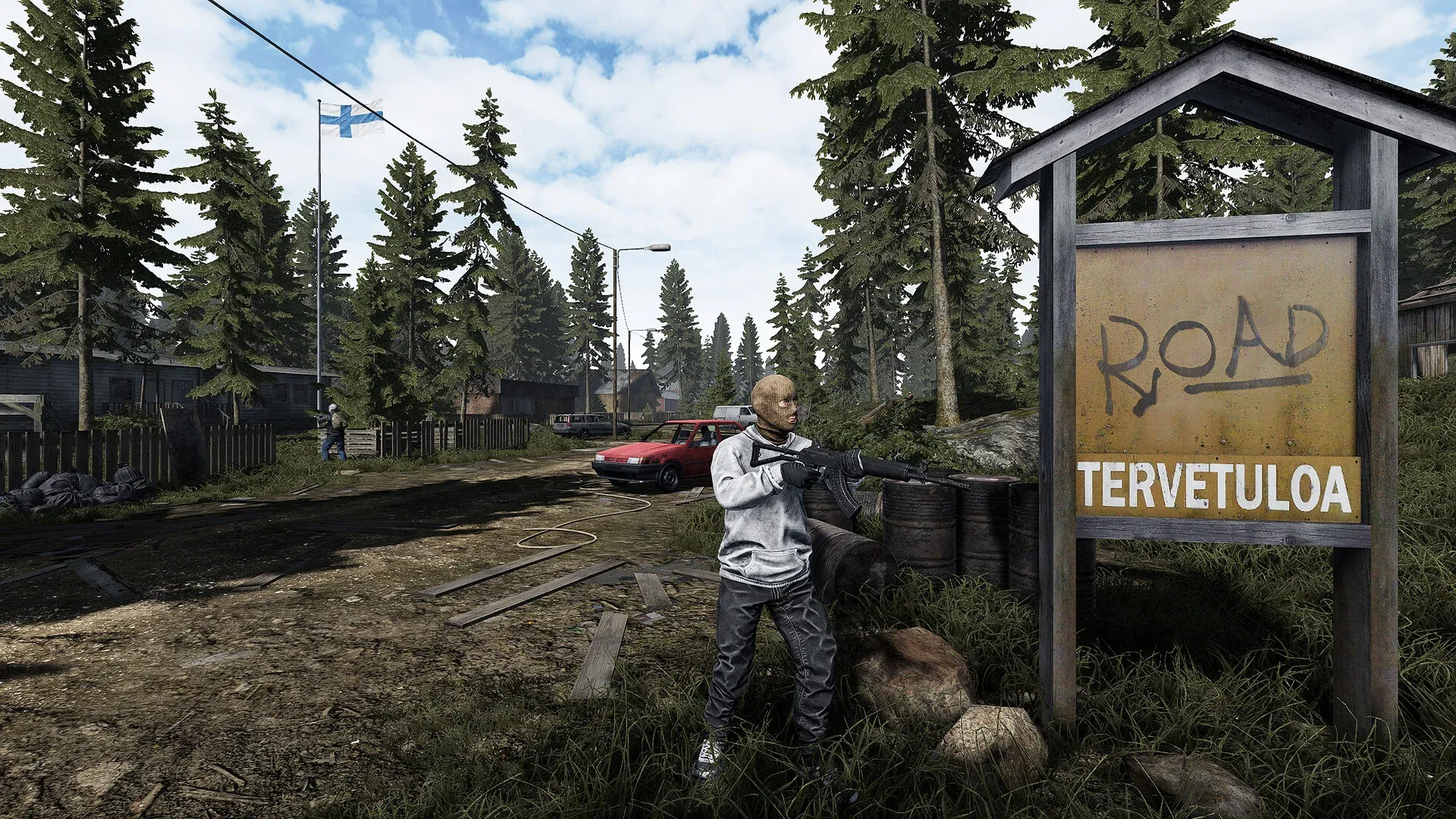


Road to Vostok 7 अप्रैल, 2026 को Steam Early Access पर आया, जिसे एक अकेले डेवलपर, Antti Tiihonen ने Godot 4 इंजन पर बनाया है। यह इंजन वाकई में प्रभावशाली फिजिक्स और लाइटिंग देता है, लेकिन इसमें कुछ खास परफॉरमेंस क्विर्क्स (quirks) भी हैं जो अगर आपने सेटिंग्स को डिफॉल्ट पर छोड़ दिया, तो आपके गेमिंग रन को पूरी तरह बर्बाद कर सकते हैं। एक परमैडेथ (permadeath) गेम में फायरफाइट के बीच में फ्रेम ड्रॉप्स सिर्फ परेशान करने वाले नहीं होते, वे रन खत्म कर देते हैं। यह गाइड हर उस फिक्स को कवर करती है जो वास्तव में काम करता है, इन-गेम स्लाइडर्स से लेकर Windows-लेवल कॉन्फ़िगरेशन तक, जिसे GTX 1060 से लेकर RTX 4090 तक के हार्डवेयर पर टेस्ट किया गया है।
Road to Vostok सक्षम हार्डवेयर पर भी खराब क्यों चलता है?
Godot 4 इंजन डायनामिक लाइटिंग, स्पेशियल ऑडियो और रियल-टाइम बैलिस्टिक्स को एक साथ प्रोसेस करता है। कंक्रीट के ढांचे के अंदर बिना सप्रेसर वाली राइफल चलाएं, तो इंजन बुलेट फिजिक्स, मूंछ फ्लैश (muzzle flash) जो सतहों से टकराकर लाइट सोर्स की तरह काम करता है, और ऑडियो रिवर्ब को एक साथ कैलकुलेट करता है। एक मॉडर्न हाई-एंड रिग पर यह माहौल बनाता है, लेकिन किसी भी पुराने हार्डवेयर पर, यह एक CPU बॉटलनेक बनाता है जिसे GPU की कितनी भी ताकत सॉल्व नहीं कर सकती।
दूसरा बड़ा कारण है Picture-in-Picture (PiP) स्कोप रेंडरिंग। Road to Vostok जब आप मैग्नीफाइड ऑप्टिक से एम (aim) करते हैं, तो पूरे गेम वर्ल्ड को दो बार रेंडर करता है: एक बार आपके पेरिफेरल व्यू के लिए और एक बार स्कोप लेंस के अंदर। जैसे ही आप एम-डाउन-साइट्स (aim-down-sights) दबाते हैं, यह प्रभावी रूप से GPU लोड को दोगुना कर देता है। PiP को बंद करना गेम में मिलने वाला सबसे बड़ा FPS गेन है, जो सभी हार्डवेयर टियर्स पर परफॉरमेंस में सबसे बड़ा उछाल देता है।
घने फिनिश जंगल की हरियाली इस समस्या को और बढ़ा देती है। डायनामिक स्वे (sway) एनिमेशन वाले हजारों पाइन के पेड़ VRAM-लिमिटेड कार्ड्स को बुरी तरह परेशान करते हैं। गेम मैप पर आगे बढ़ने के साथ एसेट्स को डायनामिक रूप से स्ट्रीम करता है, जिसका मतलब है कि अगर आप मैकेनिकल हार्ड ड्राइव इस्तेमाल कर रहे हैं, तो हर बार नए ज़ोन में जाने पर 2 से 3 सेकंड का हार्ड फ्रीज होगा। यहाँ SSD कोई लग्जरी नहीं है, बल्कि जरूरत है।
Road to Vostok के लिए बेस्ट इन-गेम ग्राफिक्स सेटिंग्स क्या हैं?
लक्ष्य है रॉक-सॉलिड फ्रेम पेसिंग के साथ दुश्मनों की अधिकतम विजिबिलिटी। सब कुछ Ultra पर सेट करना और यह सोचना कि दूर की ट्रीलाइन को स्कोप करते समय गेम स्टटर क्यों कर रहा है, एक आम गलती है। नीचे दी गई टेबल कई हार्डवेयर कॉन्फ़िगरेशन पर टेस्ट की गई सेटिंग्स को दर्शाती है, जो परफॉरमेंस और विजुअल क्लैरिटी दोनों को प्राथमिकता देती है ताकि आप कैमौफ्लाज्ड टारगेट्स को स्पॉट कर सकें।
FOV के लिए, 90 से 95 के बीच की वैल्यू ऑप्टिमल है। यह फिशआई डिस्टॉर्शन से बचाती है और घने पाइन जंगलों में फ्लैंकिंग मूवमेंट को पकड़ने के लिए पर्याप्त पेरिफेरल विजन देती है।
Road to Vostok स्टटरिंग और फ्रीज को कैसे फिक्स करें
Road to Vostok में स्टटरिंग अलग-अलग कैटेगरी में आती है, और फिक्स इस बात पर निर्भर करता है कि आप किस तरह की समस्या का सामना कर रहे हैं। रैंडम समाधान आजमाना समय की बर्बादी है।
अपने स्टटर टाइप की पहचान करें
Vulkan शेडर कैश क्लियर करें
Godot 4 पहली बार नए विजुअल इफेक्ट्स का सामना करने पर शेडर्स को ऑन-द-फ्लाई कम्पाइल करता है। अगर आपके कैश में डेमो बिल्ड्स या पिछले अपडेट्स का करप्ट डेटा है, तो CPU GPU को मिड-फ्रेम में रोक देता है, जिससे वो 1 से 1.5 सेकंड का फ्रीज होता है। इसे क्लियर करने से अगली बार लॉन्च पर क्लीन रीबिल्ड मजबूर होता है।
NVIDIA यूजर्स के लिए:
- Windows Key + R दबाएं, %localappdata% टाइप करें, Enter दबाएं
- NVIDIA फोल्डर खोलें, फिर DXCache और GLCache
- अंदर की सभी फाइलें डिलीट करें (जो इन-यूज़ हैं उन्हें छोड़ दें)
AMD यूजर्स के लिए:
- AMD Adrenalin सॉफ्टवेयर खोलें
- Settings (गियर आइकन) > Graphics > Advanced पर जाएं
- Reset Shader Cache पर क्लिक करें
क्लियर करने के बाद पहला लॉन्च थोड़ा धीमा होगा क्योंकि कैश रीबिल्ड हो रहा होगा। उसके बाद, शेडर कम्पाइलेशन के कारण होने वाली मिड-कॉम्बैट स्टटरिंग काफी कम हो जानी चाहिए।
Road to Vostok के लिए Windows Control Flow Guard डिसेबल करें
Windows Control Flow Guard (CFG) एक सिक्योरिटी फीचर है जो रियल-टाइम में मेमोरी ऑपरेशंस को स्कैन करता है। मैप ट्रांजिशन के दौरान Godot 4 का आक्रामक मेमोरी गारबेज कलेक्शन सीधे इससे टकराता है, जिससे ज़ोन के बीच चलते समय ट्रावर्सल हिचेस (traversal hitches) होते हैं। केवल गेम एक्जीक्यूटेबल के लिए CFG डिसेबल करने से सिस्टम सिक्योरिटी पर कोई असर नहीं पड़ता।
- Windows Key दबाएं, Exploit Protection सर्च करें, इसे खोलें
- Program settings टैब पर क्लिक करें, फिर Add program to customize > Choose exact file path
- अपने Steam इंस्टॉलेशन पर नेविगेट करें और Road to Vostok.exe चुनें
- Control flow guard (CFG) ढूंढें, Override system settings चेक करें, इसे Off करें, Apply पर क्लिक करें
- अपने PC को रीस्टार्ट करें
AppData से Godot शेडर कैश क्लियर करें
GPU ड्राइवर कैश से अलग, Godot अपने खुद के कम्पाइल्ड शेडर्स को AppData में स्टोर करता है। डेमो इंस्टॉल्स से करप्ट फाइलें ब्लैक स्क्रीन लोडिंग लूप्स और लॉन्च पर स्टटर्स का एक प्रलेखित कारण हैं।
- Windows Key + R दबाएं, %APPDATA% टाइप करें, Enter दबाएं
- Road to Vostok फोल्डर (या Road to Vostok Demo अगर आपने डेमो खेला था) पर नेविगेट करें
- shader_cache फोल्डर को पूरी तरह डिलीट कर दें
- गेम को फिर से लॉन्च करें; यह अपने आप रीबिल्ड हो जाएगा
लॉन्च पर Road to Vostok ब्लैक स्क्रीन को कैसे फिक्स करें
लॉन्च पर ब्लैक स्क्रीन, जहाँ आपको एम्बिएंट ऑडियो सुनाई देता है लेकिन कुछ दिखाई नहीं देता, Early Access से पहले रेंडरिंग API के DirectX में स्विच होने के बाद काफी आम हो गई है। इन फिक्स को क्रम में आज़माएं।
Fix 1: Steam के जरिए गेम फाइल्स वेरीफाई करें अपनी Library में Road to Vostok पर राइट-क्लिक करें > Properties > Installed Files > Verify integrity of game files.
Fix 2: AppData शेडर कैश क्लियर करें (ऊपर दिए गए स्टेप्स देखें)
Fix 3: Steam लॉन्च ऑप्शंस के जरिए रेंडरिंग ड्राइवर को फोर्स करें Road to Vostok पर राइट-क्लिक करें > Properties > General > Launch Options फील्ड। इन्हें एक-एक करके आज़माएं:
- DirectX 12 फोर्स करें: --rendering-driver d3d12
- Vulkan फोर्स करें: --rendering-driver vulkan --rendering-method forward_plus
- OpenGL फोर्स करें (पुराने GPUs): --rendering-driver opengl3
- लो-पावर रेंडरिंग (इंटीग्रेटेड ग्राफिक्स): --rendering-method mobile
विजुअल करप्शन का अनुभव करने वाले AMD Radeon यूजर्स को AMD Adrenalin ड्राइवर्स को 25.9.2 वर्जन पर अपडेट करना चाहिए, जो RX 6800 XT और अन्य RDNA-जनरेशन कार्ड्स के लिए कन्फर्म फिक्स है। अगर वह वर्जन आपके हार्डवेयर के लिए उपलब्ध नहीं है, तो 25.6.1 या --rendering-driver opengl3 लॉन्च ऑप्शन का उपयोग करें।
Windows-लेवल ऑप्टिमाइजेशन जो वास्तव में असर डालते हैं
इन-गेम सेटिंग्स की एक सीमा है। ये सिस्टम-लेवल बदलाव परफॉरमेंस फ्लोर को बेहतर करते हैं।
Hardware-Accelerated GPU Scheduling (HAGS) इनेबल करें Windows Settings > System > Display > Graphics Settings पर जाएं। Hardware-Accelerated GPU Scheduling को ऑन करें। यह आपके GPU को अपनी मेमोरी क्यू मैनेज करने देता है, जिससे लेटेंसी कम होती है। इनेबल करने के बाद रीस्टार्ट करें।
Windows पावर प्लान को High Performance पर सेट करें Control Panel > Power Options > High Performance पर जाएं। Balanced प्लान गेम के बीच में CPU क्लॉक स्पीड को थ्रॉटल करता है। कई प्लेयर्स ने कन्फर्म किया है कि इससे उनके लैग स्पाइक्स फिक्स हो गए। लैपटॉप्स पर, अनकैप्ड फ्रेम रेट थर्मल थ्रॉटलिंग का कारण बन सकता है जो विरोधाभासी रूप से औसत FPS को कम करता है। 60 FPS पर कैप करने से वर्कलोड स्थिर रहता है और थर्मल स्पाइक्स से बचाव होता है।
NVIDIA Control Panel प्रोग्राम सेटिंग्स डेस्कटॉप पर राइट-क्लिक करें > NVIDIA Control Panel > Manage 3D Settings > Program Settings > Road to Vostok चुनें:
- Power Management Mode: Prefer Maximum Performance
- Texture Filtering Quality: High Performance
- Low Latency Mode: Ultra
थर्ड-पार्टी ओवरले डिसेबल करें OBS, NVIDIA ShadowPlay, Steelseries Moments, और Steam रिकॉर्डिंग ओवरले, इन सभी का Godot के Vulkan बैकएंड के साथ कन्फ्लिक्ट प्रलेखित है। दोषी की पहचान करने के लिए उन्हें डिसेबल करें। विशेष रूप से Steam ओवरले को डिसेबल करने के लिए: Road to Vostok पर राइट-क्लिक करें > Properties > General > Enable the Steam Overlay while in-game को अनचेक करें।
एक्जीक्यूटेबल पर फुलस्क्रीन ऑप्टिमाइजेशन डिसेबल करें Steam में, Road to Vostok पर राइट-क्लिक करें > Manage > Browse Local Files। .exe पर राइट-क्लिक करें > Properties > Compatibility टैब > Disable fullscreen optimizations को चेक करें। वैकल्पिक रूप से Run this program as administrator इनेबल करें।
कंट्रोलर सपोर्ट का क्या?
Road to Vostok में इसके मौजूदा Early Access स्टेट में नेटिव कंट्रोलर सपोर्ट नहीं है। डेवलपर ने फुल रिलीज से पहले इसे जोड़ने की योजना की पुष्टि की है। इसका वर्कअराउंड Steam Input है: Steam Settings > Controller पर जाएं, अपने कंट्रोलर टाइप के लिए Configuration Support इनेबल करें, फिर Road to Vostok पर राइट-क्लिक करें > Properties > Controller > Enable Steam Input। वहां से, बटन्स को कीबोर्ड कीज पर मैप करने के लिए Controller Configuration स्क्रीन का उपयोग करें।
क्रैश लॉग कैसे पढ़ें
डेस्कटॉप पर क्रैश के लिए कोई भी फिक्स आज़माने से पहले, पहले लॉग चेक करें। यह समय बचाता है। लॉग फाइल यहाँ स्थित है:
%APPDATA%\Godot\app_userdata\Road to Vostok\logs\godot.log
डेमो बिल्ड के लिए: %APPDATA%\Roaming\Road to Vostok Demo
लॉग आमतौर पर सीधे फेल होने वाले शेडर, ड्राइवर, या मेमोरी एड्रेस की ओर इशारा करेगा, जो आपको बताता है कि आपको ड्राइवर अपडेट, कैश क्लियर, या रेंडरिंग API स्विच की जरूरत है या नहीं।
ज्ञात बग्स और कम्युनिटी द्वारा प्रलेखित फिक्स पर अधिक तकनीकी जानकारी के लिए, Road to Vostok PCGamingWiki पेज वर्कअराउंड्स को ट्रैक करता है जैसे-जैसे गेम Early Access में अपडेट होता है। ऑफिशियल Road to Vostok साइट पर भी पैच आने के साथ Antti की तरफ से डेवलपर FAQ अपडेट्स मिलते हैं।
क्विक रेफरेंस: Steam लॉन्च ऑप्शंस चीट शीट
- --rendering-driver d3d12 — DirectX 12 फोर्स करें
- --rendering-driver vulkan --rendering-method forward_plus — Vulkan फोर्स करें
- --rendering-driver opengl3 — OpenGL फोर्स करें (पुराने AMD और Intel के लिए सबसे अच्छा फॉलबैक)
- --rendering-method mobile — इंटीग्रेटेड ग्राफिक्स के लिए लो-पावर रेंडरिंग
ये एकमात्र लॉन्च ऑप्शंस हैं जो Godot इंजन बिल्ड के साथ काम करने की पुष्टि करते हैं। बाकी सब शोर है।
अधिक PC गेमिंग परफॉरमेंस गाइड्स और गेम-स्पेसिफिक ऑप्टिमाइजेशन ब्रेकडाउन के लिए, GAMES.GG पर लेटेस्ट गाइड्स ब्राउज़ करें।