

The Division Resurgence आपको एक डिमांडिंग थर्ड-पर्सन looter shooter में डालता है, जिसे मोबाइल हार्डवेयर पर कंसोल-क्वालिटी विजुअल्स के लिए बनाया गया है। Fidelity और frame rate के बीच का यह तनाव असली है, और गलत सेटिंग्स आपको फाइट्स में भारी पड़ सकती हैं। अलग-अलग डिवाइस टियर्स पर कॉन्फ़िगरेशन टेस्ट करने के बाद, नीचे दी गई सेटिंग्स में graphics presets से लेकर gyro sensitivity वैल्यूज़ तक सब कुछ शामिल है, ताकि आप अंदाज़ा लगाना छोड़ें और अपने बेस्ट गेमप्ले के साथ खेलना शुरू करें।
The Division Resurgence में graphics settings को कैसे एक्सेस करें?
कुछ भी बदलने से पहले, आपको गेम की शुरुआत में प्रोग्रेस करके Camp Hudson हब एरिया को अनलॉक करना होगा। एक बार जब आप अंदर आ जाएं, तो स्क्रीन के टॉप राइट में SHD icon पर टैप करें, फिर मेन मेन्यू के नीचे settings (gear) icon पर टैप करें। वहां से, graphics ऑप्शंस तक पहुँचने के लिए साइड मेन्यू में Picture icon चुनें।
यह मेन टाइटल स्क्रीन से एक्सेस नहीं किया जा सकता, इसलिए नए प्लेयर्स कभी-कभी इसे पूरी तरह से मिस कर देते हैं।
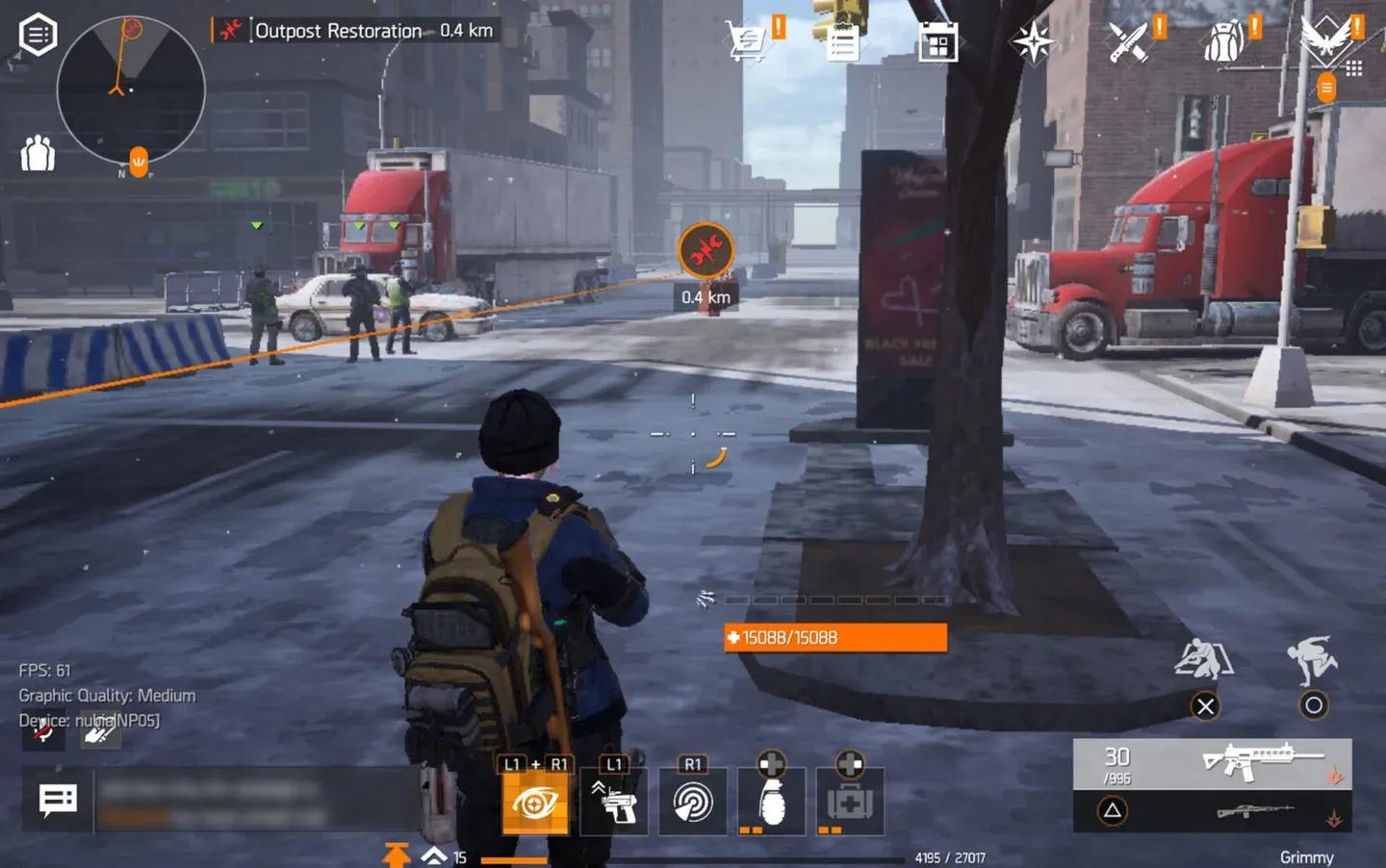
Accessing the settings menu
High FPS के लिए बेस्ट graphics settings क्या हैं?
The Division Resurgence तीन अलग-अलग FPS presets ऑफर करता है, जिनमें से हर एक resolution और quality टियर से जुड़ा है। इसका ब्रेकडाउन कुछ इस तरह है:
| Preset | FPS Target | Graphics Quality | Resolution |
|---|---|---|---|
| Max Settings | 30 FPS | Maximum | High |
| Medium Settings | 45 FPS | Medium | Standard |
| Low Settings | 60 FPS | Low | Standard |
इसका मुख्य ट्रेड-ऑफ सीधा है: हायर फ्रेम रेट्स के लिए लोअर विजुअल क्वालिटी की ज़रूरत होती है। Low या Medium Graphics चुनने से resolution Standard पर लॉक हो जाता है, लेकिन यह High Framerate (60 FPS) ऑप्शन को अनलॉक कर देता है, जो कॉम्पिटिटिव प्ले और फास्ट-पेस्ड कंटेंट के लिए सही विकल्प है।
यहाँ एक ध्यान देने वाली बात है। Medium Framerate सेटिंग के साथ High Graphics चुनने पर इमेज काफी धुंधली (blurry) हो जाती है, और इसका कोई वर्कअराउंड नहीं है। वेजिटेशन और वर्ल्ड एसेट्स विजिबल रहते हैं, जिससे एनवायरनमेंट रीडेबल बना रहता है, लेकिन बारीक डिटेल्स खराब हो जाती हैं। जो प्लेयर्स फ्रेम रेट के मुकाबले विजुअल क्वालिटी को प्राथमिकता देते हैं, उनके लिए यह बेहतर समझौता है। बाकी सभी के लिए, 60 FPS पर Low या Medium Graphics एक बेहतर विकल्प है।
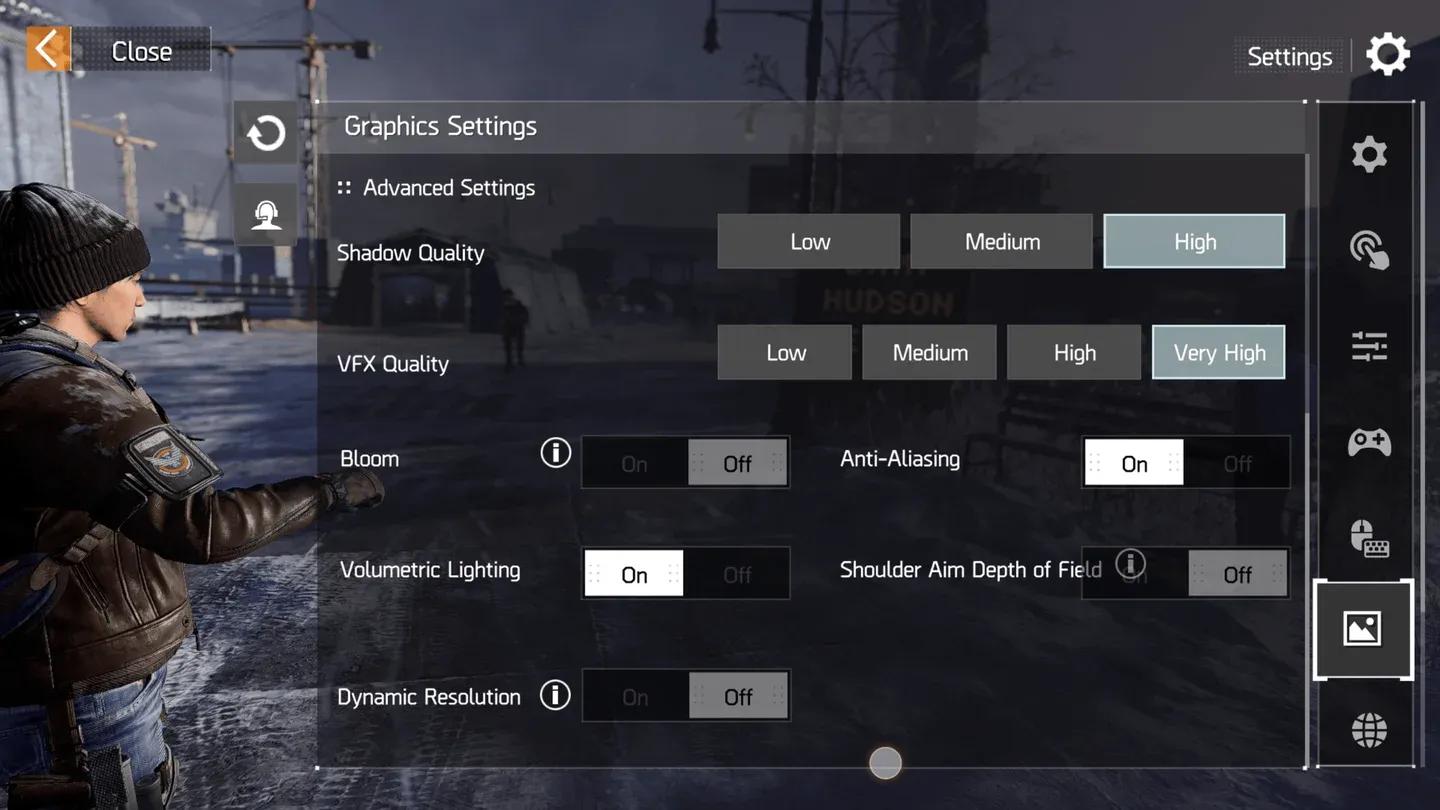
बाकी बची एडवांस सेटिंग्स के लिए, ये परफॉरमेंस पर ज्यादा असर नहीं डालतीं, इसलिए इन्हें मैक्स पर रखें:
- Shadow Quality: High
- VFX Quality: Very High
- Bloom: On
- Volumetric Lighting: On
- Anti-Aliasing: On
- Shoulder Aim Depth of Field: On
- Dynamic Resolution: On
अगर आप सेटिंग्स एडजस्ट करने के बाद भी लगातार लैग या क्रैश का सामना कर रहे हैं, तो Division Resurgence Performance Fix Guide जो लैग, क्रैश और FPS ड्रॉप्स को कवर करती है, उसमें Rise Up अपडेट के साथ आए एडिशनल स्टेबिलिटी फिक्स शामिल हैं।
FPS preset selection screen
बेस्ट टच कंट्रोल्स लेआउट
टच कंट्रोल्स आपके मोबाइल परफॉरमेंस की नींव हैं। आप जो लेआउट चुनते हैं, वह इस बात पर असर डालता है कि आप फाइट के बीच में अपनी उंगलियों की पोजीशन खराब किए बिना कितनी जल्दी ऐम, कवर और फायर कर सकते हैं।
दूसरे शूटर्स या बैटल रॉयल टाइटल्स से आने वाले प्लेयर्स के लिए, three या four-finger claw layout सीखना फायदेमंद है। इसे सीखने में समय लगता है, लेकिन इसका फायदा यह है कि आप एंगेजमेंट के दौरान उंगलियां हटाए बिना मूवमेंट, ADS, कवर और फायर का सीधा एक्सेस पा सकते हैं।
अपने ADS button और fire button को ऐसी जगह रखें जो लंबे सेशन के लिए नेचुरल लगे। किसी और के लेआउट को कॉपी करने से ज्यादा ज़रूरी कम्फर्ट है।
बेस्ट गेमप्ले और कॉम्बैट सेटिंग्स
क्विक सेटिंग्स
टेस्टिंग के आधार पर ये रिकमेंडेड क्विक सेटिंग्स हैं:
- Cover Control (Entering Cover): Manual
- Auto-ADS: Enable All
- ADS View: Mixed
- Aim Assist: On
- Gyro Sensor (Rotation Switch): Enable when aiming
- Navigation (Vaulting): Manual
- Auto-climb: No
कॉम्बैट सेटिंग्स
- Auto Enter Cover: No
- Display Enter Cover Button: Yes
- Display Exit Cover Button: No
- Cover Corner Input: Aim
- Sprint Sensitivity: 50
- Grenade Throw Mode: Release Mode
- Throw Assist: On
- Melee Attack Button Display: Trigger Display
वेपन सेटिंग्स
- Aim Mode: Hold
- Left Fire Button: Always on
- ADS View: Mixed
- ADS Perspective Quick Change: Off
- Camera Rotation on Aiming: On
- Aim Assist: On
- Reload Interruption: Off
- Auto-ADS Immediate Fire: Off
Release-to-fire के लिए, Marksman Rifles, Rifles और Shotguns के लिए Release to Fire इनेबल करें। सभी वेपन टाइप्स के लिए Auto-ADS इनेबल होना चाहिए: Assault Rifles, SMGs, Shotguns, LMGs, Rifles और Marksman Rifles.
बेस्ट सेंसिटिविटी सेटिंग्स
ओवरऑल सेटिंग्स
- Global Sensitivity: Medium
- Sensitivity Toggle Mode: Toggle when aiming
- Enable Smoothing: Off
टच सेंसिटिविटी
ये वैल्यूज़ आपको रेंज में कंट्रोल खोए बिना रिस्पॉन्सिव कैमरा मूवमेंट देती हैं:
| Scope | Camera X-Axis | Camera Y-Axis | Firing X-Axis | Firing Y-Axis |
|---|---|---|---|---|
| No Scope | 75 | 75 | 75 | 75 |
| Third-Person Aim | 45 | 50 | 45 | 50 |
| 1x Scope | 60 | 60 | 55 | 55 |
| 4x Scope | 25 | 25 | 30 | 30 |
| 8x Scope | 20 | 20 | 25 | 25 |
| 12x Scope | 15 | 15 | 20 | 20 |
सेंसिटिविटी एक्सीलरेशन के लिए, कैमरा सेंसिटिविटी के लिए X-Axis को 200 और Y-Axis को 150 पर सेट करें। फायरिंग सेंसिटिविटी एक्सीलरेशन में X-Axis 100 और Y-Axis 100 का इस्तेमाल करें।
बेस्ट जायरो सेटिंग्स
अगर आप एंगल्स होल्ड करते समय बेहतर माइक्रो-एडजस्टमेंट्स चाहते हैं, तो जायरो कंट्रोल्स का इस्तेमाल करना फायदेमंद है। जायरो ऐमिंग के दौरान एक्टिवेट होता है, जिससे फ्री-लुक मूवमेंट पर कोई असर नहीं पड़ता।
- Rotation Switch: Enable when aiming
- Rotation Horizontal Reverse: On
- Rotation Vertical Reverse: On
जायरो सेंसिटिविटी वैल्यूज़
| Scope | Camera X-Axis | Camera Y-Axis | Firing X-Axis | Firing Y-Axis |
|---|---|---|---|---|
| No Scope | 30 | 30 | 30 | 30 |
| Third-Person Aim | 20 | 20 | 20 | 20 |
| 1x Scope | 15 | 15 | 14 | 14 |
| 4x Scope | 10 | 10 | 11 | 11 |
| 8x Scope | 8 | 8 | 8 | 8 |
| 12x Scope | 6 | 6 | 6 | 6 |
जायरो के लिए X-Axis और Y-Axis एक्सीलरेशन दोनों को कैमरा और फायरिंग सेंसिटिविटी में 100 पर सेट किया गया है।
ध्यान देने योग्य जनरल सेटिंग्स
- Radar Rotation: Rotate
- Auto Loot Settings: Superior, High-End, and Exotic
- Profanity Filter: No
अगर आप कंट्रोलर या कीबोर्ड और माउस के साथ खेल रहे हैं, तो Generic Settings मेन्यू में संबंधित External Device UI ऑप्शंस को इनेबल करें।
ये सेटिंग्स आपको एक मज़बूत शुरुआती पॉइंट देती हैं, लेकिन डिवाइस के अंतर के कारण कुछ वैल्यूज़ को एडजस्ट करने की ज़रूरत पड़ सकती है। सेंसिटिविटी नंबर्स को फाइनल आंसर के बजाय एक बेसलाइन की तरह मानें। मोबाइल गेमिंग ऑप्टिमाइज़ेशन गाइड्स और न्यूज़ के लिए, GAMES.GG पर लेटेस्ट गाइड्स ब्राउज़ करें।
