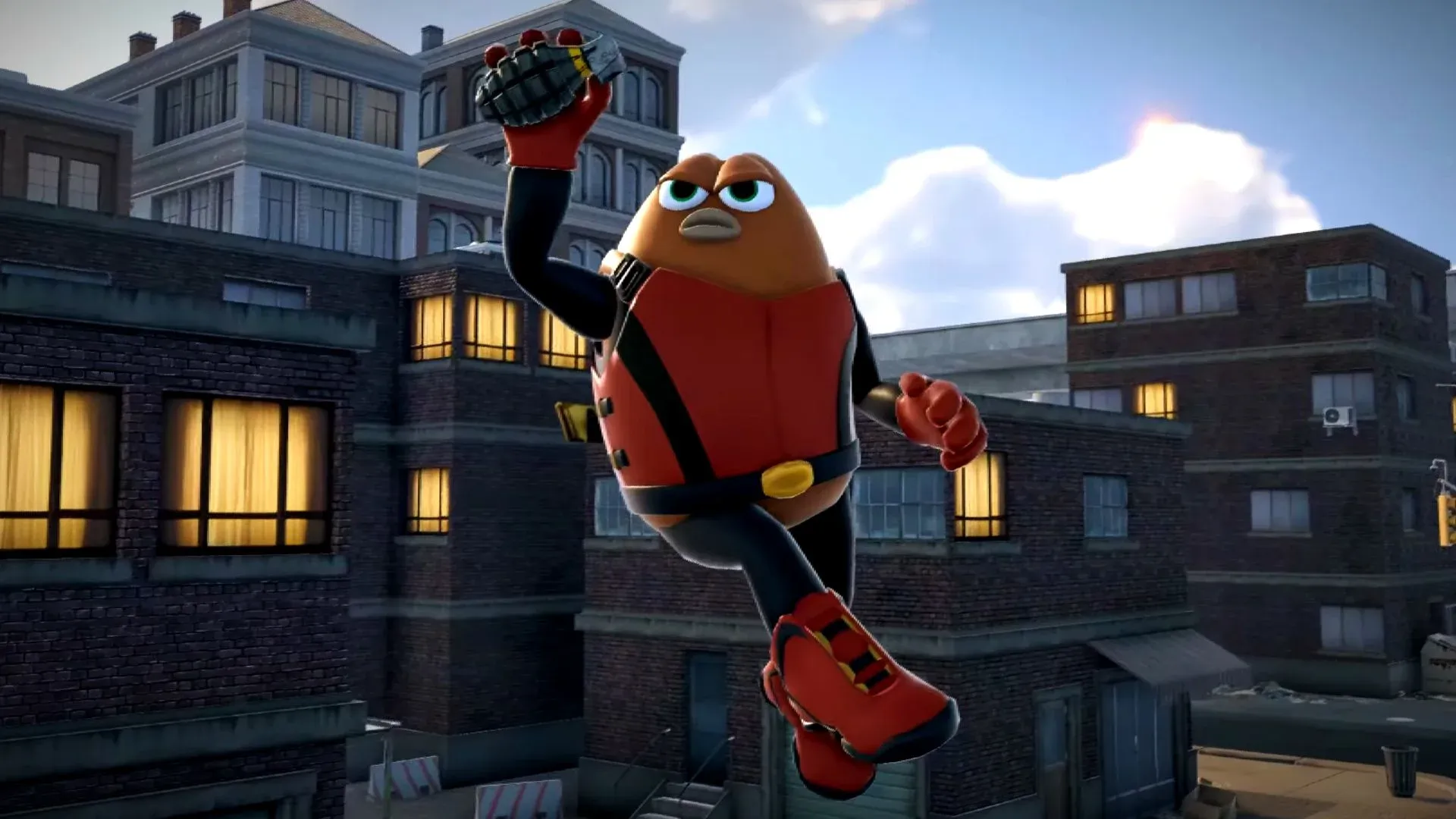


Killer Bean launched into early access on June 8, 2026, and the performance situation on handheld PCs is rough. Solo developer Jeff Lew built an ambitious roguelike shooter packed with bullet time, parkour, ragdoll physics, and procedurally generated missions, and the engine is clearly not ready for the hardware constraints of a device like the ROG Ally. If you are hitting stutters mid-gunfight and watching your frame rate tank from smooth to slideshow in seconds, you are dealing with a fixable problem, not a hardware limitation.
The good news: the stuttering in Killer Bean is almost entirely tied to shader compilation, asset streaming bottlenecks, and how Windows handles CPU thread scheduling. Brute-forcing it with higher TDP alone will not solve the problem. This guide walks through every layer of the fix, from in-game settings to engine configuration, so your runs through the Shadow Agency's island actually play like the cinematic action game Killer Bean is supposed to be.
Why does Killer Bean stutter so badly?
The short answer is that Killer Bean processes ragdoll physics, dynamic lighting, and hundreds of simultaneous projectile trajectories every frame. When dozens of enemies engage at once, every bullet fired generates a dynamic muzzle flash that the engine must calculate shadows for across every piece of geometry in the scene. On a handheld running at 25-35W, the CPU simply cannot feed draw calls to the GPU fast enough, causing GPU utilization to randomly crater to 60% and frame times to spike.
Shader compilation is the other major culprit. The first time you fire a specific weapon, the engine compiles the visual shader for that muzzle flash and particle effect mid-fight. If those shaders were not pre-compiled at launch, you get a hard freeze lasting a fraction of a second. In a game built around split-second bullet time dodges, that freeze is a death sentence.
Windows memory management compounds everything. Over a long session, the OS flags loaded textures and audio as "Standby" rather than clearing them. After 20-40 minutes of play, the Standby List consumes available RAM, and when Killer Bean needs memory for a new mission area, Windows scrambles to purge it, producing a multi-second freeze with no warning.
ROG Xbox Ally X settings: what actually works
After testing at 35W with CPU Boost enabled, the ROG Xbox Ally X averages around 40 FPS at 1080p with drops into the 30s. Dropping to 900p at 35W produces a more playable experience, though bugs in the current early access build are frequent enough that even an optimized setup will hit rough patches.
Before touching in-game settings, set your VRAM allocation to 8GB or above in the BIOS. Then open Armoury Crate, navigate to Settings, select Operating Mode, and switch to Manual Mode. From the Command Center, max out the TDP slider to reach full 35W Turbo Mode. Enable CPU Boost for an additional frame rate bump.
1080p profile (35W, 8GB VRAM)
- Resolution: 1920x1080
- Window Mode: Fullscreen
- Frame Rate: 60
- VSync: Off
- Quality Settings: Default
- HD Ambient Occlusion: On
- Bloom Quality: Low
900p profile (35W, 8GB VRAM)
- Resolution: 1600x900
- Window Mode: Fullscreen
- Frame Rate: 60
- VSync: Off
- Quality Settings: Default
- HD Ambient Occlusion: On
- Bloom Quality: Low
ROG Ally and ROG Ally X settings
The original ROG Ally and ROG Ally X cap out at 25-30W, which makes Killer Bean's early access state even harder to manage. At 900p and 25/30W, expect stutters and FPS dips even with settings dialed back. The game is genuinely buggy right now, and no amount of optimization fully papers over that. Still, the settings below represent the best available baseline.
- Resolution: 1600x900
- Window Mode: Fullscreen
- Frame Rate: 60
- VSync: Off
- Quality Settings: Default
- HD Ambient Occlusion: On
- Bloom Quality: Low
Set TDP to maximum in Armoury Crate using Manual Mode, and enable CPU Boost. VRAM should be at 8GB.
Optimal in-game settings breakdown
Here is how each setting category affects performance on handheld hardware specifically:
Texture quality is the one setting you can keep elevated. As long as VRAM is allocated at 8GB, the GPU handles high-res textures without meaningful frame time impact. Volumetric shadows and ragdoll limits are the two settings that will wreck frame pacing the fastest, so keep both low.
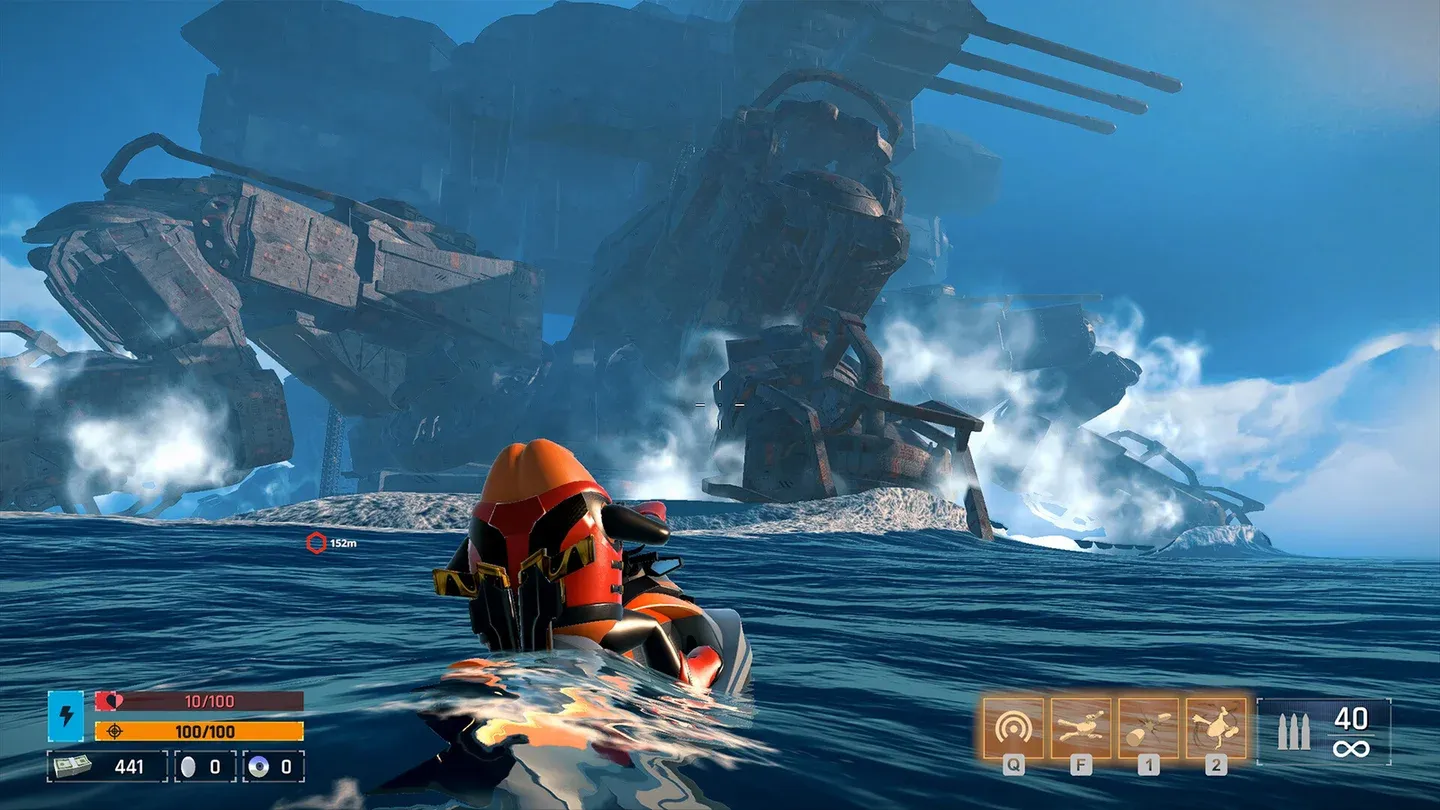
Volumetric shadows set to Low
Advanced fixes: Engine.ini and CPU affinity
How to inject asynchronous loading via Engine.ini
Killer Bean stores its engine configuration at C:\Users\[YourName]\AppData\Local\KillerBean\Saved\Config\WindowsNoEditor\. Open Engine.ini in Notepad and add these lines at the bottom:
[SystemSettings]
r.TextureStreaming=1
r.Streaming.PoolSize=4096
r.Streaming.LimitPoolSizeToVRAM=1
s.AsyncLoadingThreadEnabled=1
Set PoolSize to 4096 for 8GB VRAM cards, or 6144 for 12GB and above. This pre-allocates a dedicated chunk of VRAM for texture streaming so the engine loads assets in the background on spare CPU threads rather than halting the render thread mid-fight.
How to fix CPU core affinity on Intel hybrid processors
On Intel 12th, 13th, or 14th Gen CPUs with hybrid architecture, Windows can assign Killer Bean's physics calculations to Efficiency Cores rather than Performance Cores. The fix requires Process Lasso. Launch Killer Bean, open Process Lasso, right-click the Killer Bean executable, navigate to CPU Affinity then Always, and uncheck all E-Cores manually. This forces the game's heavy workloads onto P-Cores exclusively.
Managing Windows Standby memory
Run Intelligent Standby List Cleaner (ISLC) in the background during play. Set the "Free memory is lower than" threshold to 1024 MB and the "Wanted timer resolution" to 0.50 ms. ISLC silently purges the Standby List before it triggers a page file stutter, and the 0.50ms timer resolution tightens CPU polling latency noticeably.
Capping frames externally with RTSS
Ditch in-game VSync entirely. Use RivaTuner Statistics Server (RTSS) to cap your frame rate at a number your device can sustain 99% of the time, typically 60 FPS on handheld. A perfectly flat 60 FPS line feels far smoother than an uncapped rate swinging between 80 and 140. Capping also leaves a 10-15% GPU headroom buffer, so when a massive explosion triggers, the GPU absorbs it without dropping frames.
If your display supports Variable Refresh Rate, enable G-Sync or FreeSync in your GPU control panel and cap RTSS exactly 3 frames below your monitor's maximum refresh rate to keep VRR engaged continuously.
Should you play Killer Bean on handheld right now?
Honestly, the game is in a rough state. The ROG Xbox Ally X at 35W manages a playable 900p experience with the tweaks above, but game-breaking bugs exist independent of any performance fix. The ROG Ally at 25/30W struggles harder. Killer Bean is a genuinely interesting roguelike shooter from a solo developer, mixing third-person and first-person shooting across nine procedurally generated missions with randomized objectives that keep runs feeling different. The moment-to-moment bullet time and parkour combat is worth experiencing. Just go in with realistic expectations for an early access title.
The engine-level fixes in this guide (async loading, core affinity, memory management) make the biggest difference. In-game settings alone will not get you there.
For more guides covering Killer Bean as the early access build evolves, check out the full Killer Bean strategy guides collection on GAMES.GG. If you enjoy the genre mix of action and investigation that Killer Bean brings, puzzle games with strong narrative systems are worth exploring too. And if you want the full breakdown on what the game offers before committing, the Killer Bean game page has everything you need.