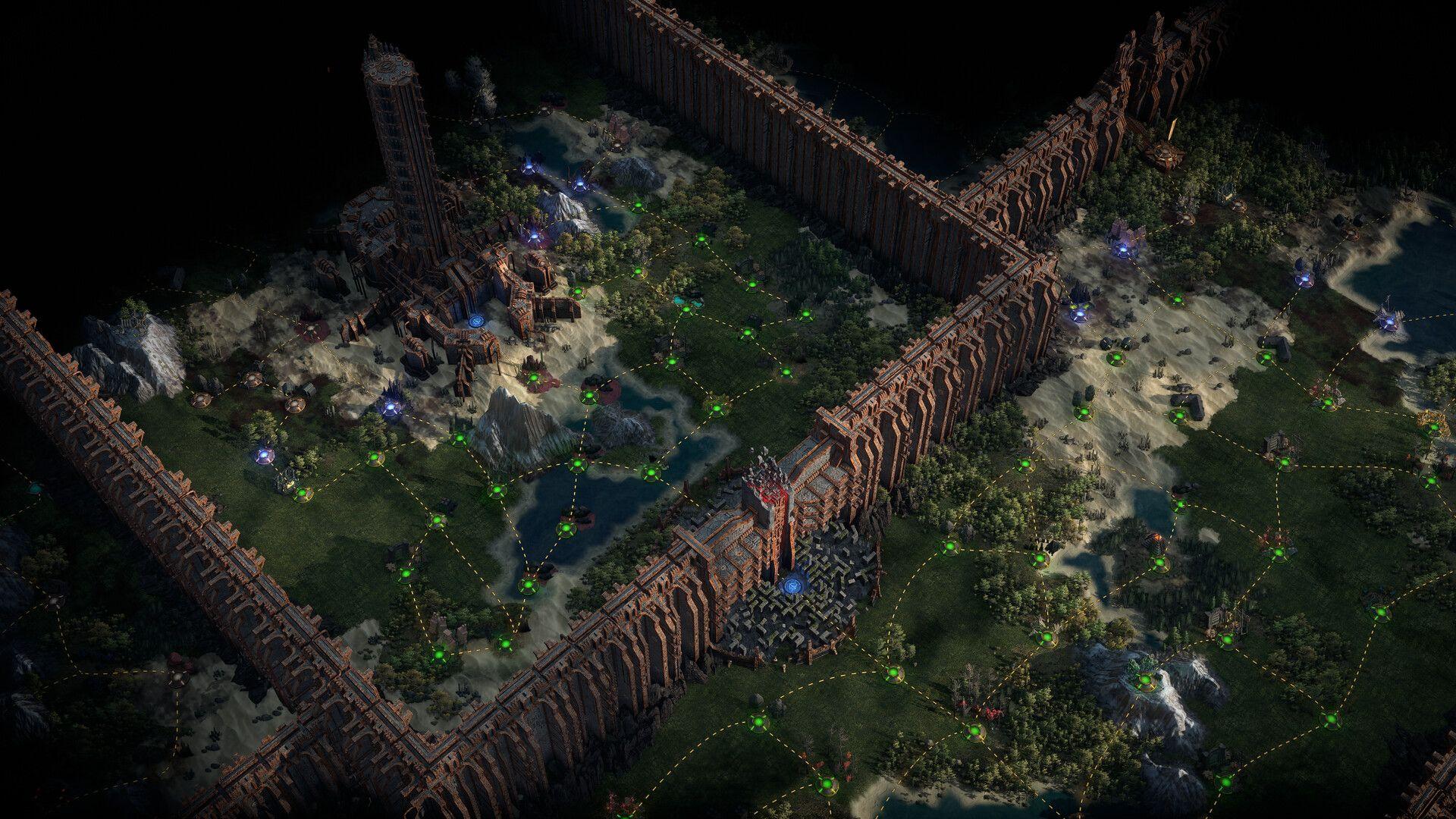

The Build Planner added in the Return of the Ancients 0.5.0 patch is one of the most player-friendly features Path of Exile 2 has ever shipped. Instead of tabbing out every 30 seconds to cross-reference a guide, you load a .build file directly into the game and let it draw the path for you on the Passive Skill Tree. The whole process takes about two minutes once you know where the files go.
How does the Build Planner work in Path of Exile 2?
The Build Planner lets you import a build code created by another player or content creator and use it as a live overlay inside the game. Once active, it draws a guided line across the Passive Skill Tree showing exactly which nodes to allocate next. The Gemcutting section also updates to display which support gems the build requires, and your equipped gear gets flagged with stat priority icons so you know what to look for while trading or crafting.
The feature is PC-only for now. As of patch 0.5.0, console players do not have access to Build Planner codes.


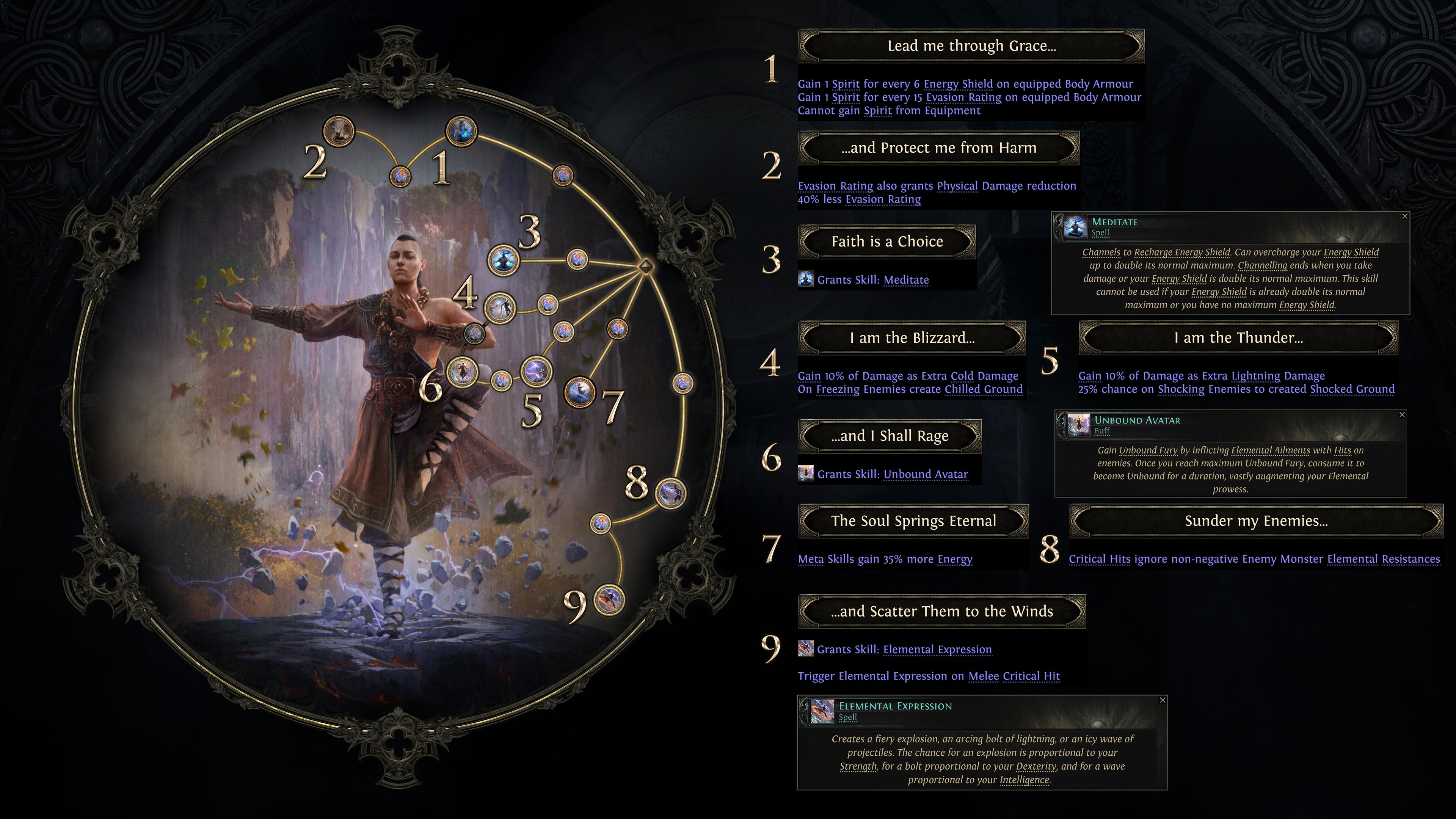
How to download a build code
Every build guide that supports the Build Planner includes a downloadable .build file. Open the guide of your choice, locate the gear or planner widget embedded at the top of the page, and click anywhere inside it to open the full planner view. From there, hit Export Build Planner (GGG) to download the file.
When saving, pay attention to where the file lands. You will need to move it to a specific folder in the next step, so keeping track of the download location saves you time.
How to import a build into Path of Exile 2
This is the step most players stumble on. The game does not read .build files from arbitrary locations. You must place the file in a specific folder:
C:\Users\[YourUserName]\Documents\My Games\Path of Exile 2\BuildPlanner
Either save the file directly to that path when downloading, or move it there manually after the fact. Once the file is in the correct folder, the game can detect it.
Step-by-step import process
- Download the .build file from your chosen guide.
- Move the file to Documents\My Games\Path of Exile 2\BuildPlanner.
- Launch Path of Exile 2 and load your character.
- Open the Passive Skill Tree by pressing P.
- Click the blue icon in the top-left corner of the Passive Skill Tree screen.
- Select your imported build from the list that appears.
After selecting the build, a blue line appears across the tree showing the recommended allocation sequence. Follow it node by node without needing to memorize anything.
What does the Build Planner show in-game?
The overlay does more than draw a line on the passive tree. Here is a breakdown of everything it surfaces:
| Feature | What it shows |
|---|---|
| Passive Skill Tree | Blue guided path for node allocation order |
| Gemcutting section | Required support gems for the active build |
| Equipped gear | Stat priority icons highlighting key affixes |
| Build steps | Minimum level thresholds for Campaign vs. Endgame info |
The minimum level system is particularly useful. Build creators can set specific levels at which each step becomes visible, so you see campaign-relevant information while leveling and endgame details once you reach maps. Steps that are not yet relevant stay hidden rather than cluttering your view.
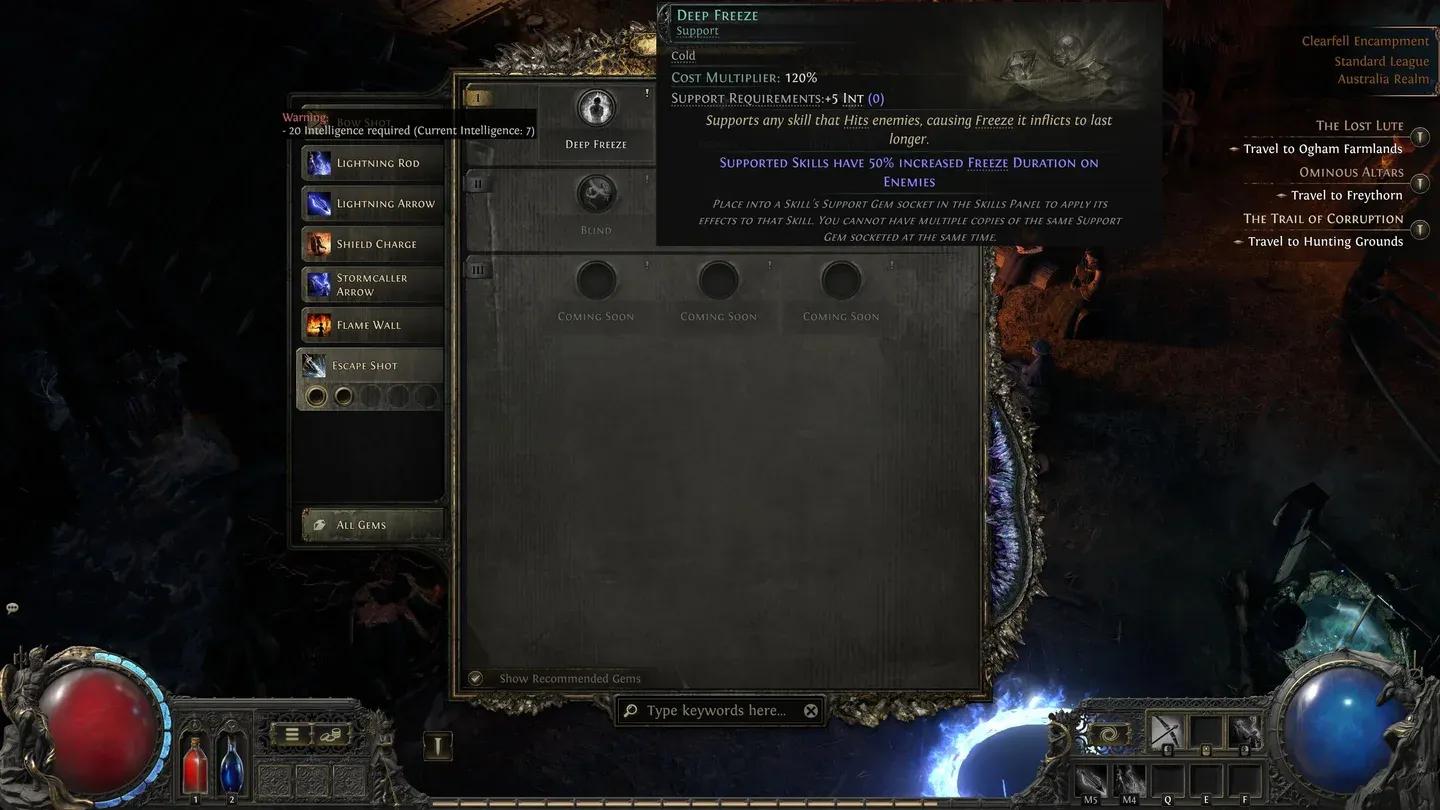
Gem requirements shown automatically
How to create a Build Planner code
If you build your own characters and want to share them, the export process is straightforward. Design your build in the web-based planner, then click Export Build Planner (GGG) to generate the .build file. A few things to configure before sharing:
- Set minimum levels on global Variants, Equipment steps, and Skill Gem steps. This controls when each piece of information appears for the person following the build.
- Use Export Groups to add extra instructions or notes at specific points in the progression.
- Hide irrelevant Variants with the eye icon to keep the in-game overlay clean.
Skipping the minimum level settings means the person importing your build sees everything at once, which can be overwhelming during the campaign.
Getting the most out of the Build Planner
The Build Planner removes the biggest friction point in following a guide, but it works best when paired with solid fundamentals. Knowing which stats to prioritize on gear, how the Passive Tree connects to your damage scaling, and which gems to socket first all feed into how quickly you can execute a build.
For players still learning the systems, our early game tips and tricks guide covers currency management, loot filters, and combat fundamentals that apply regardless of which build you import. If you want to understand the builds themselves rather than just follow them blindly, the best builds guide for patch 0.3 and beyond breaks down why each top build works and what makes it strong.
The full collection of Path of Exile 2 guides on GAMES.GG covers everything from crafting to class selection if you want to go deeper on any specific system.