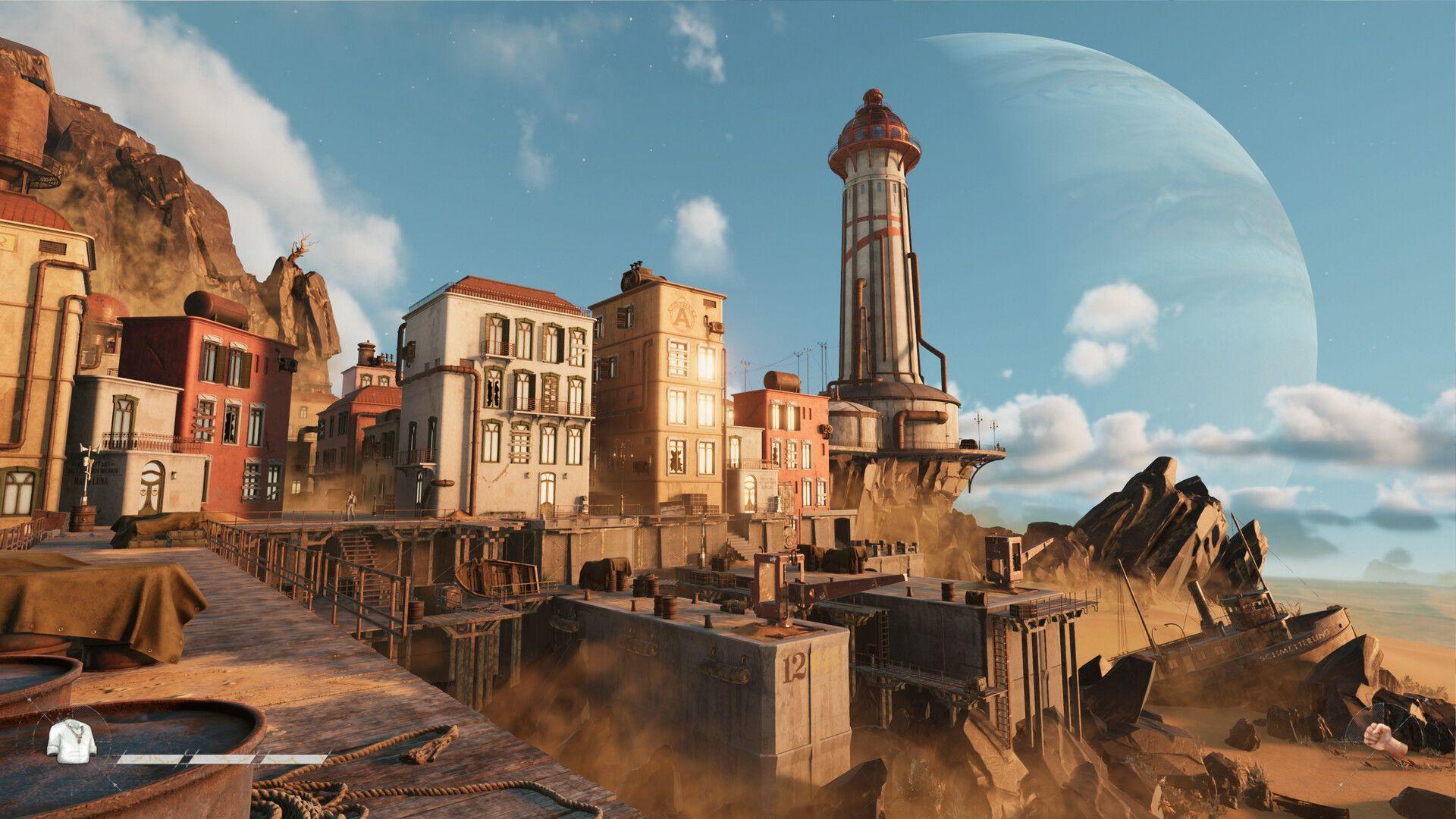


SAND: Raiders of Sophie launched with a brief delay, and while it looks great, the shooting-heavy gameplay means any frame drops or stutters can cost you a fight. The good news is that a few targeted changes to the graphics settings can get things running smoothly, even on hardware that only just clears the minimum requirements. Here's exactly what to change and why.
What are the best graphics settings for SAND: Raiders of Sophie?
The settings below were tested on a system running a 32 GB DDR4 RAM, an AMD Ryzen 7 5700X, and an AMD Radeon RX 9060 XT 16 GB. That setup comfortably clears the recommended specs, yet lag still appeared before these tweaks were applied. If your rig sits closer to the minimum requirements, lean toward the lower end of any range given.
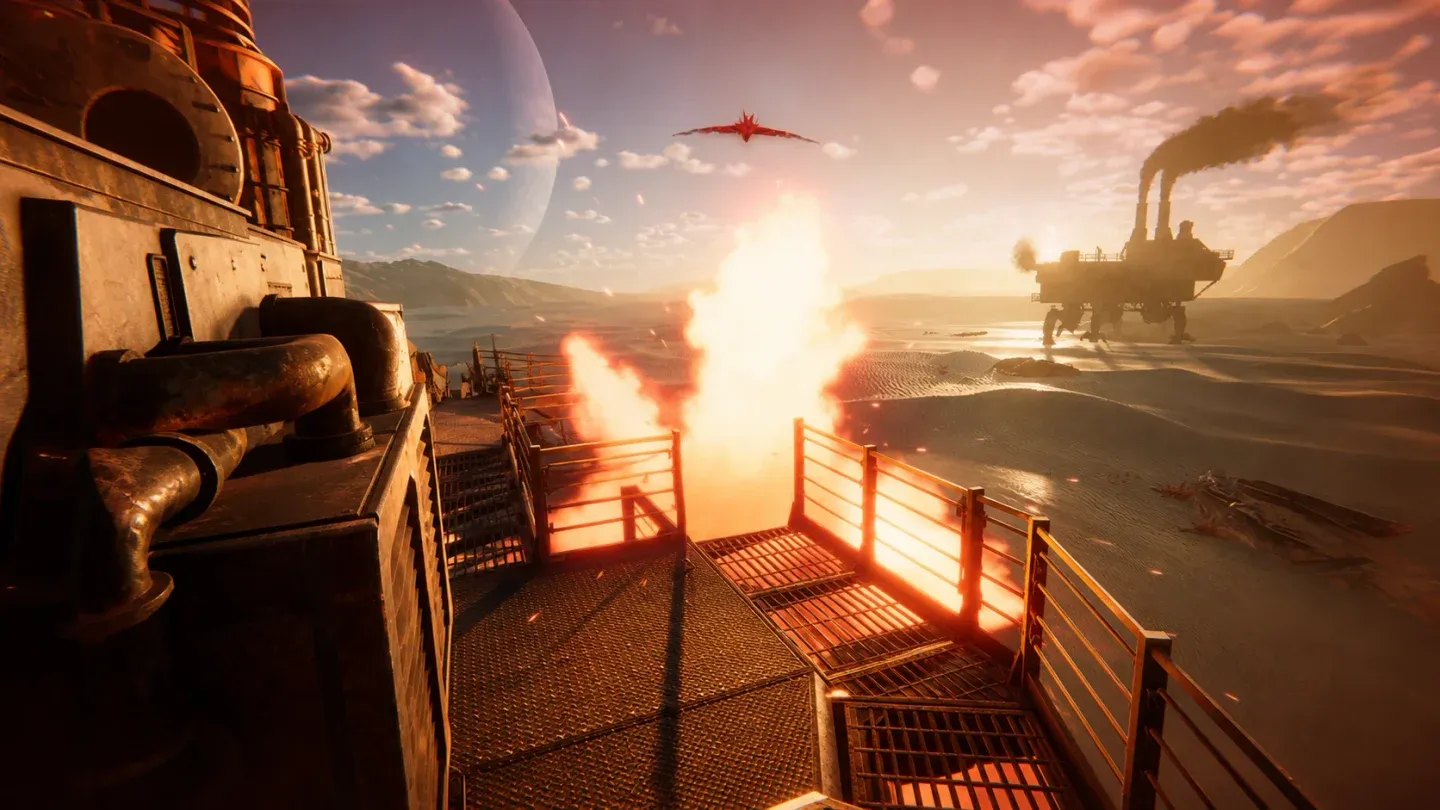
Custom graphics preset screen
Display and frame rate settings
- Display Mode: Fullscreen. Windowed modes add input overhead you don't need.
- Resolution: Use your monitor's native resolution. Dropping below native rarely helps as much as the other settings here.
- Field of View: 90
- V-Sync: Off. SAND is a competitive shooter at heart, and capping your frame generation to the display refresh rate introduces input lag.
- Frame Rate: 90 FPS on higher-end hardware, 60 FPS on lower-end machines.
- Limit FPS in Background: Off
- Limit FPS in Menu: Off
Anti-aliasing and upscaling
- Anti-Aliasing: Off. It's one of the heavier post-process costs and the visual difference at native resolution is minimal.
- Super Resolution: On, set to Performance if you're still experiencing drops after adjusting everything else. This is your best single-setting rescue for struggling hardware.
Geometry, textures, and materials
- Texture Resolution: Medium
- Geometry Quality: Medium
- Materials Quality: Low
- Terrain Tessellation: Off
Shadow settings
Shadows are consistently the biggest performance drain in SAND. Keep every shadow option conservative.
- Shadow Quality: Low or Medium. Do not go above Medium under any circumstances.
- Shadow Refresh Frequency: Low
- Contact Shadows: Low
Lighting and atmosphere
- Sky Quality: Low
- Volumetric Fog: Low
- Screen Space Ambient Occlusion (SSAO): Medium
- Screen Space Global Illumination (SSGI): Low
Post-processing
- Post-Processing Quality: Medium
- Post-Processing Injection Point: Before Upscaler
- Motion Blur: Off. This one hurts readability during combat more than it costs frames.
- Bloom: Off
- Film Grain: Off
- Chromatic Aberration: Off
- Vignette: On
- Color Filters: Personal preference, no performance impact.
Why these settings matter in a shooter
SAND leans hard on combat responsiveness. Frame pacing matters as much as raw FPS here because inconsistent frame delivery makes enemy movement feel jittery and aiming feel unpredictable. Turning off V-Sync, disabling Motion Blur, and keeping shadows low all contribute directly to how clean the game feels to play, not just how many numbers appear in an FPS counter.
For more help with the game, the Sands of Aura strategy guides collection covers additional systems and mechanics worth knowing. If you're newer to adventure games with heavy combat systems, getting your performance baseline right first makes everything else easier to learn.