


Gear floods your inventory fast in TBH: Task Bar Hero, and the default right-click behavior does not sell anything. Selling requires the Cube, a dedicated system that handles both item conversion and item upgrading. Once you know where to find it and which option to select, clearing out unwanted loot takes seconds. Here is exactly how it works.
How do you unlock the Cube in TBH: Task Bar Hero?
The Cube unlocks automatically when your first Hero hits Level 4. That milestone arrives in under 15 minutes of play, so new players do not have to wait long. When it unlocks, the Cube icon at the bottom of the Hero menu lights up, signaling it is ready to use.
Opening the Cube gives you access to two core functions right away: Synthesis and Alchemy. The menu defaults to Synthesis every time you open it, which is the single biggest source of confusion for players who cannot figure out why their items are not converting to gold.
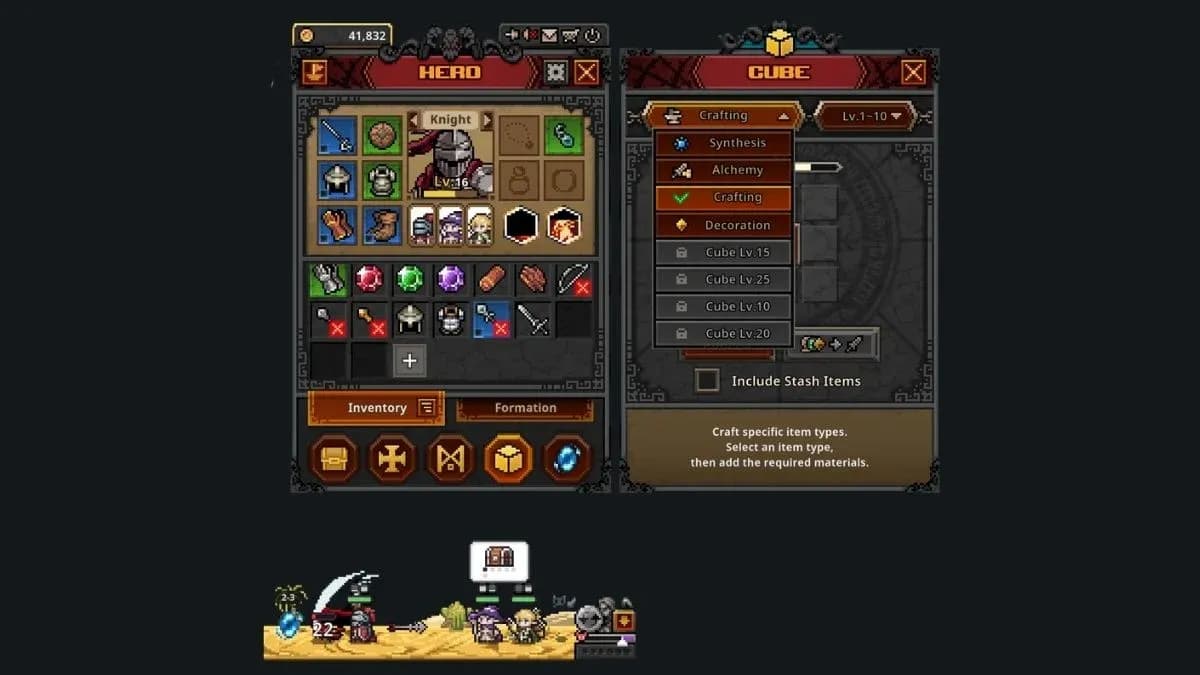
Switch Cube to Alchemy mode
How to sell items using Alchemy: step by step
Once the Cube is unlocked, the selling process is straightforward:
- Press Tab to open the Hero menu.
- Click the Cube icon at the bottom of the Hero menu.
- Click the dropdown near the top of the Cube menu (it reads Synthesis by default) and select Alchemy.
- Right-click any item in your inventory to move it into a Cube slot, or drag it in manually.
- Click the confirmation button next to Auto Fill to convert the selected items into gold.
That is the full loop. Each item shows its gold value when you hover over it in your inventory, so you can check the payout before committing to the sale.
Using Auto Fill safely
Auto Fill transfers items from your inventory into the Cube automatically, which speeds things up when you have a lot to clear. The catch: it has no filter, so it will grab anything. Before hitting confirm, scroll through what got added and remove anything you want to keep.
Locking gear with Alt + Left Click protects important items from being swept up by Auto Fill. Get into the habit of locking your best equipment as soon as you equip it.
Closing the Cube menu matters
When the Cube is open, every right-click on an item in your inventory sends it to the Cube. If you leave the menu open and try to equip something by right-clicking, it goes into the Cube instead. Close the Cube as soon as you finish selling.
Alchemy vs Synthesis: which should you use?
Both features use the Cube, but they serve different purposes. Here is how they compare:
Early in the game, Alchemy is almost always the better choice. Gold funds Rune upgrades, and Rune upgrades unlock things like additional Hero Slots, which have a much larger impact on your progress than a single gear upgrade through Synthesis. Check out the step-by-step Runes guide covering Hero Slot costs and priorities to see exactly where that gold goes.
Once your Hero Slots are open and your economy is stable, you can start feeding Synthesis. Until then, sell everything you are not actively using.
What does the Cube Level bar do?
At the top of the Cube menu, there is a progress bar tracking your Cube Level. Every time you use Alchemy or Synthesis, that bar fills. Reaching higher Cube Levels unlocks additional features, including crafting at Cube Level 5, which appears as a new option in the same dropdown where you switch between Alchemy and Synthesis.
This means selling items is not just clearing inventory space. Every sale contributes to unlocking more powerful Cube functionality down the line.
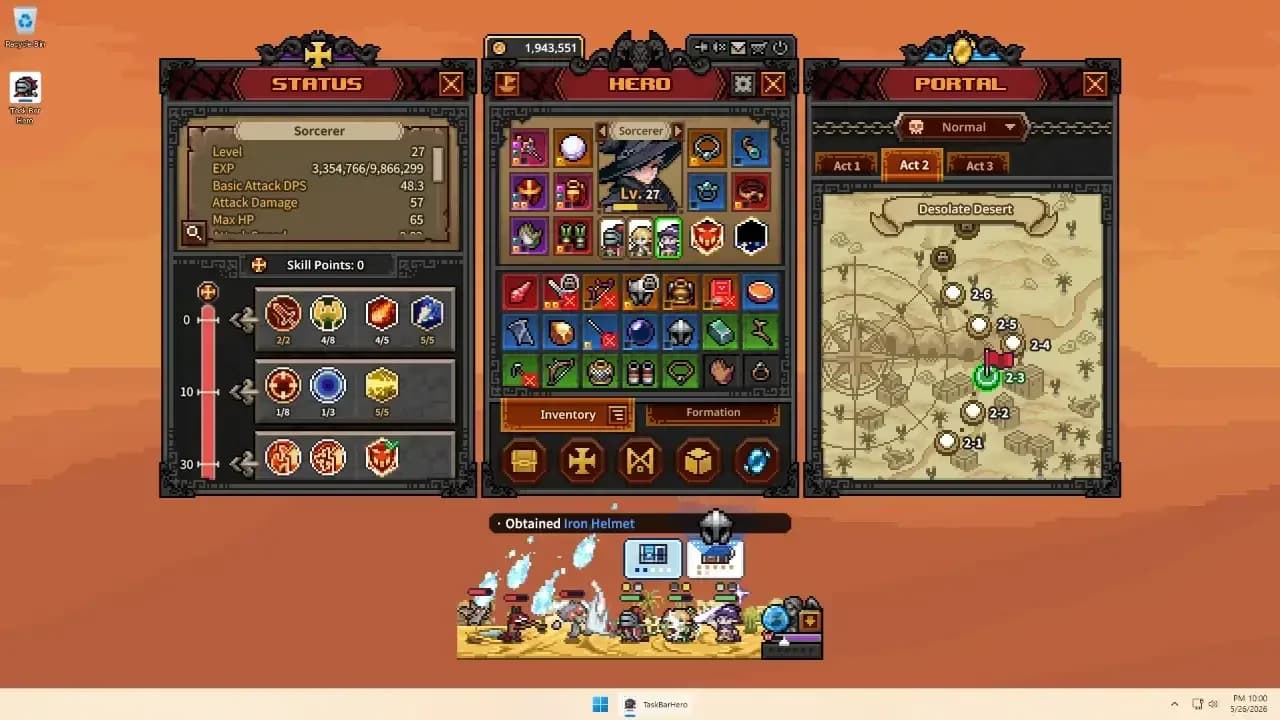
Cube Level bar fills with each sale
Is Alchemy the same as selling on the Steam Market?
No. These are two completely separate systems. Alchemy converts items into in-game gold that you spend within TBH: Task Bar Hero. The Steam Market, accessed through the Trade Ship icon in the top-left corner of the Hero menu, lets you list items for sale to other players in exchange for Steam Wallet funds.
If your goal is to farm high-rarity gear and convert idle progress into real Steam Wallet value, that process goes through the Trade Ship, not the Cube. The guide on earning Steam Money through TBH: Task Bar Hero covers that system in full.
Why can't I sell items?
Common fixes
If the selling process is not working, run through this checklist:
- Hero not Level 4 yet: The Cube stays locked until your first Hero reaches Level 4. Keep playing and it unlocks automatically.
- Cube menu is closed: Items only move to the Cube when the menu is open. Open it before right-clicking gear.
- Wrong mode selected: The most common issue. If the Cube is set to Synthesis, right-clicking an item combines it rather than selling it. Switch to Alchemy first.
- Trying to sell on Steam Market instead: If you want Steam Wallet funds rather than in-game gold, you need the Trade Ship, not the Cube.
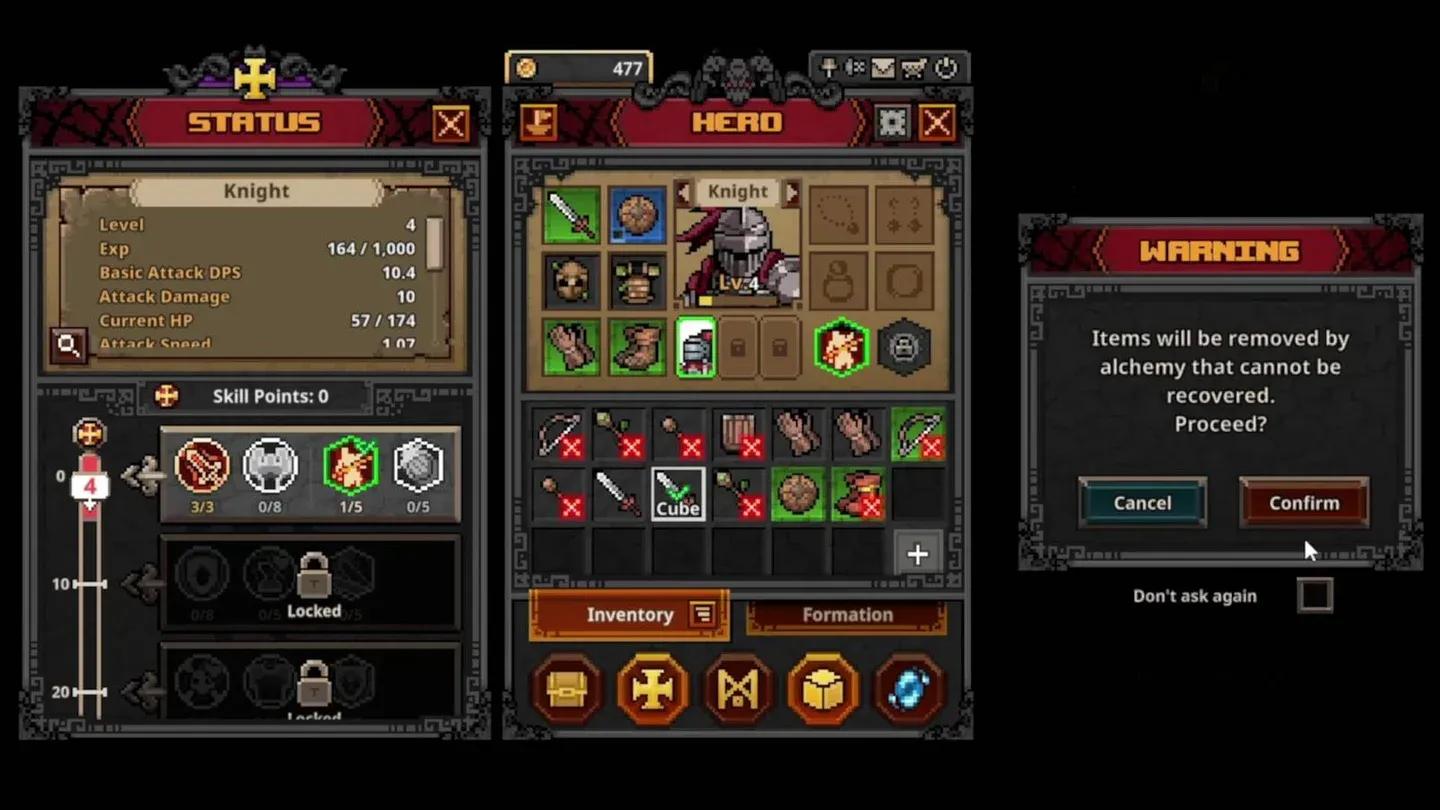
Confirm before converting items
Build a smarter economy from the start
The Cube is one of the most important systems in TBH: Task Bar Hero, and most players underuse it early because they do not realize Alchemy exists. Selling unwanted gear keeps your gold flowing, your Cube Level climbing, and your Rune upgrades on track.
For a broader look at how all these systems connect, including party composition, starting class choices, and Rune priorities, the TBH: Task Bar Hero beginner's guide has everything you need to build a strong foundation from day one. You can also browse the full TBH: Task Bar Hero guide collection for deeper coverage of every system in the game.