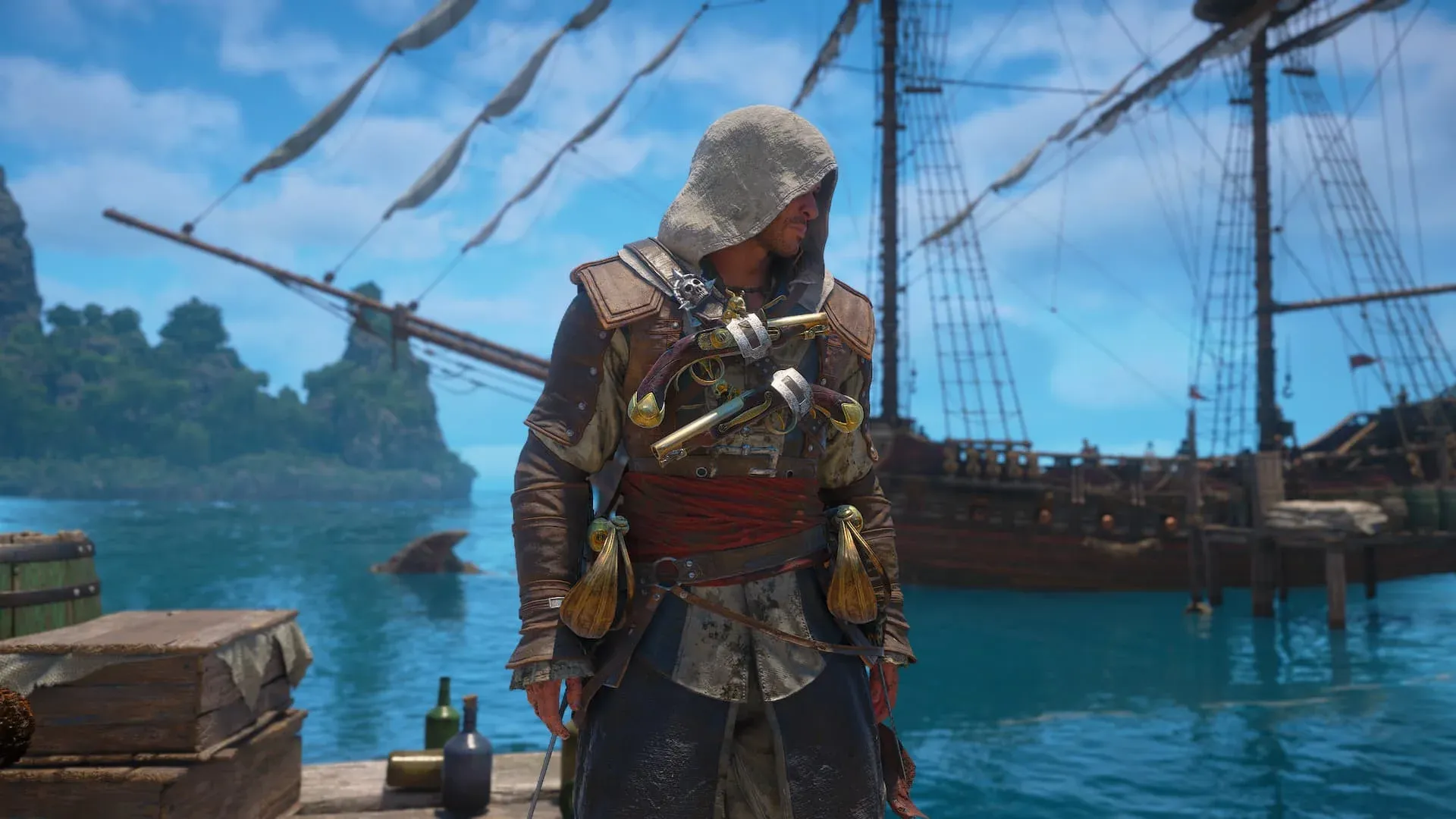


Assassin's Creed Black Flag Resynced launched on PC today, and the settings menu has a lot of sliders to sort through before you can comfortably sail the Caribbean. The good news: most of what tanks performance comes down to a handful of options, and you don't need high-end hardware to hit a steady 60 FPS. This guide walks through every meaningful setting, explains what each one actually costs you in performance, and gives you a starting point that works across a wide range of rigs.
What hardware are these settings based on?
The settings below were tested on an AMD Radeon RX 9060 XT 16 GB, AMD Ryzen 7 5700X, and 32 GB DDR4 RAM. That sits close to the game's recommended PC specifications. If your rig is more modest, the guide includes a fallback: drop every Low to Very Low and every Medium to Low. If your system handles the defaults without breaking a sweat, push each tier up by one step.
The goal here isn't the best-looking game possible. It's the smoothest game possible on hardware that most players actually own.
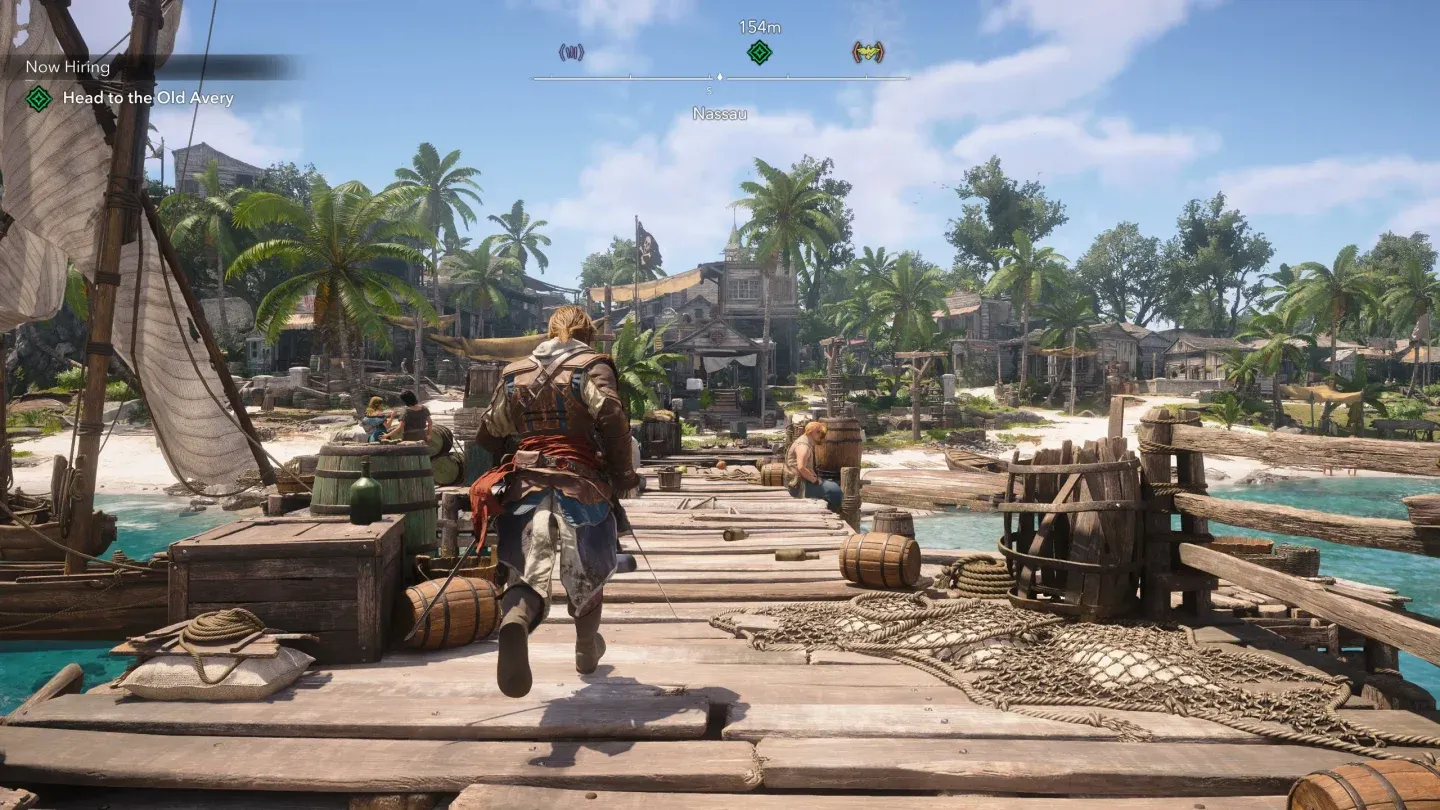
Black Flag Resynced settings menu
Display and frame rate settings
These options have the biggest single impact on how the game feels before you touch a single quality slider.
- Display Mode: Use Borderless if you run multiple monitors. Use Fullscreen for a single-monitor setup since it gives the GPU full priority.
- VSync: Off by default. If you're seeing screen tearing or micro-stutters that other settings can't fix, turn it on. It caps your frame rate to your monitor's refresh rate, which smooths things out at the cost of some raw FPS.
- FPS Limit: On. Cap it at 60 FPS unless your system can consistently push higher. Uncapped frame rates on hardware that can't sustain them cause more instability than a clean cap does.
- Use Dynamic Resolution: Only enable this on underpowered hardware. It automatically lowers the render resolution during demanding scenes to maintain frame rate, which is useful but visually noticeable.
- Upscaler Type: Set to Automatic or Balanced if the game runs well. Switch to Performance mode only when you're still dropping frames after adjusting everything else.
- Frame Generation: Off. This feature adds latency and can introduce visual artifacts on mid-range hardware without delivering reliable gains.
- Sharpen Strength: 50%. Upscaling softens the image slightly, and this setting compensates without going overboard.
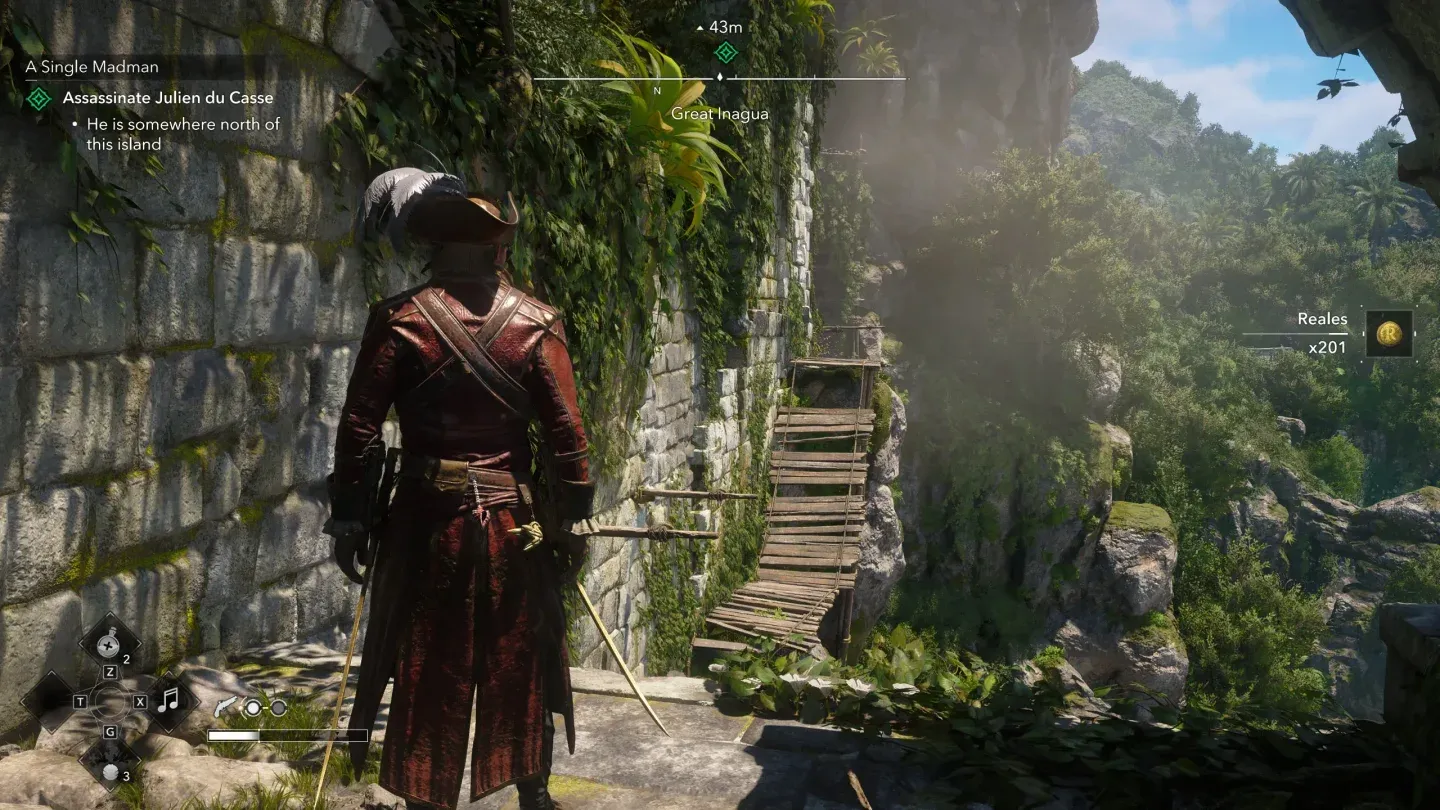
Frame rate cap at 60 FPS
Which visual effects should you turn off completely?
Some settings eat GPU budget for results that are barely visible during normal play. Turn these off entirely:
- Motion Blur: Off. Blurs the image during camera movement and makes combat harder to read.
- Camera Effects: Off. Adds lens effects that obscure the action without adding meaningful visual quality.
- Raytracing: Off. This is the single biggest performance drain in the game. The visual difference at medium settings is subtle, but the FPS cost is not.
- Hair Strands: Off. Strand-based hair simulation is GPU-intensive and the improvement over standard hair rendering is only visible in close-up cutscenes.
Full recommended settings list
Here's the complete starting configuration. These are organized by category to match how the in-game menu presents them.
Why Medium on textures but Low on shadows?
Textures and geometry at Medium keep Edward and the ship environments looking sharp without a heavy VRAM cost. The Texture Resolution Quality at Medium is the right balance because dropping it to Low makes the open-world environments look noticeably flat, especially on water and coastal areas.
Shadows, fog, clouds, and screen-space effects are different. These are processed every frame and scale poorly on mid-range GPUs. Keeping them at Low gives back meaningful frame time without making the world look worse from a normal play distance. You'll notice the difference in shadow quality only if you're specifically looking for it.
Terrain Quality and Loading Distance at Medium prevent pop-in during ship navigation, which is where you spend a large chunk of the game. Dropping these to Low creates visible object pop-in on the open water that breaks immersion more than any shadow setting does.
How do you fine-tune from here?
Once you have a stable 60 FPS baseline, raise settings one tier at a time starting with Character Quality, then Geometry Quality, then Water Quality. These three have the most visible impact on how the game looks during normal play. Leave Shadow Quality, Cloud Quality, and Fog Quality at Low until you have significant headroom to spare.
If you're still dropping below 60 FPS after applying the recommended settings, the next step is dropping every Medium setting to Low and every Low to Very Low. That combination should run on hardware well below the recommended spec.
For everything else you need to know about getting started in the game, the AC Black Flag Resynced beginner tips and tricks guide covers the core mechanics, Jackdaw upgrades, and early-game priorities. Black Flag Resynced also ships with meaningful changes from the 2013 original, and the full breakdown of every change in Black Flag Resynced is worth reading before you start. For a complete collection of guides covering the game, the AC Black Flag Resynced guides hub has everything in one place.