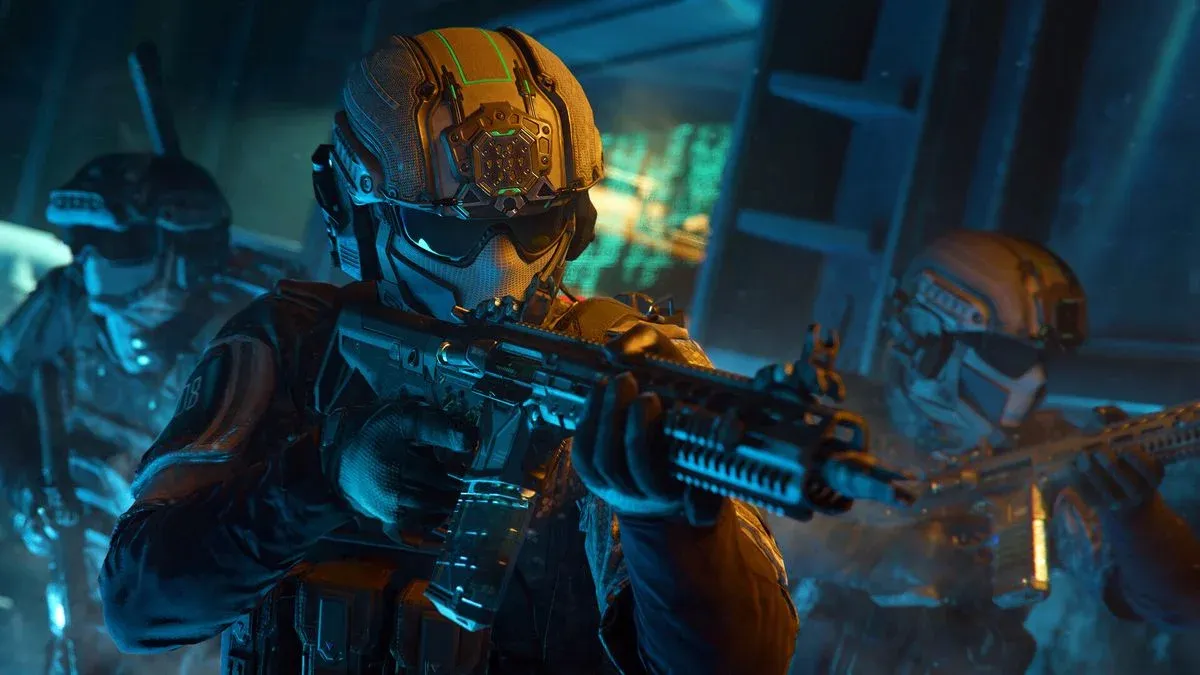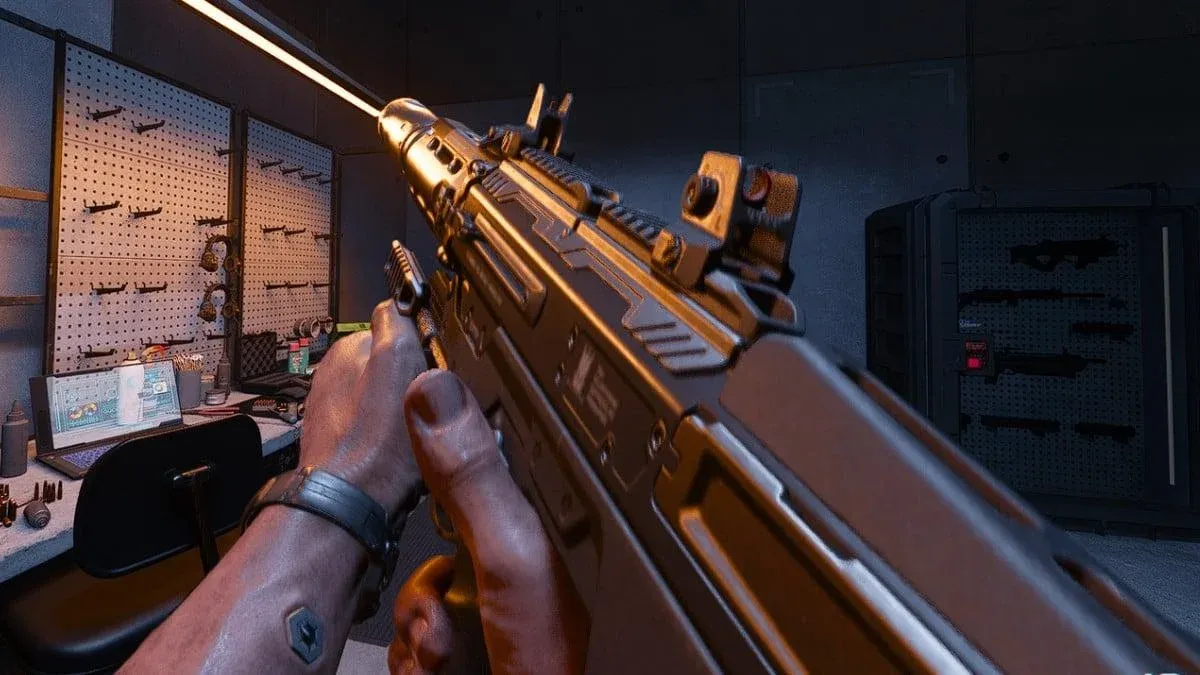

अपने Call Of Duty: Black Ops 7 के अनुभव को frustrating से phenomenal में बदलने के लिए तैयार हैं? आप उन game-changing settings को जानने वाले हैं जो casual players को उन लोगों से अलग करती हैं जो हर मैच में dominate करते हैं। चाहे आप intense campaign missions में grind कर रहे हों या chaotic multiplayer action में dive कर रहे हों, ये optimizations आपको वह competitive edge देंगे जिसकी आपको तलाश थी।
आपकी Default Settings आपको क्यों रोक रही हैं
अधिकांश खिलाड़ी Black Ops 7 में बिना किसी setting को बदले सीधे कूद पड़ते हैं, और यही कारण है कि उन्हें struggle करना पड़ता है। Default configuration performance की तुलना में visual appeal को प्राथमिकता देती है, जिससे आपको sluggish controls, distracting visual effects और audio मिलती है जो crucial enemy footsteps को mask करती है।
Optimized settings और defaults के बीच का अंतर उस clutch shot को लगाने या अपने opponent को विजयी होते देखने के बीच का अंतर हो सकता है। Professional players इन configurations को fine-tune करने में घंटों बिताते हैं क्योंकि वे एक fundamental truth को समझते हैं: आपकी settings सीधे आपके skill ceiling को प्रभावित करती हैं।

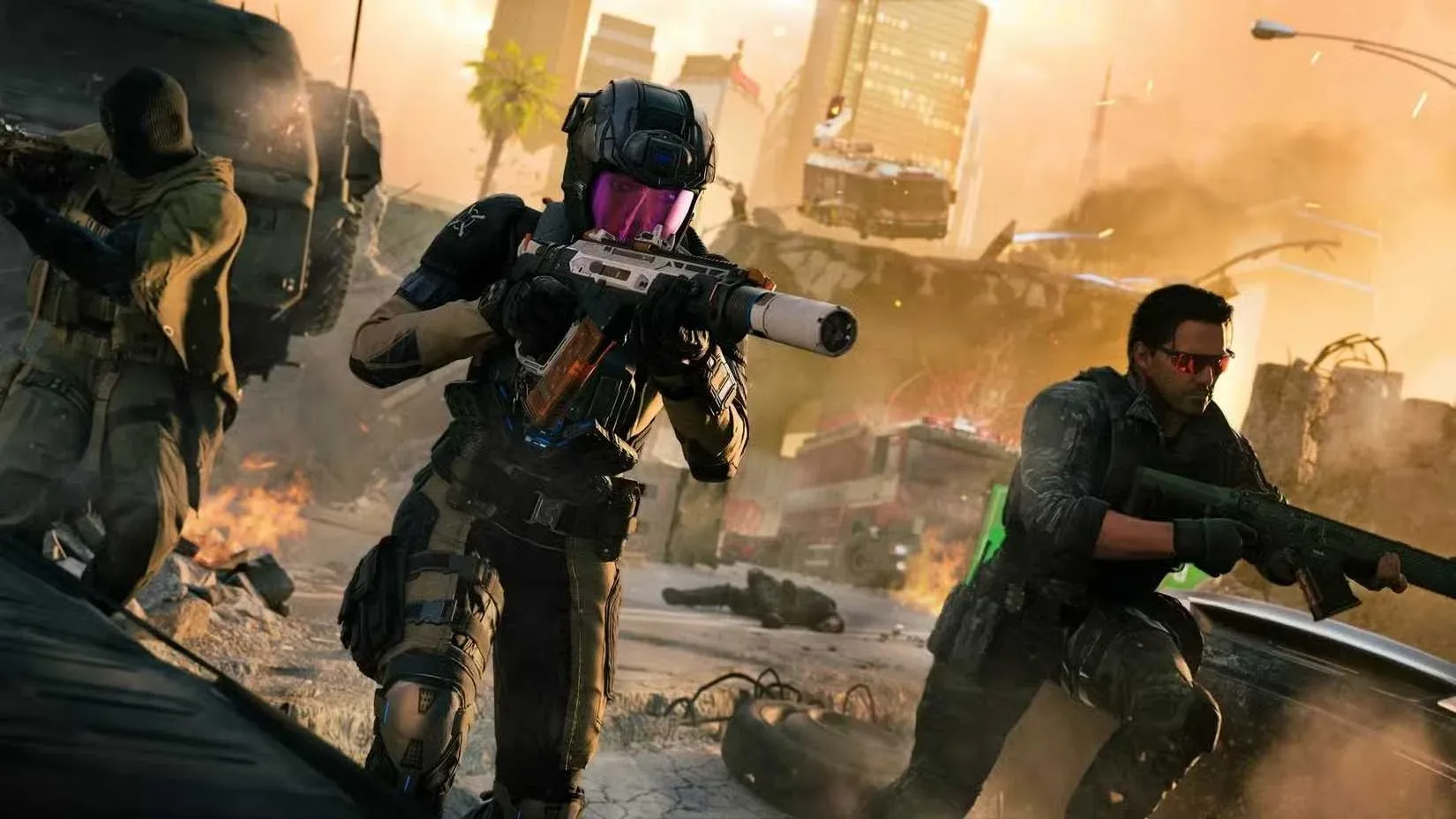
Stronger Aim के लिए Controller Settings
PC पर भी, कई खिलाड़ी controller का उपयोग करते हैं। Sensitivity, curves और deadzones reliable aim की नींव हैं। नीचे दी गई table में वे settings हैं जो responsiveness और precision के बीच सबसे अच्छा balance प्रदान करती हैं।
| Category | Setting | Recommended Value |
|---|---|---|
| Sensitivity | Horizontal Sensitivity | 1.8 |
| Sensitivity | Vertical Sensitivity | 1.65 |
| ADS Settings | ADS Sensitivity Transition | Instant |
| Aim Response | Response Curve Type | Dynamic |
| Per Zoom Sensitivity | Low Zoom | 0.85 |
| Per Zoom Sensitivity | Medium Zoom | 0.95 |
| Per Zoom Sensitivity | High Zoom | 1.00 |
यह setup close range fights के लिए horizontal aim को पर्याप्त तेज़ रखता है जबकि recoil और elevation differences के लिए vertical aim को नियंत्रित रखता है।
Deadzone Calibration
| Category | Setting | Recommended Value |
|---|---|---|
| Deadzone | Left Stick Min | 0 (अगर drift होता है तो थोड़ा बढ़ाएँ) |
| Deadzone | Right Stick Min | 0 (अगर drift होता है तो थोड़ा बढ़ाएँ) |
| Deadzone | Test Stick Deadzone | Enable |
| Deadzone | Left Stick Max | 70 |
| Deadzone | Right Stick Max | 99 |
ये values responsiveness का त्याग किए बिना drift को हटाते हैं, जिससे aiming करते समय micro-adjustments में सुधार होता है।
Maximum Performance के लिए Graphics Settings
Visual clarity Black Ops 7 में सबसे बड़े competitive advantages में से एक है। Heavy effects और cinematic filters केवल target tracking में बाधा डालते हैं। Performance input latency को भी प्रभावित करती है, इसलिए एक clean graphics setup सीधे accuracy में सुधार करता है।
| Setting | Recommended Value | Reason |
|---|---|---|
| Motion Blur (World) | Off | Movement के दौरान visual smearing हटाता है |
| Motion Blur (Weapon) | Off | Weapon visibility को sharp रखता है |
| Depth of Field | Off | Aiming के दौरान background blur को रोकता है |
| Screen Space Reflections | Off | Distracting reflections हटाता है |
| NVIDIA Reflex | On + Boost (CPU bound) / On (GPU bound) | Latency कम करता है |
| DLSS or FSR | Balanced | Clear visuals के साथ Strong FPS |
| Field of View | 110 to 120 | Targets को बहुत अधिक छोटा किए बिना Wider awareness |
Blur और reflections को बंद करने से screen sharp हो जाती है, जिससे enemy silhouettes का पता लगाना बहुत आसान हो जाता है।
Audio Settings
Audio visuals जितना ही महत्वपूर्ण है। Footsteps, reloads और equipment cues आपको enemies के screen पर आने से पहले positional information देते हैं। Black Ops 7 का default mix इन sounds को background music और environmental noise के नीचे दबा देता है।
| Category | Setting | Recommended Value |
|---|---|---|
| Audio Mix | Headphones | Best directional audio |
| Master Volume | 70 to 80 | Overwhelming हुए बिना Clear |
| Effects Volume | 100 | Footsteps, reloads और equipment को boost करता है |
| Music Volume | 0 | Distraction हटाता है |
| Dialogue Volume | 60 | Clear character callouts |
| Enhanced Headphone Mode | Test On or Off | Headset compatibility के आधार पर |
| Reduce Tinnitus | On | Loud ringing हटाता है |
| Mono Audio | Off | Directional cues रखता है |
यह configuration ambience पर information को प्राथमिकता देती है जो सीधे awareness में सुधार करती है।
Interface और HUD Customization
एक clean HUD visual noise को कम करता है और आपके field of view को पढ़ना आसान बनाता है। Enemy colors, crosshairs और scale सभी प्रभावित करते हैं कि आप कितनी तेज़ी से targets को उठाते हैं।
| Category | Setting | Recommended Value |
|---|---|---|
| HUD Preset | Classic | Clean और familiar layout |
| HUD Scale | 90 percent | Clutter कम करता है लेकिन पठनीय रहता है |
| Crosshair Dot | Larger | Clearer aim anchor |
| Enemy Color | Bright Red | Highest visibility |
Telemetry Settings
| Indicator | Recommended Value |
|---|---|
| FPS Counter | On |
| Latency Display | On |
| Packet Loss | On |
| Network Icons | On |
Movement और Combat Optimization
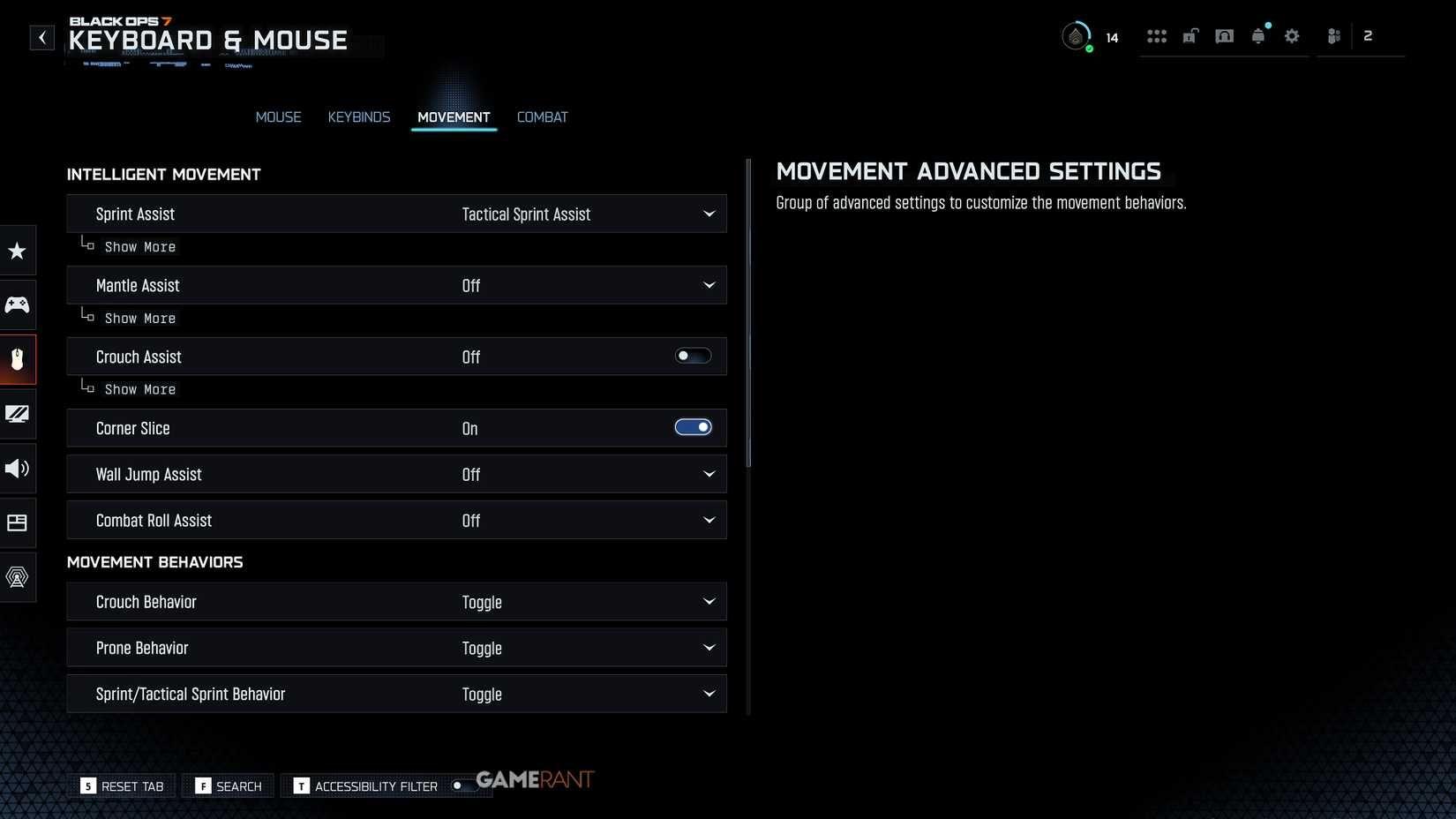
Movement settings प्रभावित करते हैं कि आप gunfights के दौरान कितनी सफाई से navigate कर सकते हैं। Poorly tuned sprinting और mantling अक्सर accidental movements का कारण बनते हैं जिससे खिलाड़ी eliminated हो जाते हैं।
| Category | Setting | Recommended Value |
|---|---|---|
| Sprint Assist | On | Movement को consistent रखता है |
| Sprint Delay | 1 to 2 | Activation पर अधिक control |
| Tactical Sprint Assist | On | Easier tactical sprint access |
| Mantle Assist | Off | Accidental mantling से बचाता है |
| Slide and Dive | Tap to Slide | Faster movement transitions |
Combat Behavior Tweaks
| Category | Setting | Recommended Value |
|---|---|---|
| ADS Behavior | Hold | अधिक responsive |
| Weapon Mount | ADS + Melee | Accidental mount को रोकता है |
| Armor Plate Behavior | Apply One | Multiplayer में Faster plating |
| Equipment Behavior | Hold | Accidental throws को रोकता है |
Keyboard और Mouse Optimization
Mouse users consistent DPI, polling rate और sensitivity से लाभान्वित होते हैं। Smooth micro-adjustments long-range fights के लिए महत्वपूर्ण हैं।
| Category | Setting | Recommended Value |
|---|---|---|
| DPI | 800 to 1600 | Balanced speed और precision |
| Polling Rate | 1000 Hz | Lowest input lag |
| Windows Sensitivity | 6 of 11 | Industry standard baseline |
| Mouse Acceleration | Off | Aim को predictable रखता है |
| In Game Sensitivity | Start Low | Comfort के आधार पर धीरे-धीरे बढ़ाएँ |
अपनी नई Configuration का परीक्षण करना
उपरोक्त tables को लागू करने के बाद, practice range या private match में 15 से 20 मिनट बिताएं। Long-distance tracking, crosshair placement, recoil control और movement transitions का परीक्षण करें। यदि aim off लगता है, तो sensitivity को छोटे increments में adjust करें। यदि game stutters करता है, तो graphic quality या DLSS mode को adjust करें।
Testing के दौरान, इन पर नज़र रखें:
Crosshair control में Consistency
विभिन्न lighting में targets की Visibility
Footsteps और reloads की Clarity
Minimal spikes के साथ Stable FPS
Sprinting और ADS के बीच Smooth transitions
अपने Black Ops 7 अनुभव को optimize करने के बारे में अधिक जानकारी के लिए, हमारे Call Of Duty Black Ops 7 Deep Dive को देखें और आगामी content के लिए नवीनतम Call Of Duty Black Ops 7 Zombies Early Info के साथ अपडेट रहें।
याद रखें, सबसे अच्छी settings वे हैं जो उचित adjustment time के बाद आपको natural लगती हैं। इन recommendations के साथ शुरू करें, फिर अपनी playstyle और hardware के आधार पर fine-tune करें। Proper configuration में निवेश आपके द्वारा खेले जाने वाले हर मैच में dividends का भुगतान करेगा।