
The Skill Builder V2 in The Strongest Battlegrounds on Roblox is one of the most flexible creative tools in any fighting game on the platform. It lets you chain existing moves into entirely custom skills, then layer on animations, visual effects, trails, and props until the result feels completely your own. The catch is that the interface is dense and not exactly self-explanatory the first time you open it. This guide walks through every panel so you know exactly what each setting does before you start building.
How do you access the Skill Builder in The Strongest Battlegrounds?
The Skill Builder is a private server exclusive tool, so you need to be in a private server before anything else works. Once you're in, expand the Settings tool on your screen and navigate to Settings to enable the builder.
Before touching anything else, go into Keybind Settings and adjust the UI scale. The builder panels load very small by default, and bumping up the UI size under the UI section makes every panel significantly easier to read and interact with.
While you're still in Keybind Settings, find the Gauntlet Validator option. Disable it once, then re-enable it. This resets its display state and ensures it shows up correctly when you need it later.
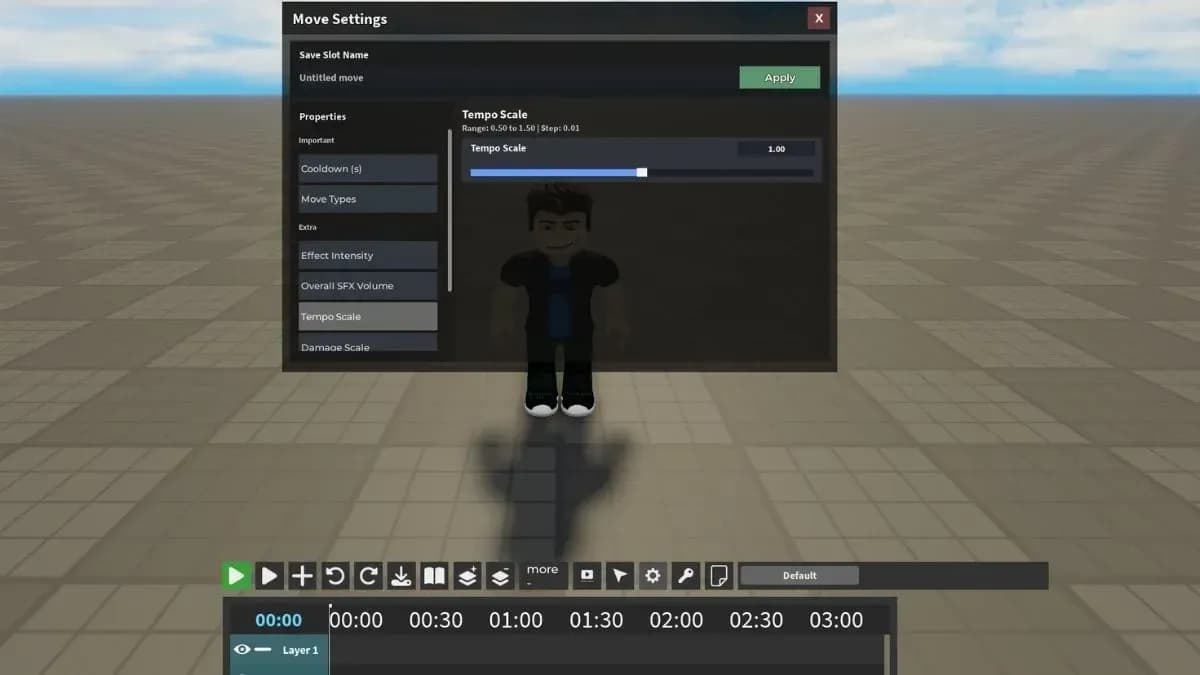
Skill Builder settings panel

How do you configure your skill in the Skill Builder?
The Move Settings panel is where your skill gets its basic identity. You assign a name and a cooldown here, and both fields are required for the skill to function correctly. Skip either one and you'll run into problems when you try to save.
| Setting | What It Does |
|---|---|
| Skill Name | Sets the display name shown for your custom skill |
| Skill Cooldown | Controls how long the cooldown lasts after the skill fires |
Name your skill something recognizable, especially if you plan to build multiple move sets. The cooldown value is where you balance power against availability, so set it deliberately rather than leaving it at default.
How does the Timeline work in the Skill Builder?
The Timeline is the backbone of the entire system. It's a sequence of nodes, and each node represents one step in the skill's execution order. You configure each node independently, which means you can chain completely different moves and animations into a single flowing skill.
| Setting | What It Does |
|---|---|
| Skill | Selects which existing skill plays during that node |
| Animation | Selects the animation that plays during that node |
| Attack Speed | Slider controlling attack speed for that specific node |
| Animation Speed | Slider controlling animation playback speed for that node |
Build your full node sequence before adding visual effects or saving. Trying to add effects to an incomplete timeline just creates extra work when you inevitably rearrange nodes.
Timeline node sequence editor
What are Move Variants and how do you use them?
Move Variants let a single skill behave differently depending on what's happening when the player activates it. Each variant gets its own independent timeline, so you can build and edit them separately without one variant affecting another.
Variants are triggered by four condition types
- Awakening bar: Usage and cost thresholds
- User HP: Health-based triggers
- User state: Whether the player is airborne or grounded
- Movement direction: Back, forward, left, or right
The movement direction and user state variants are the most immediately useful for competitive play. A skill that behaves differently when you're in the air versus on the ground gives you genuine flexibility mid-fight without needing to swap move sets.
How do you add effects to your skill in the Skill Builder?
The Extra panel handles all audio and visual properties for the move. These settings apply across the entire skill rather than to individual timeline nodes, so configure the timeline first and treat this panel as the finishing pass.
| Setting | What It Does |
|---|---|
| Effect Intensity | Controls how loud the move's sound effects are |
| Overall FX Volume | Controls the overall audio volume of the skill |
| Tempo | Controls move speed. Lower values slow it down, higher values speed it up |
| Damage Scale | Adjusts the damage output of the skill |
| Knockback Scale | Adjusts the knockback force applied to enemies |
| Color Effects | Sets a custom color for the skill's visual effects |
Damage Scale and Knockback Scale are the two settings that actually affect how a skill performs in a fight. Everything else is cosmetic.
How do you use Presets in the Skill Builder?
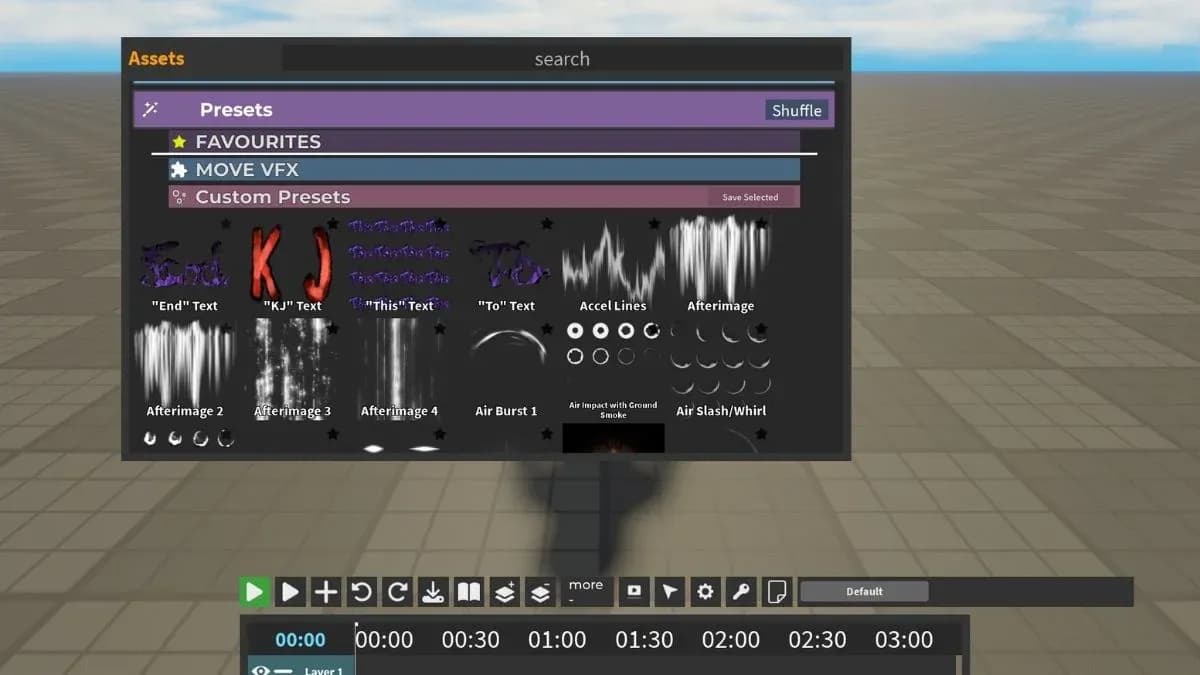
Presets are pre-built assets included with the game that you can load directly into your skill. To access them, go to Load, then navigate to the Presets section. Available preset types include move effects and meshes, and you can click and drag any of them directly into your timeline.
Once placed, each preset is editable. You can adjust its centering, size, color, and other properties to fit your specific move set rather than using it as-is.
How do you add a Trail to your move in the Skill Builder?
Trails create a visual streak that follows a specific body part during your move's execution. Select the Trail option in the builder, then set the attachment point under Position using Humanoid Part, for example the Right Arm. The trail will follow that body part whenever the move plays.
Customization options for trails include:
- Duration: How long the streak lingers after the move completes
- Shape/Size: How wide or large the trail appears
- Color: The trail's visual color
How do you add Props to your move in the Skill Builder?
Props are physical objects that appear during your move's animation, such as a katana. When you spawn a prop, it attaches to a body part automatically based on the prop type. To change the attachment point, go into the prop's settings and select a different body part, then reposition it manually until the alignment looks correct.
Props can attach to any body part including the head, right arm, left arm, or hands. If the positioning is off after attaching, drag the prop manually until it sits where you want it.
How do you validate and save your move in the Skill Builder?
Before saving anything, run the Gauntlet Validator. Click Find Issues and the validator scans your move set for errors, flagging problems like a hitbox that deals no damage or a node missing a hitbox entirely. You can fix each flagged issue directly from the validator without hunting through the timeline manually.
Once the validator shows no issues, the save process is straightforward:
- Go to Save
- Enter a name for your move set
- Click Confirm
After saving, exit the builder and return to the Create menu. Your saved move set appears in the list, where you can equip it and test it against the training dummies.
Save and confirm move set
Frequently asked questions about the Skill Builder
Does the Skill Builder work on console?
No. The Skill Builder does not function correctly on PlayStation or Xbox in its current state. PC is the only platform where it works as intended.
What happens if you save a move set with errors?
The move saves with those errors intact, which causes it to malfunction during use. A skill with no hitbox will play its animation but deal no damage. Run the Gauntlet Validator and click Find Issues before every save.
Can you edit a saved move set after saving?
Yes. Return to the builder, load your saved move set, make your changes, and save again.
The Skill Builder is one of the deeper systems in The Strongest Battlegrounds, and it rewards players who take time to understand each panel before rushing to save. For more Roblox guides covering everything from tower defense tier lists to class-specific strategies, the full collection has you covered. If you play other Roblox fighting or defense games, the Universal Tower Defense tier list breaks down every unit from S to D tier, and the Survive Zombie Arena Bastion class guide covers late-game wave defense in detail.