
Call of Duty: Modern Warfare 4 launches on PS5, Xbox Series X|S, PC, and Nintendo Switch 2 on October 23, 2026, and the default controller settings are not doing you any favors. The gap between a player running defaults and one who has properly tuned their sensitivity, deadzones, and movement options is real and noticeable in gunfights. Here's the short answer: set your sensitivity to 1.65, use Tactical button layout, turn off controller vibration, and enable Sprint Assist with zero delay. Everything else is detailed below.
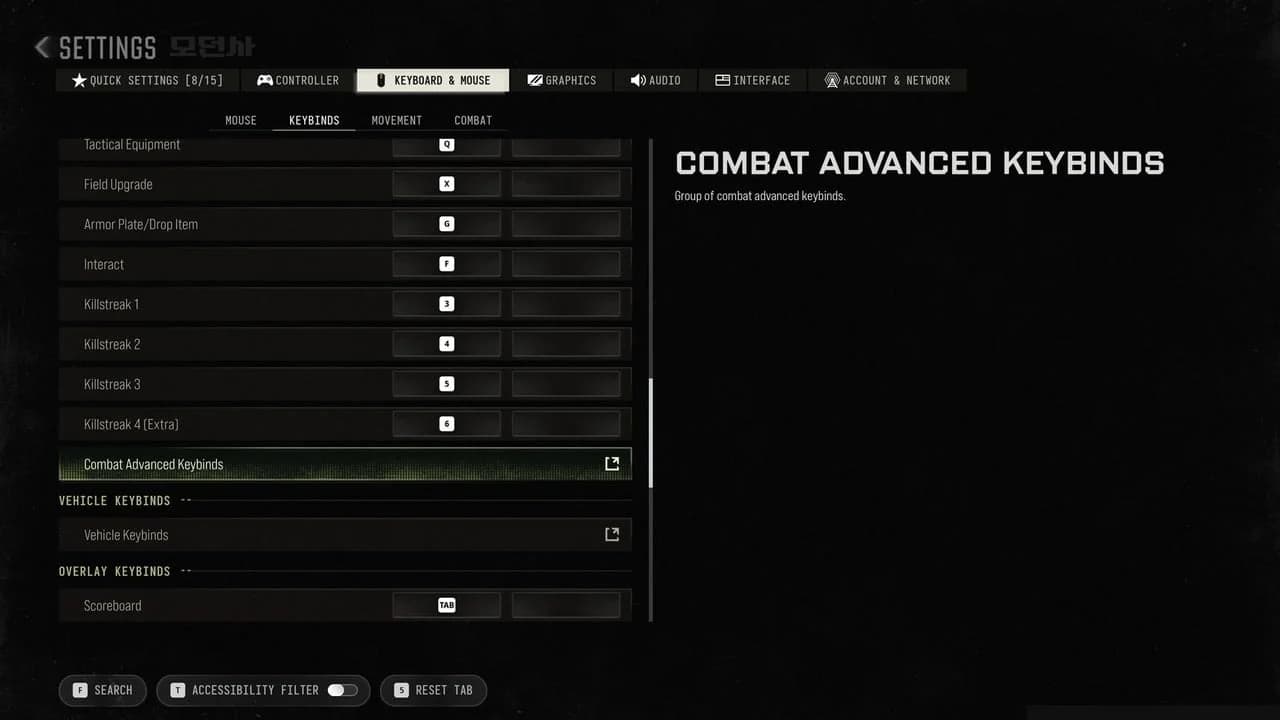
MW4 controller input settings
What are the best MW4 controller settings?
The settings below are drawn from what the majority of the Call of Duty community uses, including both competitive and casual players. They are organized by sub-menu so you can follow along in-game.

Button and stick layout
- Button Layout: Tactical
- Stick Layout: Default
- Horizontal Stick Sensitivity: 1.65
- Vertical Stick Sensitivity: 1.65
- Controller Vibration: Off
The Tactical button layout maps crouch, slide, and dive to the thumbstick click, so your right thumb never has to leave the stick during a fight. If you play on a controller with remappable back buttons, you can leave the layout on Default and assign those actions to the paddles instead.
Controller vibration adds nothing useful in a competitive match. Turn it off.
Deadzone settings
Deadzone inputs control how far you physically move the stick before the game registers input. Lower values mean faster response, but too low and you get stick drift.
- Left Stick Min: 3 (raise this if you see stick drift)
- Left Stick Max: 65
- Right Stick Min: 3 (raise this if you see stick drift)
- Right Stick Max: 99
- Left Trigger: 5
- Right Trigger: 5
MW4 includes a Test Stick Deadzone feature in the settings. Use it. The test shows you a number representing your controller's natural drift. Set your minimum deadzone one point above that number, then test again to confirm drift is gone.
The mistake most players make is leaving deadzones at default, which is usually set too high. Lowering them makes your aim feel noticeably more responsive.
What are the best aiming settings in MW4?
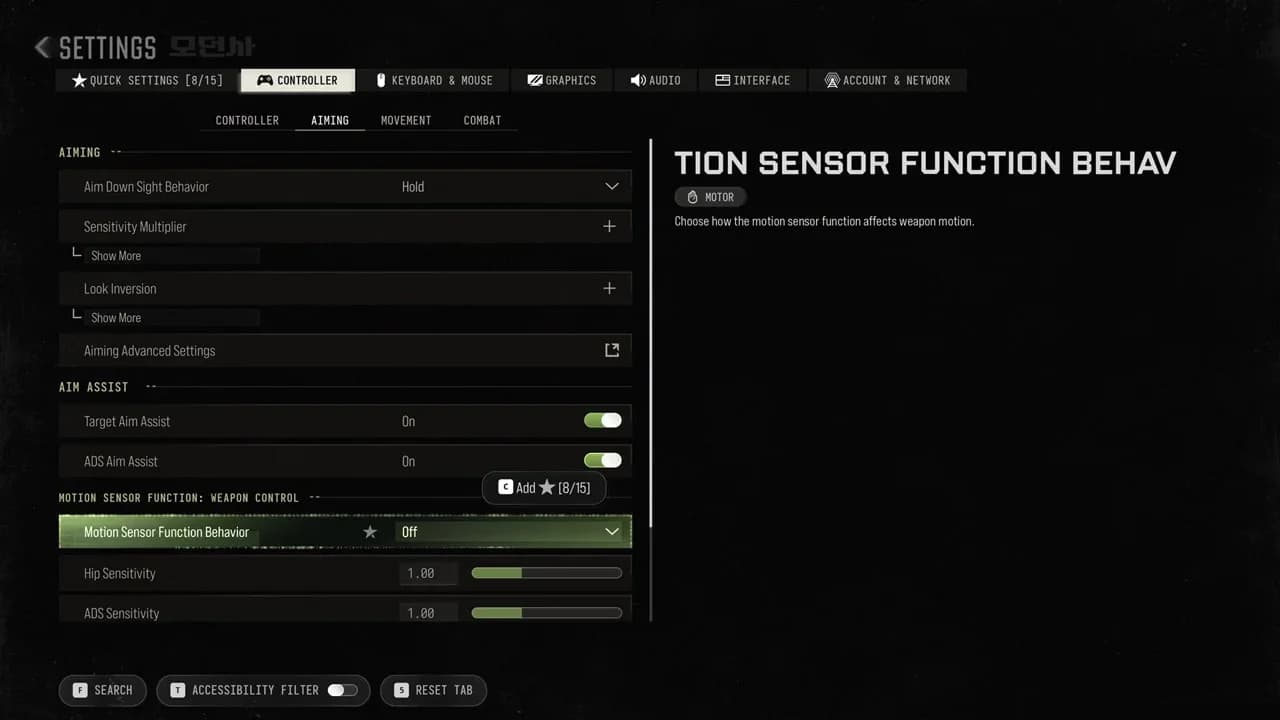
MW4 ADS and aim assist options
ADS sensitivity and aim assist
- ADS Sensitivity Multiplier: 0.95
- ADS Sensitivity Transition Timing: Instant
- Aim Response Curve Type: Dynamic
- Custom Sensitivity Per Zoom: Off
- Target Aim Assist: On
- ADS Aim Assist: On
- Motion Sensor Function Behavior: Off
The ADS Sensitivity Multiplier at 0.95 keeps your aim slightly slower than your base sensitivity when you're scoped in, which helps with tracking targets at medium range without overcorrecting. Setting the transition timing to Instant means there's no delay between hip fire and ADS sensitivity, so your aim snaps to the correct speed the moment you press the aim button.
Dynamic aim response curve front-loads the sensitivity, meaning small stick movements produce bigger initial camera movement. This is the preferred curve for most Call of Duty players because it makes flicking to targets feel natural.
What are the best movement settings for MW4?
Intelligent movement and behaviors
- Sprint Assist: On
- Sprint Assist Delay: 0
- Mantle Assist: Off
- Corner Slice: Off
- Slide/Dive Behavior: Tap to Slide or Hybrid
- Automatic Airborne Mantle: Partial
- Slide Maintains Sprint: On
Advanced movement
- Sprint/Tac Sprint Behavior: Toggle
- Auto Move Forward: Off
- Auto Door Peek: Off
- Grounded Mantle: Off
- Tactical Sprint Activation: Single Tap Run
Sprint Assist with zero delay keeps you at full speed without needing to manually push the stick to sprint every time. Slide Maintains Sprint means you come out of a slide still sprinting, which is important for chaining movement without losing momentum.
Corner Slice tilts your weapon when you approach a wall. It is harmless but some players find it distracting, particularly when peeking angles. Off is the safer default.
For Slide/Dive Behavior, Tap to Slide is the most responsive option for slide-cancel style movement. Hybrid works if you regularly use both mechanics.
Best combat settings
- Aim Down Sight Behavior: Hold
- Weapon Mount Activation: Off
- Dedicated Melee Weapon Activation: Hold Melee
- Armor Plate Behavior: Apply All
- C4 Detonation Activation: One by One
- Equipment Behavior: Hold
- Manual Fire Behavior: Press
Apply All for armor plates is the right call in most situations since you want full armor before a fight, not a partial plate. One by One for C4 gives you control over detonation timing, which matters when you have multiple charges placed.
Settings comparison: default vs. recommended
| Setting | Default | Recommended | Why it matters |
|---|---|---|---|
| Horizontal Sensitivity | 1.00 | 1.65 | Faster target acquisition |
| Vertical Sensitivity | 1.00 | 1.65 | Matches horizontal for consistency |
| ADS Sensitivity Multiplier | 1.00 | 0.95 | Tighter control when scoped |
| Controller Vibration | On | Off | Removes input interference |
| Left Stick Min Deadzone | 5 | 3 | More responsive stick input |
| Sprint Assist | Off | On (0 delay) | Constant mobility |
| Aim Response Curve | Standard | Dynamic | Better flick response |
| ADS Transition Timing | Gradual | Instant | No delay between hip and ADS |
Graphics and audio settings worth changing
Settings don't stop at the controller tab. A few graphics and audio changes have a direct impact on how well you play.
Graphics (console):
- World Motion Blur: Off
- Weapon Motion Blur: Off
- World Depth of Field: Off
- Weapon Depth of Field: Off
- Field of View: 90 to 120 (test what feels right; 105 is a common starting point)
- ADS Field of View: Affected
- FidelityFX CAS: On, strength between 50 and 80
Motion blur and depth of field are cinematic effects. They look good in trailers and actively hurt your ability to track targets during fast movement. Turn them off.
Audio:
- Master Game Volume: 100
- Effects Volume: 100
- Gameplay Music Volume: 25 to 30
- Dialogue Volume: 80 to 100
- Audio Mix: Headphones or Home Theater depending on your setup
- Mono Audio: Off
The effects volume covers footstep audio. Keep it at 100. Mono audio collapses the stereo field, which makes directional sound harder to read. Leave it off.
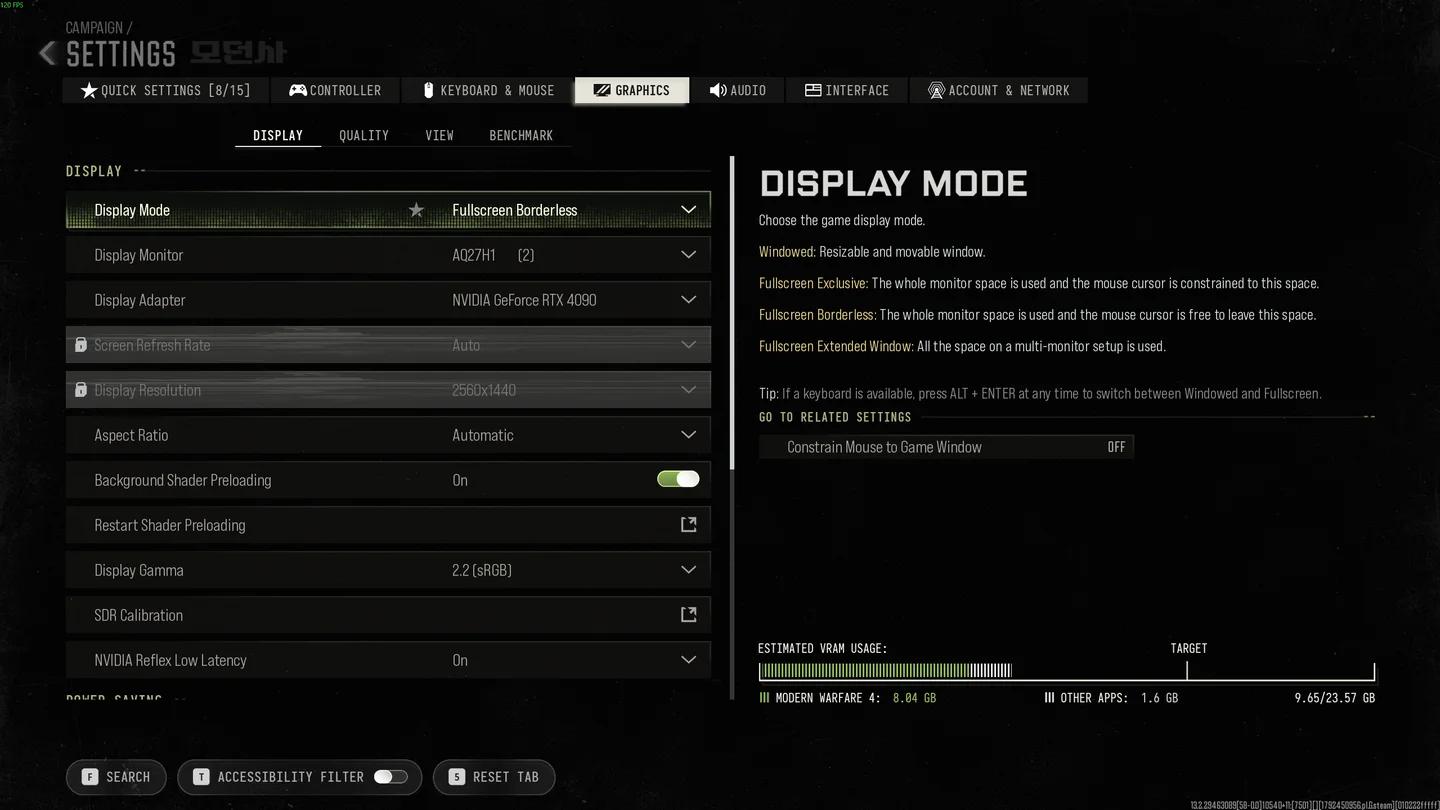
MW4 graphic settings for competitive play
Common mistakes players make with controller settings
- Leaving deadzones at default: Most controllers drift slightly. Skipping the deadzone test means you're fighting ghost inputs you can't see.
- Using Standard aim response curve: Dynamic is objectively more useful for flick shots and target tracking in MW4's pace of play.
- Keeping vibration on: Vibration creates micro-interruptions in your grip during feedback events. It adds nothing to gameplay performance.
- Setting sensitivity too high too fast: 1.65 is a solid starting point, but jumping to 2.0 or higher without adjustment time will hurt your accuracy before it helps.
- Ignoring the FOV setting: A wider field of view shows you more of the map and helps spot flanks earlier. The default is too narrow for competitive play.
Frequently asked questions
What sensitivity should I use in MW4? A horizontal and vertical sensitivity of 1.65 is the most widely used starting point among competitive and casual players. It balances turning speed with precision. Adjust from there based on your comfort.
Should I use aim assist in MW4? Yes. Keep both Target Aim Assist and ADS Aim Assist enabled. They provide the target tracking and slowdown behavior the game is balanced around for controller input.
What is the best slide setting in MW4? Tap to Slide is the most responsive option and works well for quick movement. Hybrid is a reasonable alternative if you regularly use both slide and dive.
Does FOV affect performance on console? Higher FOV settings can reduce frame rate slightly on some hardware. On PS5 and Xbox Series X with 120Hz enabled, the impact is minimal at settings between 90 and 110.
What button layout do most players use? Tactical is the most popular layout for standard controllers because it frees your right thumb to stay on the stick during crouch and slide actions. Players with remappable back buttons often use Default and assign those actions to paddles instead.
For more on what MW4 has to offer across all its modes, check out the full Call of Duty: Modern Warfare 4 guides collection for everything from map breakdowns to game mode explanations.