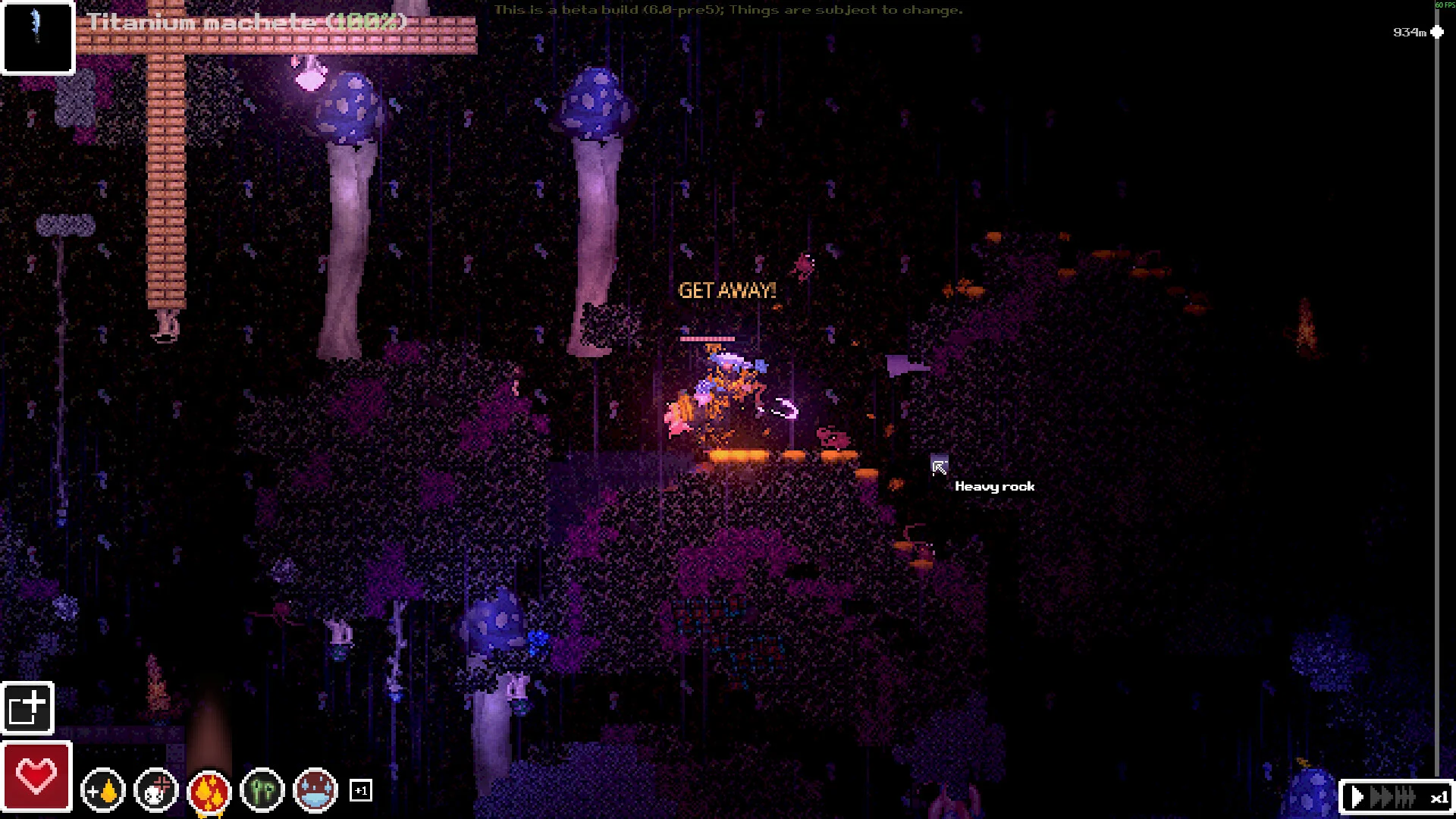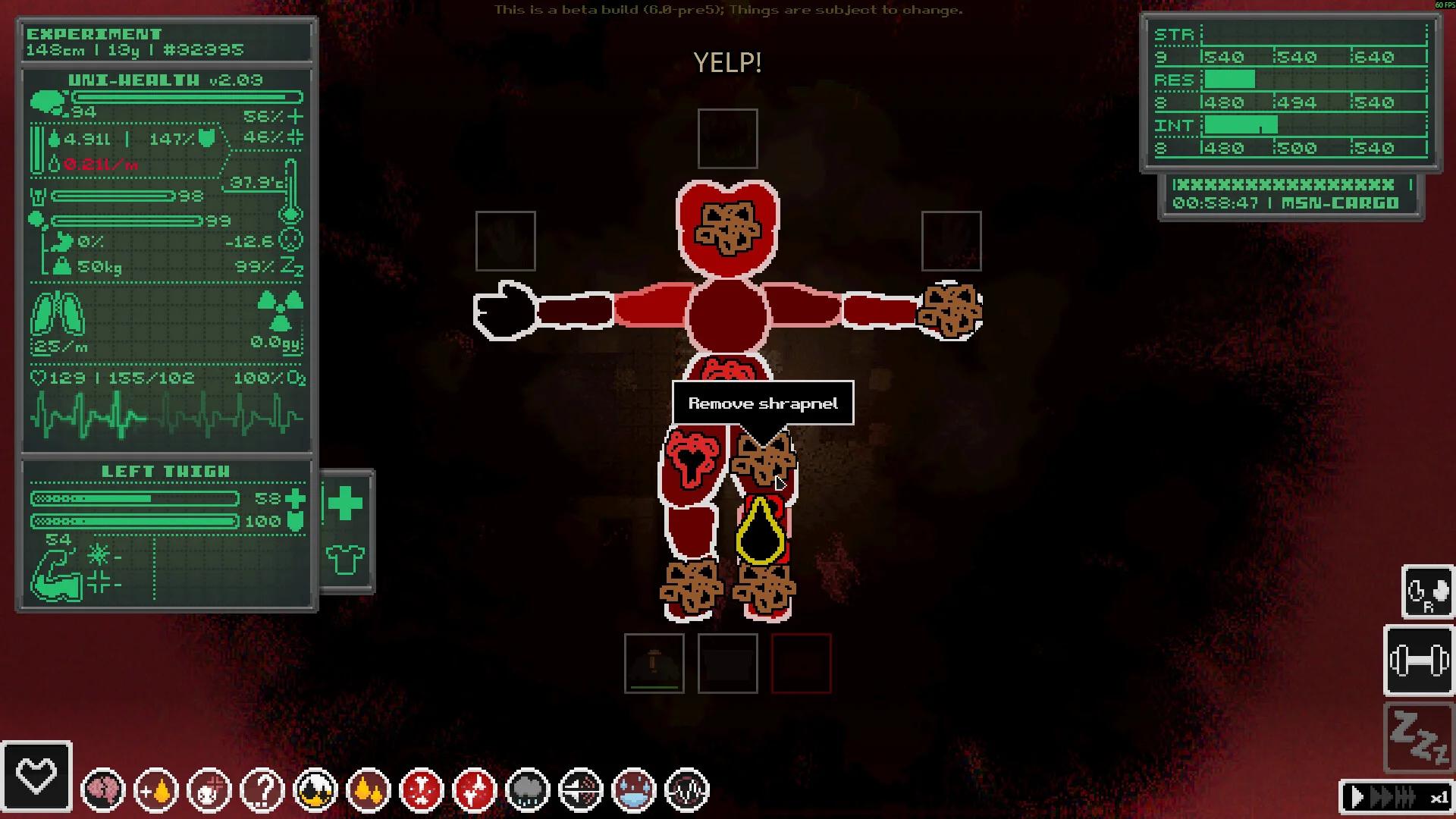

For Casualties: Unknown, start with default performance fixes, keep line-of-sight updates every frame, and preserve original physics for readable caves.
These recommendations use optional BepInEx mods, not a built-in graphics preset. Comforts Unknown: Performance is the recommended starting point because its default fixes target unnecessary work without intentionally reducing visual quality. Performance Unknown offers a separate approach, with controls added to the game's Video Settings menu through ScavSetLib. Start with one optimization mod so you can judge each change clearly, then adjust the settings that match your particular slowdown.
Establish a PC performance baseline
Separate consistently low FPS from short stutters before changing anything. A slowdown with a packed inventory open points toward different work than a hitch when a sound first plays. Your first test should include both ordinary exploration and the activity that causes trouble.
Keep display and resolution settings fixed
Keep your current display resolution unchanged during the first comparison. Changing resolution alongside simulation or line-of-sight settings makes it harder to identify which adjustment helped.
Use the same layer and a repeatable route for each pass. Sandbox is one option for a repeatable gameplay comparison; avoid comparing a quiet area with a crowded scene and treating the difference as a settings result.
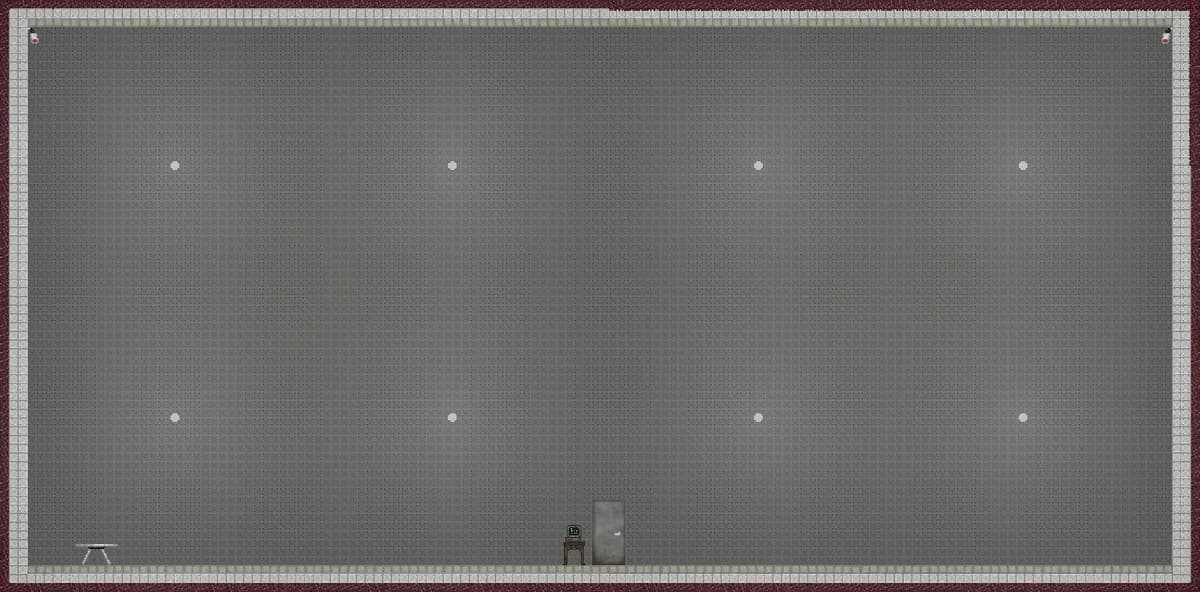
Sandbox gameplay environment
Record three observations:
- Sustained performance: Does movement remain smooth through the route?
- Short hitches: Do pauses appear when opening inventory, crafting, or hearing a sound for the first time?
- Readability: Do dark boundaries keep up with movement, and do loose objects behave normally?
Choose your optimization approach
| Mod | Main approach | Best reason to choose it |
|---|---|---|
| Comforts Unknown: Performance | Skips unnecessary updates, reuses temporary data, and offers optional trade-offs | Start with its default fixes, then add selective compromises if needed |
| Performance Unknown | Adjusts line-of-sight work, particle limits, physics solving, and memory cleanup | Use clearly named controls integrated into Video Settings through ScavSetLib |
Both address overlapping parts of the game. Make the first comparison with one installed so a changed result has a clear cause.
Install and verify your chosen mod
Recommended setup: Comforts Unknown: Performance
This setup requires Casualties: Unknown on Windows and BepInEx 5. Use the x64 build of BepInEx.
- In your Steam library, right-click Casualties: Unknown, then select Manage and Browse local files.
- Extract BepInEx into the game folder. Confirm that the folder contains BepInEx and winhttp.dll.
- Start the game once, then close it so BepInEx can create its folders.
- Extract the performance mod and copy its ComfortsUnknown.Performance folder into BepInEx\plugins.
- Launch the game and look for the green Comforts Unknown: Performance version text on the main menu.
The green main-menu label verifies that the mod loaded, unless its menu-label option has been disabled.
If the label is missing, check that the folder is exactly BepInEx\plugins\ComfortsUnknown.Performance. If F3 or F4 does nothing, open BepInEx\config\BepInEx.cfg, find HideManagerGameObject in the Chainloader section, set it to true, and restart.
Alternative setup: Performance Unknown
Performance Unknown requires BepInEx 5.x or later and ScavSetLib 1.0.0 or later. Install ScavSetLib in BepInEx\plugins, then place UnknownPerformance.dll in that folder.
Its controls appear inside the game's Video Settings menu and can be changed without restarting. These are mod-added controls, even though they sit inside the native menu.
Graphics options to adjust first
Best starting settings for Comforts Unknown: Performance
Leave the default performance fixes enabled. They include skipping lights that cannot reach the screen, avoiding unnecessary inventory-description rebuilds, and moving memory cleanup to quieter moments. These target wasted work before asking you to sacrifice presentation or simulation quality.
Use the following profile for the optional settings:
| Setting | Recommended starting value | Trade-off or condition |
|---|---|---|
| Pause far-away areas | Off for the baseline; try Careful next in solo play | Careful retains a buffer outside the screen; Aggressive keeps a smaller active area |
| Line of sight redraw | Every frame | Applies to unchipped play; longer intervals can make dark edges lag during movement |
| Blood stain limit | Unlimited initially; try 100 in blood-heavy scenes | Removes the oldest stains early when the limit is exceeded |
| Load sounds while loading | Leave unchanged initially | Enabling it can address first-play sound hitches, but increases loading time and memory use |
| Physics precision | Original | Medium and Low can make ragdolls, limbs, and items jitter or behave oddly |
Careful is the first off-screen trade-off to try. Its buffer allows nearby activity to resume before it enters view. Off-screen threats that can still reach you, including turrets and sound cannons, remain active, as do machines such as pumps and recharging stations.
Pause far-away areas switches itself off while Casualties: Together is active. The separate Skip idle updates optimization also works only in solo play, so solo and co-op results need separate comparisons.
A blood-stain cap is situational. It helps when many stains are present; it will not address an otherwise empty scene. Keep it separate from physics tuning when testing so you can identify the useful change.
Best starting settings for Performance Unknown
Use this table only if you chose Performance Unknown instead:
| Setting in Video Settings | Recommended starting value | When to adjust it |
|---|---|---|
| LOS Refresh Interval | Every Frame | Try Every 2 Frames (Fast) if line-of-sight processing remains a performance problem |
| Splatter Particle Cap | 100 (Balanced) | Try 50, then 25, if effects-heavy scenes cause drops |
| Physics 2D Solver Quality | High (Default) | Try Medium (Optimized) only after checking less disruptive settings |
| GC Memory Sweeper | Enabled | Keep memory-cleanup optimization active while comparing other controls |
Performance Unknown's particle cap covers visual splatters, dust, debris, and explosions. It is not the same control as Comforts Unknown's blood-stain limit, so do not treat matching numbers as matching visual results.
Improve cave visibility without sacrificing responsiveness
Keep darkness updates responsive
For cave readability, prioritize how quickly dark boundaries respond when you move. In unchipped play, Comforts Unknown's Faster line of sight optimization redraws darkness when movement or another relevant event requires it. Keeping Line of sight redraw at every frame preserves the most responsive setting while retaining that optimization.
The Gravel Lands are a useful place to examine the relationship between movement and dark boundaries. Look at terrain edges during exploration, not just the FPS number while standing still.
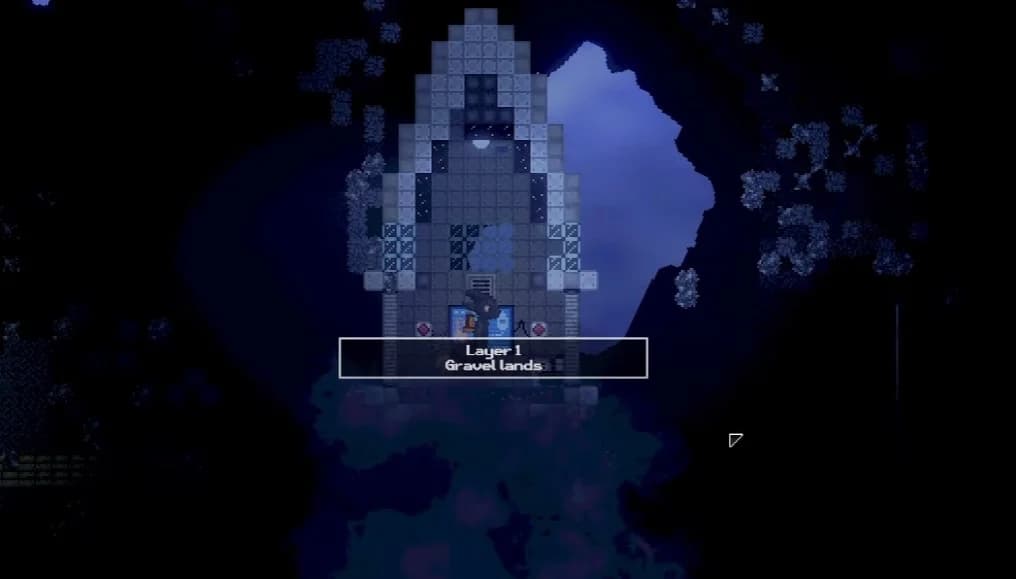
Gravel Lands gameplay environment
Increasing Comforts Unknown's redraw interval to every two, three, or four frames can make dark edges trail behind movement. The effect becomes more noticeable at low FPS or when moving quickly. If you're struggling with cave readability, restore every-frame redraws before reducing physics precision.
These refresh controls change when darkness updates, not brightness. Treat them as responsiveness settings, not a way to illuminate the cave.
Preserve physics before chasing a higher counter
Keep Physics precision at Original in Comforts Unknown, or Physics 2D Solver Quality at High in Performance Unknown, while testing the other changes. A higher FPS reading is a poor trade if limbs and dropped items become harder to read because their simulation looks unstable.
If performance remains unacceptable, reduce physics by one step and repeat the crowded-scene test. Check object movement as carefully as frame rate before keeping the change.
Test settings during gameplay
Compare the same workload
Comforts Unknown provides a performance overlay on F3, including FPS, recent frame graphs, memory-cleanup activity, and enabled options. Use it to distinguish sustained slowdowns from isolated spikes.
Return to the same layer for each pass. Dried Desert is another documented gameplay environment you can use for a consistent comparison once you reach it.
Follow this sequence:
- Explore the same route. Include movement near dark boundaries and several direction changes.
- Open a populated inventory. Check whether the slowdown appears while viewing items or hovering over descriptions.
- Open and use the crafting list. Include a search or refresh if that normally causes a hitch.
- Check a crowded scene. Watch NPCs, loose items, ragdolls, and effects, not just the counter.
- Change one setting and repeat. Keep the route and activity as similar as practical.
Use the toggle to check the result
With Comforts Unknown, F4 switches all performance fixes and trade-offs on or off. Use it for an on/off comparison under a similar workload. That temporary switch is not saved, so your configured settings return after restarting.
Keep a change when it improves the troublesome scene without making cave boundaries lag or physics harder to read. If an adjustment only helps during heavy splatter, use a stain or particle cap. If the problem is a first-play sound hitch, consider sound preloading and accept its loading-time and memory costs. Match the setting to the slowdown instead of lowering every option.