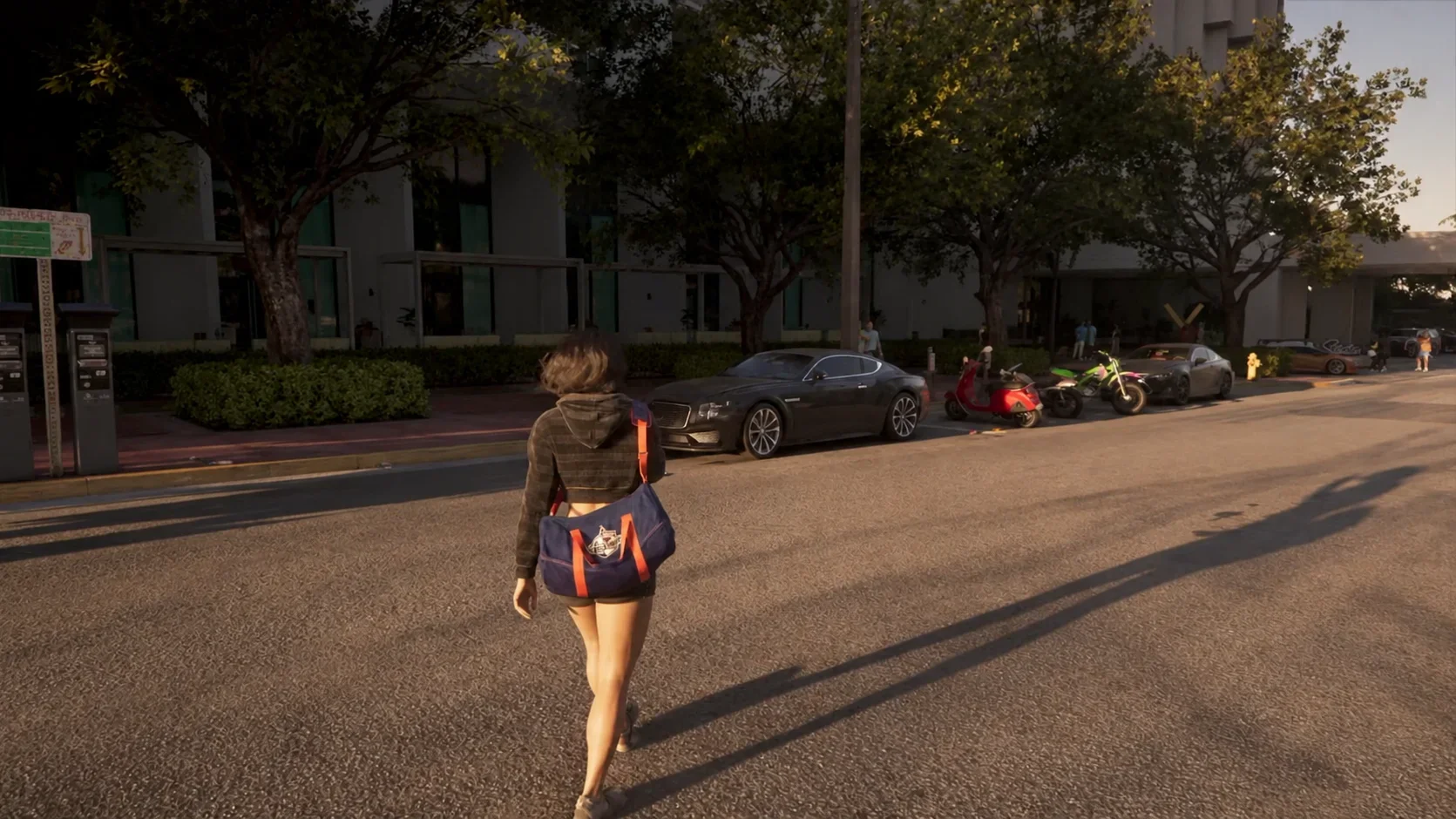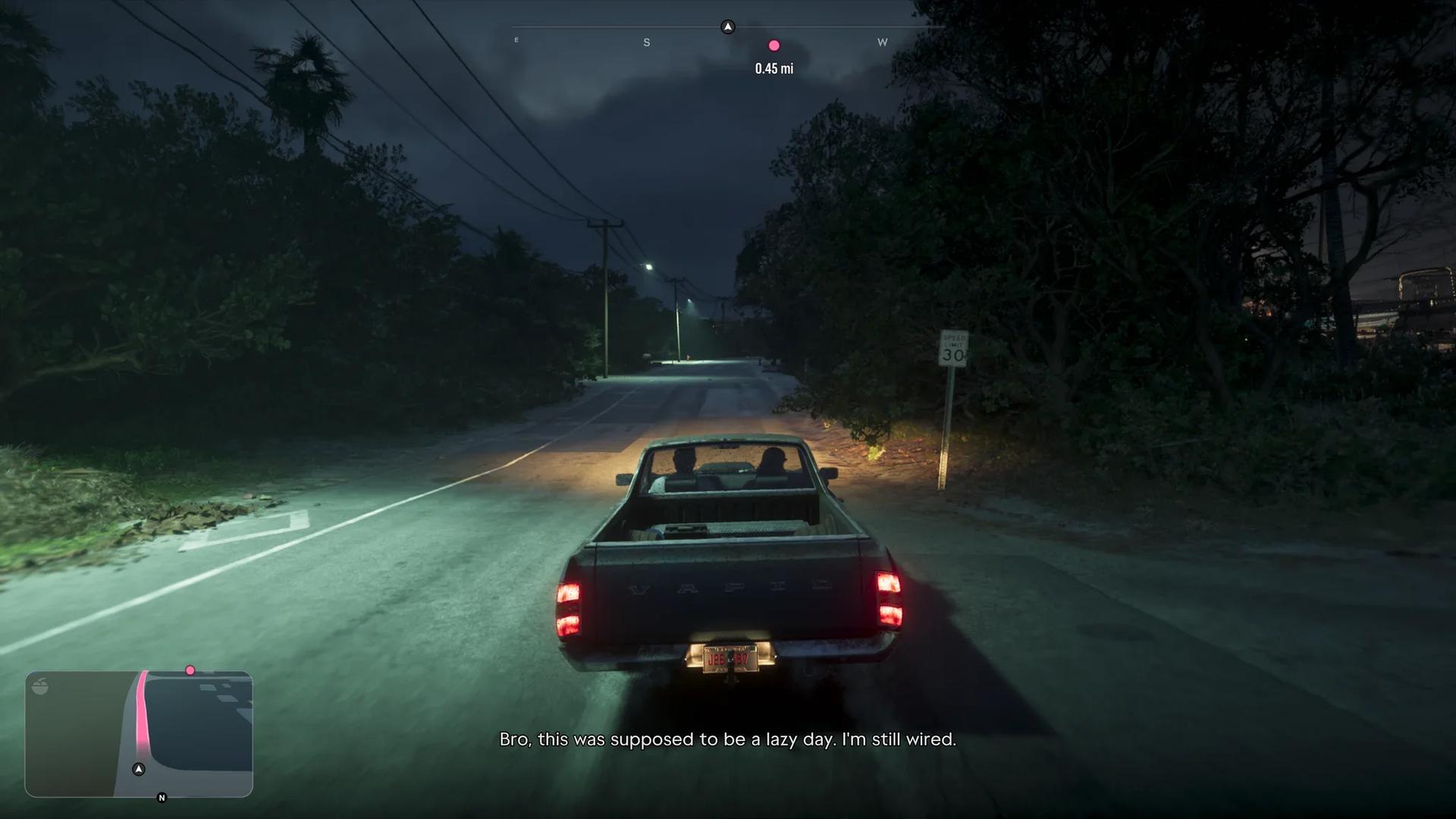

You can do much more than drive and shoot from vehicles in Grand Theft Auto 6. You can duck while driving, strike motorcycle riders with a car door, push cars manually, anchor boats, and even move personal vehicles between Jason and Lucia.
Many of these features are hidden behind vehicle menus or specific button inputs. Here's a breakdown of the different vehicle actions, including how to access each one and when to use it.
Vehicle and Audio Menu
Hold while using a vehicle to open three categories: , , and . This menu combines audio options with mechanical controls, making it the starting point for adjusting your ride.
| Category | What You Can Control | Available Actions |
|---|---|---|
| In-game radio stations | Change the station or music | |
| Podcasts featuring in-game characters | Listen to conversations and commentary | |
| Controls for your current vehicle | Adjust mechanical and body options |

Camera and Travel Options
Hold to access another set of actions, including camera modes, destinations, , and .
These options are separate from the vehicle toggles, so opening the audio menu won't put every driving feature in front of you. Use the destination and driving options when planning a journey, or switch camera modes when you want a different view of your vehicle and surroundings.
Boats also support different camera modes and auto-drive.
Opening and Closing a Car's Roof
Open the category to find the roof controls. Depending on the car, you can operate a compatible convertible roof or sunroof.
Not every vehicle supports this feature, so the available option depends on the car you're driving.
Rolling Down Car Windows
You can roll down the windows through the menu while driving a compatible car.
Motorcycles don't have window controls, so this interaction is limited to supported cars.
Opening a Car's Trunk
Select the trunk option from the menu to open it without leaving the driver's seat.
You don't need to get out and walk around to the rear of the vehicle just to access the trunk.
Changing Headlight Settings
The menu lets you adjust your headlights. Available settings include high-beam, low-beam, and automatic lighting.
Motorcycles also have headlight controls, although their available options differ from cars.
Turning On Hazard Lights
You can switch on your vehicle's hazard lights through the menu.
This option is available for both cars and motorcycles.
Turning the Engine On and Off
Open the category to switch your engine on or off.
This is useful when you want to stop the engine without leaving the vehicle. Remember that the engine must be off before you can open a car's hood.
Using Turn Signals
Turn signals use direct button inputs rather than the vehicle menu.
While driving, tap or to activate the corresponding indicator. Make sure to tap rather than hold the button, since holding opens the vehicle and audio menu instead.
Ducking While Driving
Hold on PlayStation or on Xbox while driving to duck.
Jason or Lucia lowers their body inside the car, giving you a defensive action during vehicle shootouts without having to stop and exit.
Hitting Motorcycle Riders With a Car Door
You can open the driver's door while driving to strike nearby characters, including motorcycle riders.
Tap on PlayStation or on Xbox to open the door. Position the driver's side of your car beside the target to make contact and knock them down.
Leaving Your Car's Engine Running
You can leave the engine running when getting out of a vehicle.
On PlayStation, double-tap when exiting the car. This is useful when you plan to return to the same vehicle shortly, since you won't need to start the engine again before driving away.
Pushing and Shoving Cars Manually
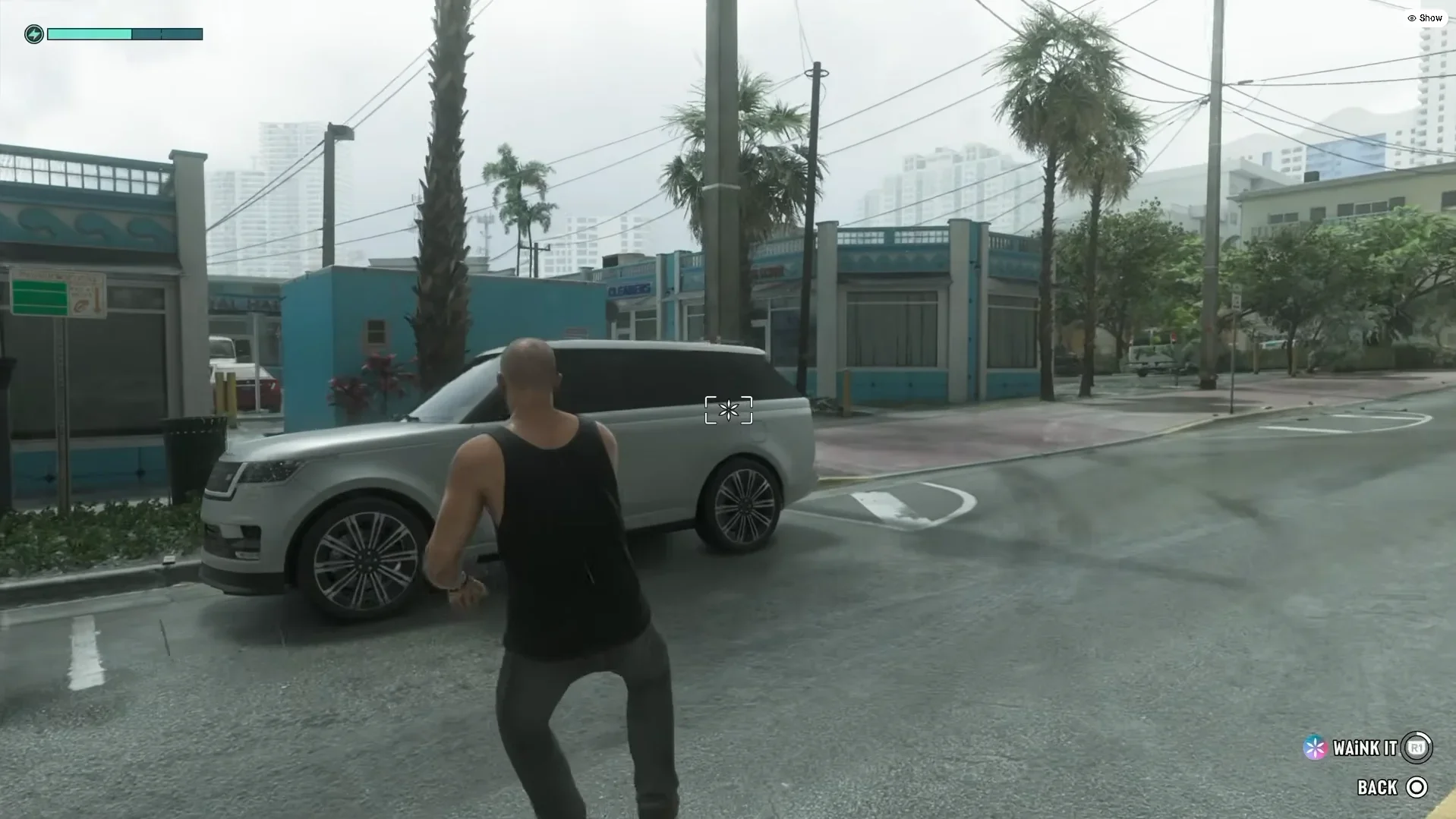
Jason can move a car manually without getting into the driver's seat. This is useful when you only need to reposition a vehicle a short distance.
Use these PlayStation inputs:
- Get out of the car and walk to its rear.
- Walk into the vehicle while holding to push it.
- Hold to shove it.
Pushing and shoving are on-foot interactions. The shove uses the same face button that opens the driver's door while driving, but the action depends on whether you're inside or outside the vehicle.
Opening a Car's Hood and Checking Its Performance
You can open a car's hood to view its performance ratings. The display includes speed, acceleration, asphalt handling, off-road handling, strength, and an overall vehicle rating.
Jason's '70 Ganado provides one example of the separate attributes shown in this display:
| Attribute | Displayed Value |
|---|---|
| Speed | 5.2 |
| Acceleration | 5.8 |
| Asphalt handling | 5.6 |
| Off-road handling | 4.5 |
| Strength | 3.0 |
Use the separate handling figures when comparing Grand Theft Auto 6 vehicle classes for road driving or trips away from the asphalt. The display lets you compare more than a vehicle's name and manufacturer before deciding what to drive.
Anchoring a Boat
Boats have an option in the menu. Use it to keep your boat stable while you leave it to dive for underwater loot.
Anchoring is different from simply switching off the engine. It helps keep the boat in place while you're exploring underwater.
Changing a Boat's Underglow
Boats also have an option in the menu.
You can switch it on for nighttime lighting or turn it off while evading police. This is separate from the boat's headlights and engine controls.
Transferring Personal Vehicles Between Jason and Lucia
Jason and Lucia can each have one personal vehicle at a time. Cars stored in the garage aren't assigned to either character, allowing you to move a personal car between them through the app.
There isn't a direct ownership-transfer button. Instead, you need to register a replacement vehicle with the current owner before requesting the original car with the other character.
Transferring Jason's Car to Lucia
- Play as Jason, who currently owns the car.
- Register a different car to him. This becomes his new personal vehicle, while his previous car moves into the garage.
- Switch to Lucia.
- Open the app and request the desired car from the garage list.
- Once delivered, the car becomes Lucia's personal vehicle.
You can reverse the process to transfer Lucia's car to Jason. Register a replacement vehicle with Lucia, switch to Jason, and have him request her previous car through .
The section marks personal cars with for Lucia and for Jason, making it easier to identify which character currently owns each vehicle.
Renaming a Transferred Vehicle
A transferred car may still display its previous owner's name when you enter it.
To change the label, open , select the vehicle, and use the rename option to give it a new name.