
To stream Grand Theft Auto 6 on YouTube, use PS5's built-in Broadcast feature or connect your console to a computer through a capture card.
Direct PS5 broadcasting is the simpler starting point. A computer-based setup suits custom scenes, alerts, and more audio control, and can broadcast footage from a PS5 or Xbox. Prepare your YouTube channel before configuring either route, then check the recorded picture and sound before committing to a long stream.
What you need to stream
For direct broadcasting, you need a PS5 or PS5 Pro, a copy of the game, a PlayStation Network account, a stable internet connection, and a YouTube channel with live streaming enabled.
A headset or microphone adds commentary. The PlayStation HD Camera is optional for a facecam; gameplay-only broadcasting does not require one.
| Setup | Additional equipment | Main advantage | Main trade-off |
|---|---|---|---|
| PS5 directly to YouTube | No computer or capture card | Fewer devices and built-in broadcast controls | Less customization than desktop streaming software |
| PS5 through a computer | Capture card, compatible computer, and streaming software | Custom scenes, alerts, and audio controls | More connections and settings to manage |
| Xbox through a computer | Capture card, compatible computer, and streaming software | Sends Xbox gameplay to YouTube through the computer | Requires a separate capture workflow |
Use wired Ethernet where practical. It can provide a steadier connection than Wi-Fi, particularly during longer broadcasts. For a computer-based setup, the computer also needs to handle your chosen streaming software and broadcast settings.

How to link your YouTube account
Enable live streaming first
Verify your YouTube channel and enable live streaming in YouTube Studio before attempting the console connection. YouTube's requirements include being at least 16 years old and having no live-streaming restrictions on the channel during the preceding 90 days.
Linking an account to PlayStation does not replace YouTube's channel activation requirements. Complete both parts before troubleshooting the console's broadcast options.
Connect YouTube to your PS5
On your console:
- Open Settings.
- Select Users and Accounts.
- Open Link with Other Services.
- Choose YouTube.
- Follow the on-screen sign-in and authorization instructions.
- Complete any additional verification requested.
The linked service should appear as connected when you select it for broadcasting. You can also begin account linking during your first broadcast setup.
How to start a console broadcast
Launch the game before opening the broadcasting controls. The PS5 handles this route without a separate streaming application.
- Press the DualSense controller's Create button.
- Select Broadcast.
- Choose YouTube as the destination.
- Enter your stream title and other broadcast information.
- Open Broadcast Options to review microphone, camera, and party-audio choices.
- Select Go Live.
Use a title that describes the session, such as “Grand Theft Auto 6 First Playthrough” or “Grand Theft Auto 6 Vice City Exploration.” Avoid promising a walkthrough if you are still discovering the mission yourself.
Manage or end the stream
The Broadcast card in the Control Centre lets you monitor viewer numbers, manage microphone settings, and end the broadcast. Viewer comments can appear on-screen, and Chat to Speech can read messages aloud in supported languages.
You can pause a broadcast when stepping away. During the pause, the camera feed is put on hold and broadcast audio is muted. Use the broadcast controls to end the session when you finish.
How to stream through a PC or laptop
In a Grand Theft Auto 6 capture-card setup, the console runs the game while the computer receives its picture and sound and sends the broadcast to YouTube. Using a computer this way is separate from running a PC version of the game.
The capture card passes the console signal to your television or monitor and makes it available to streaming software. Connect any desktop microphone or webcam to the computer when using this route.
Connect the equipment and software
- Connect the console's HDMI output to the capture card's input.
- Connect the card's display output to your television or monitor.
- Connect the capture card to the computer using the connection required by the device.
- Open streaming software such as OBS Studio and add the capture card as a source.
- Select YouTube as the broadcast destination and complete the software's account connection process.
- Configure your scene, microphone, and optional webcam, then check the preview before starting the stream.
Make sure the capture source includes the game sound as well as the picture. A visible preview alone does not check the audio portion of your setup.
Choosing streaming software and settings
Use the controls your stream needs
Stay with native PS5 broadcasting if you want gameplay, commentary, and an optional facecam with minimal setup. Use OBS Studio with a capture card when you need custom scene layouts, alerts, multiple camera sources, or more detailed audio management.
For the native route, open Settings > Captures and Broadcasts > Broadcasts. This area contains video-quality, microphone, party-audio, camera-positioning, and overlay options.
Choose settings by checking the output you actually record or broadcast:
- Video quality: Check whether small game text remains readable at your selected broadcast quality.
- Microphone: Listen for clear commentary against dialogue, vehicles, and other game sounds.
- Camera: Check its position during different activities, not just while standing still.
- Audio sources: In OBS Studio, keep microphone, game audio, voice chat, and added music separate where your setup allows it, especially if you plan to edit recordings.
Separate audio sources give you more control during editing. They do not make copyrighted music safe to include in the live broadcast.
Set the game category and preserve the HUD
In YouTube Studio's stream settings, select Gaming and enter Grand Theft Auto VI as the game title. Update the category if you switch to a different game during the same session.
Keep the game image uncropped. The minimap, wanted stars, interaction prompts, objective text, and subtitles help viewers follow what is happening. No facecam corner is guaranteed to stay clear because different activities can display different information.
Record a short test that includes driving, an interaction, and a police encounter or race if available. Replay it at your intended broadcast resolution with alerts enabled, and inspect the corners, right edge, and bottom-center text for overlap.
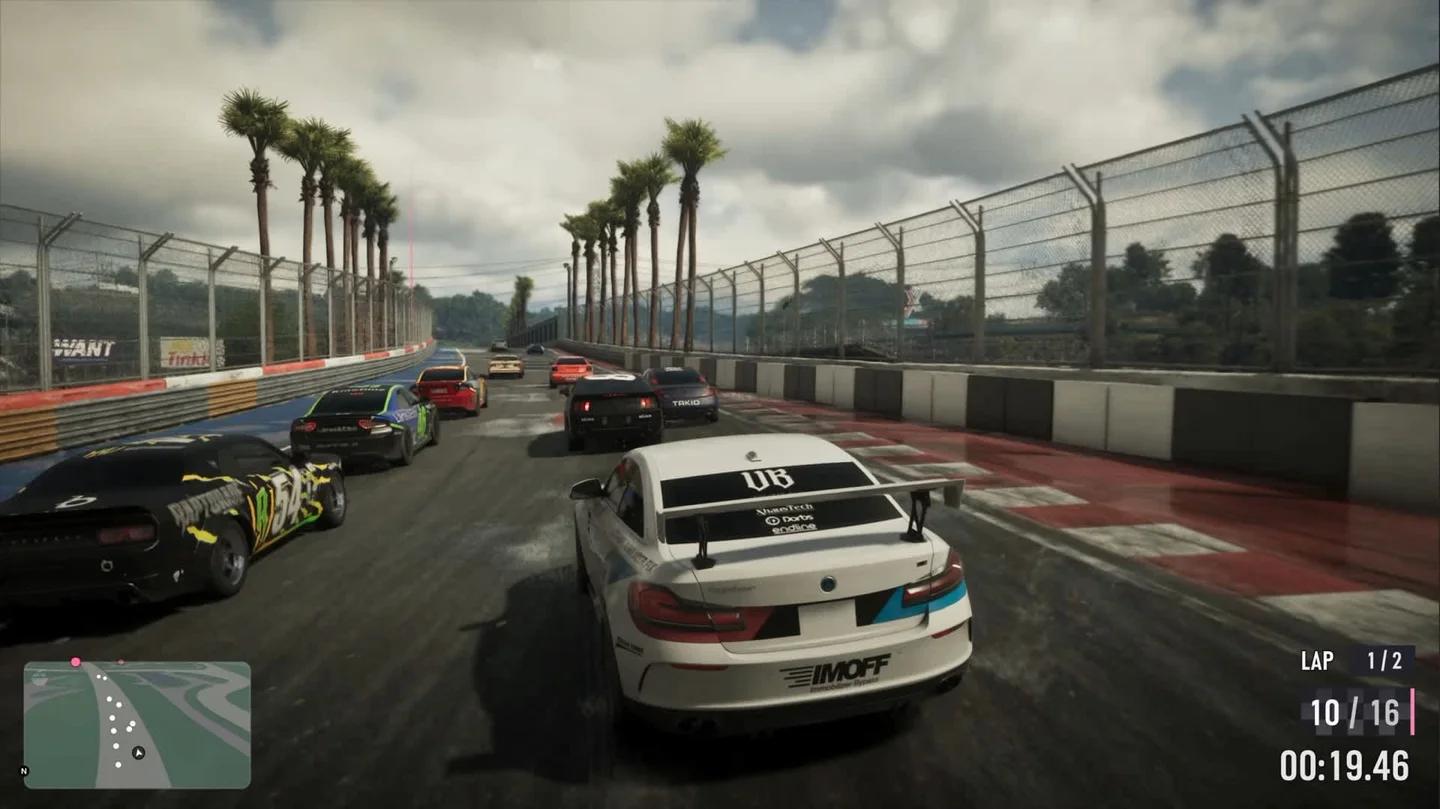
Grand Theft Auto VI driving HUD
Move or hide any camera, chat panel, or banner that blocks useful information. Recheck the layout after changing HUD scale or language, since text and interface elements may occupy different amounts of space.
Licensed music and broadcast restrictions
Reduce music-related copyright risk
Licensed tracks in the Grand Theft Auto 6 radio soundtrack need separate consideration from gameplay footage. Permission to hear a song in the game does not automatically include permission to rebroadcast it.
YouTube scans live broadcasts for third-party copyrighted material. Detection can lead to a placeholder image and a warning to stop broadcasting the material. If it continues, the stream can be interrupted or terminated.
An uninterrupted livestream can still receive a Content ID claim against its archived recording. A successful live session is not proof that its music is cleared for later viewing.
Before broadcasting, mute or disable music you cannot establish streaming rights for. Use the Grand Theft Auto 6 radio controls to manage playback, and inspect the game's audio settings for relevant radio or music options.
Do not assume a streamer mode exists. If the game presents one, check exactly what it disables before relying on it.
For any background music you add, check that the licence covers YouTube livestreaming, archived videos, clips, and monetization where relevant. Even licensed music can cause a live interruption if the rights holder has not added your channel to its Content ID allowlist.
Check gameplay permissions before monetizing
Rockstar's published fan-content policy generally does not object to non-commercial fan use that does not intentionally spoil the plot. Its definition of non-commercial use excludes making money through the footage or using it to promote products or services.
That policy is not blanket permission for monetized gameplay broadcasts. Rockstar also reserves the right to remove content case by case, including major story spoilers, isolated cinematic sequences, and certain in-game entertainment material.
If you plan to earn revenue from the footage or use it commercially, seek clarification or written permission from Take-Two Interactive before assuming the general fan-content policy covers the stream.
Protect your privacy before going live
On PS5, open Settings > Users and Accounts > Privacy to review who can see your real name, profile details, online status, and gaming activity. Also review who can send messages, friend requests, and party invitations.
Complete these checks before broadcasting:
- Hide personal details, including email addresses, phone numbers, and payment information.
- Disable message and notification previews that could expose private conversations.
- Secure your PlayStation Network and YouTube accounts with two-factor authentication.
- Get friends' consent before including their voices in party audio.
- Use YouTube's moderation settings to manage abusive messages, spam, and suspicious links.
End the broadcast before opening sign-in, account-recovery, or payment screens.