
A crosshair that disappears during an ultimate-heavy fight is doing you no favors. In Marvel Rivals, start with a small static cross or dot in cyan or neon green for precision aiming, then try a circle if close-range tracking matters more. The Basic crosshair below gives you a concrete alternative: a thin blue cross with a tight center gap and animation switched off. You can import its code on PC or enter its settings manually on PS5 and Xbox, then adjust the color to suit your visibility needs.
How do you set up the Basic crosshair?
The Basic preset is a straightforward starting point if you want a cross rather than a dot or circle. Its fixed shape keeps the center of your screen consistent while you aim. Apply it through the reticle controls, either across your roster or to an individual hero.

Find the reticle controls
- Open Settings and select Keyboard or Controller, depending on your input.
- Find the Combat or HUD section containing the reticle options.
- Select All Heroes to use one setup across your roster, or choose a specific hero.
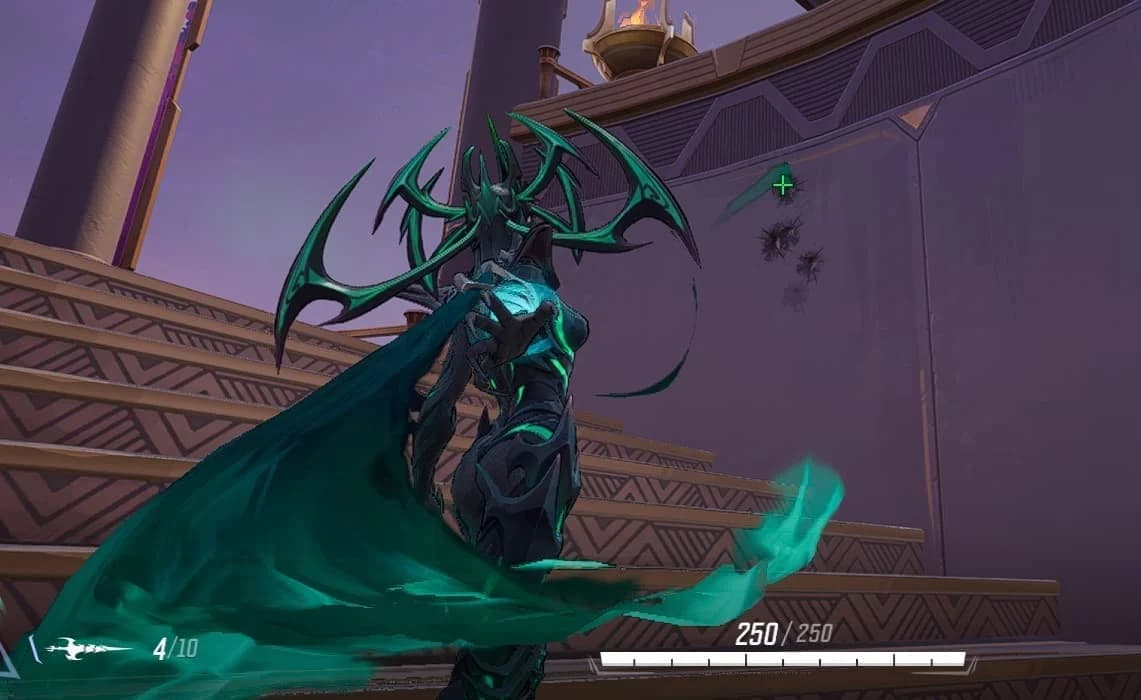
- Find Reticle Save if you want to import a preset on PC. For manual customization, adjust the reticle options directly.
- Save your changes and check the result in Practice Mode before taking it into ranked.
Find the reticle import controls
Import the code on PC
Copy the complete Basic crosshair code below. Open Reticle Save, select Import or Import Save, paste the string, and confirm the import.
Basic crosshair import code:
2;0.0;0.0,20.0,0.0,0.0;100.0,100.0,100.0,0.0;55.0,70.0,55.0,55.0;100.0,100.0,100.0,100.0;0.0,0.0,0.0,0.0;9.0,9.0,9.0,9.0;12.0;100.0,100.0,100.0,0.0;0.0;4,4,4,4;1.0,1.0,1.0;
Crosshair codes transfer a preset without requiring you to rebuild it slider by slider. Once imported, you can still change its color or other settings. Treat the Basic preset as a starting point, rather than a reason to keep a blue reticle you struggle to see.
Enter the values on PS5 and Xbox
These values reproduce the Basic preset's blue cross, spacing, and static behavior. They also give PC players a reference for manual adjustments after importing.
| Reticle setting | Basic preset value |
|---|---|
| Reticle type | Crosshair |
| Color | Blue |
| Reticle animation | Off |
| Width | 0 |
| Crosshair length | 12 |
| Center gap | 9 |
| Crosshair angle | 0 |
| Opacity | 100 |
| Outline width | 55 |
| Outline opacity | 100 |
Which reticle fits your hero's attacks?
A dot suits precise shots because it covers very little of your target. A circle provides a wider reference for nearby movement. Choose around the attacks you need to aim, rather than forcing the Basic cross onto every hero just because it is easy to import.
| Attack style or role | Reticle to try | Colors to try | Main reason |
|---|---|---|---|
| Precision damage | Small dot or tight cross | Cyan or bright red | Keeps the aiming point clear for accurate shots |
| Projectile damage | Small cross | Green or cyan | Provides a visible reference while leading targets |
| Melee and close-range combat | Circle | Yellow or magenta | Gives a wider reference for nearby movement |
| Support | Thin cross | Pink or cyan | Limits obstruction while tracking allies and enemies |
| Hybrid attacks | Circle plus cross | Green or white | Combines a center reference with wider awareness |
For precision heroes, keep the lines thin and the center gap small. Close-range setups can use a larger gap, medium thickness, and an outline to remain readable while nearby enemies move across your screen.
Save hero-specific settings when a single shape feels awkward across different kits. If Spider-Man is your pick, pair your reticle adjustments with the Spider-Man movement and combo guide to work on the hero beyond the aiming marker.
Should you turn reticle animation off?
Use a static reticle first if you want a consistent aiming reference with less movement on screen. The Basic preset already has animation switched off, which makes it a useful starting point for that approach.
A dynamic reticle can provide feedback about firing, movement, or weapon behavior, depending on the hero and settings. Try it if spread feedback or close-range tracking helps you more than a fixed shape. Keep the version you can read during a fight, not the one that looks more elaborate in the settings menu.
Which crosshair colors stay visible during fights?
Cyan and neon green are sensible first choices because they offer strong contrast. Yellow, magenta, and pink are alternatives worth checking if your current reticle gets lost against backgrounds or ability effects. Bright red can work, provided it does not blend into enemy effects.
The Basic preset uses blue, but its shape and color are separate decisions. Keep the cross if its spacing suits you, then switch colors if visibility is poor. Dark blue, gray, black, and low-opacity white can be difficult to follow in busy fights.
Adjust contrast without covering your target
Use the reticle controls to solve the specific visibility problem you notice:
- Color: Change this if the reticle blends into backgrounds or combat effects.
- Opacity: Increase it if the reticle looks faint.
- Outline: Use it to add contrast around the reticle.
- Width: Keep precision crosshairs thin; try medium thickness for a more visible close-range reference.
- Center gap: Keep it small for precise aiming, or try more space for close-range awareness.
Check color against combat effects
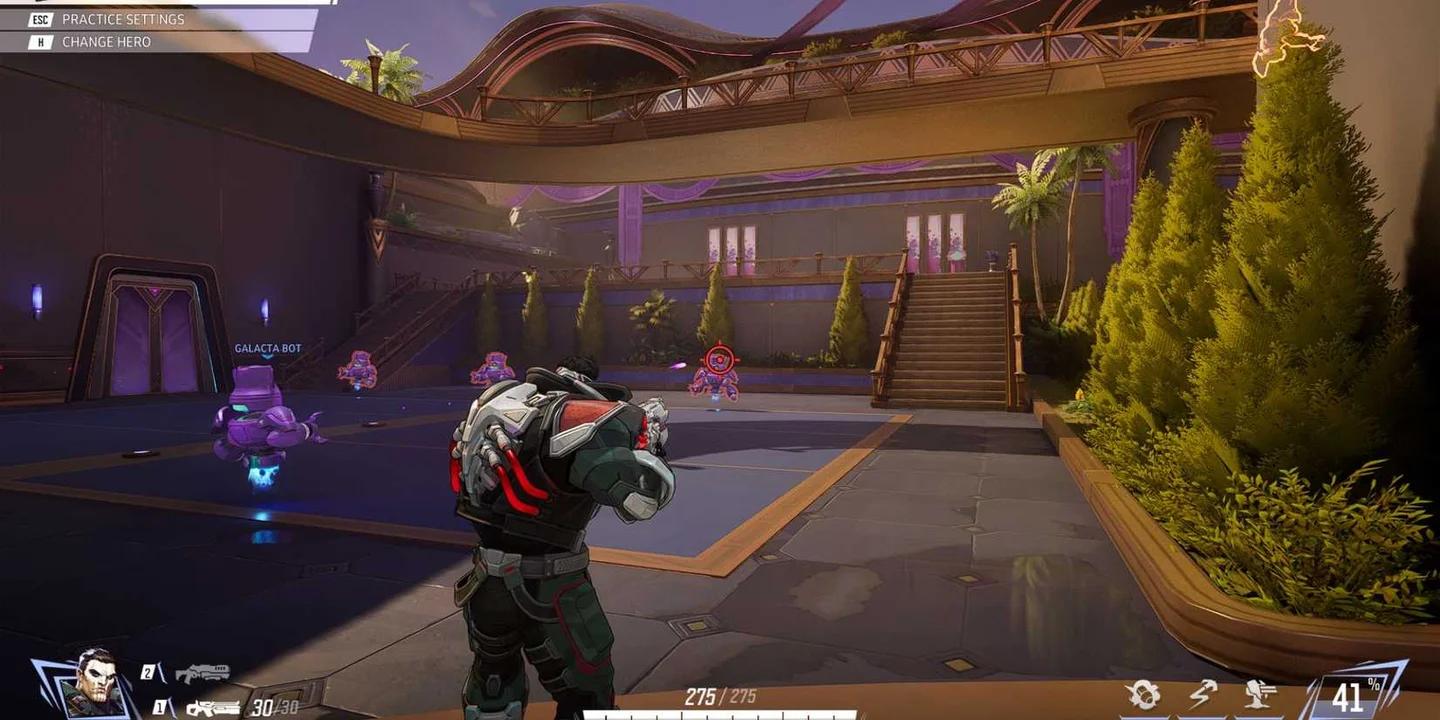
Check your chosen color in bright areas, dark areas, and fights with several abilities active. A cyan cross that remains visible through combat is more useful than a carefully styled reticle that only looks clear in the menu.
How should you test a new crosshair?
Give one hero and one reticle a consistent practice session before judging the setup. Changing the shape, color, and sensitivity together makes it harder to identify which adjustment helped.
Use a repeatable practice routine
- Select one hero and apply your chosen reticle.
- Track moving bots for 5 minutes.
- Practice flicking between targets for 5 minutes.
- Play one unranked match to check visibility during real fights.
- Change one setting if you notice a specific problem, then repeat the comparison.
A dot may look ideal during stationary aiming but feel harder to follow once targets move. A circle may be easier to spot nearby but less suited to the precise center reference you want at range. Use the unranked match to decide which trade-off actually affects your chosen hero.
Is the problem really your crosshair?
Reticle settings control visual clarity, while sensitivity and performance affect how aiming feels. Keep those checks separate. For changes associated with that season's update, consult the Season 7 patch notes guide rather than assuming every aiming issue needs another crosshair adjustment.
Sensitivity: A setting that is too high can make precise aim feel unstable, while one that is too low can make fast targets difficult to follow. Try lower sensitivity for precision heroes and slightly higher sensitivity for melee or mobility-focused heroes, then keep it consistent while practicing.
Performance and connection: Frame-rate drops can make tracking harder to read. Ping spikes, delayed shots, and rubberbanding are separate problems that a different reticle cannot fix. If the crosshair stays visible but the match responds inconsistently, address that issue before rebuilding your preset.
Keep a small cross or dot for precision-focused heroes, try a circle for close-range picks, and save the color you can actually see during fights. Once those presets are settled, use the Marvel Rivals strategy guide collection to work on your chosen hero's next challenge.