Open Broadcaster Software (OBS) continues to be one of the most popular tools for recording and streaming. In 2025, many content creators rely on OBS for its flexibility, customizable features, and high-quality output. Whether you're capturing a presentation, gameplay footage, or webcam video, this guide outlines how to record with OBS effectively.
This article walks through key steps to help users set up OBS Studio for screen recording, webcam integration, and gameplay capture, along with commonly asked questions about the platform.
How to Record with OBS in 2025
How to record screen with OBS
Recording your screen with OBS is a straightforward process. Below are the steps to follow:
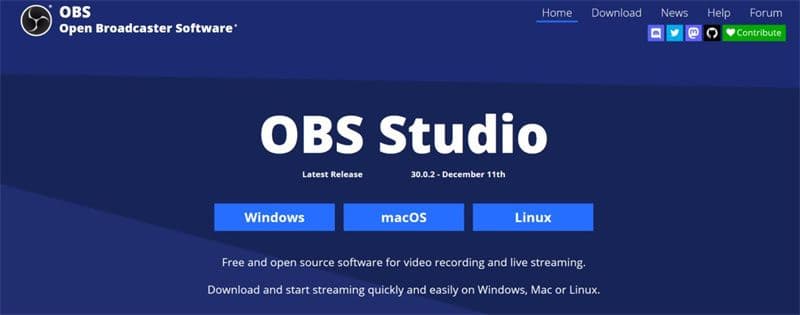
Step 1: Download and install OBS
Visit the OBS Project official website and download the latest version of OBS Studio compatible with your operating system. Follow the on-screen instructions to install.
How to Record with OBS in 2025
Step 2: Create a scene and add a source
- Launch OBS Studio.
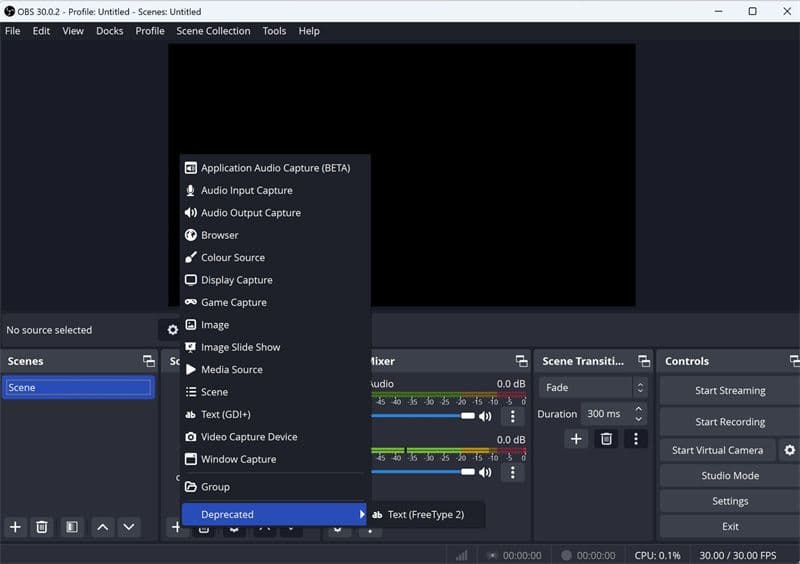
- Click the + icon in the "Scenes" panel to create a new scene. Name it something like "Screen Recording".
- Click + in the "Sources" panel and select Display Capture to record your full screen. Adjust the settings and confirm.
How to Record with OBS in 2025
Step 3: Adjust output settings
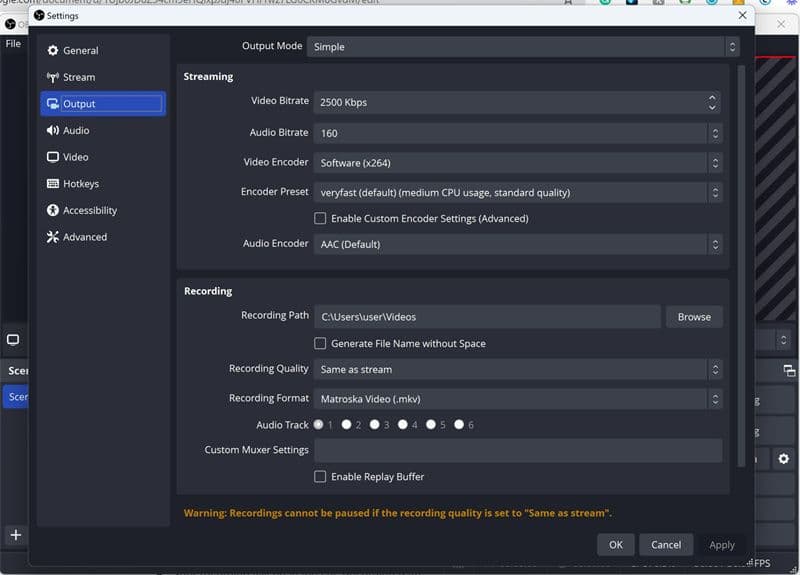
- Navigate to Settings > Output.
- Set the Recording Path to your preferred save location.
- Pick a quality preset like High Quality or Indistinguishable Quality.
- If your system supports it, use a hardware encoder such as NVENC for better performance.
How to Record with OBS in 2025
Step 4: Configure audio and video
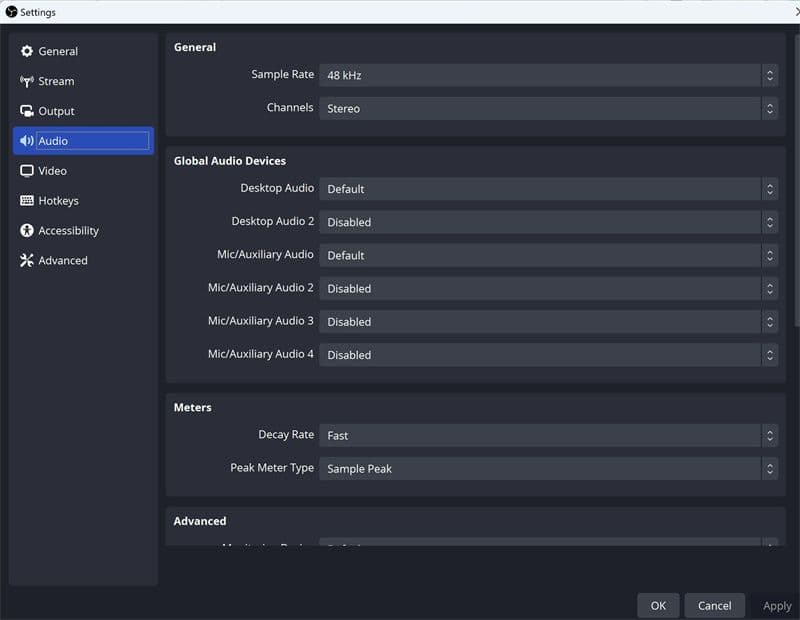
- Go to Settings > Audio and select your desktop playback and microphone devices.
- In Settings > Video, set your Base (Canvas) Resolution and Output (Scaled) Resolution to match your display and recording needs.
How to Record with OBS in 2025
Step 5: Set up hotkeys (optional)
Go to Settings > Hotkeys and assign keyboard shortcuts for starting and stopping recordings, plus any audio controls you want quick access to.
Step 6: Begin recording
Check your preview in OBS. When everything looks good, click Start Recording. Hit Stop Recording when you're done. Your file will be saved to the folder you specified earlier.
How to record screen and webcam on OBS
Recording both your screen and webcam is commonly used for tutorials, reaction videos, and webinars.
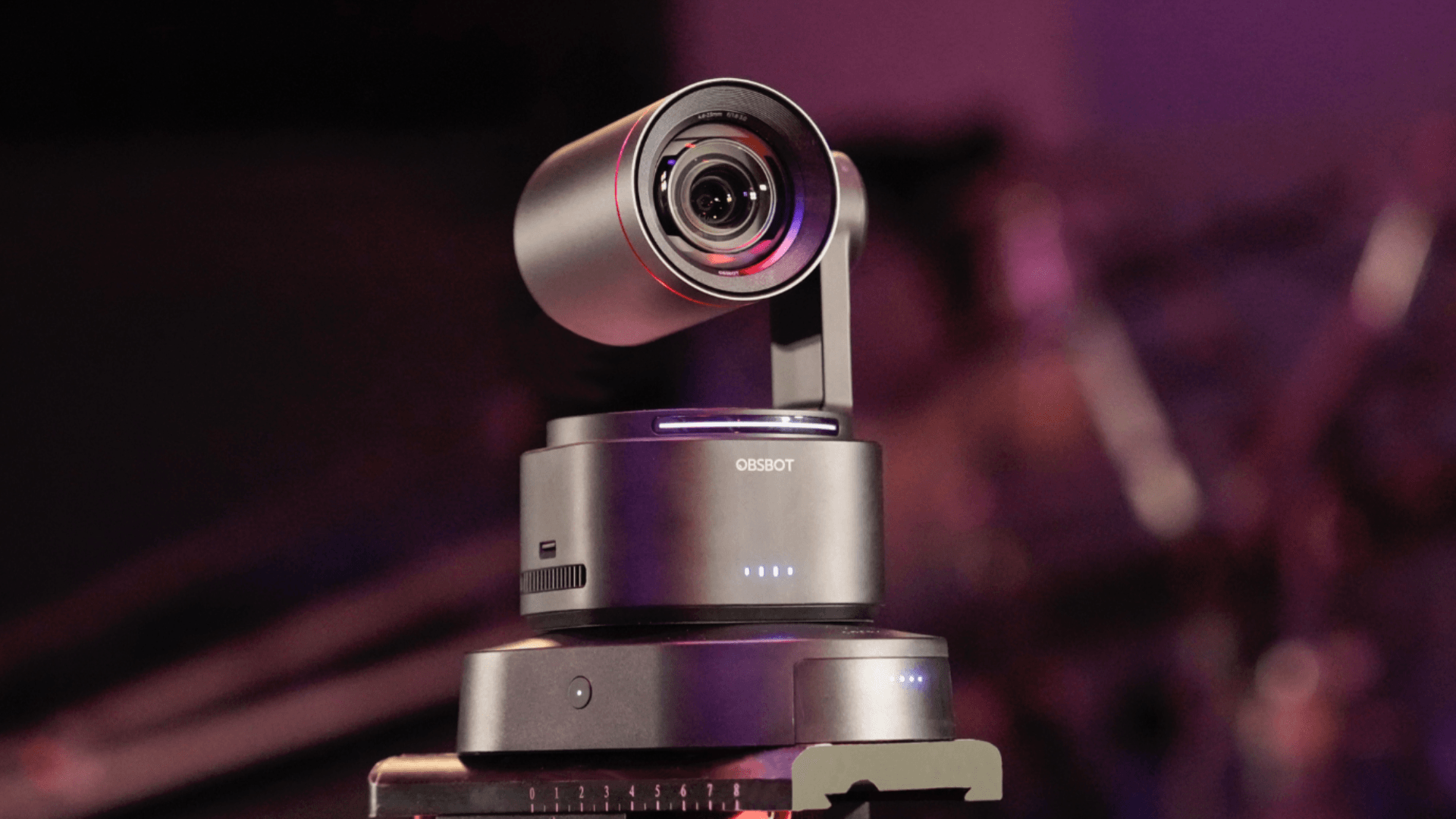
Recommended hardware: OBSBOT Tiny 2
For enhanced webcam quality, the OBSBOT Tiny 2 is a compatible option that offers AI tracking and gesture control.
Step-by-step instructions:
- Connect the OBSBOT Tiny 2 to your computer and open OBS Studio.
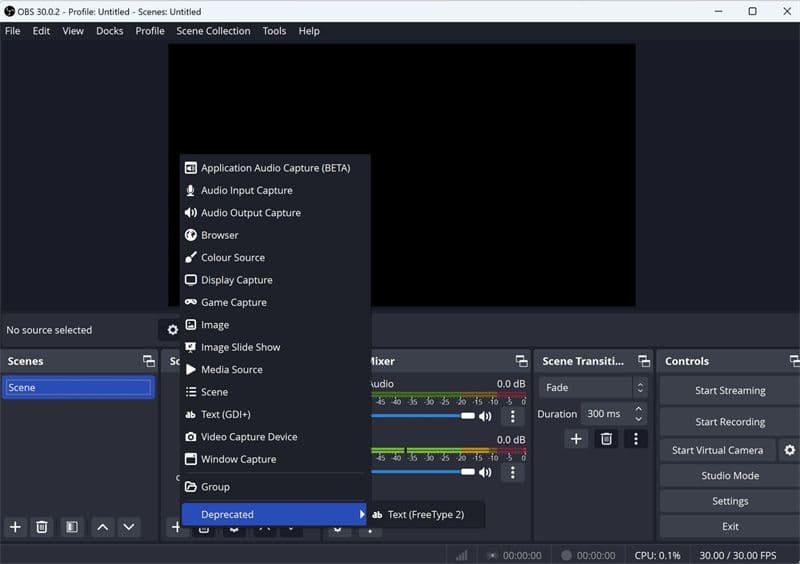
- Click + in the Sources window, select Video Capture Device, and choose OBSBOT Tiny 2 from the dropdown. Adjust the video settings as needed.
- Resize and position the webcam feed in the preview window.
- Click + again in Sources and select Display Capture or Window Capture depending on what you want to record.
- Head to Settings > Audio and confirm your microphone and desktop audio are properly configured.
- Review everything in the preview window. Click Start Recording to begin and Stop Recording when finished.
How to Record with OBS in 2025
How to record gameplay and audio on OBS
OBS is widely used by gamers to capture gameplay sessions with both system audio and microphone commentary.
Steps to record gameplay:
- Open OBS Studio and create a new scene called "Gameplay".
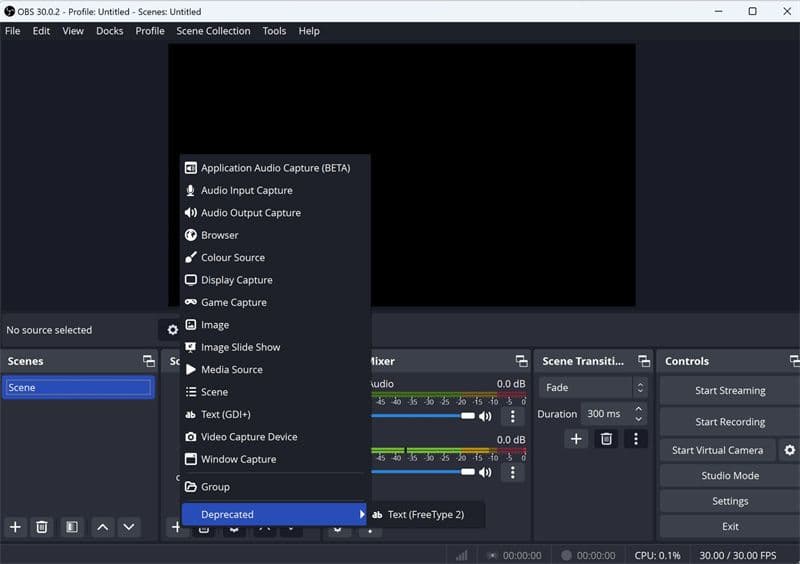
- Click + in Sources, then select Game Capture.
- Choose Capture Specific Window and pick your game from the dropdown list.
- Go to Settings > Audio, set Desktop Audio to capture game sound, and select your microphone under Mic/Auxiliary Audio.
- Use the OBS Mixer to balance audio levels. In Settings > Video, make sure your resolution and frame rate are appropriate for gameplay recording.
- Press Start Recording before you start playing, and Stop Recording once you're done.
How to Record with OBS in 2025
FAQs about recording with OBS
Can OBS record and stream at the same time?
Yes, OBS supports simultaneous streaming and recording. Make sure your system has enough processing power and memory to handle both tasks without performance drops.
Where are OBS recordings saved?
Recordings are saved in the folder you set under Settings > Output > Recording Path. You can change this location anytime.
Final thoughts
Learning how to record with OBS in 2025 allows creators to produce professional content for various platforms. Whether capturing screen tutorials, combining webcam footage, or recording high-quality gameplay, OBS offers a flexible solution for every need.
With the right setup, including proper configuration of video, audio, and encoding options, users can ensure smooth performance and quality output. For those using OBS for the first time or looking to refine their approach, this guide serves as a complete resource for getting started with OBS Studio recording.
Frequently asked questions (FAQs)
Who are some of the most popular streamers?
Popular streamers include Ninja, Shroud, and Pokimane. Ninja is known for Fortnite gameplay, Shroud is recognized for skill across multiple games, and Pokimane is noted for community engagement and entertainment content. "Best" streamer depends on personal preference and game focus.
How difficult is it to become a streamer?
Becoming a successful streamer requires consistent effort, investment in equipment, and audience development. Growth typically takes months or years, depending on dedication, content strategy, and engagement with viewers.
What equipment is necessary to start streaming?
A basic setup includes a capable desktop or laptop, a stable internet connection, a webcam, a microphone, and streaming software. Optional enhancements include lighting equipment, overlays, and a dual PC setup for improved performance.
Which streaming platform should I choose?
Twitch, YouTube, and Kick are common choices. Twitch offers a large audience and structured monetization programs, YouTube combines live streaming with video-on-demand content, and Kick provides alternative revenue models. Platform selection should consider audience, monetization, and streaming policies.
Can I make money on Twitch and other platforms?
Yes, revenue can be generated through subscriptions, donations, ad revenue, sponsorships, and affiliate marketing. Consistent audience growth and diversified income streams improve sustainability.
What is a dual PC streaming setup, and is it necessary?
A dual PC setup separates gaming from encoding, improving performance and stream stability. It is not required, but may benefit streamers aiming for high-resolution or high-frame-rate broadcasts.
How can I engage with my audience effectively?
Responding to chat in real-time, conducting polls, asking questions, hosting events, and collaborating with other creators helps build community engagement and viewer loyalty.
Does web3 affect game streaming?
The web3 ecosystem intersects with streaming through creator tokens, decentralized communities, and NFT-related incentives. While these tools may provide additional revenue opportunities, technical setup, content quality, and audience engagement remain the primary drivers of streaming success.