Getting smooth performance in Destiny: Rising can make or break your Guardian experience. Whether you're playing on mobile or PC through an emulator, the right settings will transform choppy gameplay into buttery-smooth action. This guide breaks down the exact configurations that competitive players use to maximize their frame rates without sacrificing visual quality.

Destiny Rising Guide Best Settings for Smooth Gameplay
Destiny Rising's System Demands
Destiny Rising pushes mobile hardware harder than most shooters, but smart optimization can unlock significant performance gains. The game runs natively on mobile devices and performs excellently through the MuMu emulator on PC, giving you flexibility in how you experience the action.


Graphics Settings for Maximum FPS
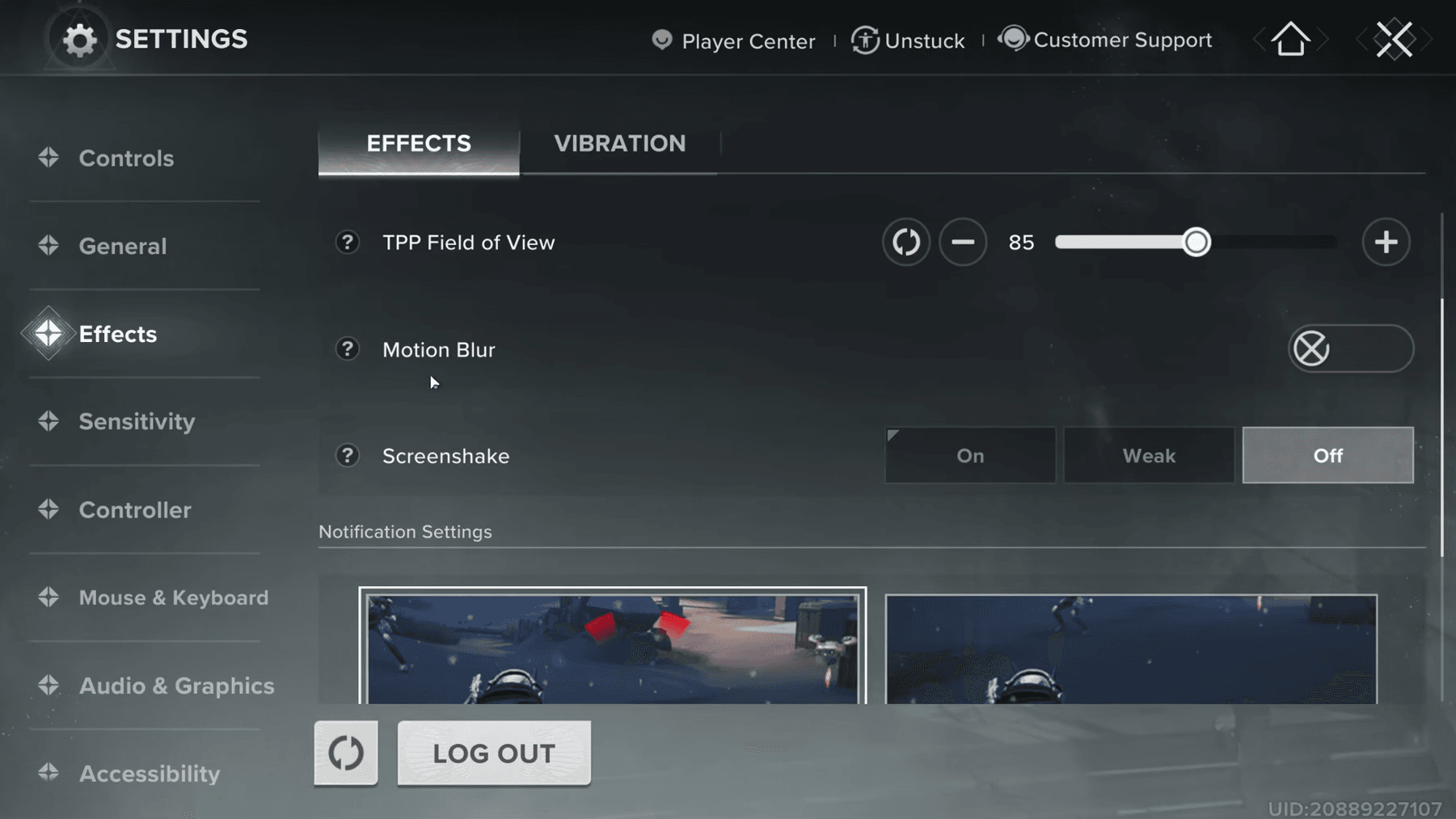
Your Field of View (FOV) settings dramatically impact both performance and gameplay experience:
| View Type | Default Setting | Recommended | Performance Impact |
|---|---|---|---|
| First Person | 85° | 104° | -5 to -8 FPS |
| Third Person | 85° | 85-95° | -3 to -5 FPS |
Higher FOV values provide better situational awareness but cost precious frames. If you're struggling with performance, stick closer to the default 85° setting.
Destiny: Rising Guide: Best Settings for Smooth Gameplay
Visual Effects Settings
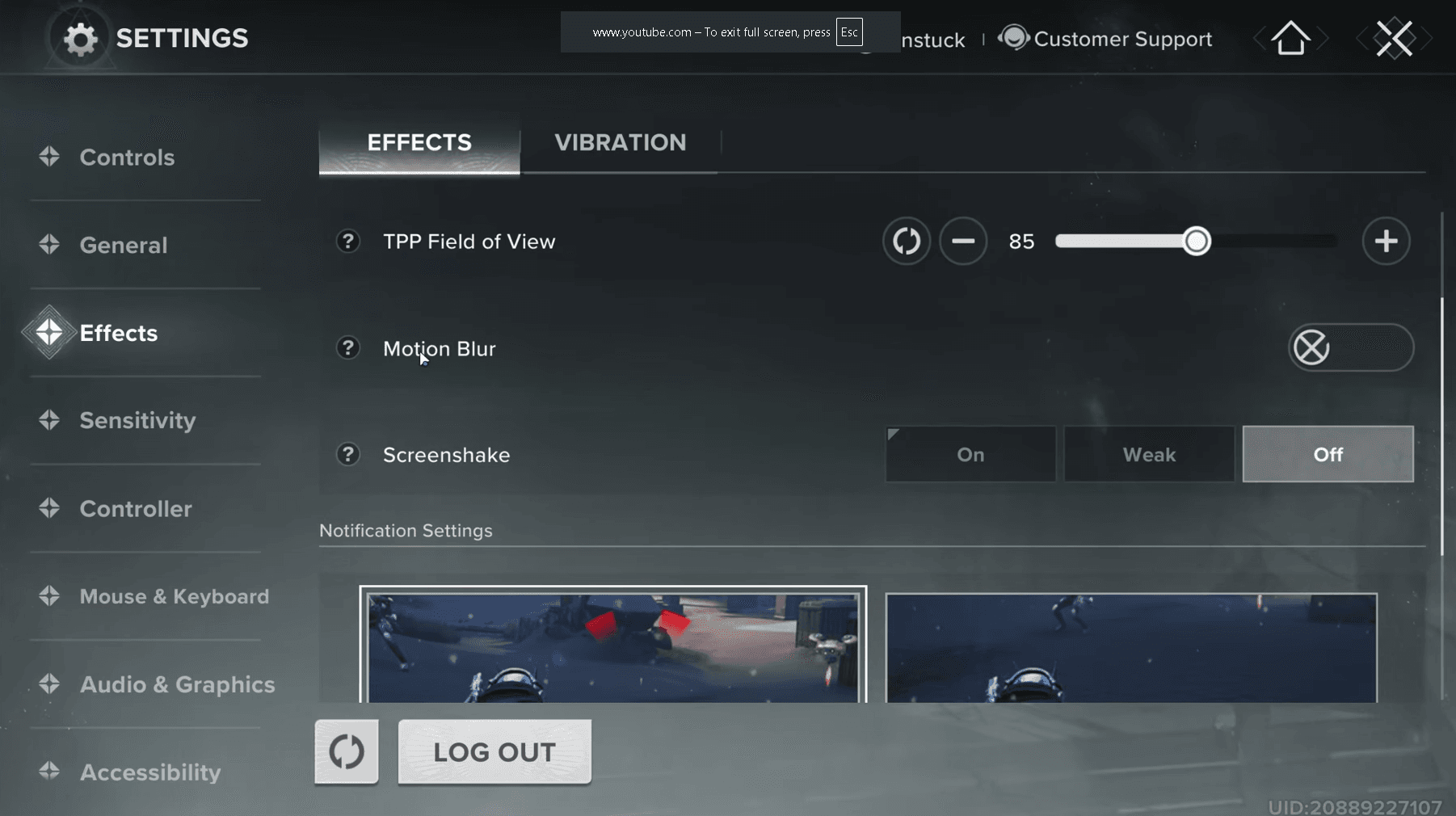
Navigate to your graphics settings and disable these performance killers:
- Motion Blur: Turn Off
- Screen Shake: Disable
- Dynamic Shadows: Consider lowering for 10-15% FPS boost
Destiny: Rising Guide: Best Settings for Smooth Gameplay
Render Quality Settings
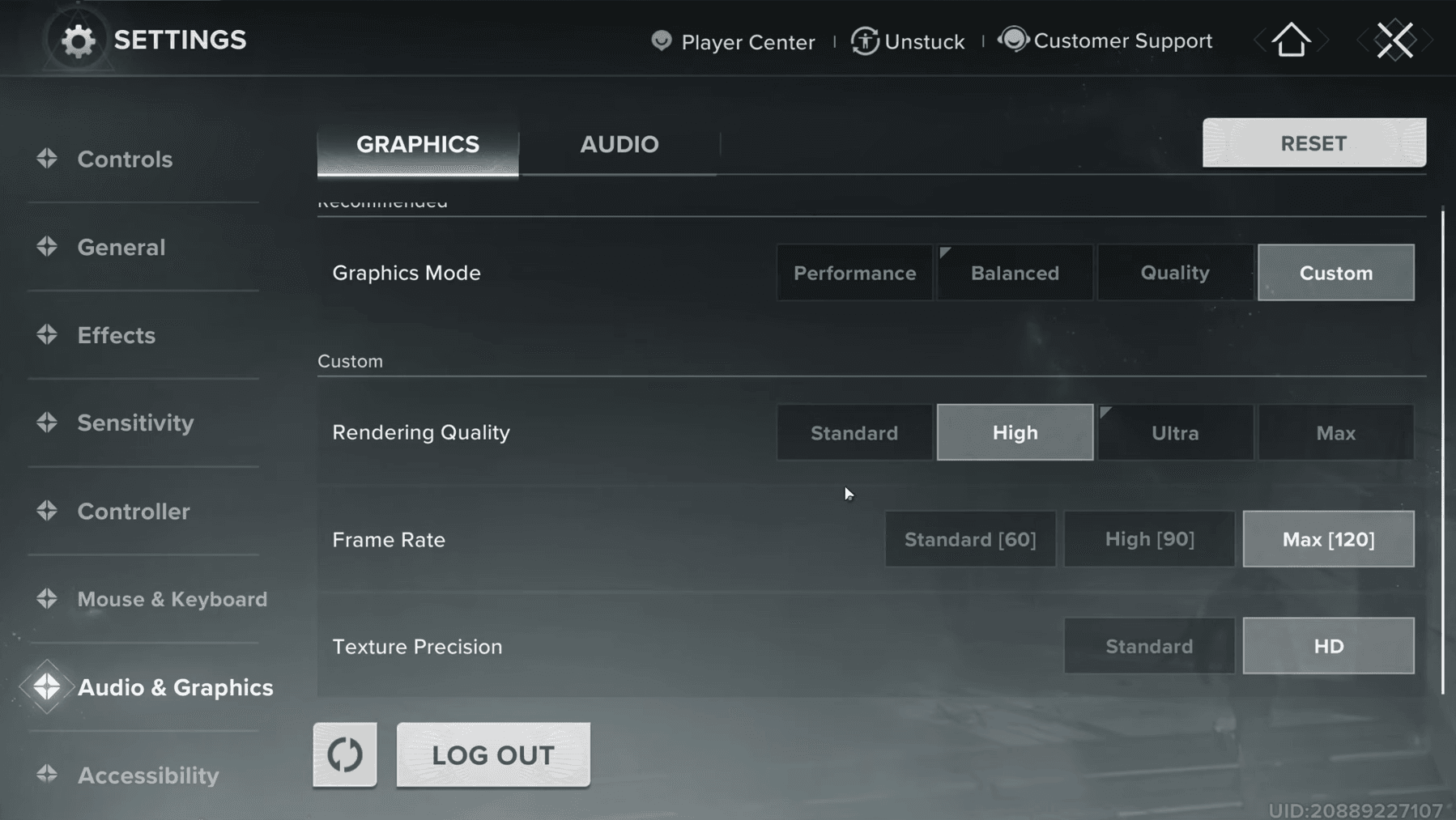
Setting your Render Quality to High provides the best balance between visual fidelity and performance. Here's the breakdown:
- Standard: Lowest quality, saves 6-9% FPS but looks rough
- High: Recommended setting, good visual quality with solid performance
- Ultra: Maximum quality, significant FPS cost (15-20% reduction)
Destiny Rising Guide Best Settings for Smooth Gameplay
Frame Rate Settings
Always select the maximum frame rate available for your platform:
- Mobile devices: Typically capped at 60 FPS
- PC/Emulator: Can reach 120 FPS
- High-end PC: 240+ FPS possible with frame generation
Advanced PC Optimization with Lossless Scaling
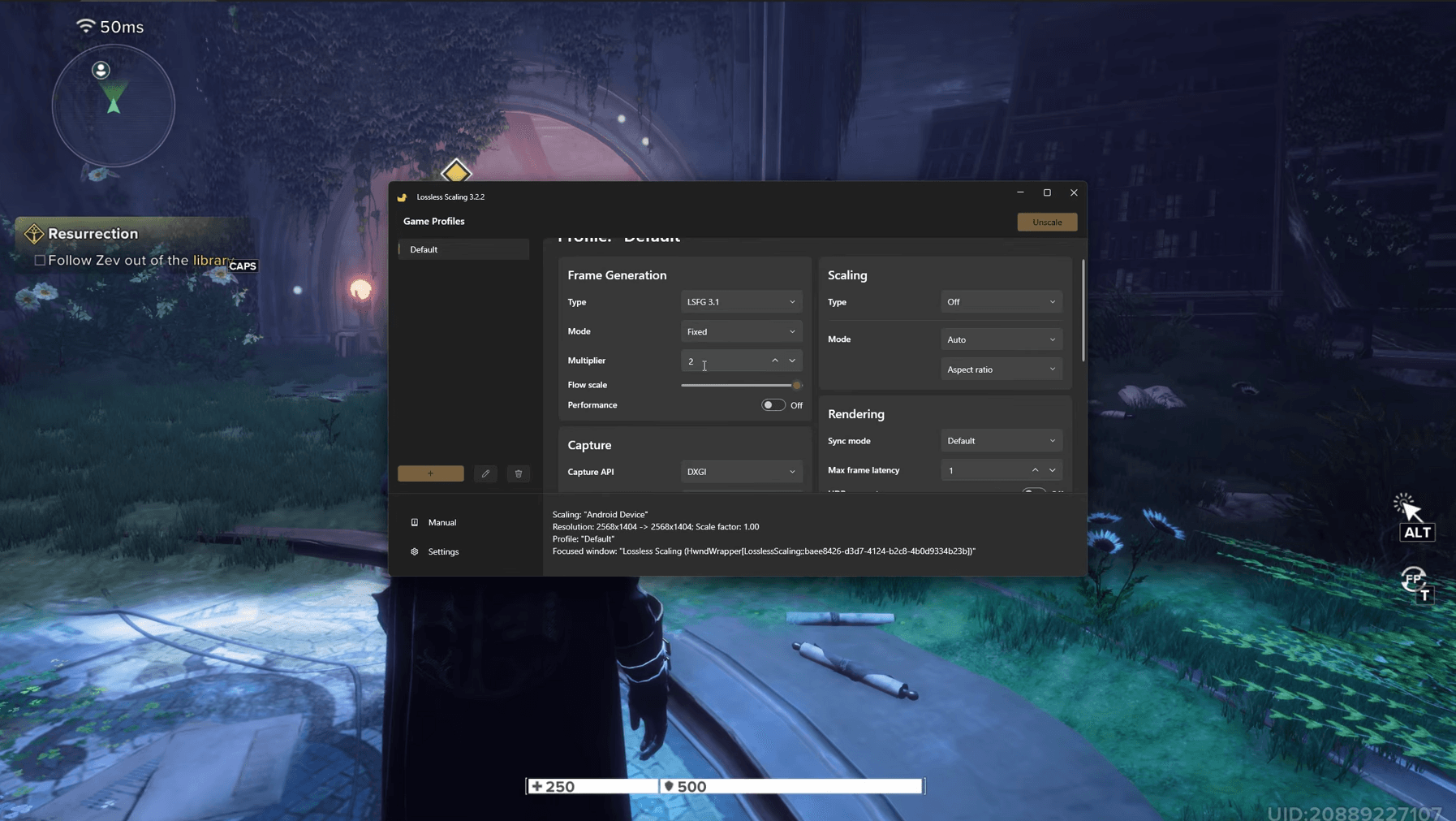
For PC players wanting to push beyond 120 FPS, Lossless Scaling 3.1 offers impressive frame generation capabilities.
Destiny: Rising Guide: Best Settings for Smooth Gameplay
Lossless Scaling Settings:
- Mode: Frame Generation
- Multiplier: 2x
- Flow Scale: 100%
- Max Frame Latency: 1
- Performance Tab: Disabled