
To achieve the best performance and visibility in DREADMOOR, set your graphics to Low quality with XeSS or TSR on Balanced and motion blur turned off.
Treat that combination as a conservative starting point, then spend any spare performance on image clarity. A readable fishing line and consistent camera movement help more than a higher preset that struggles beside a crowded dock. Your final settings should handle fishing, shoreline exploration, and night travel, not just open water. The steps below separate graphics quality, reconstruction, and performance testing so you can change one thing at a time.
Check your PC against the system requirements
Steam lists the following minimum and recommended PC requirements. These are hardware tiers, not guaranteed frame-rate targets, and they do not establish a particular resolution or graphics preset.
| Component | Minimum | Recommended |
|---|---|---|
| Operating system | Windows 10 or later, 64-bit | Windows 10 or later, 64-bit |
| Processor | Intel Core i5-8400 or AMD Ryzen 5 2600 | Intel Core i5-12400F or AMD Ryzen 5 5600 |
| Memory | 8 GB RAM | 16 GB RAM |
| Graphics card | NVIDIA GTX 1060 6 GB or AMD RX 580 8 GB | NVIDIA RTX 4060 or AMD RX 7600 |
| Graphics API | DirectX 12 | DirectX 12 |
| Storage | 60 GB free | 60 GB free |

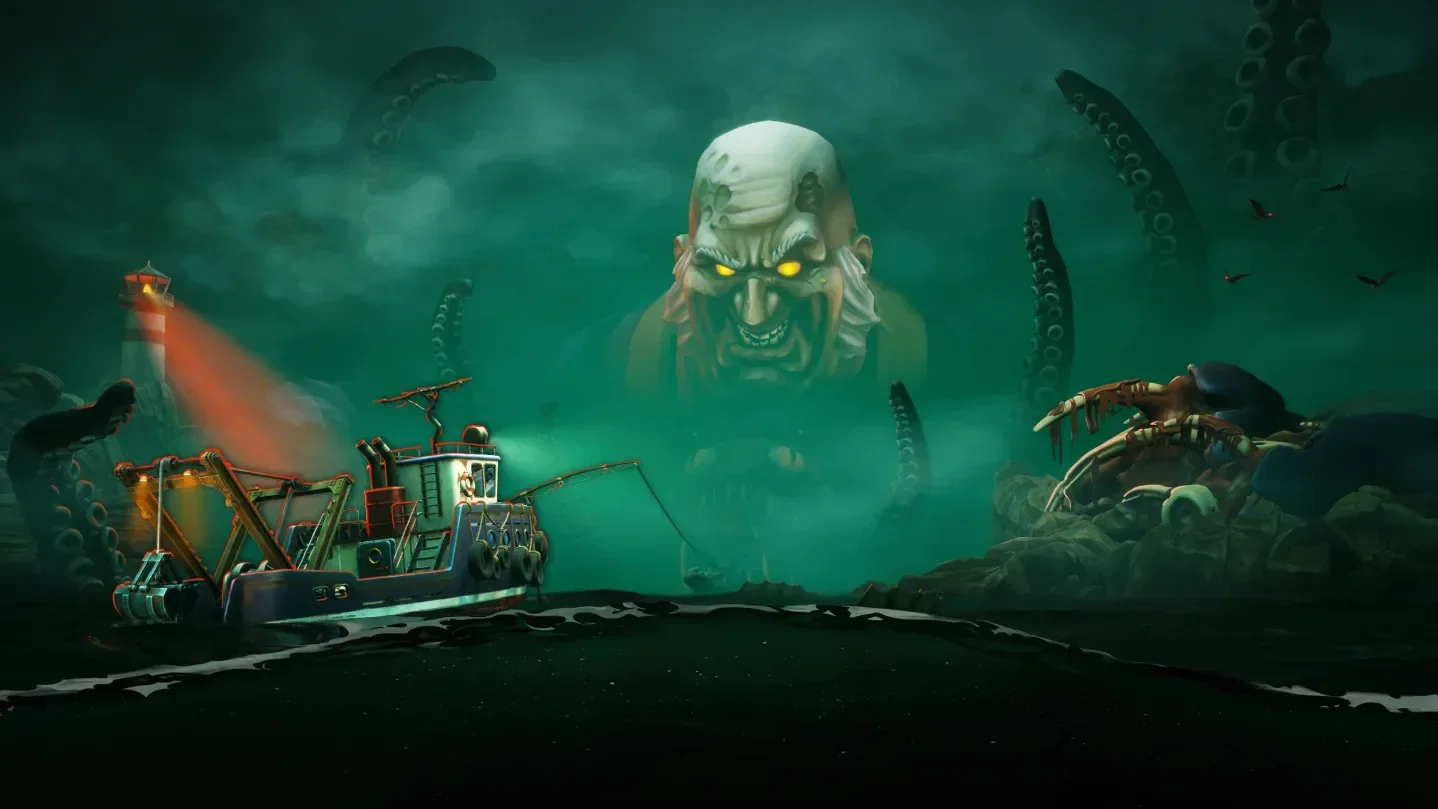
Check the hardware DREADMOOR actually uses
Open Windows Settings → System → About to check your processor and installed memory. Use Task Manager → Performance to identify the graphics card, and check the installation drive under Settings → System → Storage.
On a laptop with integrated and dedicated graphics, confirm which GPU is running the game before lowering every option. Leave free space beyond the listed requirement for downloads and updates. An SSD is a sensible installation choice, but it is not listed as an SSD-only requirement.
Best graphics settings for higher FPS
Start with the settings below when you need more performance. Keep the overall preset and upscaler mode separate: the preset changes scene quality, while the upscaler reconstructs the image from a lower internal resolution.
| Setting | Recommended starting point | When to change it |
|---|---|---|
| Overall quality | Low | Try Medium only after a demanding route runs consistently |
| Shadows | Low | Raise after resolving sustained GPU-related slowdowns |
| Foliage / vegetation | Low | Raise only after checking a cluttered shoreline |
| Fog / volumetric quality | Medium | Try Low if GPU load remains high and FPS is too low |
| Motion blur | Off | Keep off if boat movement or camera turns look smeared |
| Upscaler | XeSS or TSR | Compare both in the same scene |
| Upscaler mode | Balanced | Try Quality when you have performance to spare |
Choose an upscaler before raising the preset
Compare XeSS and TSR at the same output resolution and reconstruction mode. Look at both the FPS counter and the moving image. Water, rigging, and the fishing line are better references than a large, stationary wall because they expose instability in fine detail.
FSR is another option to compare if neither produces an image you like. There is no need to choose an upscaler simply because its name matches your graphics card brand.
Once you have a useful baseline, raise either the reconstruction quality or an individual graphics setting. Changing the preset and upscaler together makes it harder to tell which adjustment caused a slowdown.
Settings that improve visibility
Judge the fishing line while the camera moves
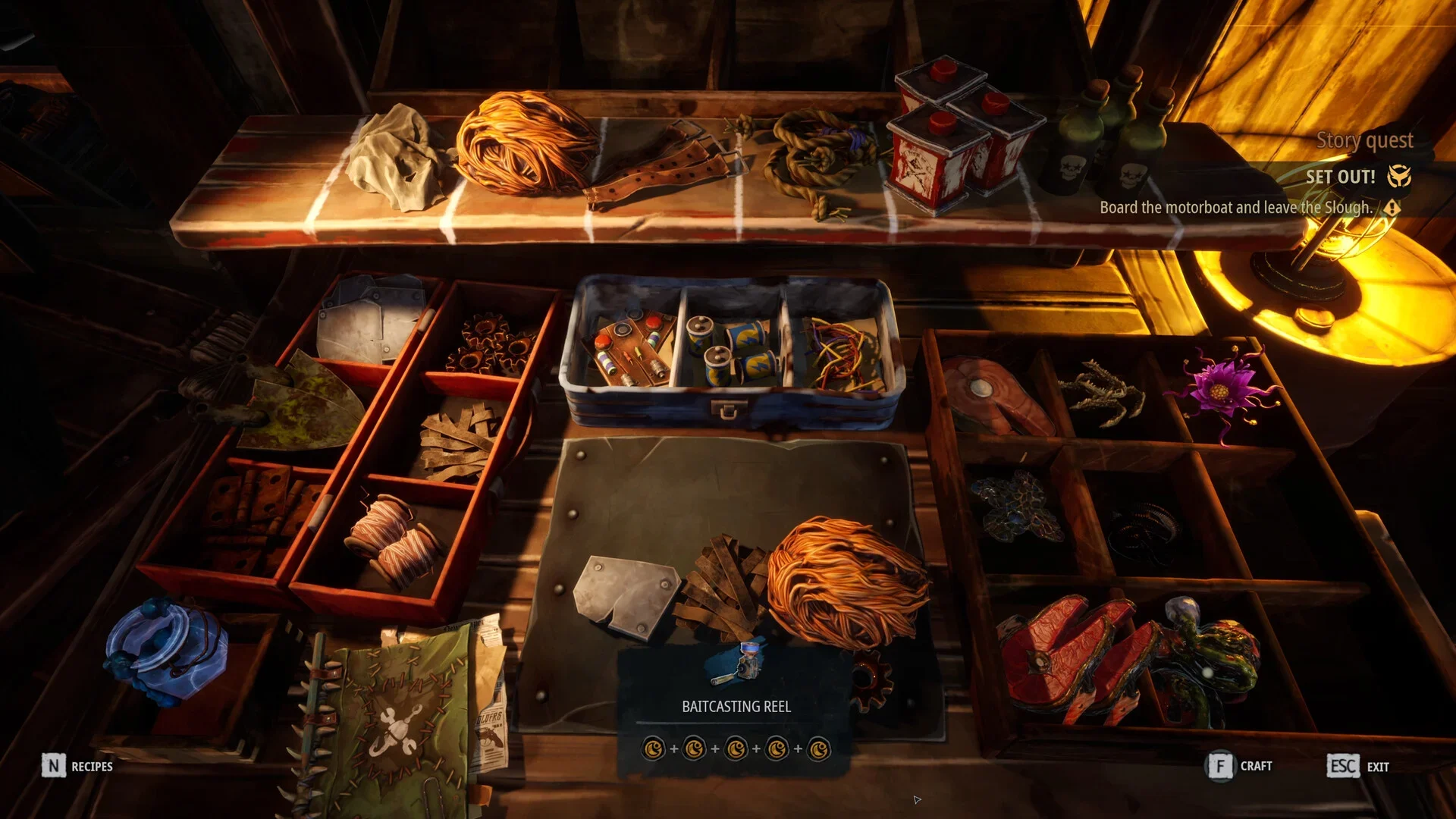
Use the rod and line from your DREADMOOR fishing loadout as close-up references when comparing image clarity. Keep the equipment and location unchanged so you are judging the graphics setting, not a different scene.
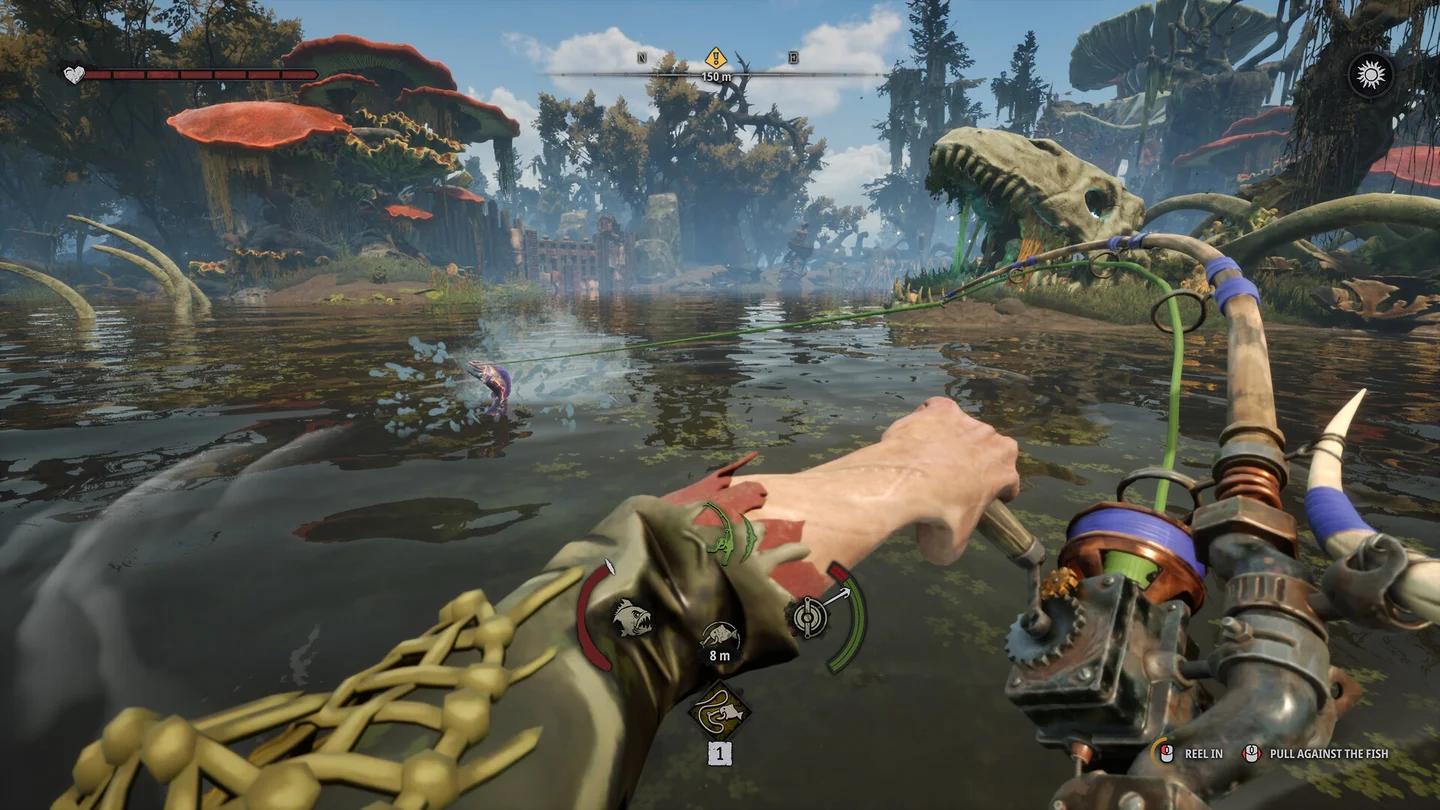
Fishing aboard the trawler
Pan across the water and watch whether the line remains easy to follow. Check nearby ropes and shoreline props, too. A reconstruction mode that looks sharp while stationary may produce distracting trails or flickering edges in motion. Compare Balanced and Quality on both XeSS and TSR, then keep the combination that balances readable detail with acceptable performance.
Check darkness separately from daytime clarity
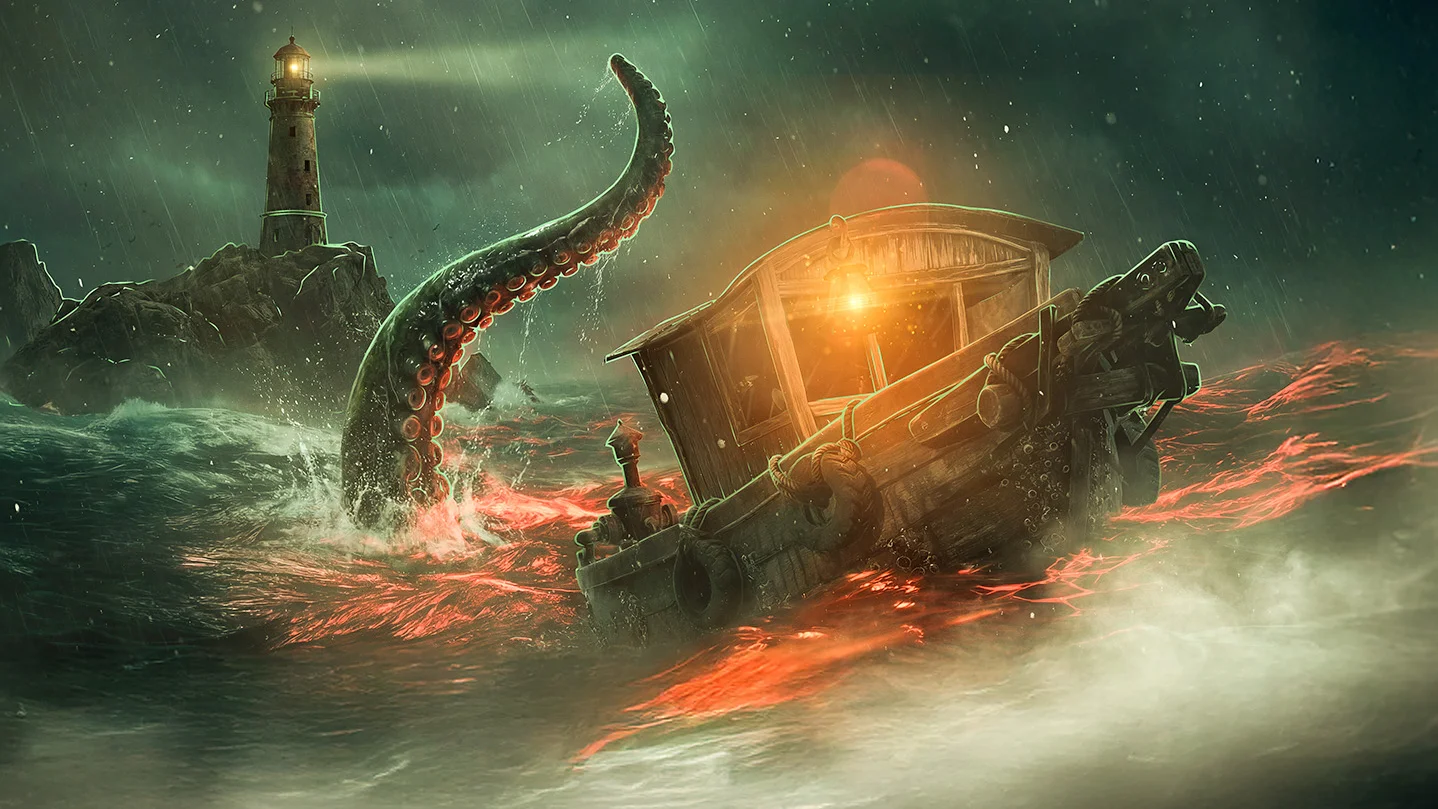
A daylight fishing spot cannot tell you whether a night route is readable. Test the boat's spotlight during a short dark journey and check whether you can follow the shoreline and identify obstacles. Keep fog in the comparison, too: lowering its quality is a performance adjustment, not a promise that darkness or the game's atmosphere will disappear.
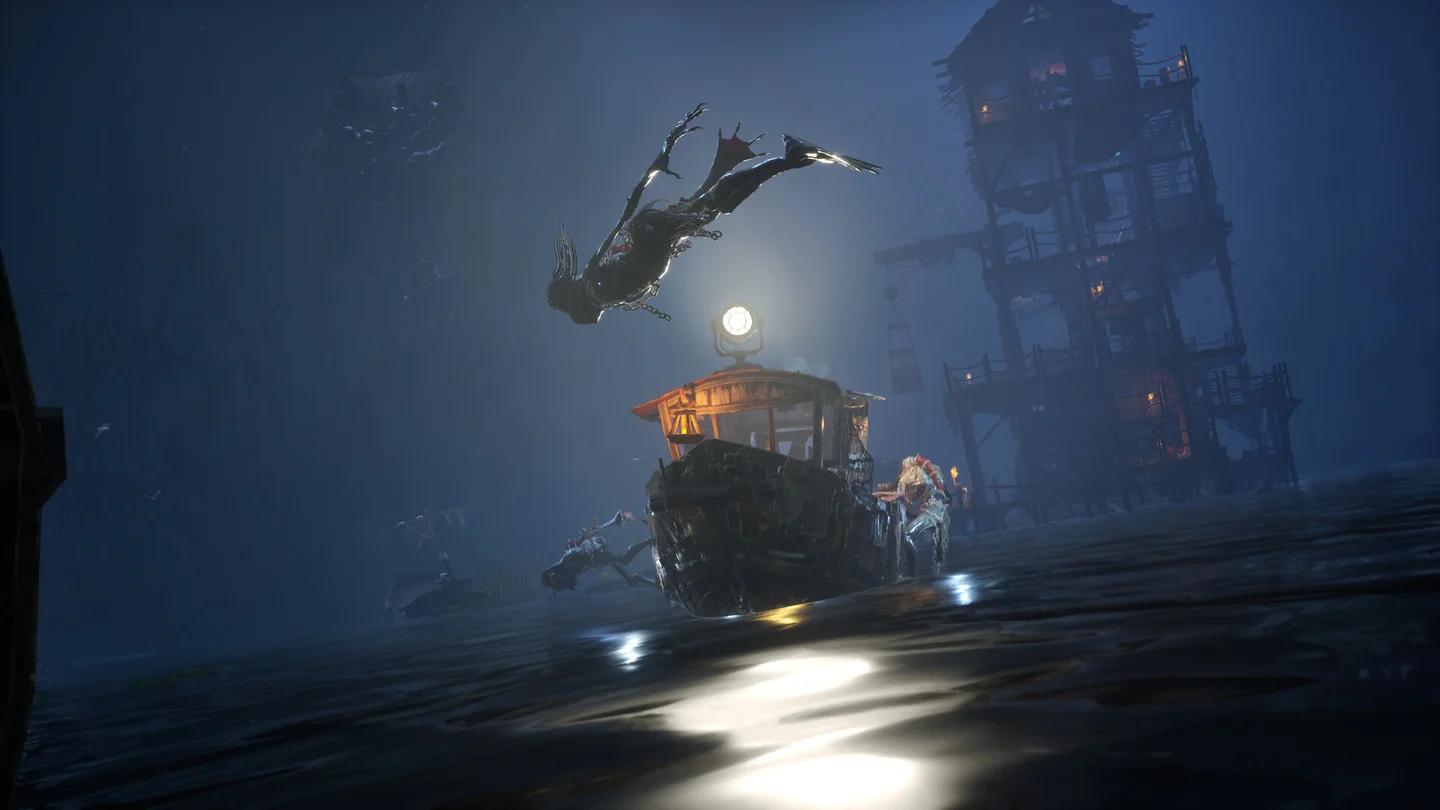
Night travel by spotlight
Take healing items and repair supplies from a DREADMOOR survival loadout for that check. Stay close enough to return quickly; the purpose is to assess visibility before committing to a longer expedition.
Resolution and display settings
Start at your monitor's native output resolution while using the recommended upscaler. Native output and native rendering are different: an upscaler can reconstruct an image for your display without rendering every pixel internally.
If GPU usage stays high and the frame rate remains too low, compare a lower output resolution. Use the same location and preset for each pass.
| Output resolution | Practical approach |
|---|---|
| 1920×1080 | Compare Balanced and Quality before raising the overall preset |
| 2560×1440 | Keep reconstruction enabled while establishing a stable baseline |
| 3840×2160 | Compare reconstruction modes first, then test a lower output resolution if needed |
Set a sustainable frame-rate cap
Choose a cap from what your PC holds during demanding gameplay. Use 60 FPS only if busy areas remain near that target. A 40 FPS cap is worth considering when uncapped performance stays a little above 40; use 30 if that is the level your PC can maintain consistently. These are tuning targets, not promised results for either hardware tier.
Leave external frame-generation tools off while establishing the baseline. Generated frames can make movement appear smoother, but they can also add input delay, ghosting, or halos around thin objects. Judge fishing inputs and camera response before deciding whether that trade is worthwhile.
How to test performance changes
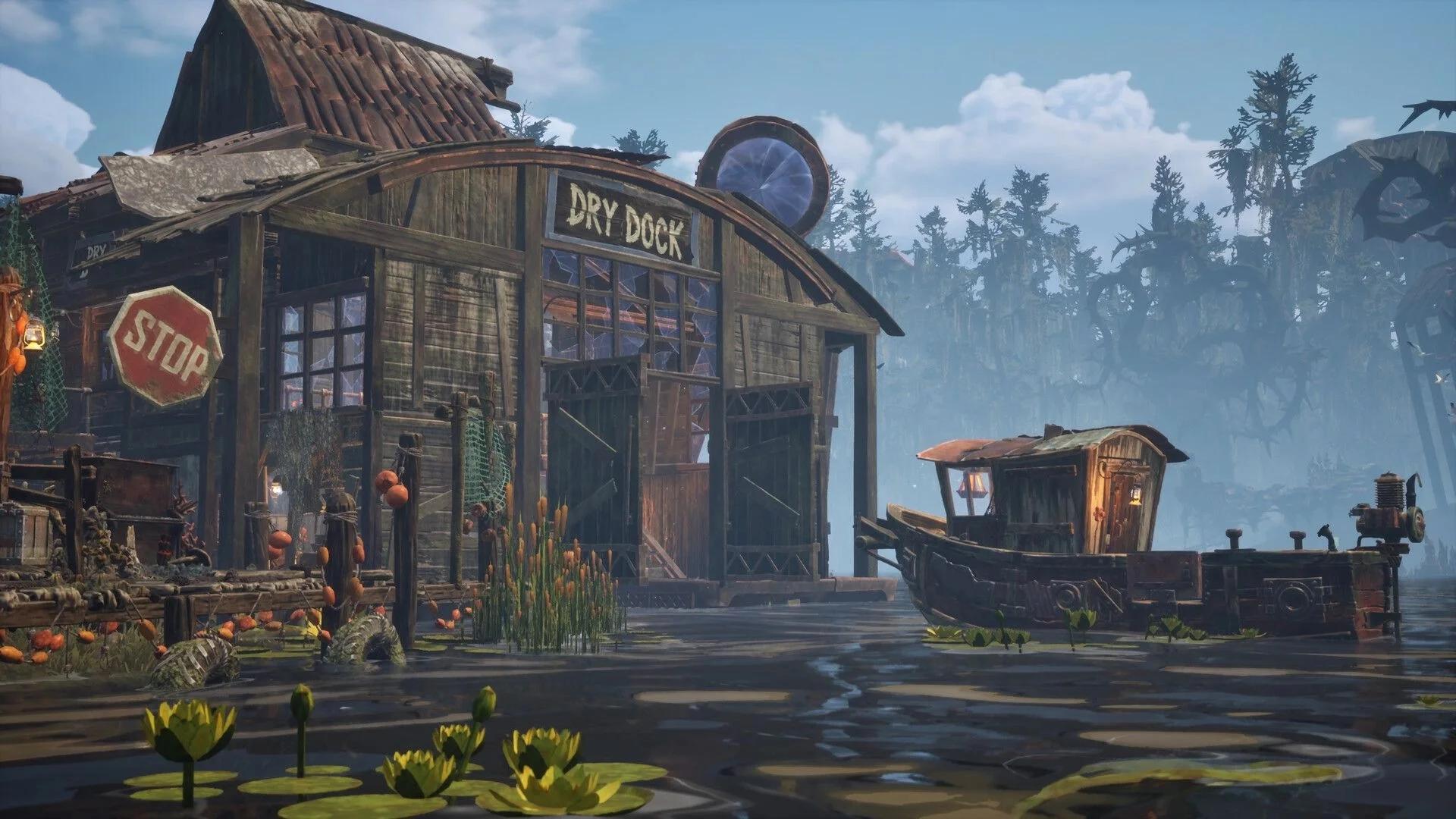
Use a short, repeatable trip that includes a settlement and a cluttered shore. Open water alone is too forgiving to represent the whole game, and docking or collecting scattered loot can expose hitches that a stationary view misses.
Repeat the same gameplay checks
Record your output resolution, preset, upscaler, reconstruction mode, game version, and graphics driver version. Then follow the same route after each adjustment:
- Visit a busy dock. Turn toward the settlement and back toward the water.
- Explore a cluttered shore. Include nearby props and collectible items in the view.
- Fish and move the camera. Check line clarity alongside responsiveness.
- Repeat a combat encounter when practical. Keep your DREADMOOR weapon choice unchanged between comparisons.
- Check a short night route. Assess the spotlight and shoreline visibility separately from daytime performance.
Change only one setting between passes. Watch frame times as well as average FPS: brief delivery spikes can make a camera turn feel uneven even when the average looks acceptable.
Match the fix to the slowdown
If you're struggling with stutter, identify its pattern before making another graphics change.
| Symptom | What to check next |
|---|---|
| Low FPS throughout the route, with high GPU usage | Lower resolution or a demanding graphics setting, one at a time |
| Brief hitches when entering an area | Compare a repeat visit and check for game updates |
| Hitches alongside high CPU or disk activity | Check downloads, recording software, and other heavy workloads |
| Problems starting immediately after a driver update | Compare the driver version with your previous stable setup |
Temporarily close heavy downloads, browser sessions, or recording workloads during comparisons. If a shader-preparation stage appears, let it finish before judging performance. Keep a note of the working configuration so a driver or game update has a useful before-and-after reference.
Save the configuration that survives the full route with readable detail and responsive controls. Recheck it after game updates, using the same dock, shoreline, fishing spot, and night leg.