
For the best sound in Grand Theft Auto 6, prioritize dialogue, lower competing music, and match your PS5 audio settings to your listening device.
The useful changes fall into two groups: in-game controls for volume, voice, and listening comfort, and console settings for spatial audio. Start with the mix so conversations remain audible, then configure the output you actually use. Headphones, TV speakers, and an Atmos-compatible sound system need different setup choices, not every enhancement switched on at once.
Best in-game sound settings

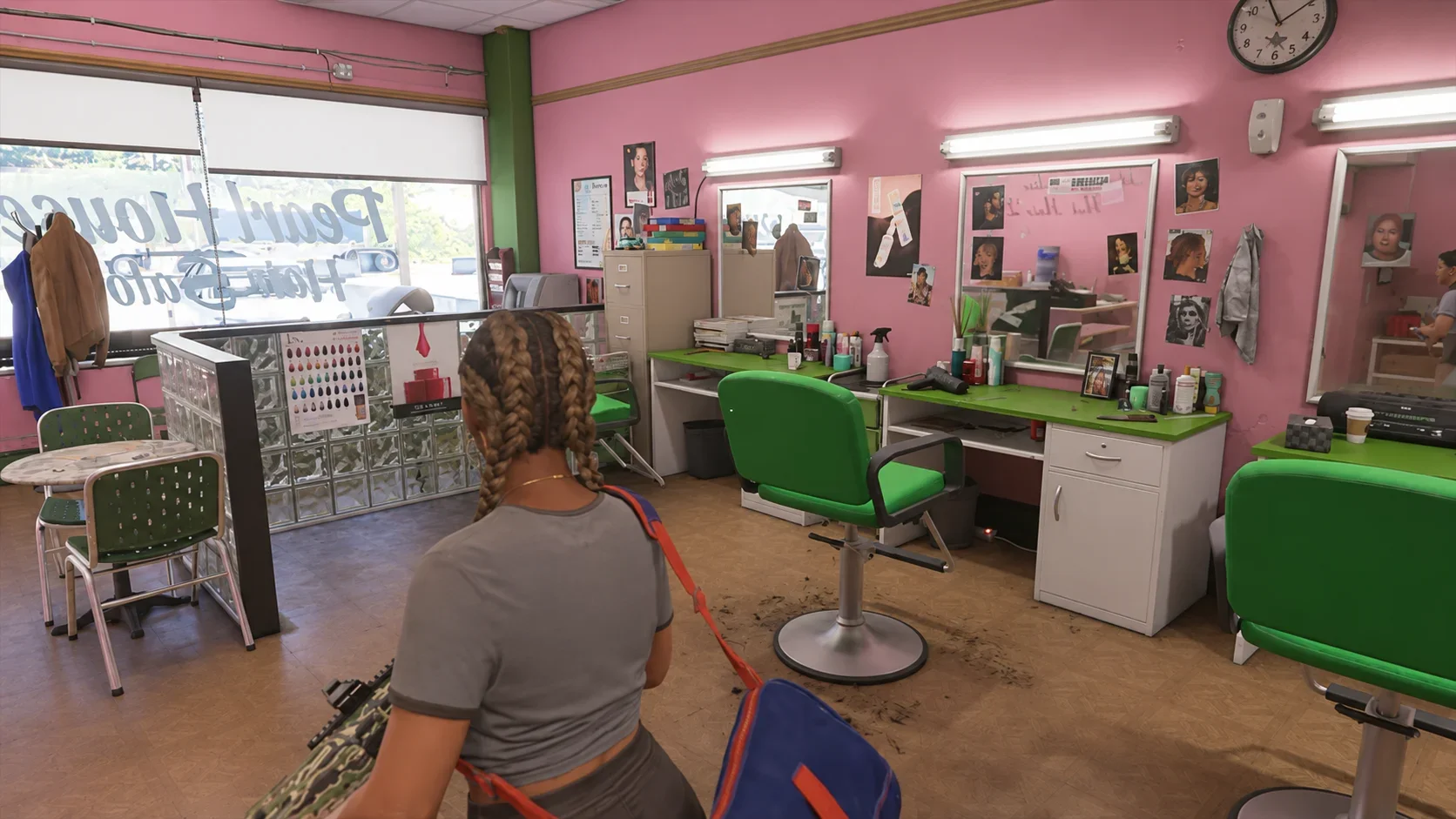
Start with a dialogue-focused volume mix
Keep Dialogue prominent, then lower any category that competes with speech. Relative levels are a better starting point than one fixed set of slider numbers because your preferred balance depends on your listening device and volume.
| Volume control | Recommended starting choice | When to change it |
|---|---|---|
| Master Volume | Set a comfortable listening level | Change it when the entire game is too loud or quiet |
| Dialogue | Keep it prominent in the mix | Raise its relative level when conversations are difficult to hear |
| SFX | Keep effects audible without overwhelming speech | Lower it if effects dominate conversations |
| UI | Keep interface sounds unobtrusive | Lower it if menu sounds distract you |
| Music | Keep it below dialogue for speech-focused play | Raise it when music is your priority |
| Media | Leave it unchanged during your first adjustments | Adjust it separately after the main balance feels comfortable |
Change one category at a time. If speech becomes difficult to hear while music plays, lower Music first. Raising Master Volume makes the whole mix louder without increasing the separation between those sounds.
Use the individual sliders for balance and Master Volume for listening level. You do not need to turn every category up to appreciate the sound design.
Choose where calls and navigation play
Enable Controller Speaker if you want phone conversations to come through the controller's speaker. This is a useful choice when you enjoy calls sounding separate from the main game audio. Disable it if that extra sound source distracts you.
Police scanner audio can also play through the controller speaker. A practical starting choice is to leave scanner routing off while keeping controller calls enabled. Send the scanner there too if you prefer more audio coming from the controller.
Turn GPS Voice on if you want spoken navigation. Leave it off if you prefer navigating without voice prompts. This is a preference setting, so choose it independently of your dialogue volume.
The sound menu also includes Vehicle Radio. Set that around your radio preference instead of treating it as an audio-quality enhancement.
Set up PS5 sound for your listening device
The PS5's system sound settings handle the console-level features below. Choose the subsection that matches your output device. The in-game volume sliders still handle the balance between speech, effects, and music.
Headphones
Open the PS5's Settings, select Sound, and create a personalized 3D Audio profile for your headphones. This configures the console's Tempest 3D Audio around your listening profile.
Complete the profile setup before making further changes to your in-game mix. Keep spatial-audio configuration and volume balancing as separate steps so you can make each choice deliberately.
The headphone profile is the relevant route when you listen through headphones. You do not need an Atmos soundbar to use this PS5 feature.
TV speakers
PS5 also supports 3D Audio through TV speakers. Use the TV-speaker setup in the console's sound settings if the television itself supplies your game audio.
Use this route for TV speakers, not as a substitute for the headphone profile. Each setup is intended for its corresponding listening device.
Compatible sound systems: select Dolby Atmos
Choose Dolby Atmos if your soundbar or surround sound system supports it. The format selection sits in the PS5's system settings, not Grand Theft Auto 6's volume menu.
To select it:
- Open the PS5's Settings.
- Select Sound and open the sound output options.
- Scroll to Audio Format.
- Select Dolby Atmos.
This recommendation applies to an Atmos-compatible soundbar or surround sound system. If you use headphones or the TV's own speakers, follow the corresponding 3D Audio setup above.
Choose comfort and narration settings
Reduce explosion ringing when needed
Enable Tinnitus Reduction if the ringing effect after explosions bothers you. The setting reduces that effect, making it the direct adjustment for this particular sound instead of lowering the entire game's volume.
Leave Mono Audio off for stereo listening. Turn it on when you need mono output. Choose this around your hearing and listening needs, not as a universal quality upgrade.
Set narration around your access needs
The Grand Theft Auto 6 accessibility settings include sound-related choices alongside the menu's Narration category, which contains Screen Narration and Audio Descriptions.
Enable these if you use narration or descriptive audio. They are access choices, separate from whether you prefer louder dialogue or quieter music.
Keep these decisions personal. A setup that works for stereo headphones does not need to override a preference for mono output, reduced ringing, or narration.
Best licensed-music setting for recording
Leave Mute Licensed Music off during ordinary play if you want licensed tracks from Grand Theft Auto 6's radio stations and soundtrack included in your listening experience.
Turn it on before recording or streaming when you want licensed music muted. Use the dedicated switch for that task; use Music when you simply want a quieter music mix during play.