Search games, articles, guides...CtrlK
Sign InGet Started
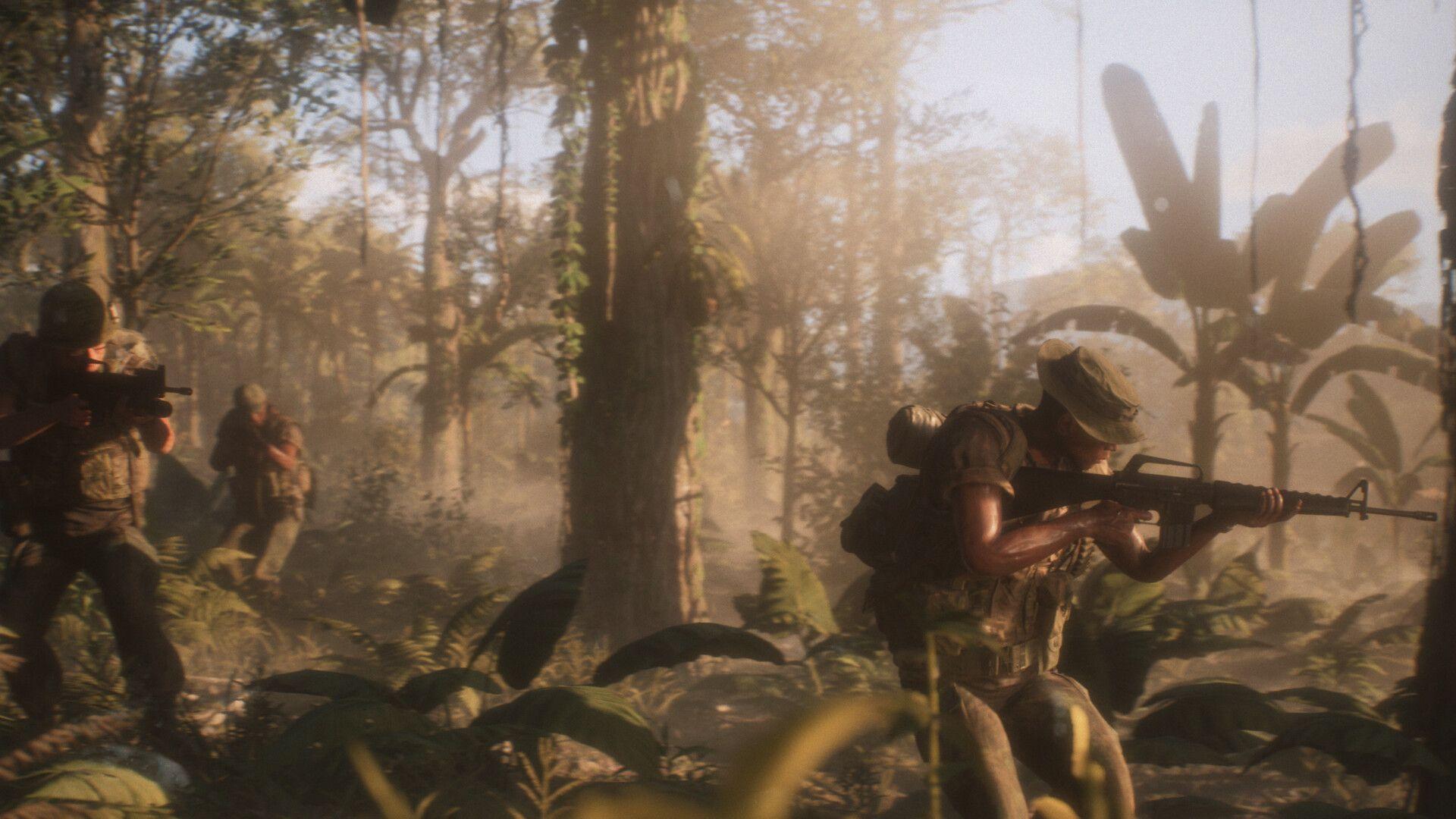
Cut lag and boost FPS in Hell Let Loose: Vietnam with these performance settings for 50v50 jungle combat.
See more GAMES.GG stories on Google
Enjoyed this guide?
Add GAMES.GG as a preferred source and Google will show you more of our guides and news when you search.
updated
August 15th 2026
posted
August 15th 2026
Hell Let Loose: Vietnam runs on Unreal Engine 5, and that engine does not play nice with mid-range hardware out of the box. Dense jungle canopies, river crossings, and 50v50 firefights all stack up fast, and many players report sitting between 30 and 70 FPS even on hardware that should handle it comfortably. The good news is that a handful of specific settings carry almost all of that performance cost, and dropping them recovers frames without making the game look like a muddy mess.
The table below is the performance-first baseline tested on an AMD Ryzen 7 5700X paired with a Radeon 9060 XT 16GB and 32GB of DDR4 RAM. It targets players on mid-range or slightly underpowered rigs, but it holds up on stronger hardware too. Raise individual settings once you confirm you have frames to spare.
| Setting | Recommended Value |
|---|---|
| Window Mode | Fullscreen (personal preference) |
| Resolution Scale | 100% |
| Image Reconstruction | Off |
| Post Processing Quality | Low |
| Motion Blur | Off |
| Film Grain | Off |
| SSAO | Off |
| Hardware Lumen | Low (Off if you still stutter) |
| View Distance | Medium |
| Master Quality | Custom |
| Global Illumination Quality | Low |
| Texture Quality | Medium (High if VRAM allows) |
| Shadow Quality | Low |
| Reflection Quality | Low |
| Shading Quality | Low |
| FX Quality | Low |
| Landscape Quality | Low |
| Foliage Quality | Low |
| Low Latency | On |
Not all settings are equal. A few carry a disproportionate share of the performance load, and these are the ones to target first if you only have a few minutes to tune.
Hell Let Loose: Vietnam Guide: Best PC Settings for Max FPS
Vertical Sync is a judgment call with real tradeoffs. Turning it on produces a smoother, tear-free image, which can feel more consistent when peeking corners and holding sightlines in a tactical shooter. Turning it off reduces input latency. The right answer depends on your monitor and how sensitive you are to screen tearing. Test both, and make sure Low Latency stays On regardless of which you choose.
View Distance deserves more respect than most performance guides give it. Long sightlines define how Hell Let Loose plays, and dropping this setting too low hides players and vehicles before you can react. Medium is the safe floor. For players using the gameplay view-distance sliders, values around 250 for team, unit, and vehicle distance keep targets readable while nameplate occlusion stays off.
For aiming comfort, a Field of View near 100 with an ADS FOV around 75 is a common competitive setup. Disabling Camera Motion removes extra screen movement that can throw off aim during repositioning.
Upscaling can recover a significant chunk of frames, but your options depend entirely on your graphics card manufacturer.
| GPU Brand | Available Upscaling Options |
|---|---|
| Nvidia | DLSS with frame generation is supported and delivers the largest performance uplift. |
| AMD | No FSR option currently present. TSR is the built-in upscaler. AFMF driver-level frame generation has produced mixed results. |
Some of the worst performance problems in Unreal Engine 5 games come from shader compilation and slow storage, not raw graphics load. If hitching persists after adjusting settings, work through these steps.
Load into a full match with heavy foliage and multiple squads on screen. Watch your frame rate through sustained firefights rather than during quieter moments. A stable, higher frame rate with fewer sudden drops confirms the changes took effect.
If hitching still appears during firefights specifically, drop Hardware Lumen to Off and reduce Foliage Quality and Global Illumination one more step. Performance has been uneven since launch, and post-launch patches are expected to smooth out remaining issues. After each update, re-check your frame rate and consider raising any settings you sacrificed once stability improves.
For more help with the game, the Hell Let Loose: Vietnam strategy guides cover everything from role selection to squad coordination. If you enjoy large-scale tactical action games built around teamwork and communication, this one rewards the time you put into learning it.