
Hytale is a large sandbox RPG with exploration, combat, and building at its core. While the Adventure experience offers structured progression, the game’s Creative Mode and console commands give players full control over the world. Console commands allow players to spawn items, manipulate terrain, control time and weather, manage servers, and experiment freely without progression limits.
This guide covers how to enable console commands in Hytale, how Creative Mode works, and provides a full reference list of usable commands.
How to Enable Console Commands in Hytale
Before any console command can be used, the player must have operator permissions. This applies to single-player worlds, hosted servers, and multiplayer environments.
To gain admin access, open the in-game chat and enter /op self.
Once confirmed, the player gains full command access. Server owners can grant or revoke permissions using /op add [player] and /op remove [player].
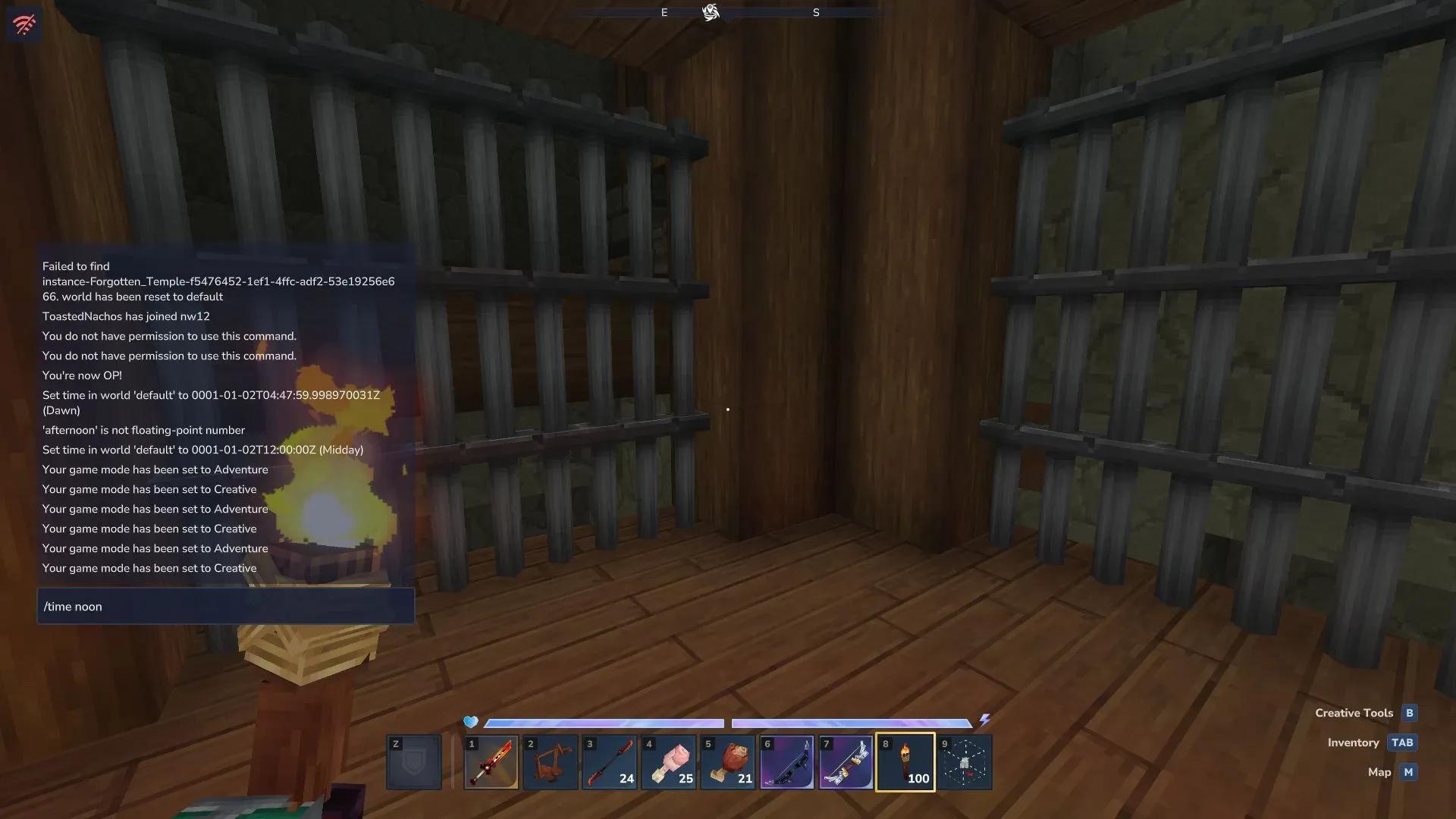
Commands are entered through the chat system. Press the slash key / to open chat with command input ready, or press Enter and type / manually. Creative Mode players can also view commands through the Creative Tools menu by pressing B and navigating to the Commands section.
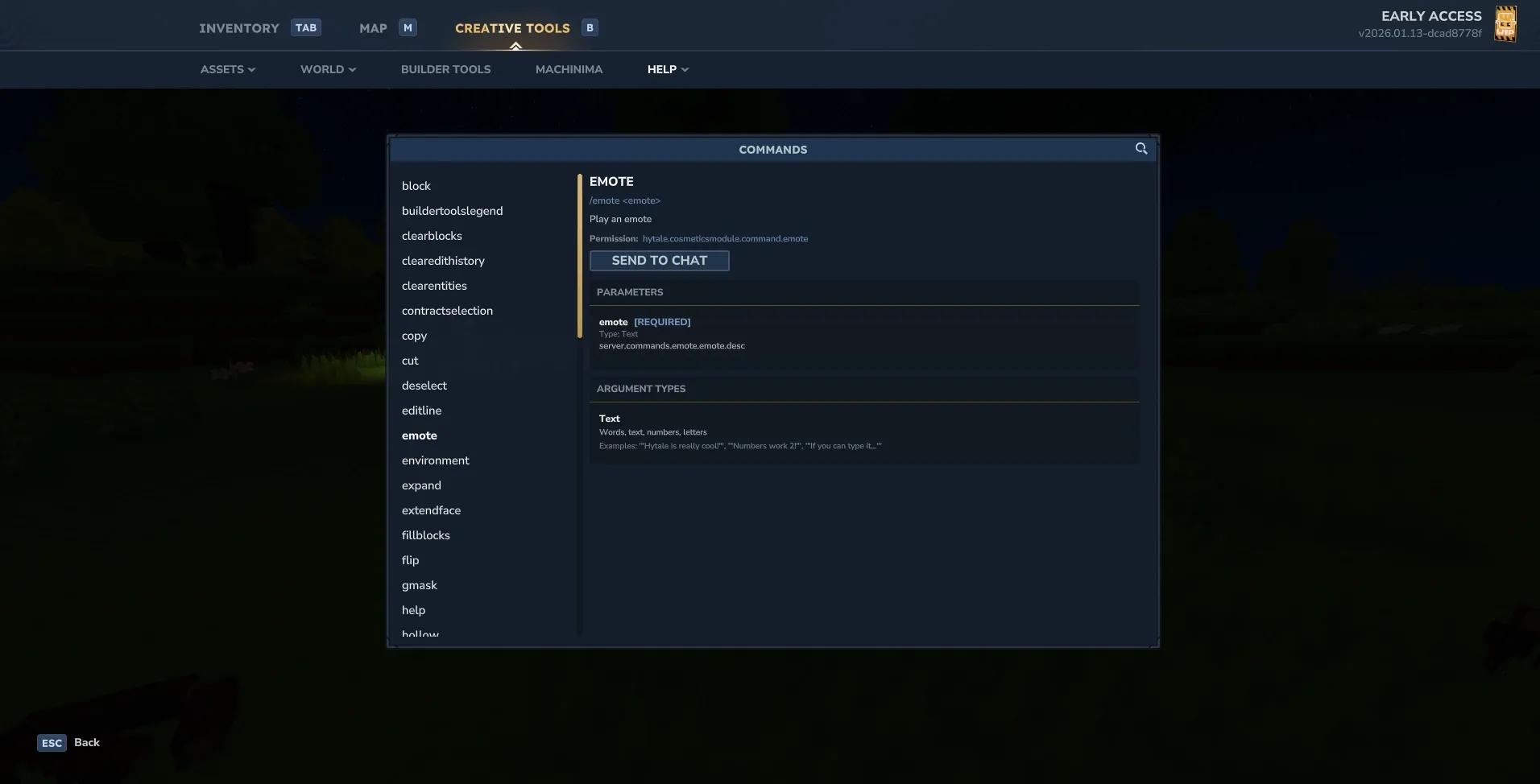
Console command entry screen

Switching Game Modes and Basic Command Usage
Hytale does not require a Creative Mode world to use commands. Players can switch modes at any time once they have OP permissions.
To change game modes, use /op add [player] and /op remove
Adventure mode uses a, while Creative mode uses c. Players can also toggle Creative Mode instantly by pressing the O key.
Some commonly used commands include item spawning, time control, and teleportation. Items are spawned using item ID names rather than display names. Time is controlled using a 24-hour format, and teleport commands work with players or coordinates.
Creative Mode Controls and God Mode
Creative Mode unlocks flight, unlimited resources, and immunity to damage. Players can fly by double-tapping the Space bar, holding Space to ascend, and holding Ctrl to descend. Double-tapping Space again disables flight.
God mode is automatically active in Creative Mode, making the player immune to damage and stamina loss. If playing in Adventure Mode, switching to Creative Mode after using /op self enables the same effect.
Full Hytale Console Command List
Players can view all available console commands in-game by typing:
Core Admin and Server Commands
| Command | Purpose |
|---|---|
| /op | Grants operator permissions |
| /auth | Manages server authentication |
| /perm | Handles permission levels |
| /ban | Bans a player |
| /unban | Removes a ban |
| /kick | Removes a player from the server |
| /whitelist | Manages server whitelist |
| /maxplayers | Sets player limit |
| /backup | Creates a server backup |
| /stop | Shuts down the server |
| /server | Server-related settings |
| /network | Network controls |
| /ping | Displays connection latency |
| /packetstats | Shows packet data |
| /who | Lists online players |
| /whoami | Displays player info |
Player and Gameplay Commands
| Command | Purpose |
|---|---|
| /gamemode | Switches Adventure or Creative |
| /heal | Restores health |
| /kill | Kills the player or entity |
| /damage | Applies damage |
| /neardeath | Triggers near-death state |
| /unstuck | Teleports player to safety |
| /mount | Mounts an entity |
| /move | Moves an entity |
| /sleep | Forces sleep |
| /emote | Plays emotes |
| /inventory | Inventory management |
| /itemstate | Modifies item properties |
Time, Weather, and Environment Commands
| Command | Purpose |
|---|---|
| /time | Sets or displays time |
| /noon | Sets time to midday |
| /weather | Controls weather |
| /environment | Changes environmental settings |
| /lighting | Adjusts lighting |
| /ambience | Controls ambient effects |
| /sound | Plays sound effects |
| /particle | Spawns particles |
Teleportation and Navigation Commands
| Command | Purpose |
|---|---|
| /tp | Teleports players |
| /warp | Teleports to saved locations |
| /spawn | Returns to world spawn |
| /hub | Returns to Creative hub |
| /whereami | Shows current location |
| /worldmap | Opens world map |
| /worldpath | Displays world paths |
Selection and Editing Commands
| Command | Purpose |
|---|---|
| /pos1 | Sets first selection point |
| /pos2 | Sets second selection point |
| /deselect | Clears selection |
| /expand | Expands selection |
| /contractselection | Shrinks selection |
| /shift | Moves selection |
| /selectchunk | Selects entire chunk |
| /selectchunksection | Selects chunk section |
| /selectionhistory | Selection history |
Block and Structure Commands
| Command | Purpose |
|---|---|
| /setblocks | Fills selection with blocks |
| /fillblocks | Fills air blocks only |
| /replace | Replaces block types |
| /hollow | Hollows a structure |
| /wall | Creates walls |
| /stack | Duplicates selection |
| /clearblocks | Clears blocks |
| /block | Block utilities |
| /blockset | Sets block states |
| /blockspawner | Spawns blocks |
| /fluid | Places fluids |
Clipboard and Prefab Commands
| Command | Purpose |
|---|---|
| /copy | Copies selection |
| /cut | Cuts selection |
| /paste | Pastes clipboard |
| /rotate | Rotates clipboard |
| /flip | Mirrors clipboard |
| /prefab | Prefab management |
| /prefabspawner | Spawns prefabs |
| /convertprefabs | Converts prefabs |
| /editprefab | Edits prefab data |
Entity and NPC Commands
| Command | Purpose |
|---|---|
| /spawn | Spawns entities |
| /spawnitem | Spawns items |
| /spawnblock | Spawns blocks |
| /spawning | Spawn rules |
| /entity | Entity controls |
| /npc | NPC management |
| /interaction | Interaction logic |
| /path | Pathing tools |
Import, Tools, and Creative Utilities
| Command | Purpose |
|---|---|
| /importimage | Converts images to blocks |
| /importobj | Imports 3D models |
| /buildertoolslegend | Displays tool guide |
| /scriptedbrushes | Advanced brush tools |
| /editline | Draws lines |
| /extendface | Extends surfaces |
| /gmask | Gradient mask |
| /tagpattern | Pattern tagging |
Debugging and System Commands
| Command | Purpose |
|---|---|
| /debug | Debug options |
| /log | Logging tools |
| /version | Displays game version |
| /validatecpb | Validates data |
| /stresstest | Performance testing |
| /repairfillers | Fixes broken blocks |
| /clearentities | Removes entities |
| /clearedithistory | Clears undo history |
| /undo | Reverts actions |
| /redo | Reapplies actions |
Miscellaneous Commands
| Command | Purpose |
|---|---|
| /say | Sends server message |
| /echo | Outputs text |
| /notify | Sends notifications |
| /eventtitle | Displays event text |
| /wait | Delays execution |
| /sudo | Forces command execution |
| /hide | Toggles visibility |
| /hudtest | HUD testing |
| /viewport | Camera controls |
| /voidevent | Void event triggers |
Understanding Command Usage and Syntax
Most Hytale commands follow a simple structure. Required parameters come first, followed by optional flags. Coordinates use an X, Y, Z format, and many building commands require a defined selection using /pos1 and /pos2.
Creative tools rely heavily on selections. If a command fails, clearing the selection with /deselect and setting new points usually resolves the issue. Undo and redo commands are available to reverse mistakes, making experimentation safer when working on large builds.
Console commands are one of Hytale’s most powerful systems. They allow players to move faster, build larger, test systems instantly, and manage servers with precision. Learning the basics of command syntax and gradually exploring advanced tools makes Creative Mode far more efficient and flexible. For players who want full control over their world, mastering console commands is essential.
For more advanced building techniques, check out our Armor Tier List Ranked to understand progression systems, or explore Hytale Mods Tier List: Best Mods and How to Install for extending your creative capabilities even further.